You've recorded something useful for customers. Now you want it to become content people actually see, and the team needs to know what to make from it before everyone's attention moves to the next recording.
Progress update from 18 September 2026. Feature availability reflects that episode.
TL;DR
Clipflow updates
- Projects gained a Posts page with schedule groups, status counts and editable post details.
- Channel setup now offers manual creation or connection for automatic publishing.
- Client dashboards show connected channels, connection links and a route to automations.
- Media thumbnails can be reordered by dragging; fixes improved post review saving and project-page loading.
Putting it to work
- Plan the supporting posts: keep captions, channels and dates beside the original video.
- Connect the destination: automatic publishing needs a connected social account, not just a manually created channel.
- Check the client's setup: find connected channels, connection links and automations from their dashboard.
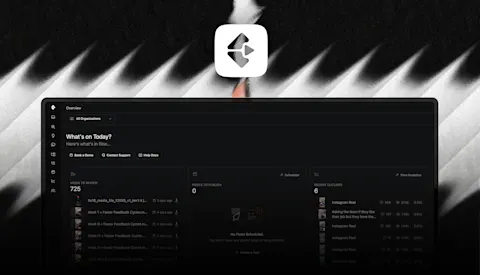
This week's Clipflow changes bring more of that work into the project: its own Posts page, a clearer channel connection flow, and easier access to a client's channels and automations.
The practical benefit starts with deciding how one piece of content will reach people, then giving each post a place in the plan.
Keep the supporting posts with the original video
Say you've recorded an answer to a question that comes up on sales calls. The full video gives you room to explain the reasoning, but someone seeing your business for the first time might only need the example that makes the answer click.
You could make that example a short clip and use a different customer scenario for a LinkedIn post.
Each version needs its own preparation: the clip needs an opening that works without the rest of the video, and the LinkedIn post needs enough context to make sense without watching it.
The project's new Posts page gives those versions a home beside the work that produced them. You can create the posts there, so the team has a place for each caption, channel and planned date while the original idea is still fresh.
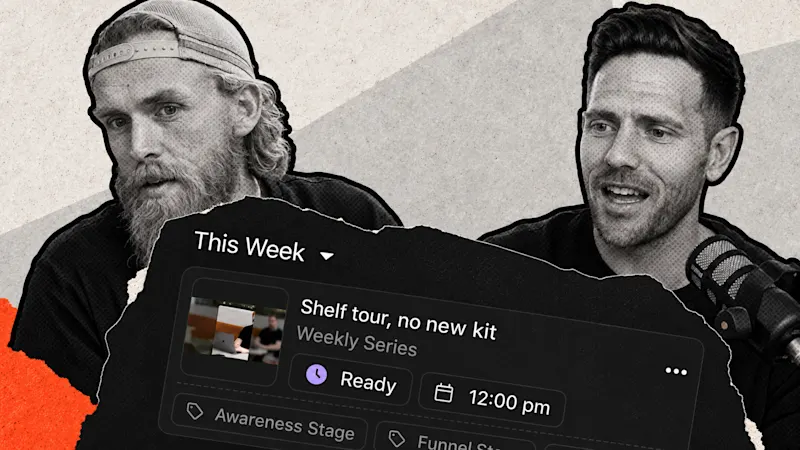
It also groups posts by when they're scheduled: overdue, this week, next week, later, unscheduled, and already posted. In the example above, the full video might be scheduled for this week while the short clip is still unscheduled.
Seeing both inside the project helps you distinguish having a finished main asset from having a plan for the supporting content.
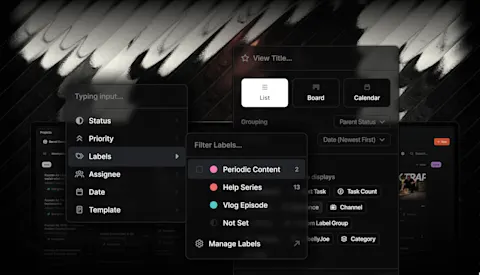
You can change status, date, channel and labels straight from the list, with status counts at the top.
If you already organize your work around individual recordings or weekly projects, you can keep doing that and use the Posts page as the publishing plan inside each one. The guide to working with posts walks through creating those posts and attaching their content.
Make sure the plan has a connected destination
Once the posts have a place in the project, check where they're going. Creating a channel manually records it in Clipflow; connecting it to the social account is the step you need for automatic publishing.
The add button in the Organization Manager's Channels section now offers both options. Choose the connection flow when you want the team to prepare posts for automatic publishing, then Continue brings you back to the organization you started from.
For a business setting up its first batch, it's worth checking that connection before the posts are ready. That way you can deal with account access or platform requirements while the team is preparing the content.
The social connection guide covers the setup, and the scheduling guide explains how posts move into the publishing schedule once the channel is connected.
Check a client's setup from their dashboard
For teams doing this work for clients, the client's dashboard now lists their connected channels, lets you copy the link they use to connect more, and gives you a direct route to their automations. Those steps previously meant going into the client's organization settings.
If the next batch includes a channel the client hasn't connected yet, you can copy the connection link while checking their setup. It's a small change, but it puts that preparation closer to where you're already thinking about the client's work.
There were smaller improvements too. You can drag a post's media thumbnails to reorder them, with the first thumbnail used as its cover.
The post reviewer received a fix so changes save to the post you're looking at, including when reviewing across organizations, and project pages received a content-loading fix.
Inline link previews for project pages were still in progress during this episode. API and MCP access had reached production for our own testing, so it wasn't a public rollout yet.
Those were previews of the work ahead, rather than setup steps for customers to follow that week.
For the next recording, have the team decide what supporting posts it needs before calling the project finished. A useful answer deserves a route to the people who need it, and the project's Posts page is where you can make that route concrete.
This week: We examined TypeSafe's pitch for structured decisions from AI models. The discussion focused on the gap between a predictable response format and a decision you can trust, including confidence scores and responsibility when software acts on a model's output.