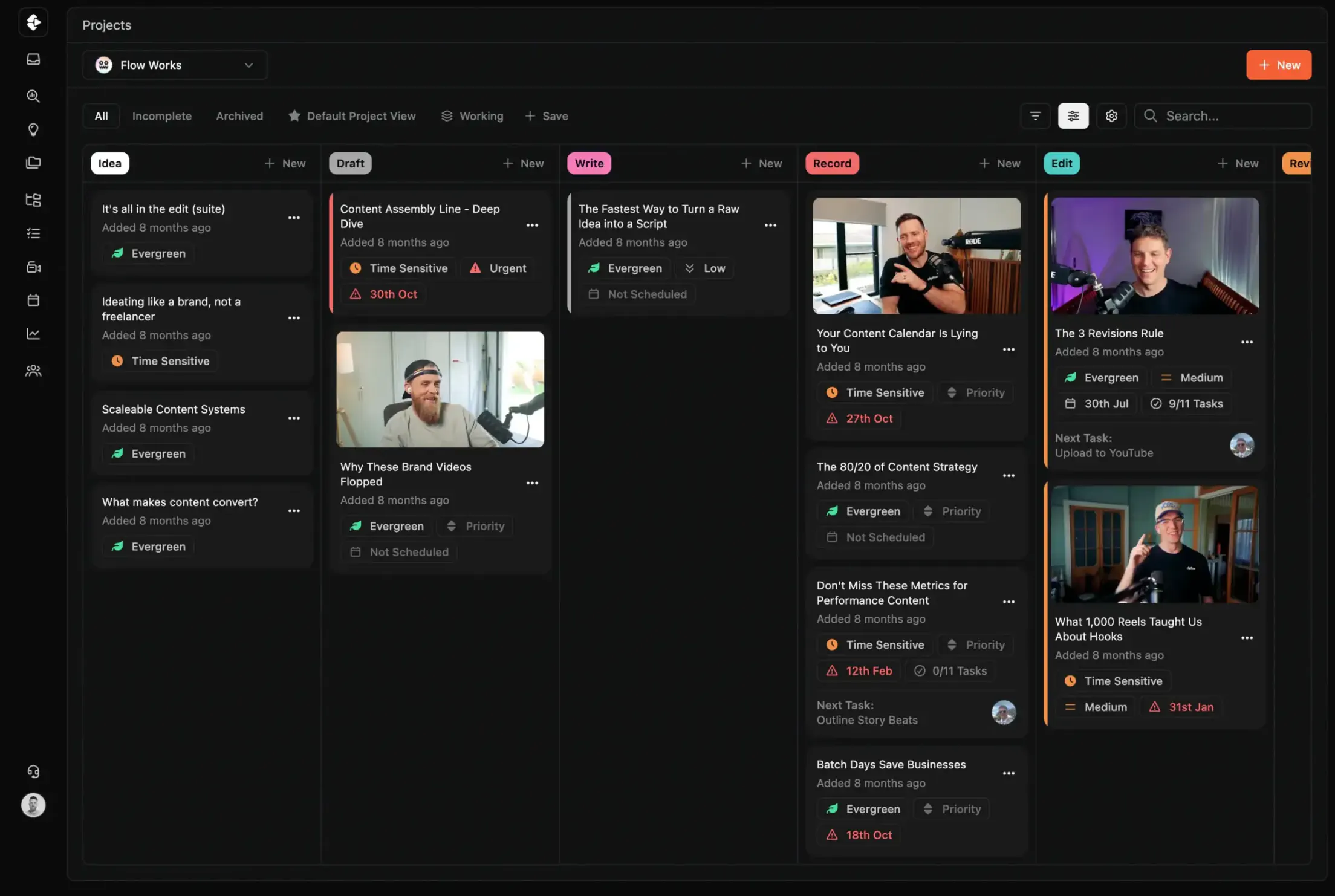
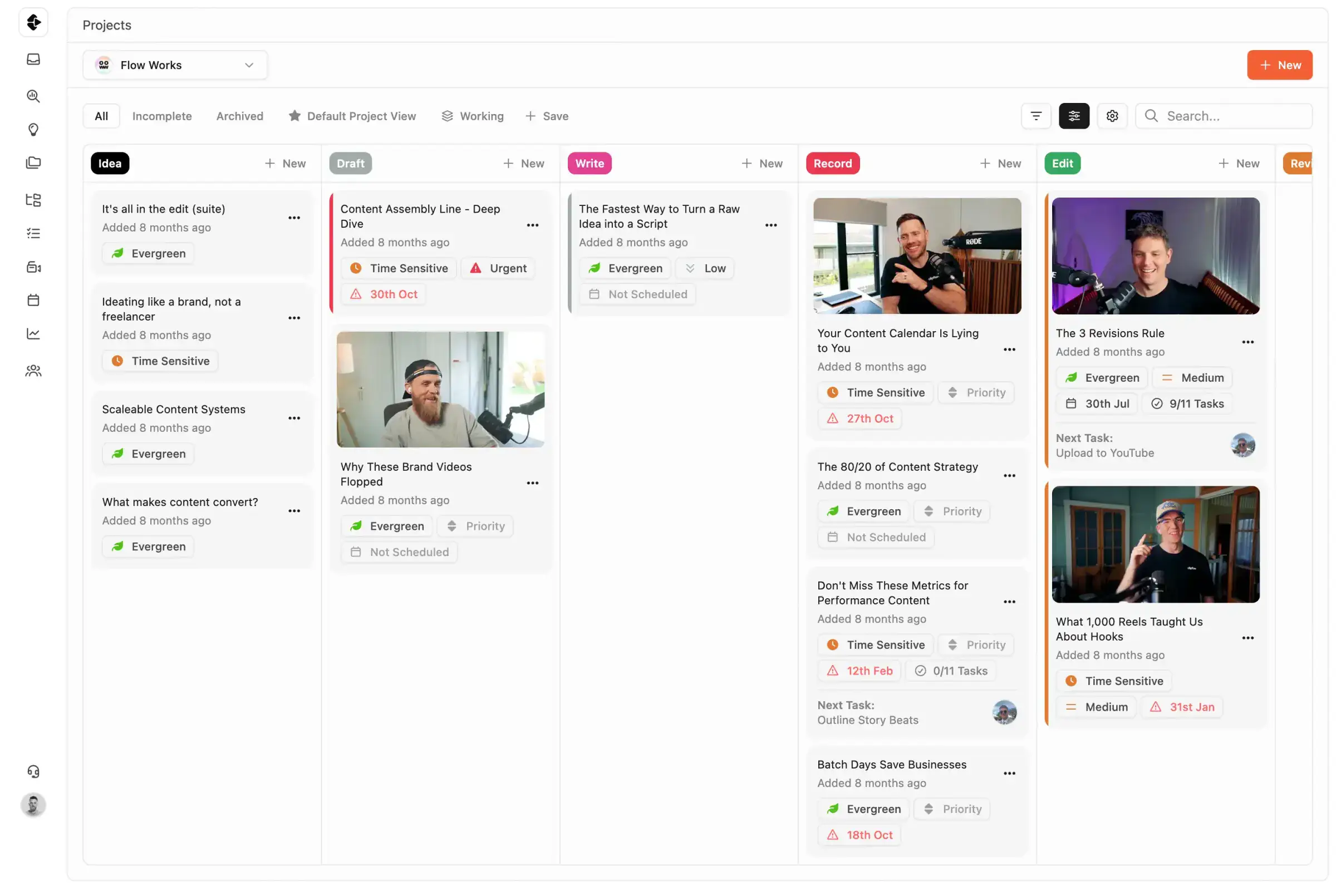
Best ClickUp Alternative for Content Teams
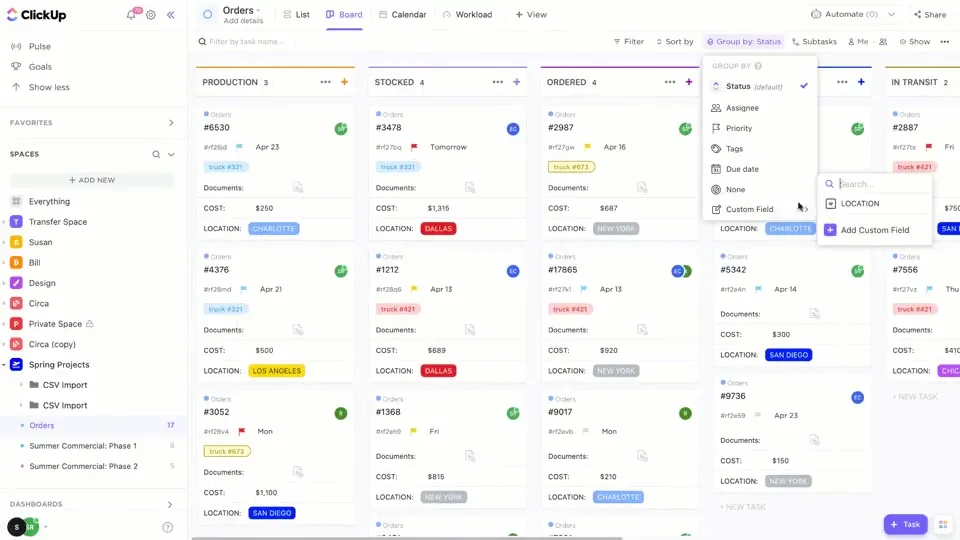
ClickUp can do almost anything. That's part of the problem. Here's how a purpose-built content ops platform compares to a tool you have to build yourself, and then maintain.
A side-by-side comparison covering setup overhead, platform structure, review processes, and why extreme flexibility often costs content teams more than it saves.









Join 4,000+ Businesses Today
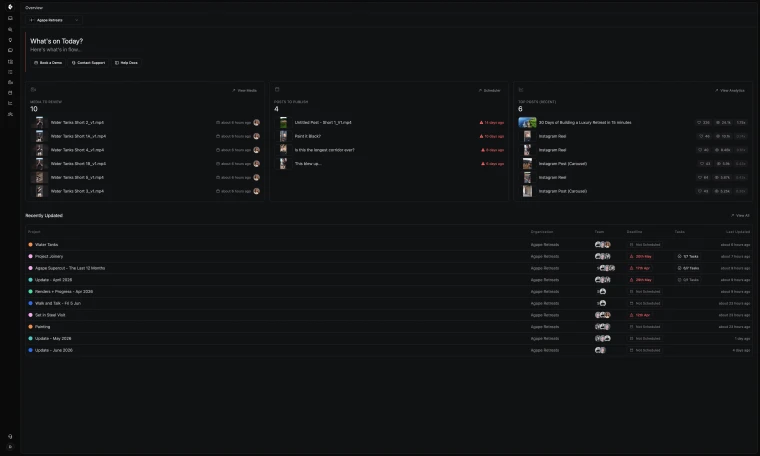
High-Output Media Businesses Trust Clipflow









Is Clipflow actually a good alternative to ClickUp?
Choose Clipflow if you want faster time-to-value with lower operational overhead. Choose ClickUp if customization breadth is more important than workflow simplicity.
ClickUp vs Clipflow: What should you choose?
ClickUp is best for teams that want maximum flexibility and are willing to invest significant setup and ongoing workflow maintenance. Configuration, customisation and maintenance can often run in the days or weeks to run content effectively.
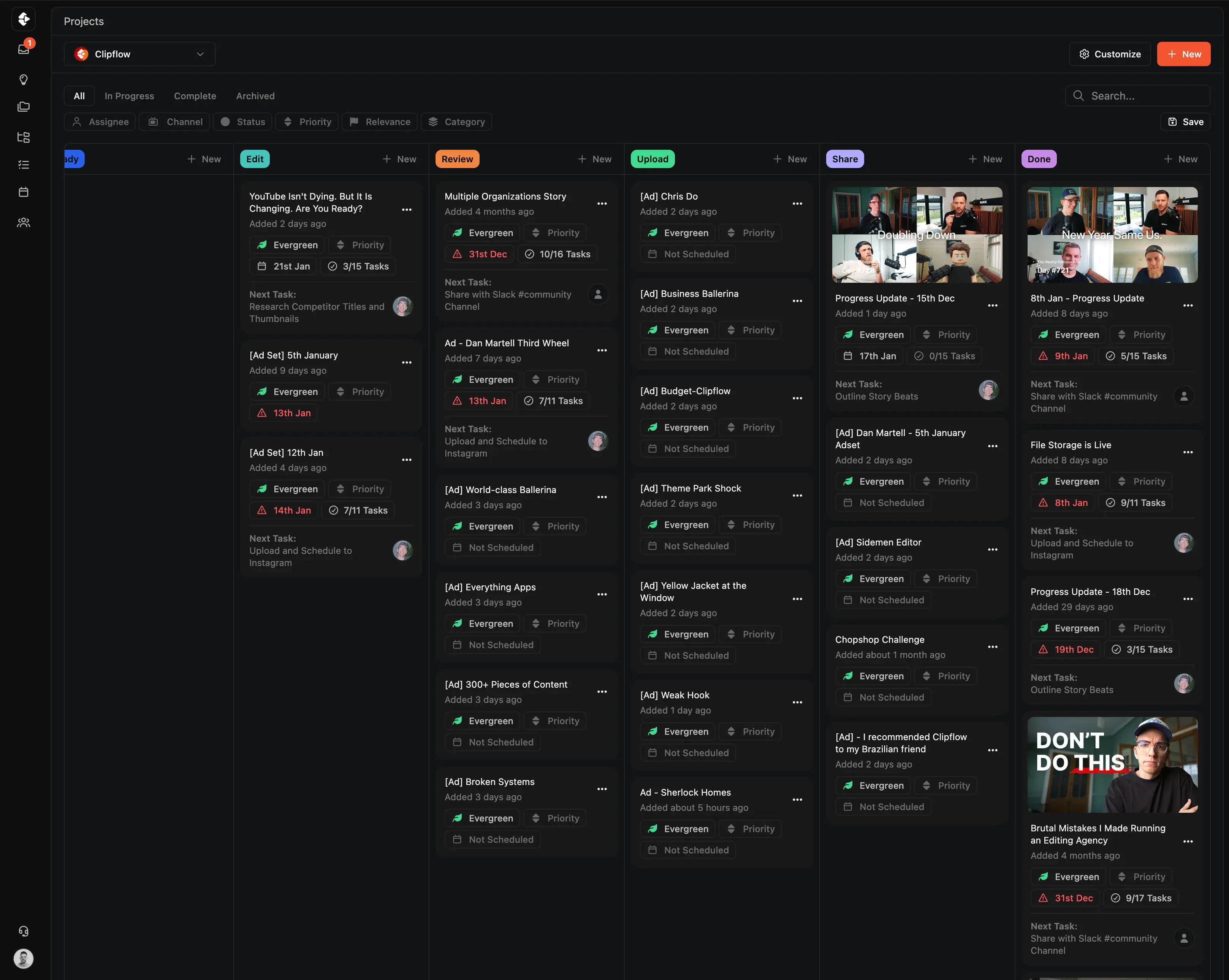
Clipflow is best for content teams that want a ready-to-run operating system with review, tasking, planning, and publishing connected by default.
Pros & Cons
There are benefits and restrictions to every tool. Your job is to decide what's most important to you, and your team.

ClickUp
- Setup can run days to weeks before content production starts
- Five-level Workspace / Space / Folder / List / Task hierarchy
- Guest collaborator seats can convert to paid seats automatically
- No native video review or approval workflow
- Automation actions capped per plan tier

Clipflow
- Works out of the box, no setup project needed
- Content-first project architecture, not a generic hierarchy
- Predictable billing without automatic guest conversions
- Video review and approval built into every project
- Unlimited automation included on every plan
Clipflow vs ClickUp: Feature Comparison
A feature by feature breakdown of features that matter to high-output content teams and media businesses.
| Feature | Clipflow | ClickUp |
|---|---|---|
| Content-specific workflow | Built for content | Generic, requires configuration |
| Video review & approval | Built-in | Requires integration |
| Task templates with relative dates | Auto-shifting schedule | Complex to configure, limited native support |
| Multi-org / multi-client management | Native architecture | Workaround-heavy |
| Post calendar | Yes | No |
| Thumbnail / title testing | Yes | No |
| Auto-assign by role | Yes | Possible but complex |
| Client portals / share links | No-login review | Guest access available |
| Content repurposing | One project → many posts | No |
| Configuration required | Low (works out of the box) | Very high (weeks of setup) |
| Plan hierarchy | Content-first projects | 5-level Workspace / Space / Folder / List / Task |
| Automation actions per month | Unlimited on every plan | Capped per plan tier |
| Integration ecosystem | Growing | Extensive |
| Free tier | 14-day free trial | Yes |
| G2 rating | Not yet listed | 4.7/5 (~11,209 reviews) |
Clipflow vs ClickUp: How the Costs Compare
Guest collaborator seats can convert to paid seats automatically, so it's worth actively monitoring billing if you bring clients into the workspace. ClickUp Brain (their AI) is $7/seat/month extra, charged per paid member regardless of usage. For a 10-person agency on Business + AI, that comes to around $2,280/year before any integrations needed to fill feature gaps.
| Plan | Clipflow | ClickUp |
|---|---|---|
| Free | Unrestricted trial (14 Days No Credit Card) | Limited features |
| Per-user (paid) | $29/user/month | $7–$19/user/month |
| Unlimited users flat rate | $424/month | Per-seat only |
| AI add-on | Coming Soon | $7/seat/month extra (charged per paid member) |
| Free trial | 14 days | Available |
Why Users Switch from ClickUp
ClickUp is a solid tool for teams that love configuration. But content teams often find the setup overhead, generic hierarchy, and missing media features get in the way of production speed. Here are the most common reasons for content teams to look for alternatives.
Significant Configuration Time
Getting ClickUp to work like a content ops platform involves custom fields, space structures, automation rules, and permission hierarchies. Some teams bring in consultants to manage the setup.
No Native Video Review
No frame-accurate review at any plan level. Teams need Frame.io or similar, another tool, another context switch, another set of expired links.
No Native Client View or Portal
ClickUp guest access drops clients onto the same task views your team uses. There's no dedicated client portal, no client-facing approval workflow, and no non-billable guest seats designed for the agency-client relationship. Clipflow has a purpose-built client portal with non-billable seats for clients and contractors.
Multi-Client Workarounds
Agencies managing 10+ clients build elaborate space structures or split into multiple workspaces. Neither scales cleanly to a single cross-client view.
Generic Hierarchy, Not Content-First
The Workspace / Space / Folder / List / Task hierarchy is built for general project management. Content workflows have to be modeled into it rather than mapped to native concepts like projects, posts, and channels.
No Content-Specific Features
No post calendar, no content repurposing, no thumbnail testing. Everything content teams need has to be configured from scratch.
You can read real reviews from real people at ClickUp reviews on G2
Who Should Choose Clipflow vs ClickUp?
Both tools have strengths.
The best choice depends on whether you value configuration flexibility or time-to-value.
ClickUp is strong in customization breadth. If you have non-standard workflows and are willing to invest in setup, it can accommodate almost anything.
But for content teams that want to ship content on day one instead of configuring a tool for three weeks, Clipflow is the better choice.
ClickUp is best for:
- Teams with highly custom workflow requirements
- Organizations needing one tool across product, engineering, and marketing
- Teams on tight budgets needing the cheapest per-seat entry point
- Teams already deeply embedded in a working ClickUp setup
Clipflow is best for:
- Content agencies who've rebuilt their ClickUp system more than once
- Teams that want something that works without a setup project
- Teams that need video review built in
- Teams that want predictable per-seat billing as clients come and go
- Teams producing 50+ pieces of content per month
- Operators that prefer opinionated workflows over extreme customization
What Clipflow Does That ClickUp Can't
Purpose-built features that reduce the setup overhead.





Project Templates with Role-Based Tasks
Works out of the box. No custom fields, space structures, or automation rules to configure. Templates auto-assign tasks to editors, strategists, and reviewers based on role.
- Zero-config project creation from templates
- Role-based auto-assignment, no manual setup
- Relative due dates that shift with the schedule
Built-In Media Review & Approval
Frame-accurate video commenting and approval workflows in every project. No Frame.io subscription, no expired review links, no feedback scattered across separate tools.
- Timestamped feedback directly on video
- Client review via no-login share links
- Approvals built into the project, not bolted on
Built for How Content Teams Actually Work
Features that address the daily friction ClickUp can't solve without workarounds.








Multi-Channel Publishing & Scheduling
Schedule 50+ posts per day across YouTube, TikTok, LinkedIn, and Instagram from one calendar. ClickUp has no native scheduling, so teams export to Buffer or Sprout Social.
- One calendar for all platforms and handles
- Bulk scheduling across channels
- Performance tracking per post

Multi-Org & Client Management
Native architecture for agencies, no elaborate space structures or split workspaces. Clean client separation, cross-org visibility, and share links from day one.
- Separate workspaces per client
- Cross-org reporting and visibility
- No-login client portals for review
A step-by-step guide to migrating your content workflow.
How to Switch from ClickUp to Clipflow
Step 1
Start your free Clipflow trial
Sign up for a 14-day free trial. No credit card, no 3-week setup process.
Step 2
Rebuild your workflows with templates
Use Clipflow's content-specific templates instead of importing ClickUp's custom structure. The goal is a cleaner workflow, not a copy of the old one.
Step 3
Migrate active projects
Move your current content pipeline to Clipflow. Start new projects natively and let legacy ClickUp projects wrap up there.
Step 4
Cancel ClickUp and supporting tools
Once your team is shipping from Clipflow, cancel ClickUp plus any review, docs, or storage tools it depended on.
Work Smarter, Less Chaos

Clipflow vs Asana
Compare setup, review flow, and delivery for Asana.
Learn more →
Clipflow vs Notion
Compare setup, review flow, and delivery for Notion.
Learn more →
Clipflow vs Trello
Compare setup, review flow, and delivery for Trello.
Learn more →
Clipflow vs Frame.io
Compare setup, review flow, and delivery for Frame.io.
Learn more →Avoid this "Productivity" Trap
Customization can become an operations tax
When teams spend more time configuring workflows than shipping campaigns, velocity drops. Clipflow gives content teams an opinionated system that works out of the box without heavy setup.
Last updated: June
Reviewed by: Clipflow Editorial Team
All product names, logos, and brands are property of their respective owners. Use of these names and logos is for comparison and identification only, and does not imply affiliation or endorsement.
Frequently Asked Questions
Can I migrate from ClickUp to Clipflow?
How long does it take to set up Clipflow vs ClickUp?
Is ClickUp more powerful than Clipflow?
What is the real cost of ClickUp for content teams?
Does ClickUp have video review?
Can I use Clipflow for non-content projects?
Does Clipflow have automation like ClickUp?
Is Clipflow a good ClickUp alternative for agencies?
Can I try Clipflow before committing?
Does Clipflow have ClickUp's AI features?
How does ClickUp's hierarchy compare for content teams?
Does Clipflow support the same integrations as ClickUp?
Is Clipflow less powerful than ClickUp?
Can I use both ClickUp and Clipflow?