
How to turn approved content into social posts your team can review, schedule and measure
Create, review, track, and schedule social media posts alongside the video or campaign they promote.
Updated
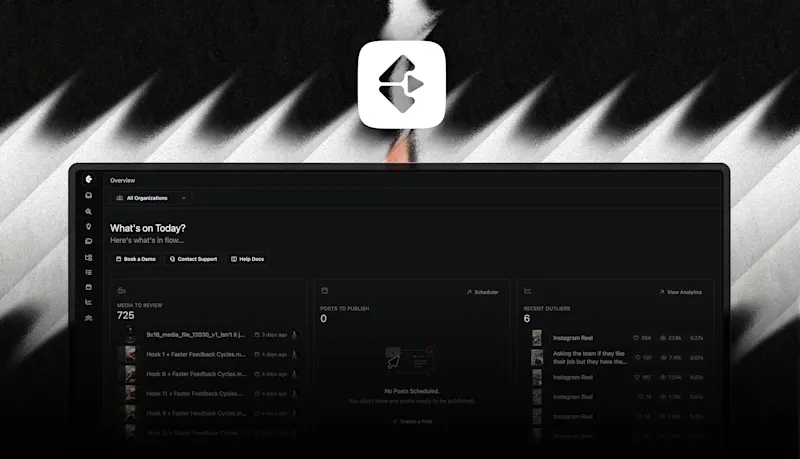
Keep the posts that promote your content connected to the work that made them
One video can become a week of social posts, which gets difficult to manage when captions, approvals, and publish dates live in separate tools. Project Posts keep platform-specific content such as Instagram Carousels and LinkedIn image posts beside the project that created them.
Instead of managing these posts in spreadsheets or external tools, create, review, schedule, and automatically publish social content alongside your video projects.
Why Use Posts?
Posts solve a common problem for content creators and agencies: how to manage the dozens of content pieces that spin off from one primary project.
Common Use Cases:
- Creating multiple Instagram Carousels from a single YouTube video
- Planning LinkedIn posts that complement and repurpose your main content
- Batch creating social content weeks in advance
- Organizing all content for a campaign in one place
- Tracking the performance of each post with Tracking Links
How to Create a Post
Step 1: Navigate to Posts in Your Project
- Open any project in Clipflow
- Look for the Posts section in your project navigation
- Click to view all posts in this project
Step 2: Create a New Post
- Click the “New Post” or “+ Add Post” button
- Select your platform and post type:
Step 3: Add Your Content
Basic Information:
- Post Title - Optional Internal Name
- Platform - Where and what you plan on posting
- Status - Draft, Ready, Done Content Details:
- Caption/Copy - Your post text
- Media/Images - Depending on your post type link images or video
- Scheduling Details - Add the planned publish date and time
Step 4: Add Tracking Links (Optional)
If you want to track where traffic comes from when people click links in your post. Not every platform supports links in captions.
- Use links in your caption and hit ‘Track links’ to convert them
- Clipflow will generate a unique tracking link (using fllw.li or your custom domain)
- Use this link in your post caption
- Monitor clicks and traffic in the post.
Working with Posts
Batch Creating Posts
One of the most powerful ways to use Posts is batch creation:
- During your content planning session, create placeholder posts for the week/month
- Add titles and platforms so you know what needs to be created
- Fill in the content as you create it
- Store posts in “Ready” status until you’re ready to share them
- Work from the post scheduler to deliver the right content just in time.
Example Workflow:
- Monday: Plan and create 10 placeholder posts for the week
- Tuesday-Thursday: Create the actual content and fill in posts
- Throughout the week: Publish posts according to your schedule
Organizing Posts by Project
Strategy 1: One Primary Asset Per Project Create a project around one main piece of content (like a YouTube video), then add all derivative posts:
- 5-10 Instagram Carousels breaking down key points
- 3-5 LinkedIn posts with quotes or insights
- Short-form video posts
- Thread-style text posts
Strategy 2: Weekly Content Projects Create a project for each week, then add all posts you’re publishing that week regardless of format:
- All Instagram content for Week 1
- All LinkedIn posts for Week 1
- All video posts for Week 1
Strategy 3: Content Type Projects Create projects by content type:
- “Instagram Carousels - January 2026”
- “LinkedIn Posts - January 2026” Choose the structure that matches how you think about your content.
Post Statuses
Keep track of where each post is in your workflow:
- Draft - Post is being created or planned
- Ready - Content is complete and ready for its scheduled publish time
- Done - The post has published, or has been manually marked as done after publishing elsewhere
Tips and Best Practices
For Solo Creators
- Create Placeholders First - Set up posts for the week so you know what needs to be created
- Use tracking links - Especially for posts linking to your products, courses, or high-value content
- Store evergreen content - Keep successful posts you can republish later
For Teams and Agencies
- Use post status to show workflow - Draft → Ready → Done keeps everyone aligned
- Add notes and discuss for approvals - You can have a full conversation and chat thread about individual posts
- Organize by clients and projects - Keep all clients content and communication together and organized for easy access
- Batch Review - Review all ‘Ready’ posts in one session.
Additional Notes
- Upload images in order - Add your carousel slides in the sequence they’ll appear.
- Write captions in Clipflow - Use the rich text editor, then schedule the post for automatic publishing.
- Plan carousel series - Create multiple related carousels in the same project.
- Track performance - If you mention a link in your bio, use a unique tracking link for each carousel.
For LinkedIn Posts
- Draft long-form content - Write anything you’d keep for linkedin directly inside the post item.
- Store engagement copy - Keep your best practises and SOPs in tasks within the project and cross check your post captions against the SOPs.
- Link Tracking - Use tracking links for your post content.
Using Tracking Links with Posts
Tracking Links let you see exactly which posts drive traffic and conversions.
How to Use:
- Add a URL in the caption
- Click track links and Clipflow will find and replace any links
- View tracked link statistics against the post Best For:
- Finding best performing (business ROI) content across efforts
- Youtube video links
- Blog article links
- Lead magnet downloads
- Affiliate link management.
Frequently Asked Questions
Can I publish directly to Instagram from Clipflow?
Yes. Connect the Instagram channel for the organization, create the right Instagram post type, add its caption and media, set a publish date, then mark it Ready. With automatic publishing enabled for the channel, Clipflow publishes it at the scheduled time.
Clipflow can also automatically publish supported posts to YouTube, TikTok, Facebook, and LinkedIn. See Connect Social Platforms and Post Scheduling.
Can I copy a post to multiple projects?
Yes. Duplicate a post into another project, including a project in another organization, when you need to reuse the same starting point across related work or clients.
How many posts can I create in a project?
There is no limit, beyond what remains convenient for your team to work with. Once a project has more than roughly 10 posts, sub-projects can make it easier to keep related work organised — but use the structure that suits your preferences.
Can I collaborate on posts with my team?
Yes. All team members with access to the project can view and edit posts.
Do tracking links work on all platforms?
Yes. Tracking links work anywhere you can share a URL. Captions on some platforms, including Instagram, may not make those links clickable.
Related articles
- Post Scheduling: the calendar across every post
- How Automations Work: draft posts automatically on approval
- Tracking Links: measure the clicks your captions earn
Was this page helpful?
Related articles
Need more help with this?
Contact support