
How to give clients the right level of access without exposing your whole content workspace
Invite clients to review work, request content, or collaborate in Clipflow without sharing passwords or full access.
Updated
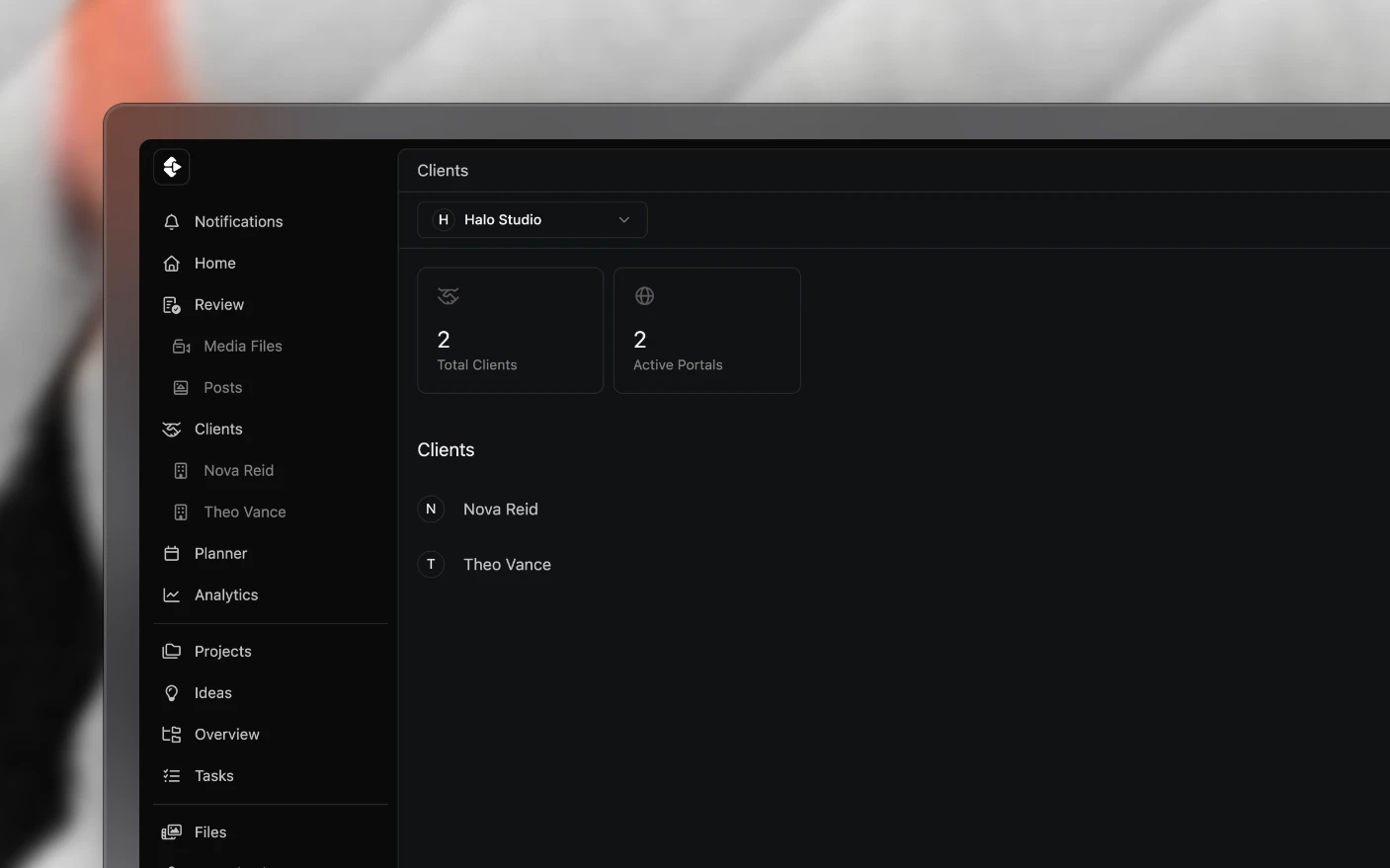
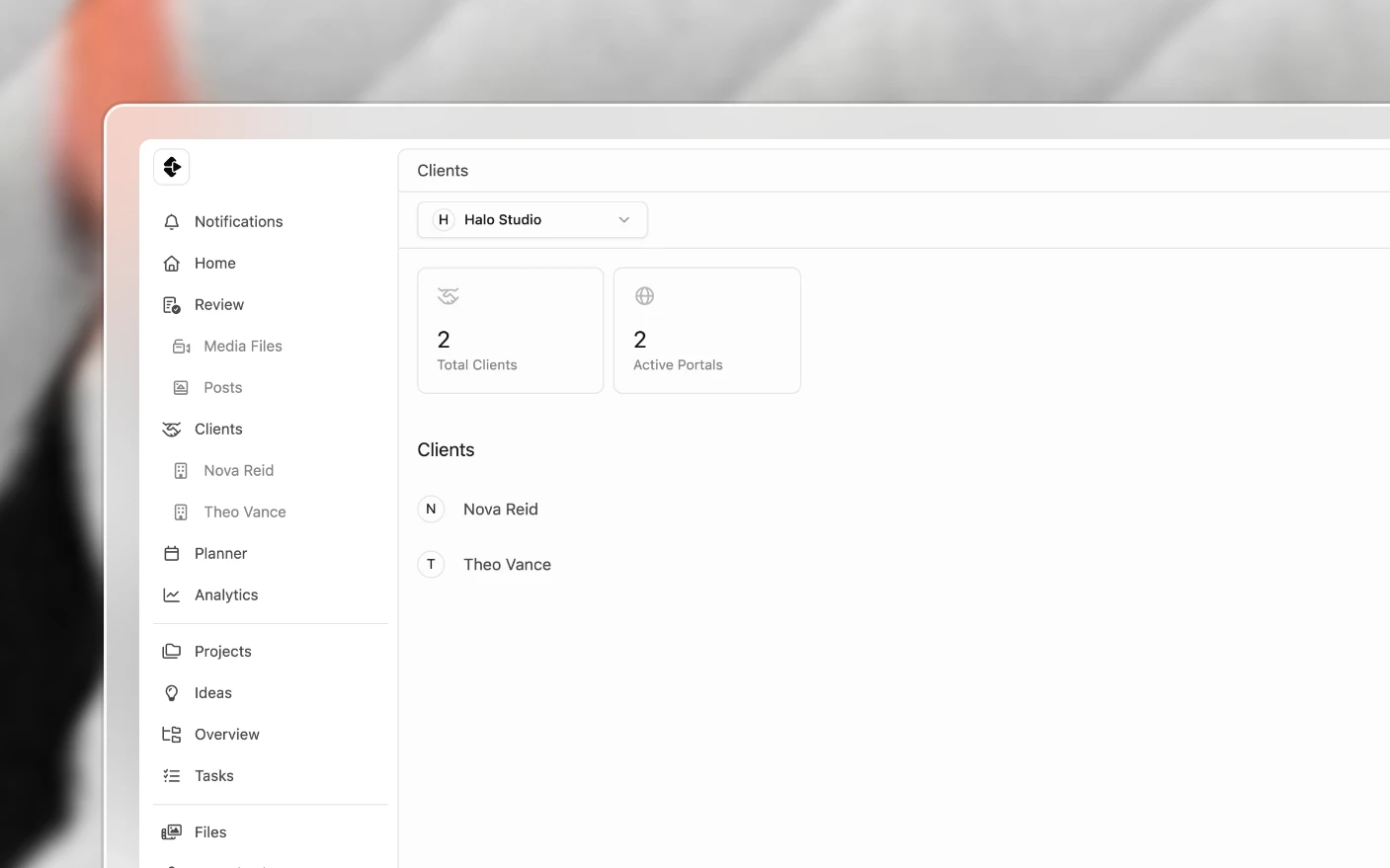
Professionally onboard clients and establish clear working relationships.
Bring clients into the work without creating more admin or permission risk
Client Invitation lets agencies and service providers bring their clients onto Clipflow with a clear supplier-client relationship. You add them, the client organization is created and linked to you straight away, and you can invite the client in whenever they are ready.
Each client gets their own organization, while you and your admins are set up as their supplier with access to collaborate on their projects. A client organization managed by your agency is not billed. New to running clients in Clipflow? Start with Setting Up as an Agency.
Why Invite Clients?
If you’re managing content for clients, you’ve probably struggled with how to collaborate. Do you work in separate accounts and lose the collaboration benefits? Do you ask them to invite you, which feels backwards?
Common Problems Solved:
- No way to easily manage and keep separate client work
- Clients having to set up their own accounts and figure things out
- Unclear supplier-client relationships and task ownership
- Managing clients across disconnected organizations
- No centralized view of all your client work
What You Get:
- Clear supplier-client relationship setup from the start
- Each client in their own organization, templates, task lists and even team members
- Your team assigned as suppliers into client projects
- Centralized management of all work, across all clients
How to Invite a Client
Step 1: Start the Invitation
- Click Clients in the main navigation (your organization needs to be a Production Partner)
- Click New
Step 2: Enter Client Details
- Enter the Client Name
- Add the primary contact’s Email. Every organization needs its own email address
- Choose the client’s type
Step 3: Add, or Add and Invite
- Add Client creates the client organization without emailing anyone. You can start working in it straight away
- Add + Invite also emails the client an invite to own their organization
If you want the client to have their own Clipflow account, with which they can be assigned tasks, create projects and ideas, send them the invite. You can add them quietly first and invite them later from the clients list.
If you prefer to, you can send project share links for media review to unauthenticated users (such as clients) without them ever needing an account.
Step 4: Client Accepts
When the client accepts the invite, they join their organization as its owner. Your supplier relationship is already in place, so nothing about your access changes.
After the Client Joins
Assign Your Team
Your agency’s admins are added to every client automatically. To bring in anyone else from your team:
- Open the client organization and go to Team Members
- Under Management Team, click Assign next to the person
- They join as a supplier straight away and do not use a seat
Set Up Their Workspace
As their supplier, you can help configure:
- Project statuses and templates
- Task lists and task templates
- Channels and platforms
- Categories and organization settings
Managing Multiple Clients
View All Clients
- Go to Organization Manager → Clients
- See all client organizations you’ve invited
- View status (pending invitation, active)
Switch Between Clients
On pages where you can view projects you’ll find a quick organization switcher to move between:
- Your own organization
- Each Client Organization
Cross-Client Visibility
Use the Project Overview screen to see all your projects across all client organizations in one view.
The Supplier-Client Relationship
How It Works
- You (Supplier): Your agency or team that provides services
- Client: The business you’re producing content for
- Relationship: Established the moment you add them
What Clients Control
- Their own account, where they can manage projects
- Who else they invite to their organization
- Final approval on their content
What You Control
- Your team’s assignments to their projects
- Your own organization’s settings and team
Tips and Best Practices
For Onboarding
- Send a personal note - If you’re an agency and you’re going to invite clients to Clipflow, it’s a good idea to let them know in advance that they’ll be receiving the invite and what to expect and how to work with your team in Clipflow.
- Follow up - If a client hasn’t accepted within a few days, reach out directly. The invitation email might have gone to spam.
- Offer a walkthrough - Some clients appreciate a quick call to show them around once they’ve joined.
For Managing Clients
- Standardize workflows - Use your own status workflow and project templates so all clients get your proven processes.
- Keep projects organized - Use consistent naming conventions across client projects.
- Review workload across clients - Use Team Workload to see your team’s capacity across all client work.
For Growing Your Client Base
- Invite early - Bring clients into Clipflow as soon as you start working together. You can manage as many client organizations as you need.
Frequently Asked Questions
Do clients need to pay for Clipflow?
No. A client organization managed by your agency is not billed. Your agency’s subscription covers your team’s seats.
Can I see all my clients in one place?
Yes. Go to Organization Manager → Clients to see all invited clients. Use Project Overview to see projects across all clients.
What if a client already has a Clipflow account?
Add them from Clients with the email their organization already uses. Clipflow sends a management request to that organization’s owner instead of creating a duplicate, and once they accept it appears in your clients list.
Can I remove a client relationship?
Yes. You can end the supplier-client relationship while the client keeps their organization.
Can clients invite other suppliers?
Yes. Clients can work with multiple suppliers. Each supplier relationship is managed independently.
What happens if a client doesn't accept the invitation?
The invitation remains pending. You can resend it or cancel it from the Clients screen.
Can I work on client projects before they accept?
Yes. The client organization is created and linked to you as soon as you add it, so you can connect channels and set up projects before the client ever logs in.
Related articles
- Client Portals: a standing client view without an account
- Share Links and External Feedback: one-off review links
- Plans and Billing: which roles use a seat
Was this page helpful?
Related articles
Notifications
Control in-app and email notifications for comments, approvals, tasks, publishing, and team activity in Clipflow.
Organization Settings
Set up your content organization, team, channels, workflow, templates, automations, API access, and billing.
Setting Up as an Agency
Switch your organization to Production Partner, add each client as its own organization, and keep seats and billing on your agency.
Need more help with this?
Contact support