
How to post carousels and image posts from Clipflow, and the platform limits to plan around
Where images go in a project, how to build a carousel in slide order, why PNGs get a JPG copy, and each platform's carousel limits.
Updated
Publish image posts and carousels without fighting the upload or the platform rules
Clipflow started with video, and it shows in one place: Edited Media only takes video. Images have their own home in the project, and once they are there a carousel is a normal post. You pick the slides in order, write the caption, mark it Ready, and it publishes like a reel.
Most carousel problems come from three things: images uploaded to the wrong section, a PNG sent to Instagram instead of its JPG copy, or a slide count over the platform’s limit. This article covers all three.
What each platform supports
| Platform | Image post | Carousel | Slides | Video in carousel |
|---|---|---|---|---|
| Yes | Yes | Up to 10 published by Clipflow | Yes, images and videos can mix | |
| TikTok | Yes | Yes | Up to 35 | No, images only |
| Yes | Yes, as a multi-image post | LinkedIn’s own limit | No, videos are left out | |
| Yes, one image | No | n/a | n/a | |
| YouTube | n/a | n/a | n/a | Community posts can be planned but must be published in YouTube |
Instagram images need an aspect ratio between 4:5 and 1.91:1 and must be under 8 MB. TikTok images can be up to 1080 × 1920 and 20 MB.
If a post breaks a limit, Clipflow shows a warning on the post (for example “Too many media items”), but it does not stop you marking it Ready. Fix the warning first, or the platform will reject the post.
Step 1: Put your images in the project
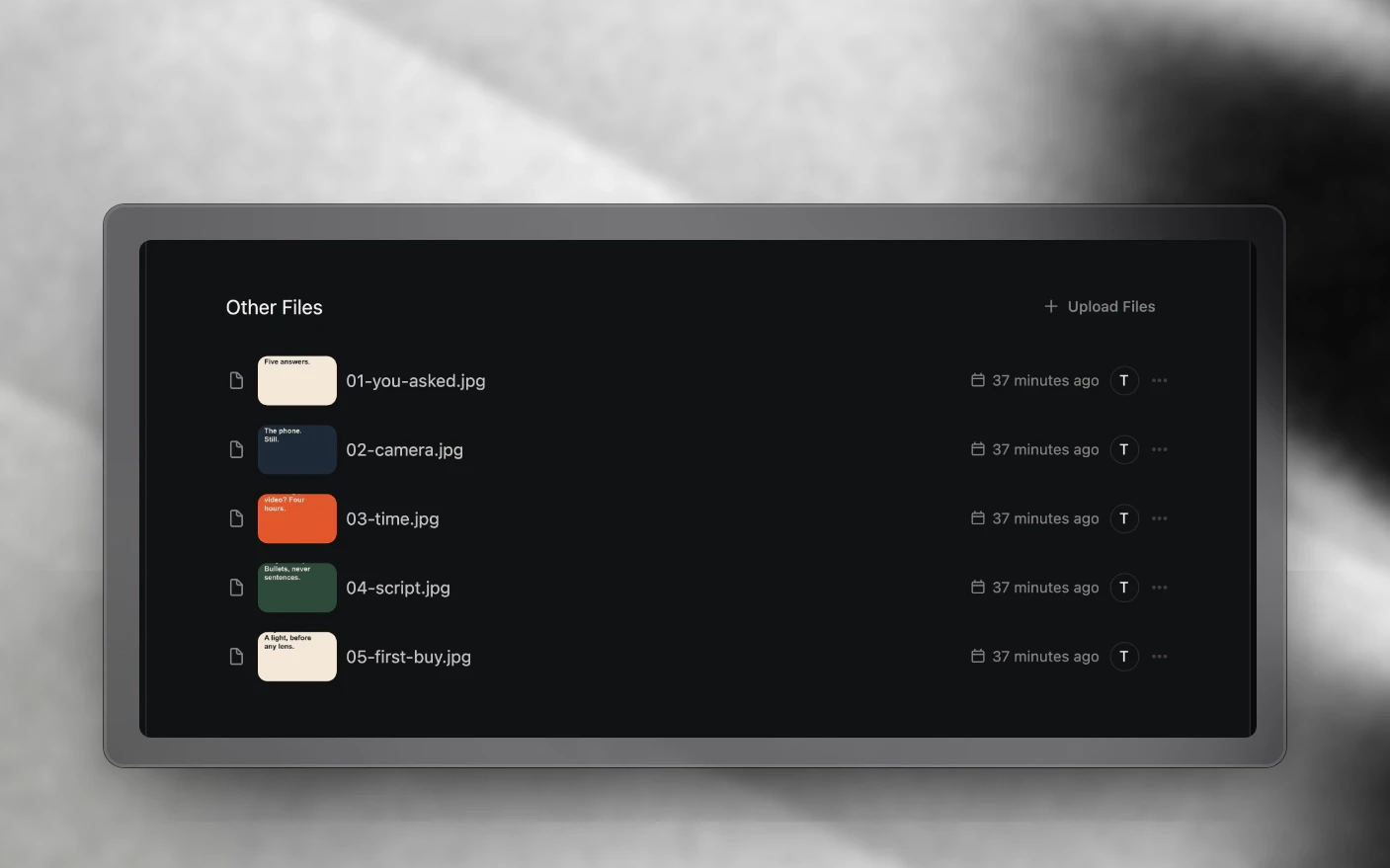
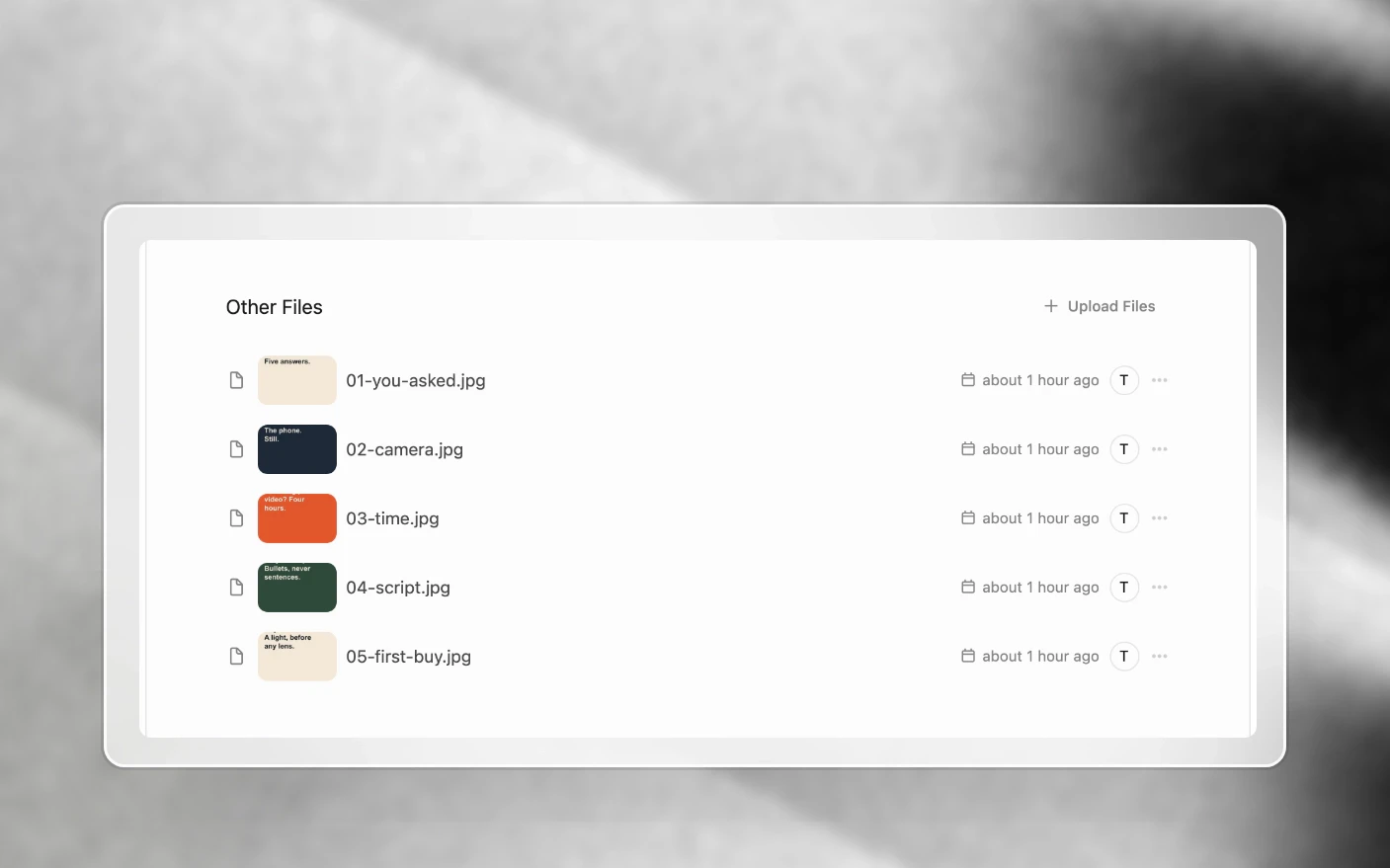
Upload images in either of two places. Both save them as project files.
- File Storage → Other Files: open the project, go to File Storage, and click Upload Files in Other Files. Best when a designer drops a full set of slides at once.
- Straight into the post: in the post, click Add Media and upload from there.
The web app accepts JPEG, PNG, WebP and GIF. HEIC photos from an iPhone need converting to JPEG first.
Why a PNG shows up twice
Every image that is not already a JPEG gets a JPG copy made beside it, with the same name. The original stays. This happens because Instagram only accepts JPEG, and Clipflow sends files exactly as they were uploaded. A GIF becomes a still JPG, and transparent areas turn white.
For Instagram, always select the .jpg copy. Choosing the original PNG will probably make the post fail.
Step 2: Create the post
- Open the project and create a new post.
- Choose the channel and the post type, for example Instagram Post (Carousel), TikTok Post (Carousel), LinkedIn Post (Carousel), or the matching (Image) type for a single image.
- Write the caption.
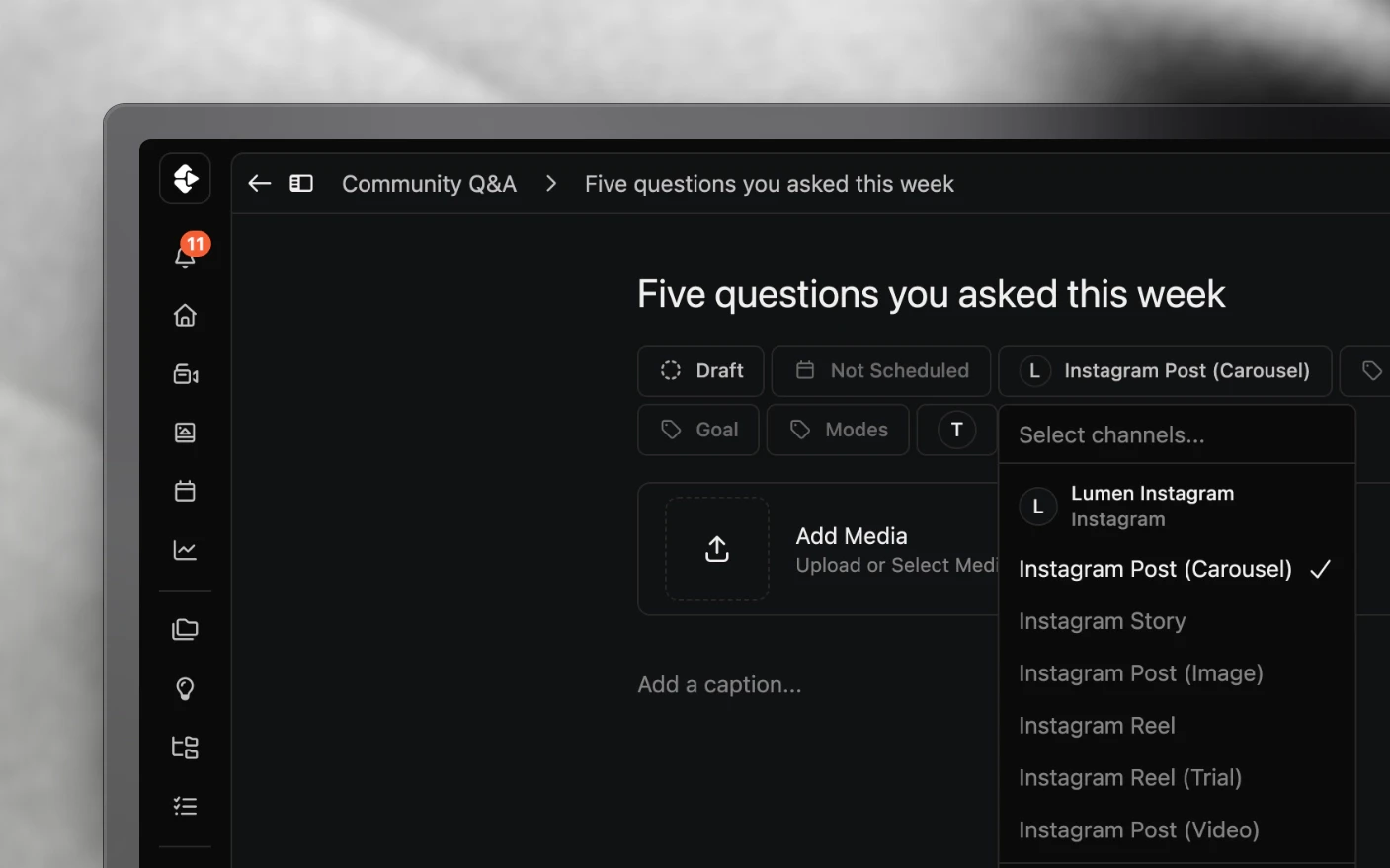
See Working with Posts for the rest of the post fields.
Step 3: Pick the slides in order
- In the post, click Add Media.
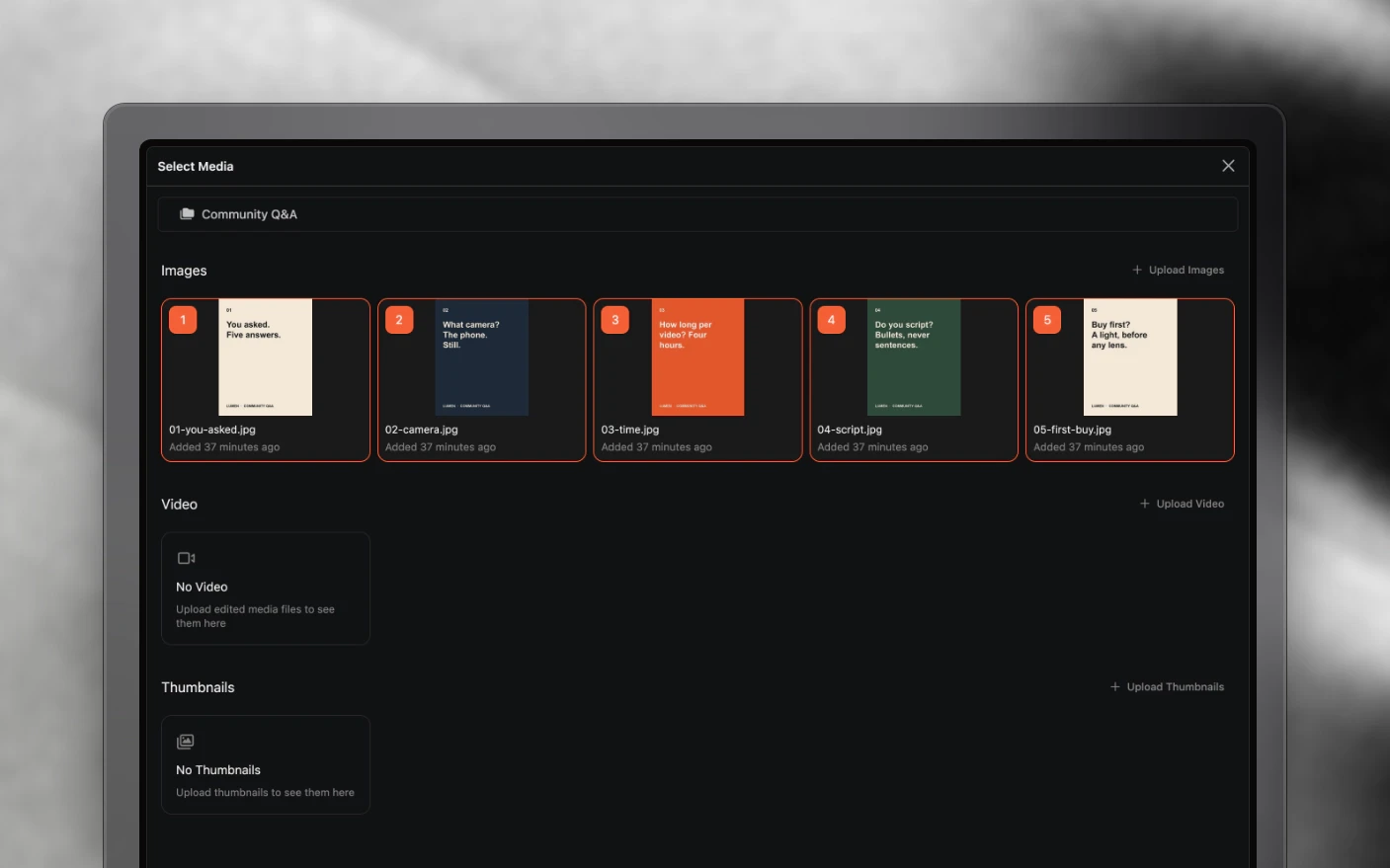
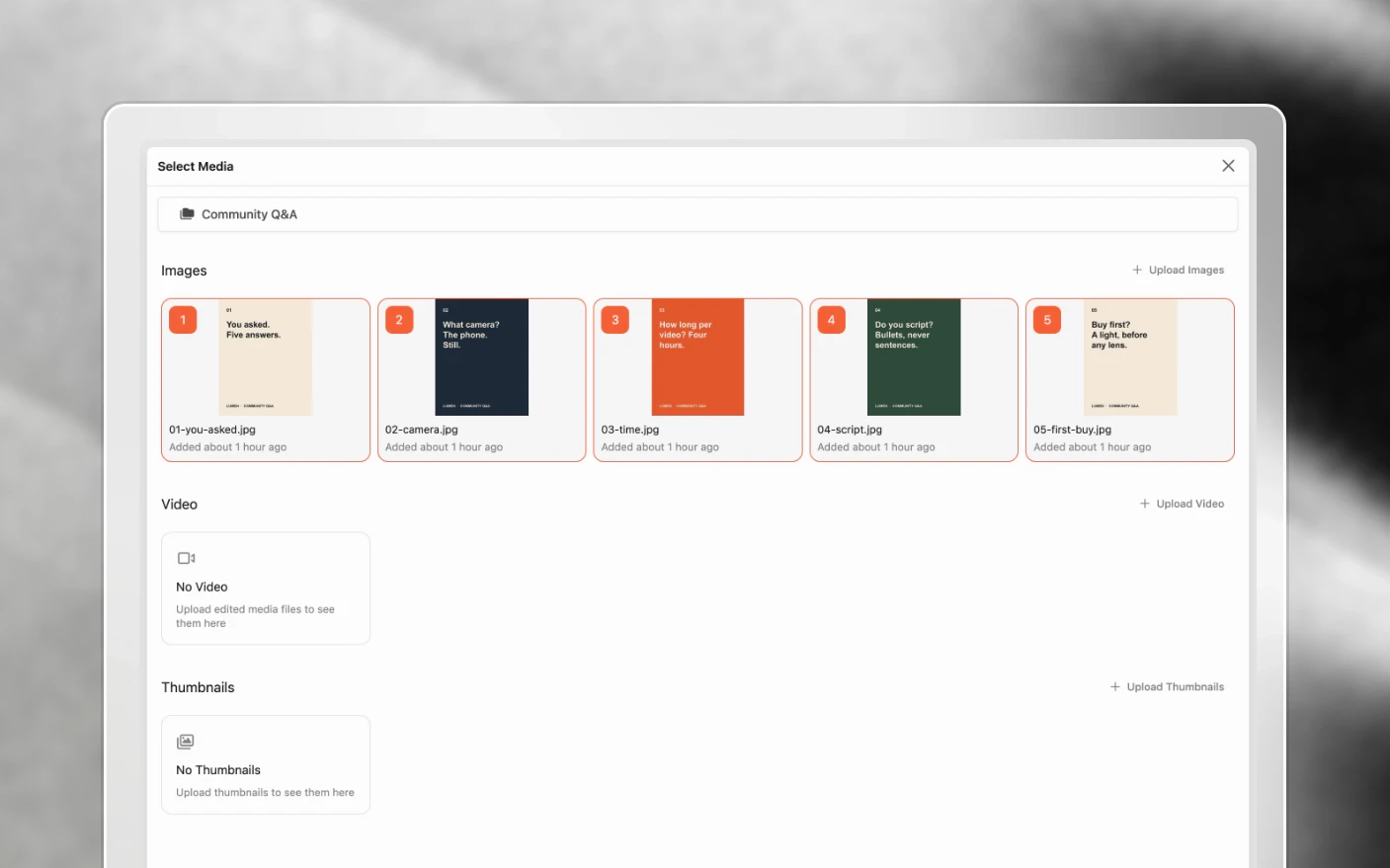
- In Select Media, scroll to Images. (Video and Thumbnails are separate sections in the same list.)
- Click the slides in the order they should appear. Each one shows a number badge with its position.
- Click Select Files to attach them.
The order you click is the order they publish, and on TikTok the first slide becomes the cover. Select Media opens on this project’s files. To use images from another project, switch to it with the project selector at the top, which lists projects that are not yet complete.
On Instagram, pick slides from Images, not Thumbnails. Instagram carousels skip anything attached from Thumbnails, which leaves a carousel with missing slides or no slides at all. TikTok carousels can use thumbnails as slides.
Step 4: Add collaborators (Instagram)
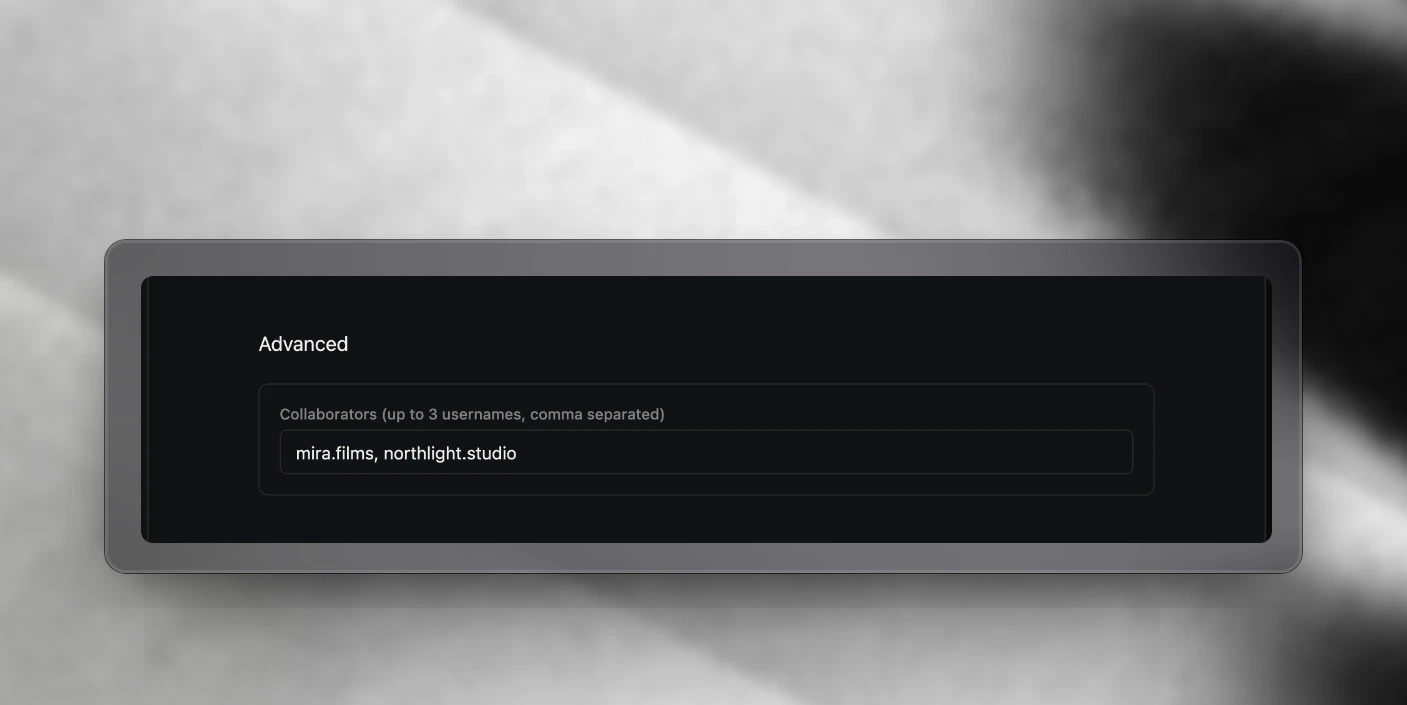
Open the post’s Advanced section and enter up to three usernames in Collaborators, separated by commas. Collaborators work on image, video, reel, trial reel and carousel posts, but not on Stories. On a carousel they apply to the whole post. Each account still has to accept the invite in Instagram.
Step 5: Publish
Mark the post Ready and it takes the next open time slot on the channel, or set the date yourself. See Post Scheduling.
On a TikTok channel set to upload only, the carousel lands in the creator’s TikTok inbox to finish and post from the app.
What you cannot do yet
| Not possible | Why |
|---|---|
| Auto-posting more than 10 slides to an Instagram carousel | Instagram’s API allows 10. Plan it in Clipflow and publish it in the Instagram app |
| Adding music or a sound to a carousel or image post | The platforms do not accept audio through their publishing APIs. Add it in the app after posting |
| Publishing YouTube community posts | YouTube does not allow it through its API. Plan them in Clipflow and post them in YouTube |
| Facebook carousels | Not built yet |
| Video slides on TikTok or LinkedIn carousels | Not built yet |
| An automation choosing the carousel slides | Automations run on video, so they can draft the post and caption, and you swap in the slides |
| Folders inside Other Files | Not built. For a big run of carousels, give each one its own linked project |
Tips and Best Practices
For solo creators
- Export slides as JPEG from your design tool. You skip the conversion and there is only one file to pick.
- Name slides
01,02,03so they sort in order in Select Media. - Use a collaborator on a carousel with a guest or brand partner rather than posting it twice.
For teams and agencies
- Have designers upload finished slides to Other Files, and let the scheduler build the post. It keeps slide order with the person publishing.
- If an automation drafts carousel posts from an approved video, make swapping the slides a task in the project’s task list, so nobody marks a post Ready with only the video attached.
- Check the warning on the post before marking it Ready. It catches oversized images and slide counts before the platform does.
Frequently Asked Questions
Why can't I upload my carousel images to Edited Media?
Edited Media only takes video. Upload images to File Storage → Other Files, or add them straight from the post with Add Media.
Why do my PNG images appear twice?
Clipflow makes a JPG copy of every non-JPEG image, because Instagram only accepts JPEG. The original stays beside it. Pick the JPG for Instagram.
My 18-slide carousel won't post.
Instagram’s API allows 10 slides, so Clipflow can publish up to 10 for you. You can still keep an 18-slide carousel in Clipflow to plan and schedule it, then publish it natively in the Instagram app. TikTok carousels take up to 35 slides, so it can post there as it is.
Can I add audio to a scheduled carousel?
No. The platforms do not accept a sound through their publishing APIs. Add the sound in the app after the post goes live.
My carousel didn't publish.
Check the slides came from Images and not Thumbnails, that you picked JPGs for Instagram, and that the channel is on Automatic Posting. Connect Social Platforms covers the channel settings.
Can an automation build carousels for me?
It can draft the post and write the caption, but it only attaches the video that triggered it. Swap in the slides before you mark the post Ready. See Automations Overview.
Can I invite Instagram collaborators from Clipflow?
Yes. Add up to three usernames in the post’s Advanced section under Collaborators.
Can Clipflow post to YouTube community tabs?
Not yet. YouTube does not allow it through its API, so plan the post in Clipflow and publish it in YouTube.
Related articles
- Working with Posts: every post field
- Post Scheduling: time slots and auto-publish
- Project Files and Storage: where non-video files live
- Connect Social Platforms: channels and posting settings
Was this page helpful?
Related articles
Connect Social Accounts
Connect Instagram, Facebook, YouTube, and more for social publishing, scheduling, and performance analytics.
Content Analytics
Measure social content performance across channels, find outliers, and decide which posts to repeat.
Custom Domains
Serve your short links from your own domain instead of the shared Clipflow one. Set up by request.
Need more help with this?
Contact support