
How to keep every content task, deadline and owner visible before work slips
Manage content production tasks, deadlines, assignees, and workload across projects from one task list.
Updated
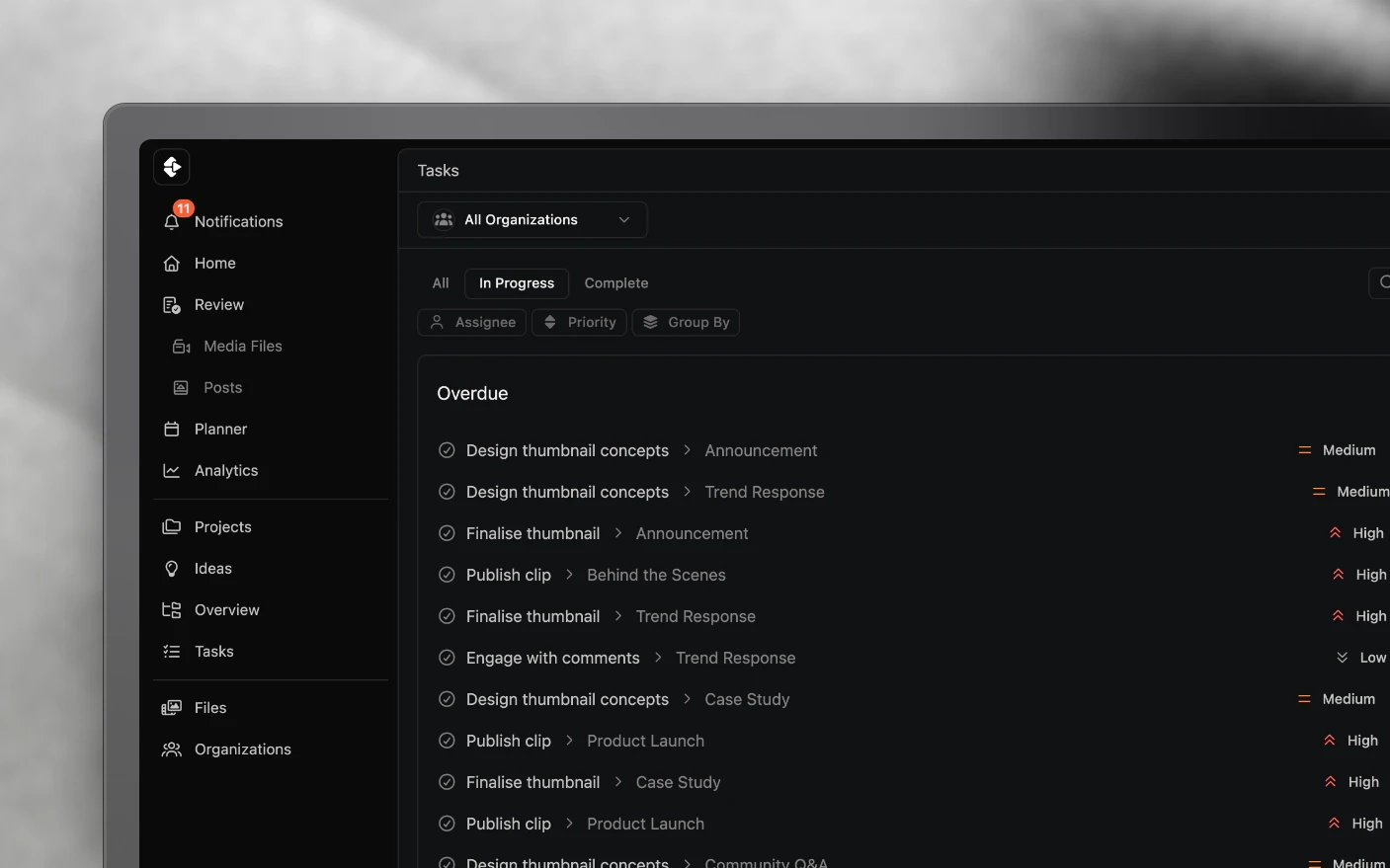
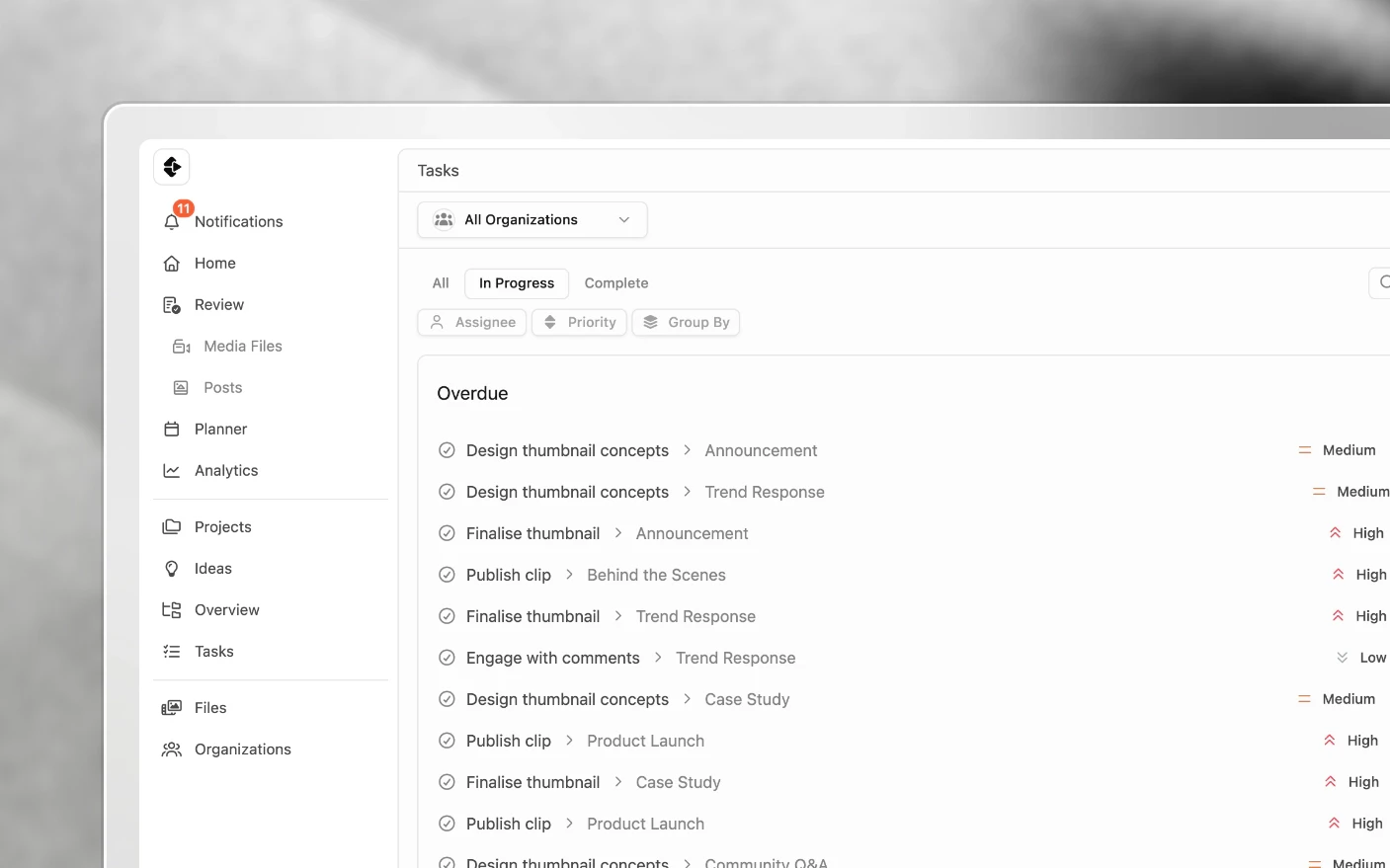
See the work that is due, blocked or overdue without chasing your team
Task List shows all individual tasks from all projects in a single, unified view. Instead of clicking into each project to find what’s due, you see every task sorted by date with full context about which project it belongs to.
For editors, designers, and team members, this is your daily starting point to see exactly what needs your attention.
Why Use Task List?
If you’re part of a content team, you’ve probably been jumping between projects trying to figure out what’s next. Checking one project for editing tasks, another for thumbnails, another for uploads. Missing deadlines. Duplicating effort.
Common Problems Solved:
- Jumping between projects to find your tasks
- Missing deadlines buried inside different projects
- No clear view of what to work on next
- Difficulty seeing team workload at a glance
- Managers unable to quickly check team progress What You Get:
- All tasks from all projects in one view
- Tasks sorted by due date
- Filter by team member to see anyone’s workload
- Filter by status to focus on what’s in progress
- Subtasks for the smaller steps within a larger piece of work
- One-click navigation to any task or project
Accessing Task List
- Navigate to Tasks in the main navigation (left sidebar)
- See all tasks across all projects for any team member
- Tasks are sorted by due date (soonest first)
Using Task List
Understanding the Display
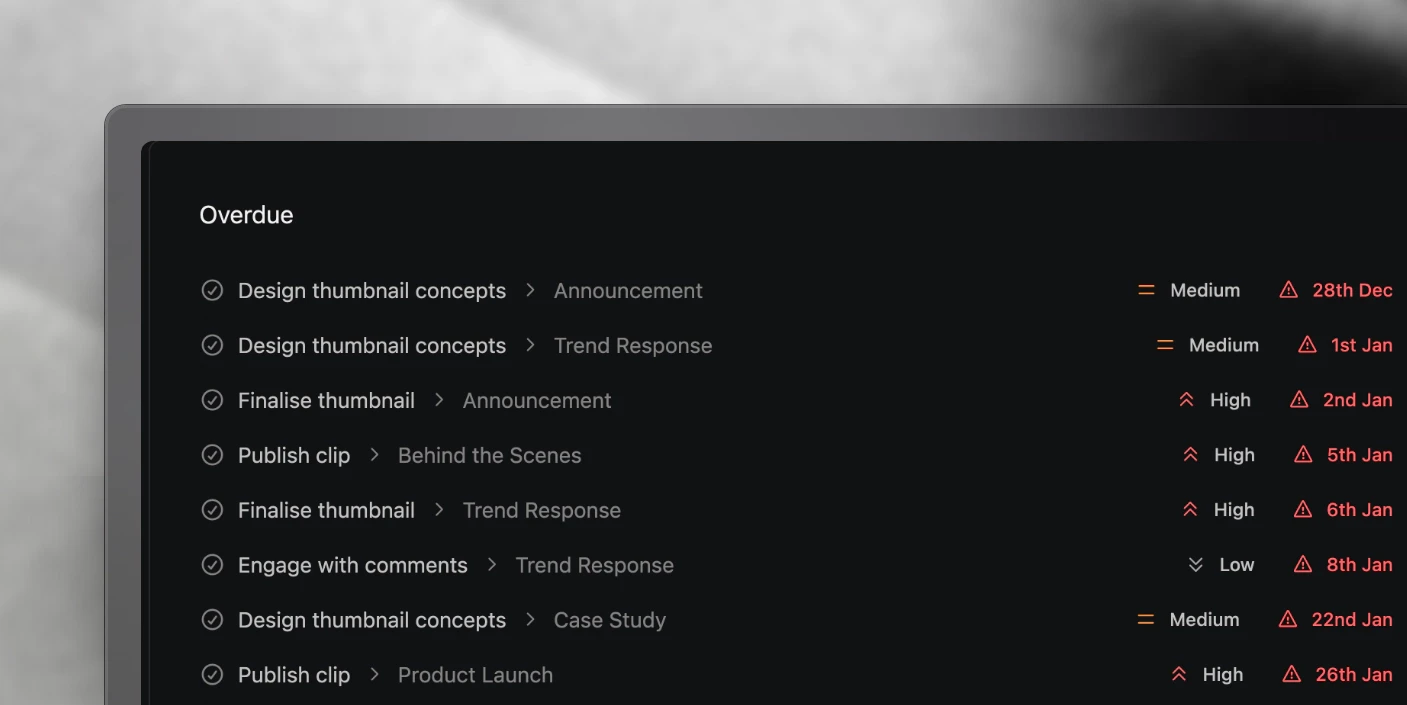
- Task Name - The specific task to complete (e.g., “Mockup YouTube Thumbnail”, “Upload and Schedule to YouTube”)
- Parent Project - Shown after the “>” symbol, tells you which project the task belongs
- Priority - The task’s priority level (Low, Medium, High)
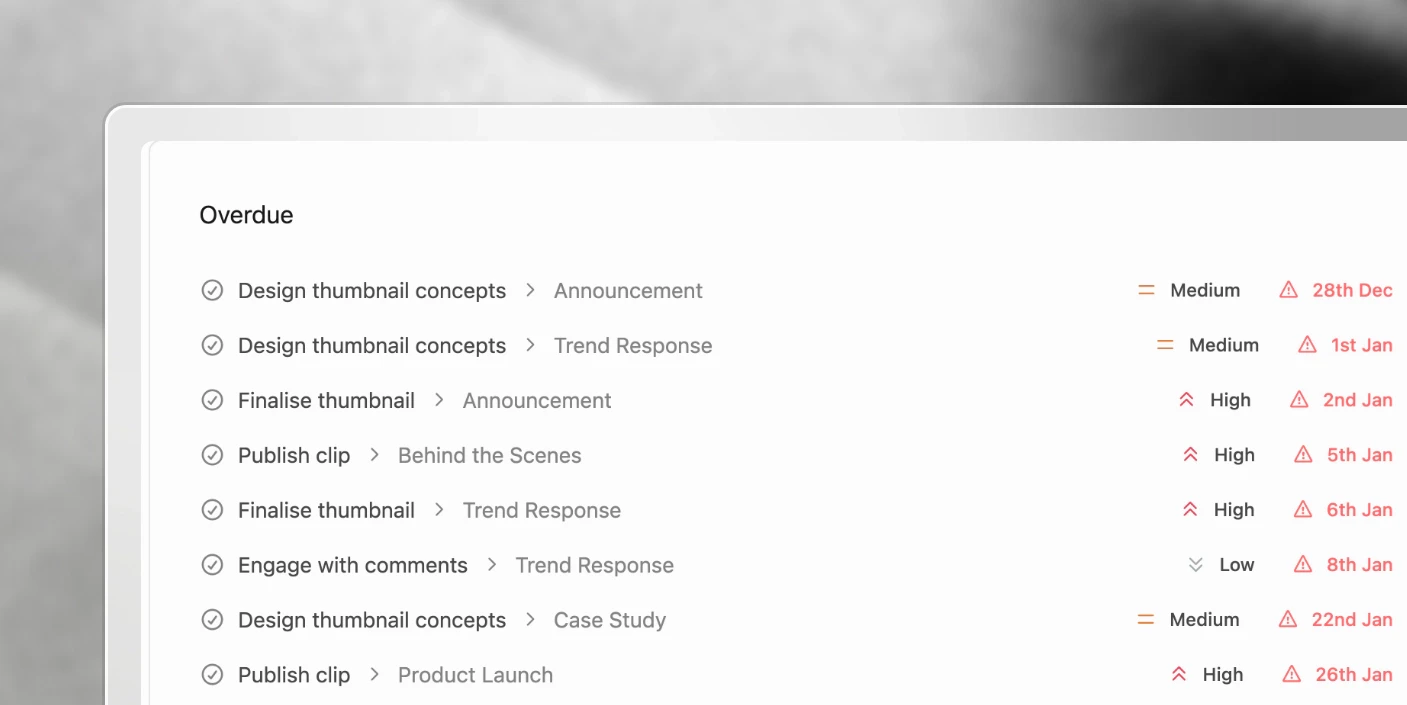
- Due Date - When the task is due. Overdue dates appear in red with a warning icon
- Assignee - The team member responsible for the task
Status Tabs
- All - Every task regardless of status
- In Progress - Tasks currently being worked on
- Complete - Finished tasks
Filtering Options
- By Team Member - Click the team member dropdown to see tasks for a specific person, or view all team members’ tasks
- By Priority - Focus on high-priority tasks first
- Group By - Organize tasks by different criteria
- Search - Find any task by name
- Reset - Clear all filters and return to the default view
Quick Actions
- Check the box - Mark a task as complete
- Click any task - Open the task details
- Click the project name - Jump directly to the parent project
- Three-dot menu - Access additional task options
Break a task into subtasks
Open the task that owns the work, then use Sub Tasks → Add Task to create the smaller steps beneath it. Subtasks stay attached to the parent task in the same task list and section, so a larger handoff can remain visible without turning into a vague single checkbox.
For Different Roles
For Editors
Task List is your daily command center:
- Open Task List first thing to see what’s due today
- Filter to your name to see only your assignments
- Work through tasks in due date order
- Mark tasks complete as you finish them
For Managers and Producers
Monitor your entire team’s workload:
- Switch between team members to check progress
- Spot overdue tasks quickly (red dates with warning icons)
- See who has capacity and who’s overloaded
- Identify bottlenecks before they cause delays
For Thumbnail Designers and Specialists
Focus on your specific work:
- Filter to see only your assigned tasks
- See all thumbnail tasks across every project
- Know which projects need your work first
- Track your output across the team
Tips and Best Practices
Make It Your Starting Point
- Open it first - Every work session should start with Task List. See what’s due and what’s overdue.
- Work in order - Tasks are sorted by due date for a reason. Start at the top. Tasks may reshuffle as project due dates change.
- Check throughout the day - New tasks may be assigned as projects progress.
For Prioritization
- Focus on overdue first - Red dates mean something’s late. Address these immediately.
- Use the In Progress tab - Keep this tab clean. If something’s marked In Progress, you should be actively working on it.
- Don’t ignore No Date tasks - Tasks without dates still need attention. Review these regularly.
For Team Coordination
- Check before asking - Before asking a team member about a task, check Task List to see the current status.
- Use it in standups - Pull up Task List during team meetings to review what’s due and who’s doing what.
- Spot patterns - If one person consistently has overdue tasks, it might indicate a capacity or priority issue.
Frequently Asked Questions
Does Task List show tasks from all projects?
Yes. Every task from every project appears in Task List, giving you complete visibility.
Can I see other team members' tasks?
Yes. Use the team member dropdown to select any team member and see their assigned tasks.
What does the red date mean?
Red dates with warning icons indicate the task is overdue. These need immediate attention.
Can I complete tasks from this view?
Yes. Click the checkbox next to any task to mark it complete without opening the task details.
How do I know which project a task belongs to?
The parent project is shown after the “>” symbol next to each task name.
What's the difference between Task List and looking at tasks inside a project?
Task List shows tasks from ALL projects in one view. The task list inside a project only shows tasks for that specific project. Task List is better for seeing your complete workload across everything.
Can I create tasks from Task List?
Tasks are created within projects. Task List is for viewing and managing existing tasks across all projects.
Can I split a task into smaller steps?
Yes. Open the parent task and add subtasks from its Sub Tasks section. Use them when a task has a few trackable parts but does not need to become a separate project.
Related articles
- Task List Templates: reusable workflows with relative deadlines
- Creating Project Templates: templates that carry a task list
- Custom Views: save the view you work from
Was this page helpful?
Related articles
Production Dashboard
See content projects across every organization in one production dashboard, sorted by deadline and ready for action.
Content Ideas
Capture content ideas, develop them with your team, and turn the strongest concepts into production projects.
Project Pages
Write content briefs, scripts, hooks, and production notes inside the project where the team can review and approve them.
Need more help with this?
Contact support