
How to run your content operation without losing the work between planning, production and publishing
See how Clipflow helps content teams plan, produce, review, publish, and measure work across brands and channels.
Updated
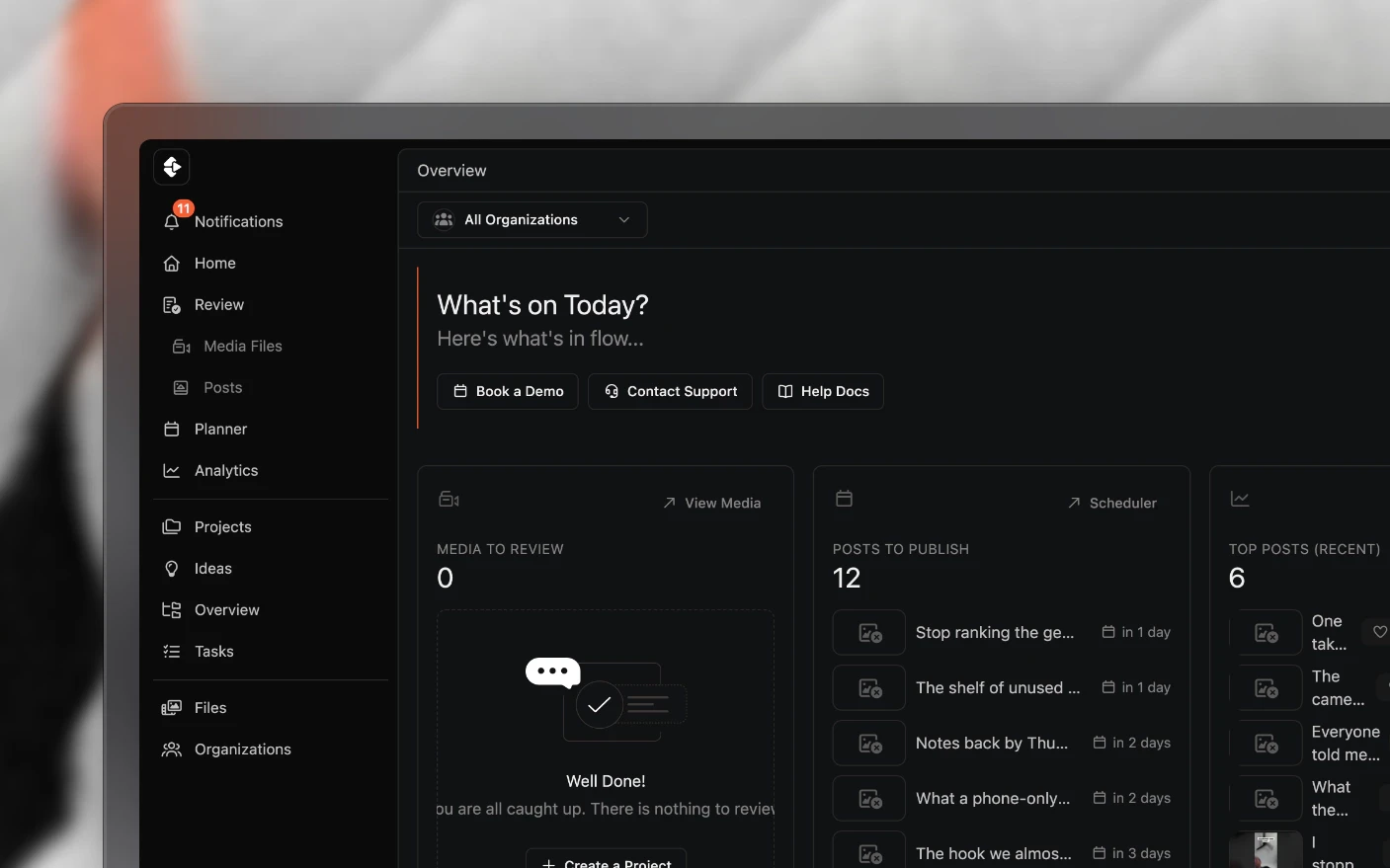
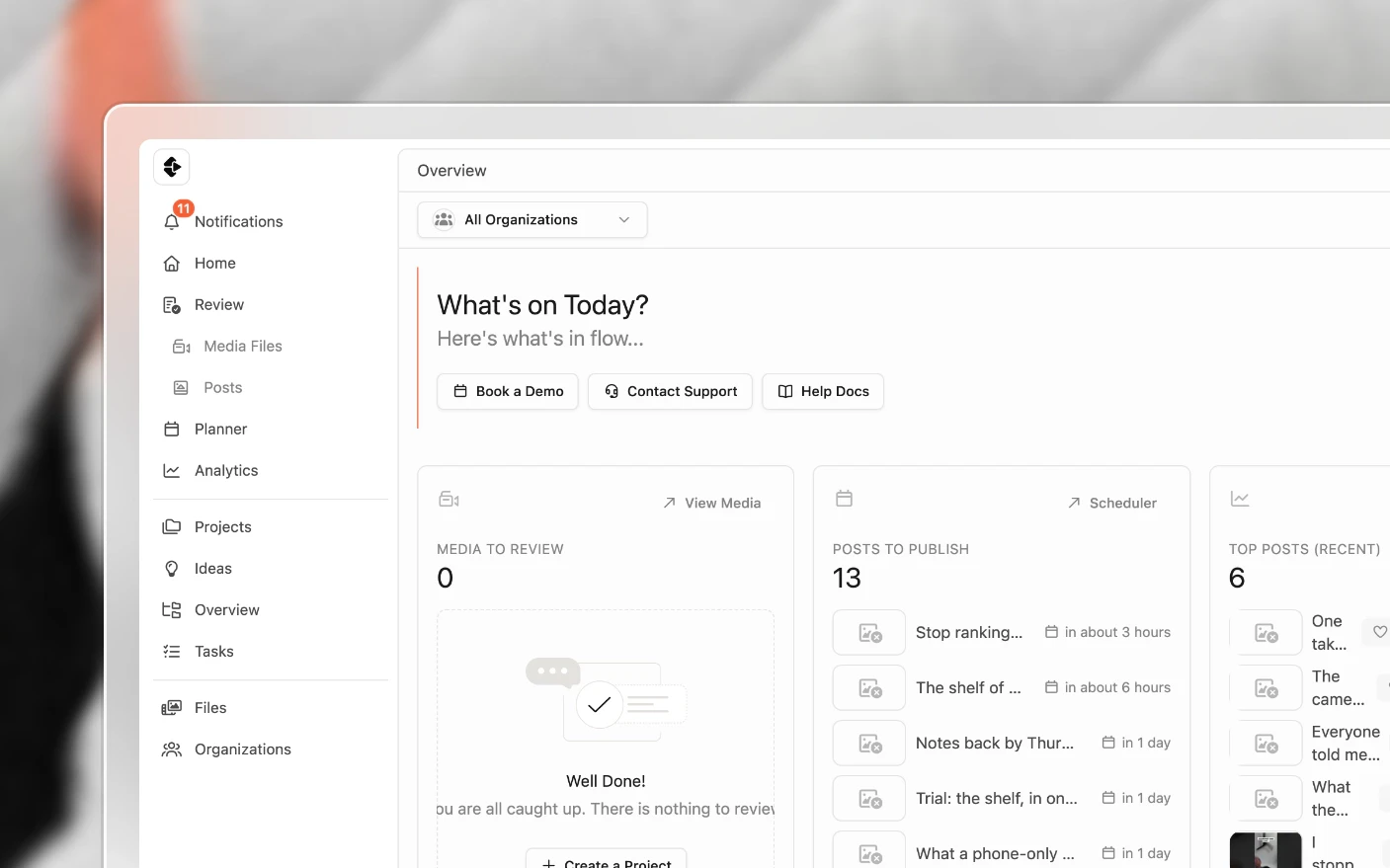
See how your whole content operation fits together before you start building it
Clipflow is where a content operation runs: the ideas, the scripts, the tasks, the footage, the review, and the publishing, in one place rather than six.
This page walks through how the parts fit together, with where to go next for each one.
Who it is for
Solo creators who want structure before the workload demands it, and want to stop losing posts to a missed handover.
Content teams producing at volume across several channels, where the bottleneck is coordination rather than talent.
Agencies running multiple clients, who need each brand separated but visible from one place.
The core idea: projects
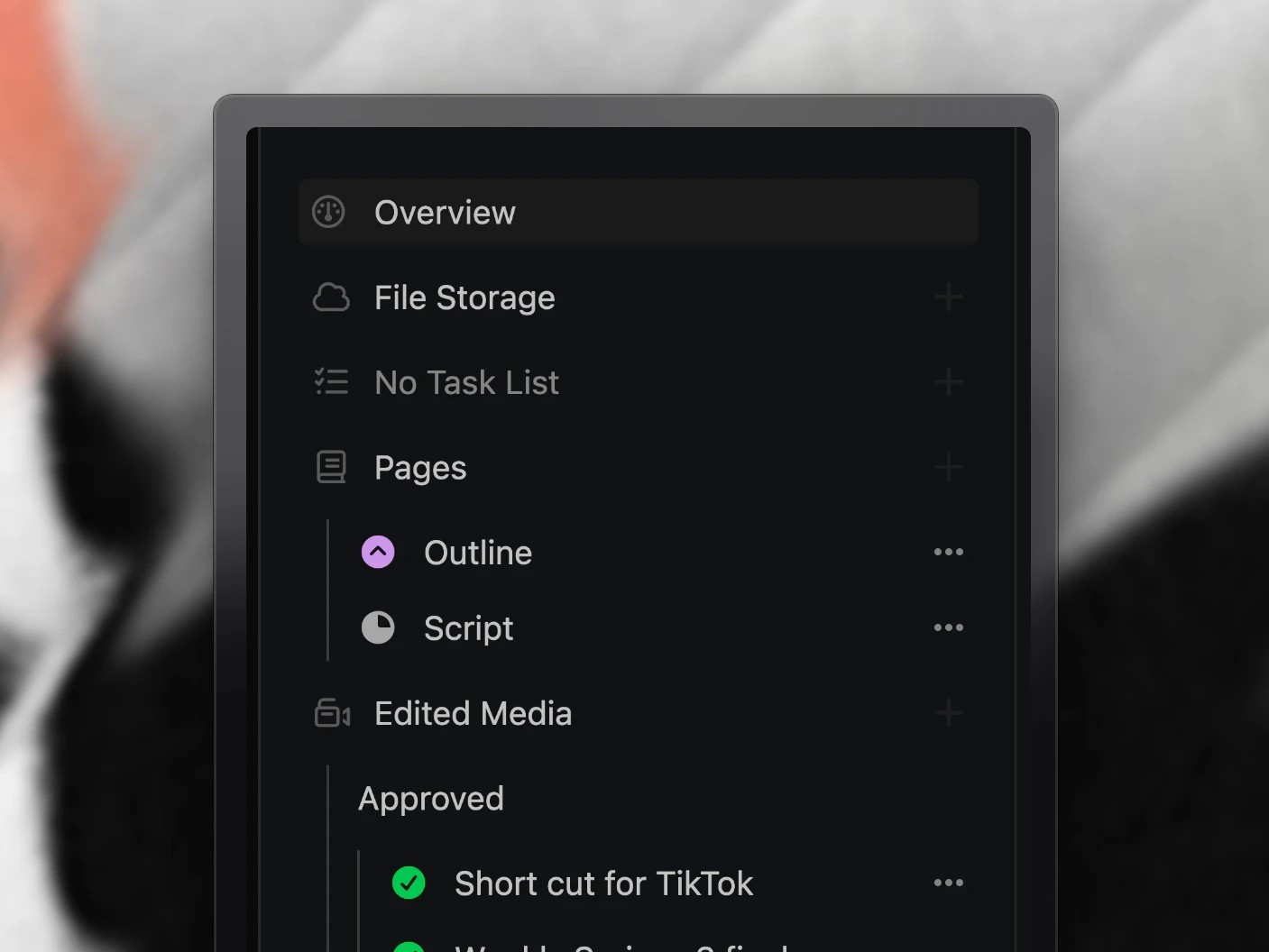
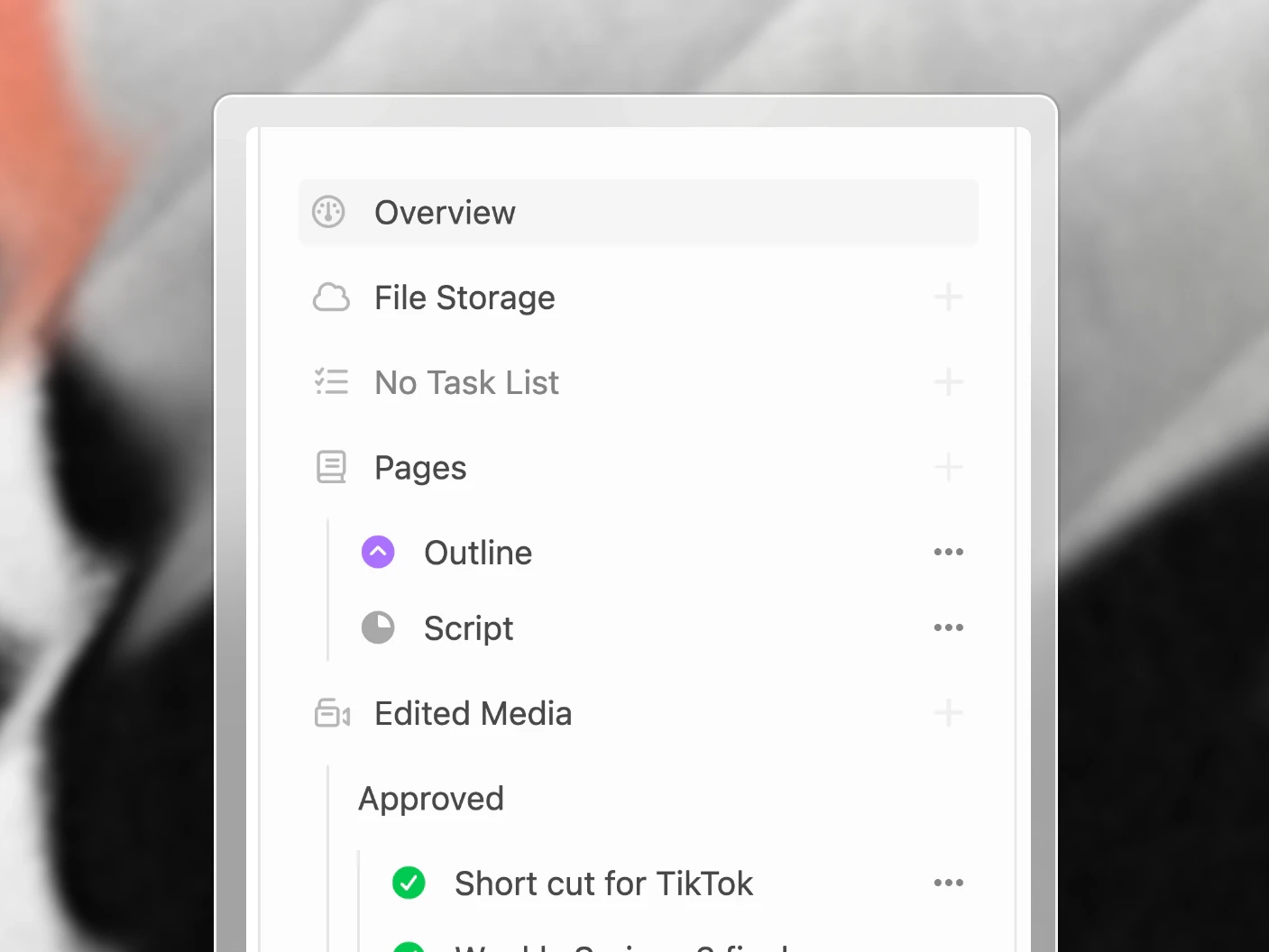
Everything works in projects, which are like a folder where one or many pieces of content can be worked on together:
- The outlines, hooks, and scripts as pages
- Task lists with owners and deadlines
- Raw footage, edits, and finals
- Title and thumbnail options
- The posts it becomes on each channel
- The comments and review history for all of it
Use a project for one video, a whole campaign, a recurring content series, or however your team prefers to group the work. Projects can also contain sub-projects, so the structure can grow with the way you plan and produce.
How a week actually moves
1. Capture ideas
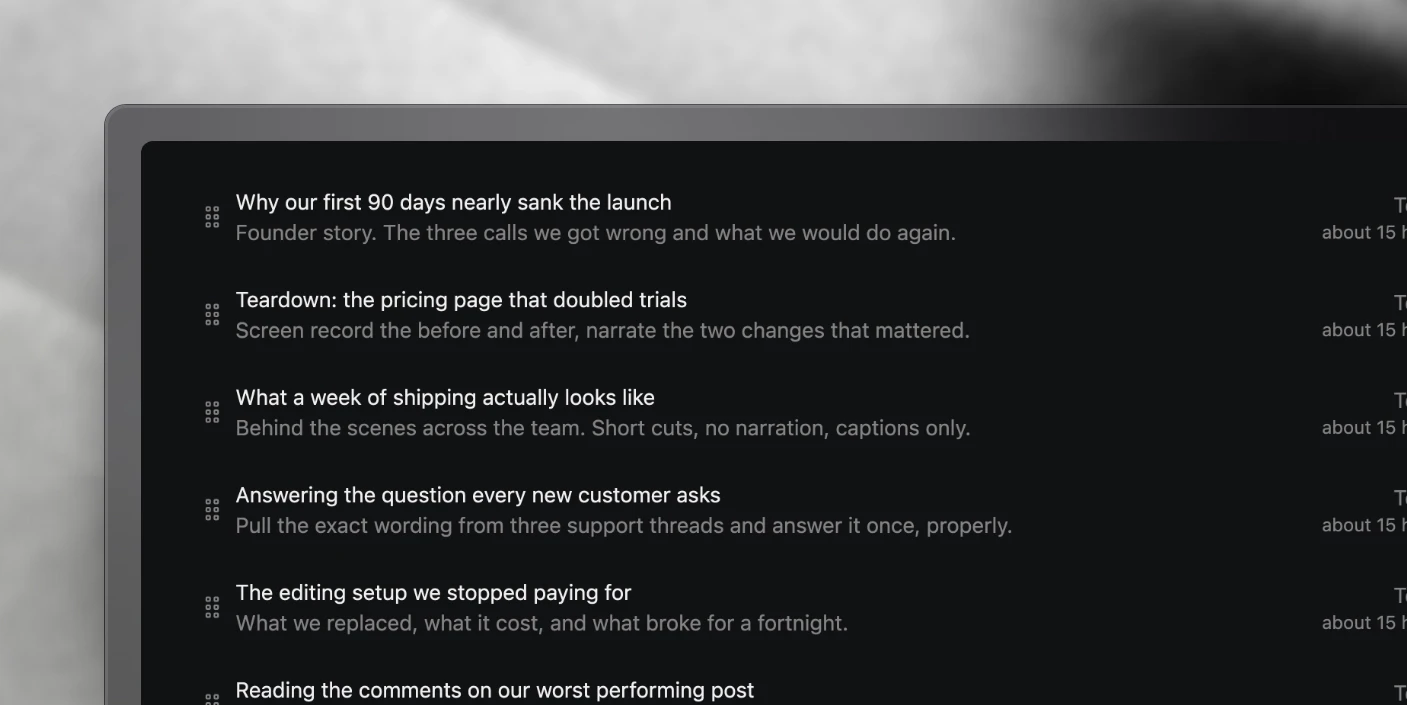
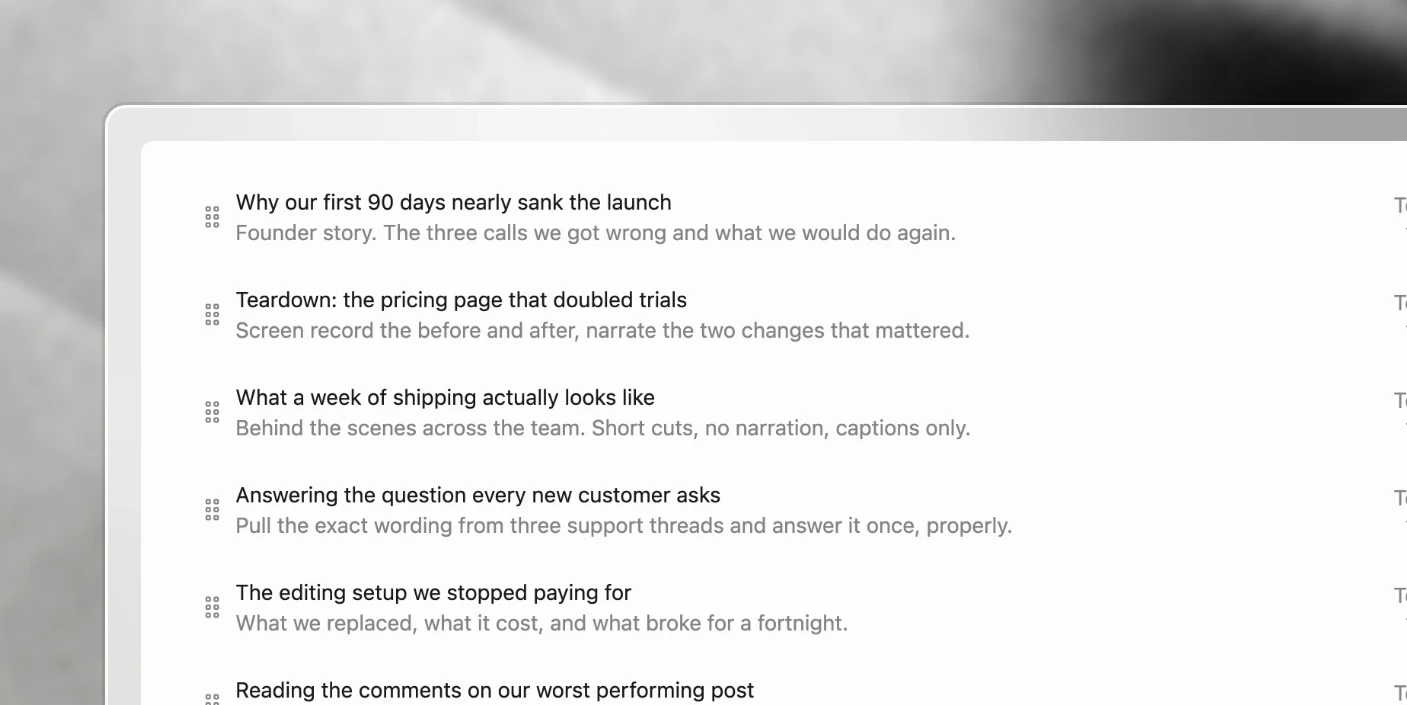
Ideas land in the ideas screen before they are projects. Rough is fine. Drag one into production when it is ready and it becomes a project. See Ideas Screen.
2. Start from a template
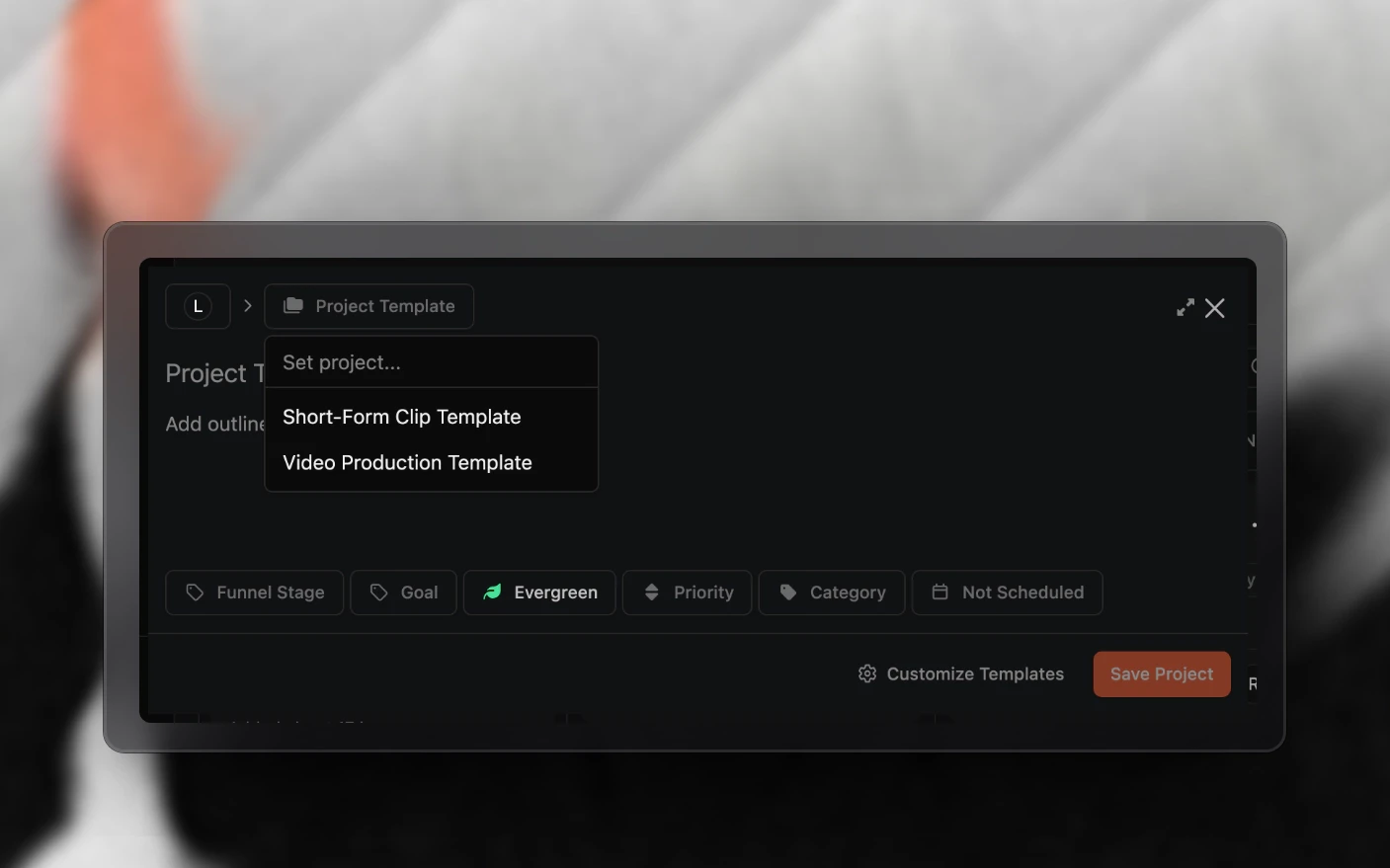
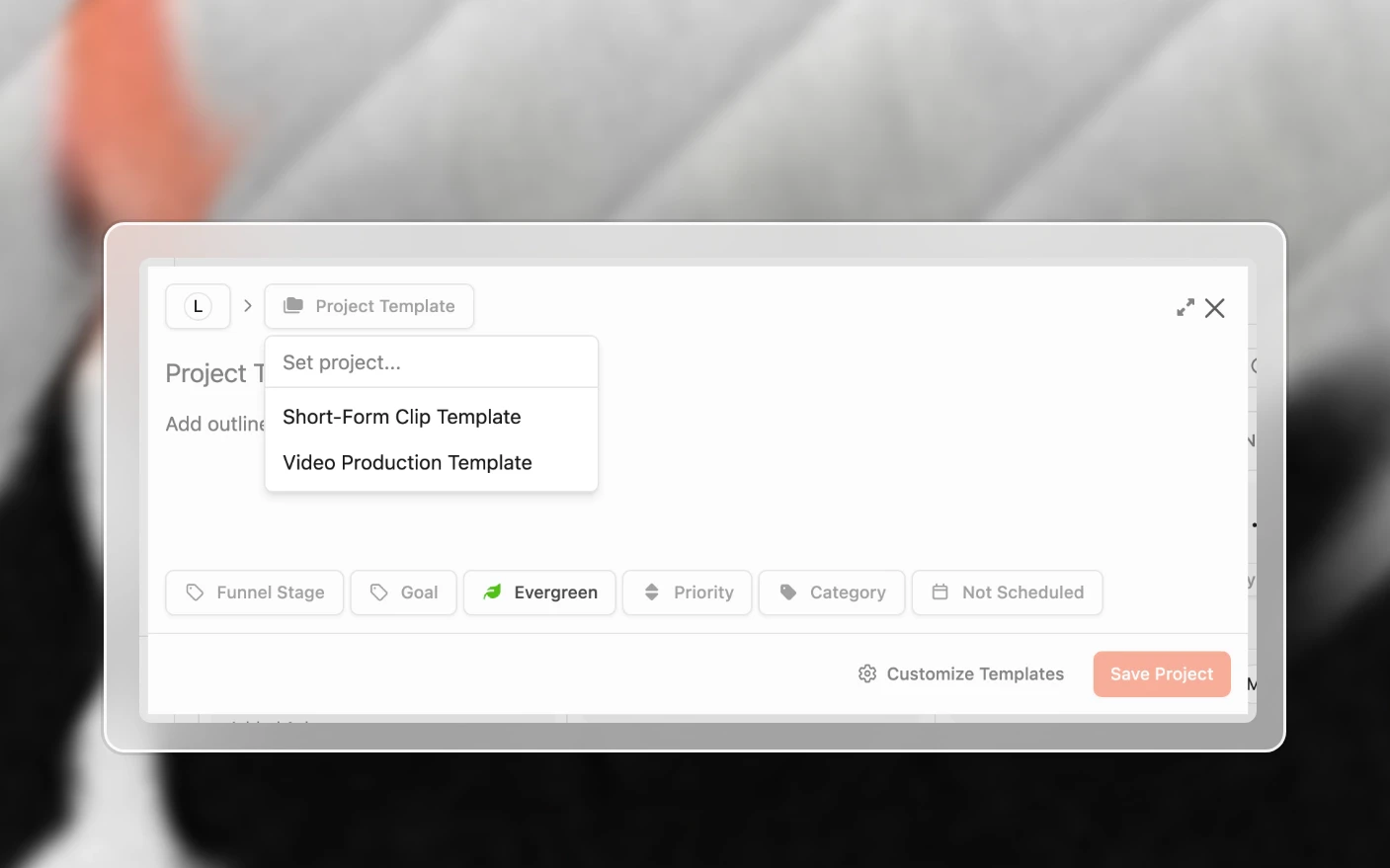
Templates carry the outline, the labels, the channels, and the whole task list. Deadlines calculate backwards from the publish date, so moving a launch moves everything with it. See Using Project Templates.
3. Write and plan
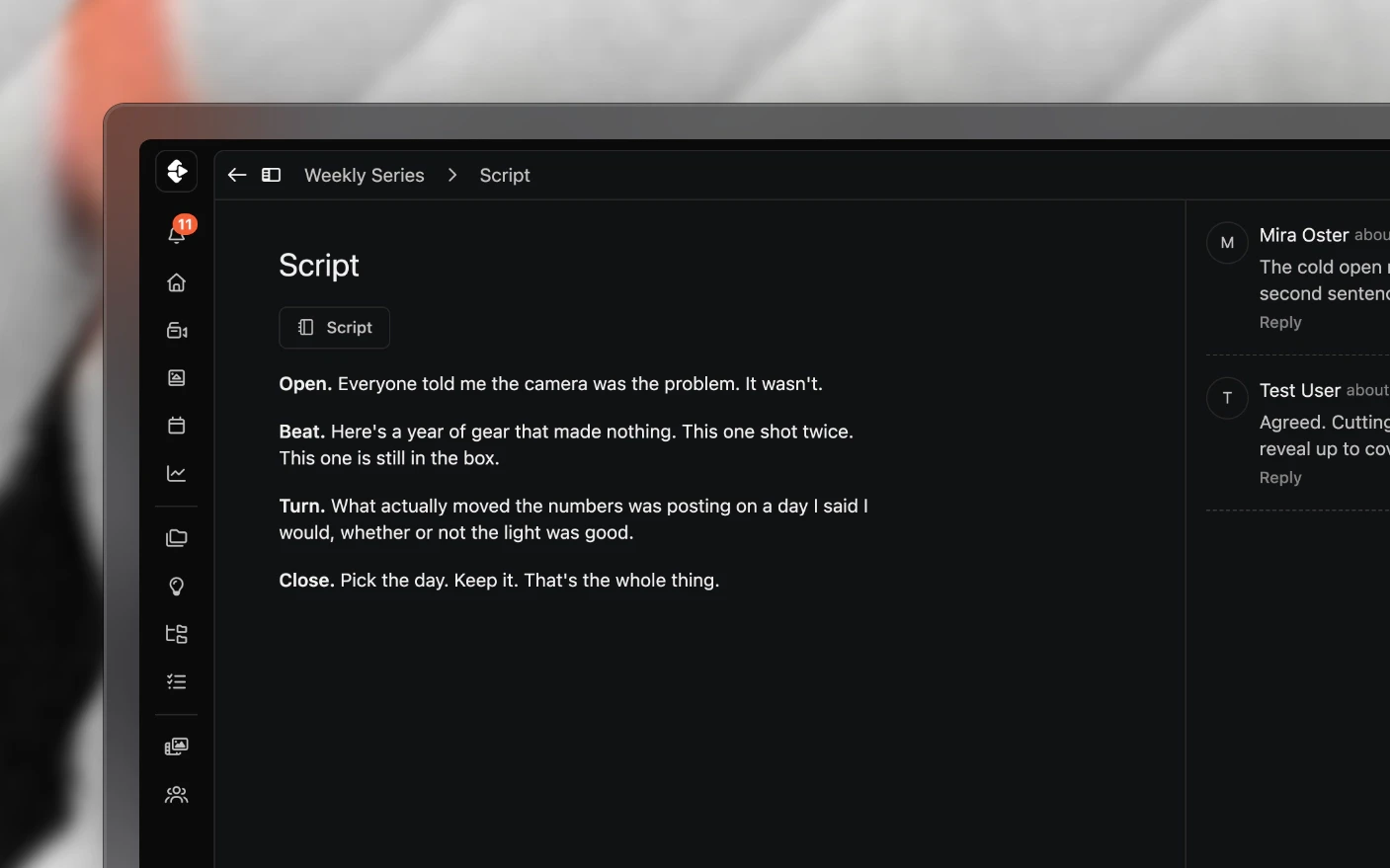
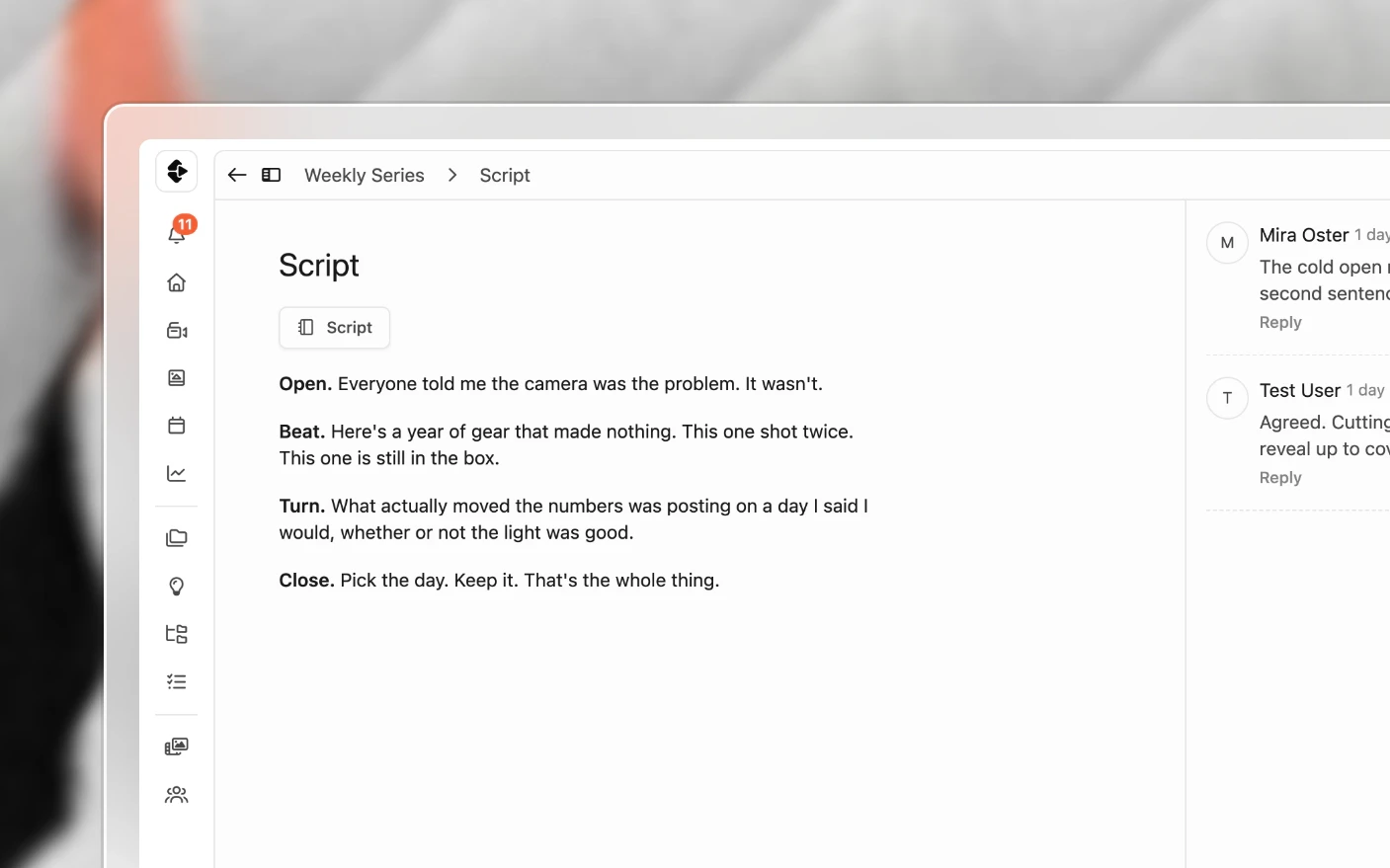
Scripts, outlines, hooks, and production notes live as pages on the project, with comments and their own approval state. See Project Pages.
4. Assign the work
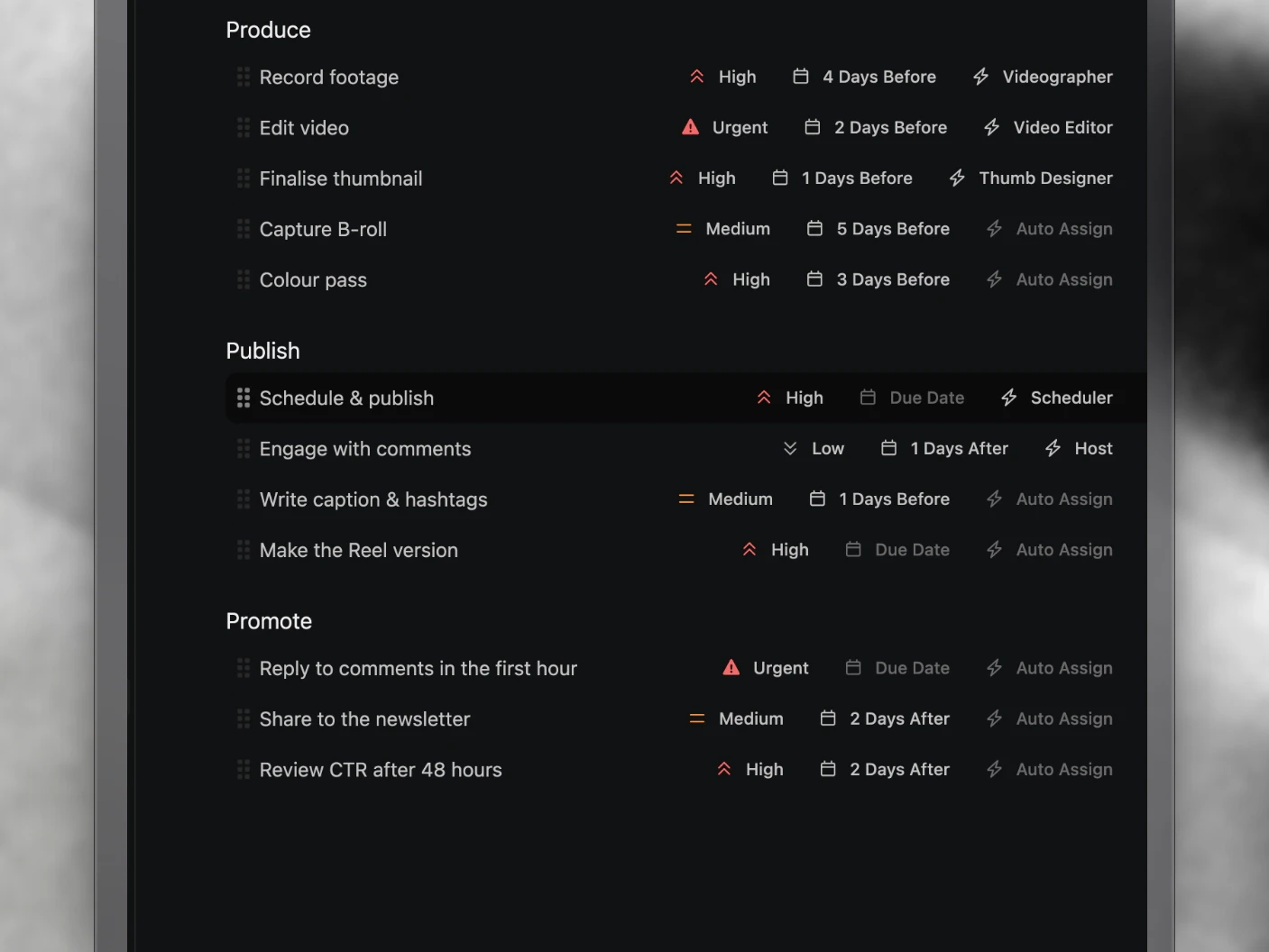
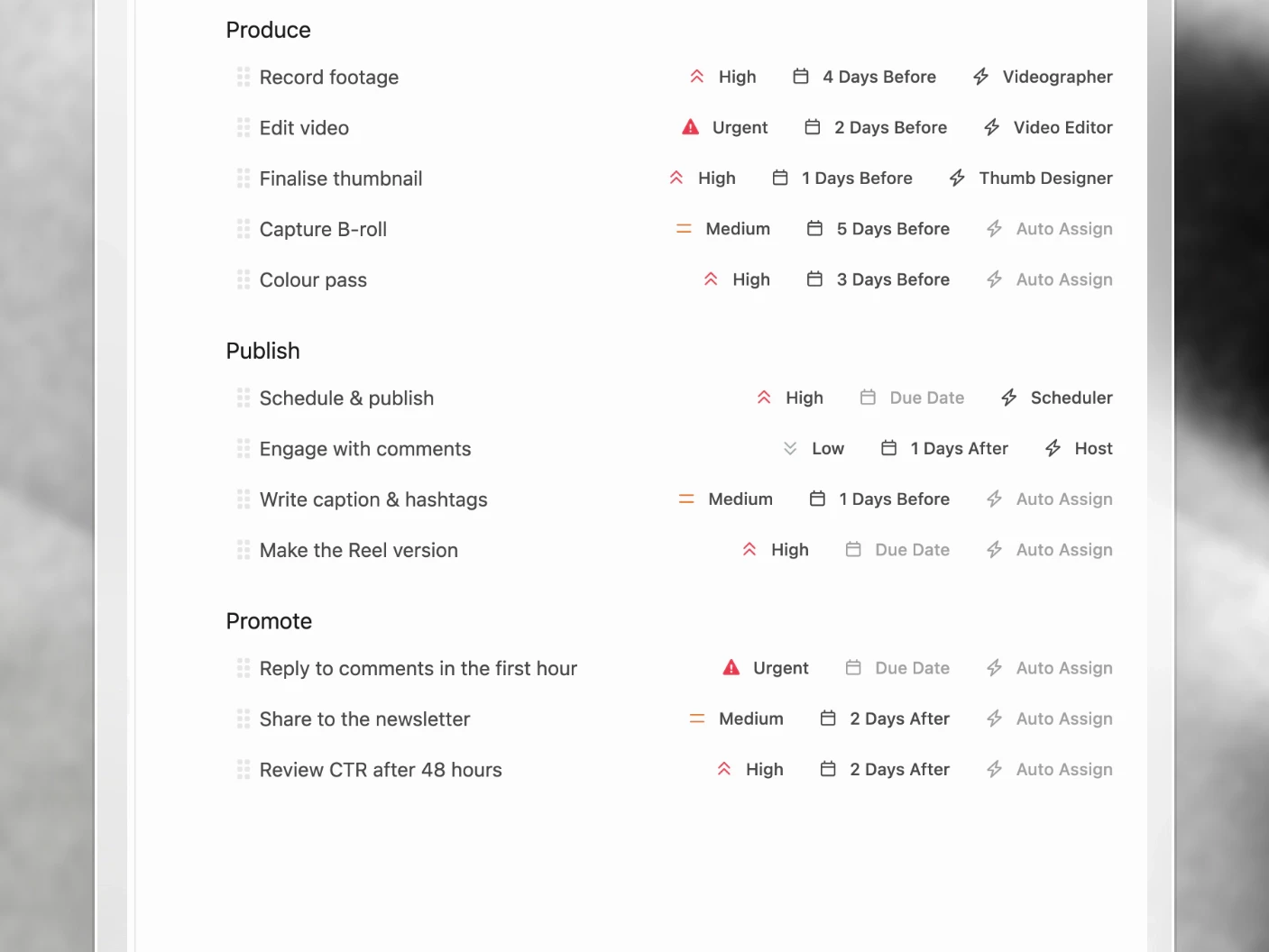
Tasks route by skill rather than by name, so the right person picks them up as the team changes. Each task can carry the SOP for doing it properly. See Task List Overview.
5. Review the edit
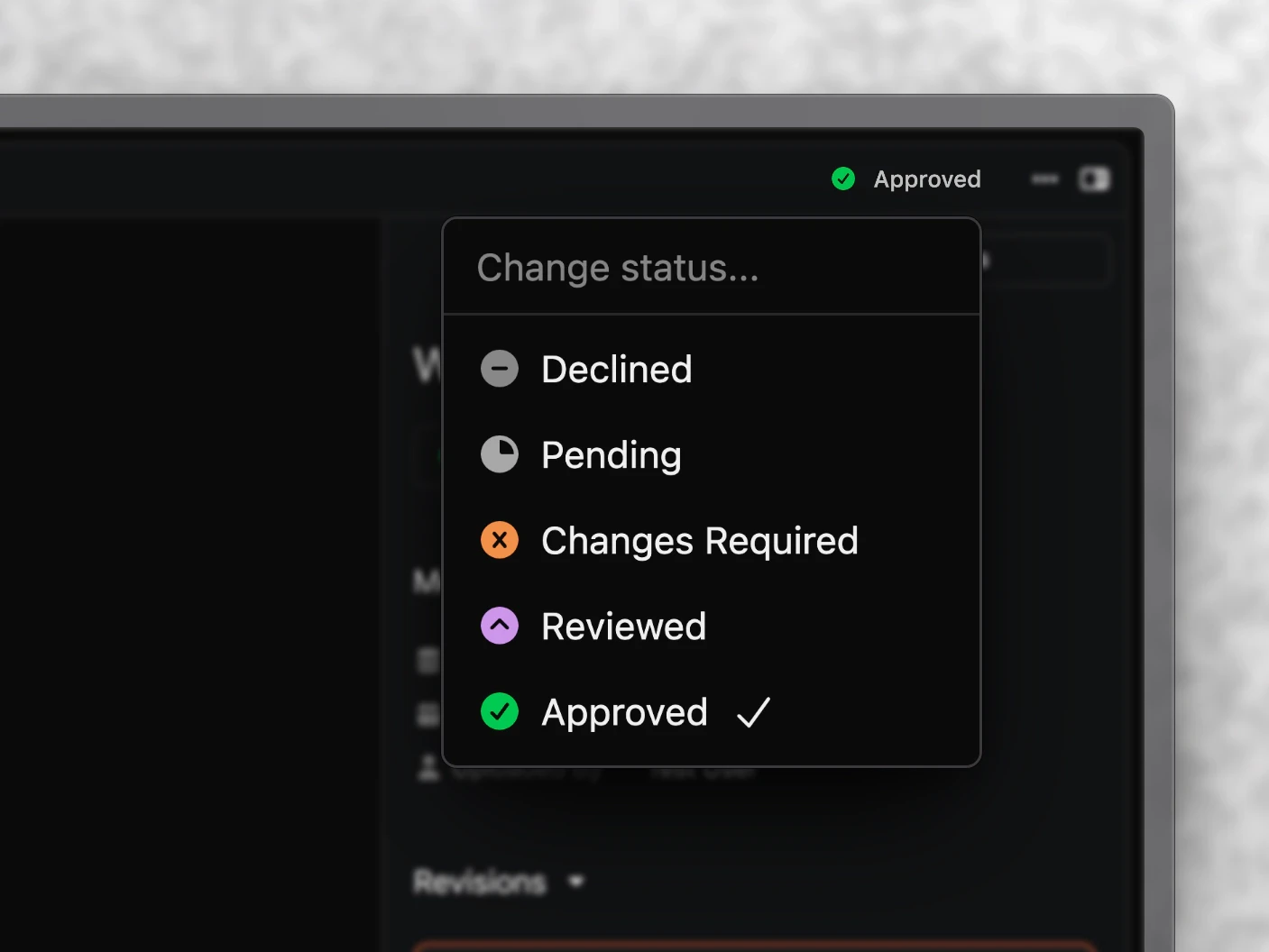
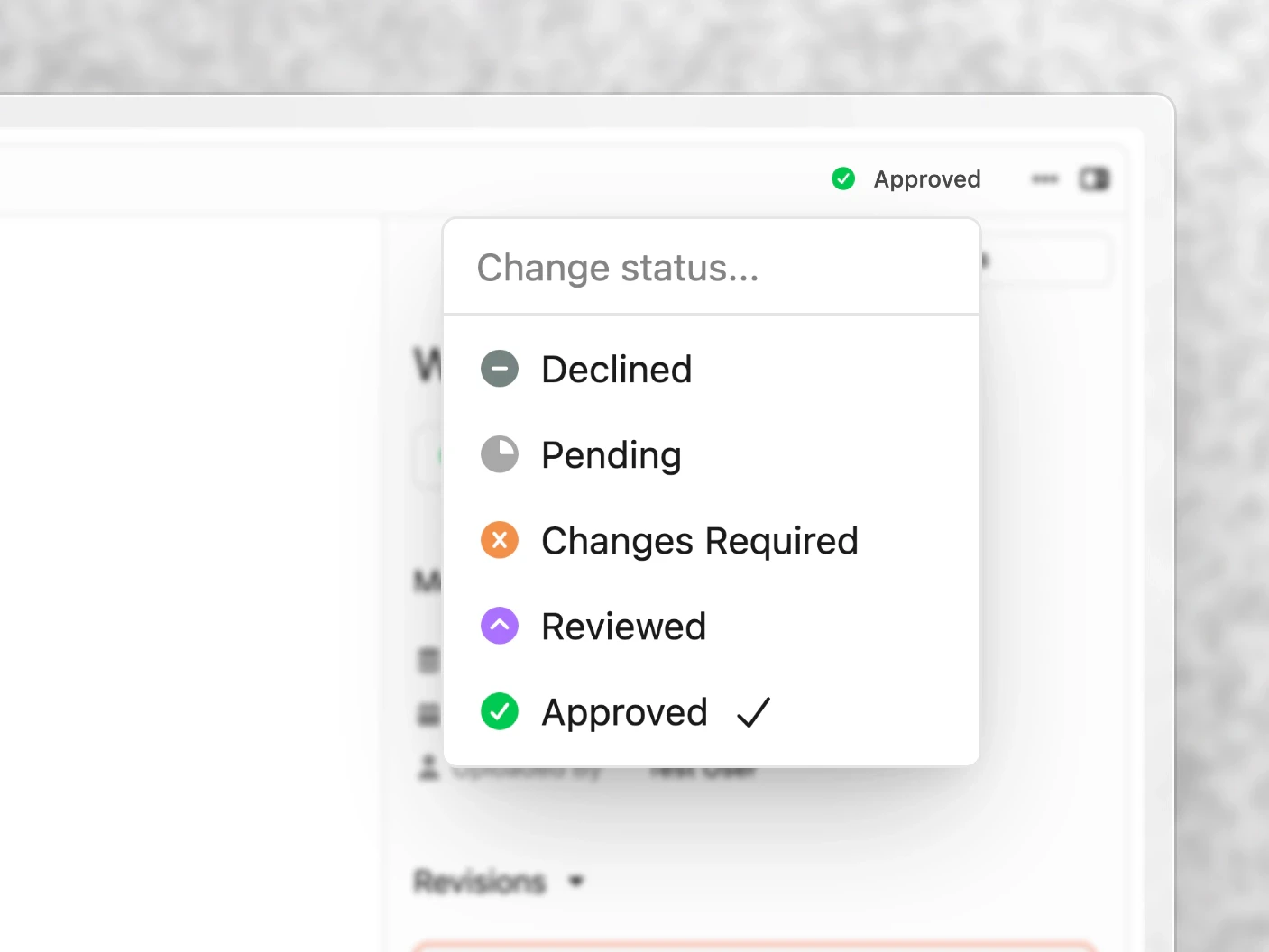
Upload cuts to the project. Leave timestamped comments, draw on the frame, compare versions, then approve or send back. No downloads, no Frame.io, no feedback spread across WhatsApp. See Media Review and Notifications.
6. Package it
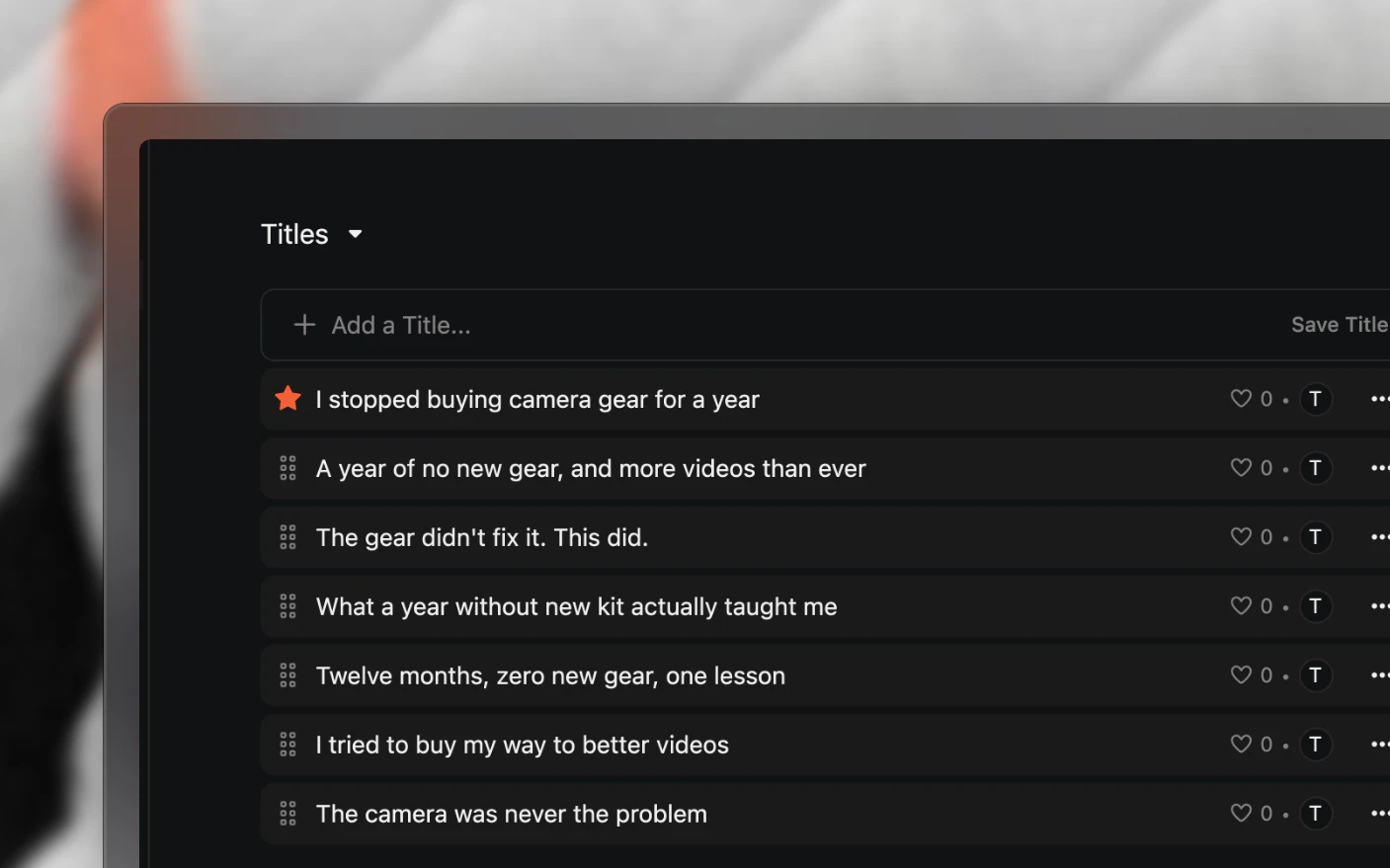
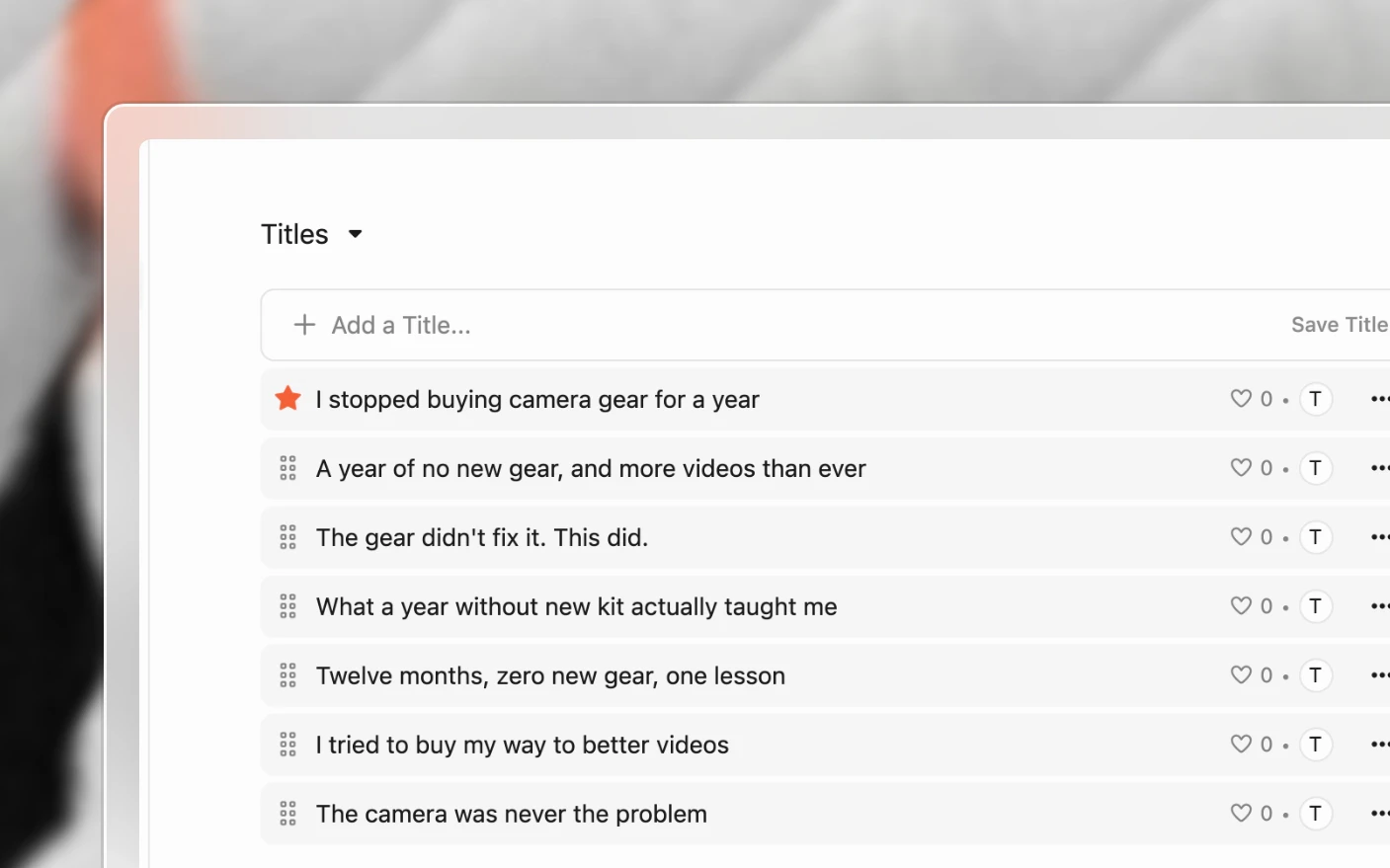
Test title and thumbnail variations, vote, and pick the strongest. See Packaging Section.
7. Publish
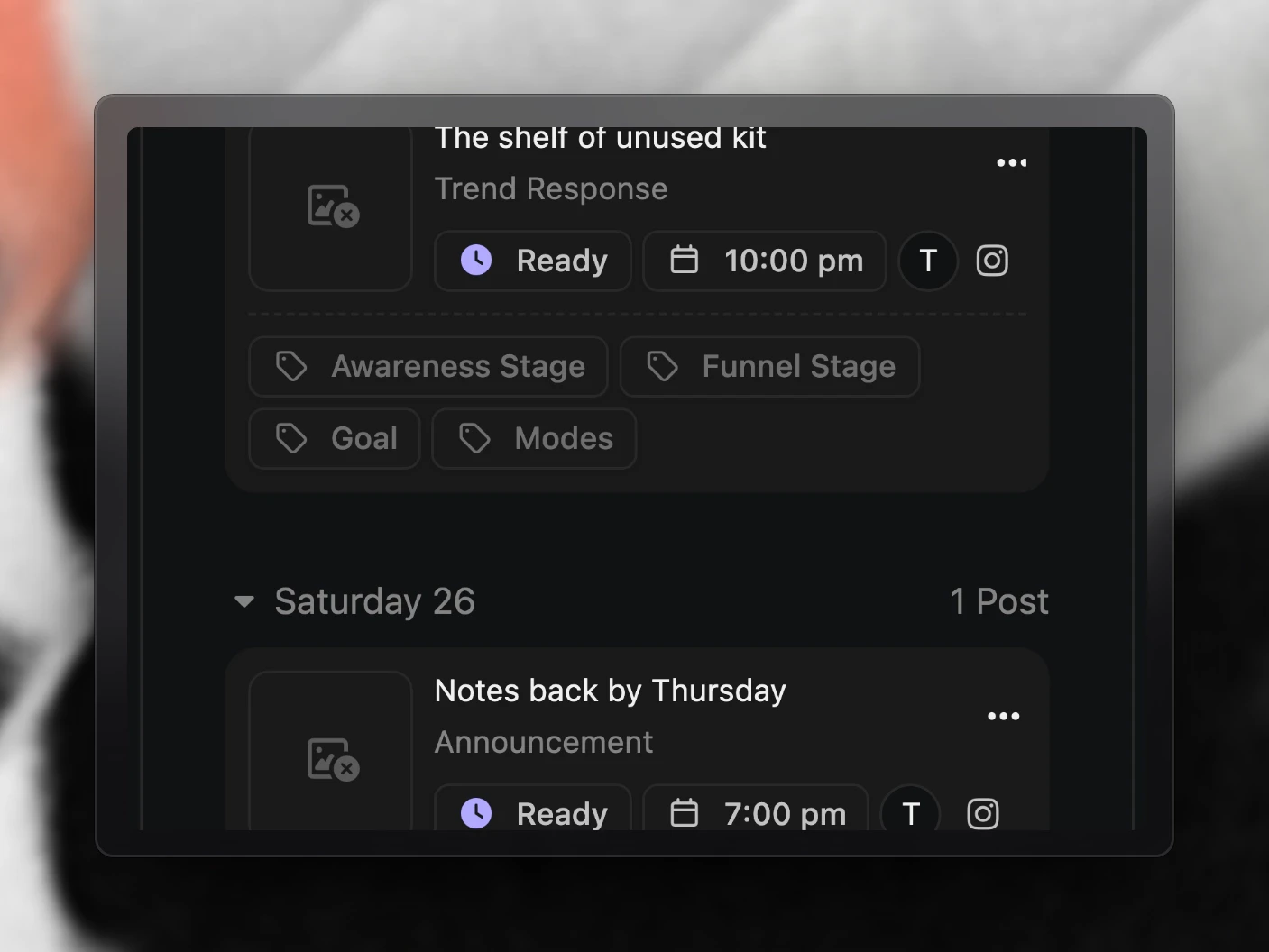
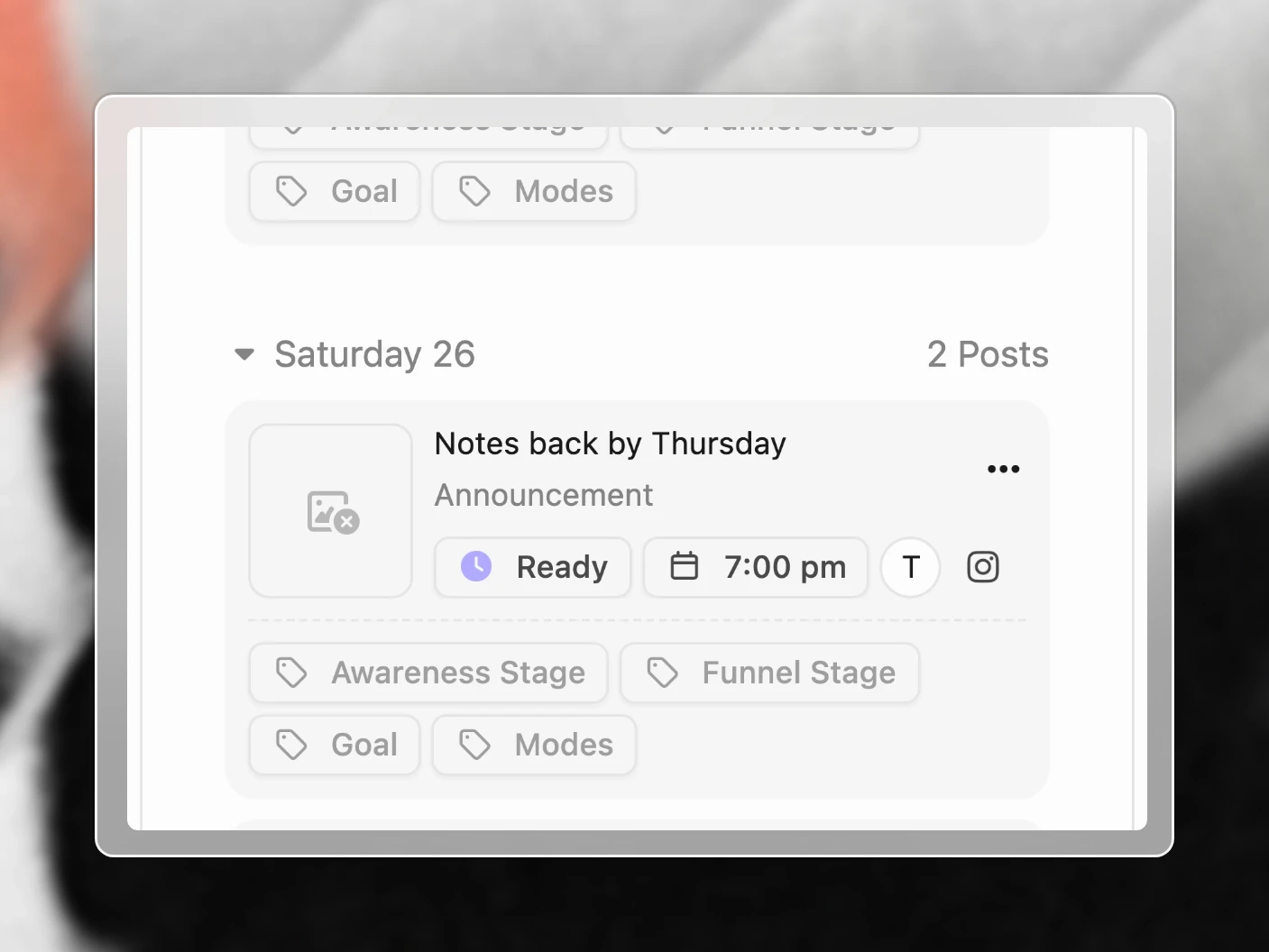
Approving media triggers an automation that drafts posts for each connected channel. Review them, mark them Ready, and they publish into your time slots. See Post Scheduling.
8. Learn from it
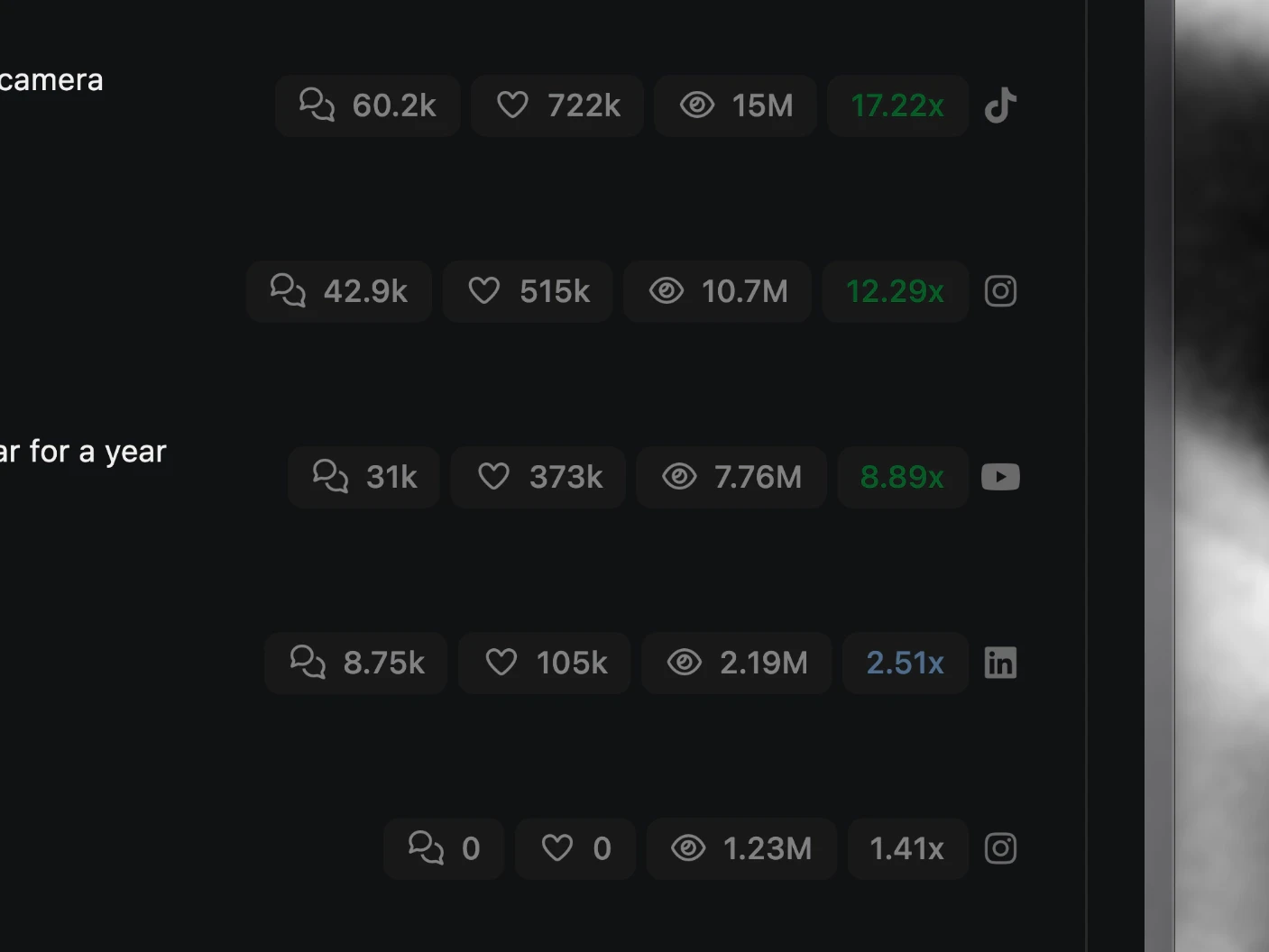
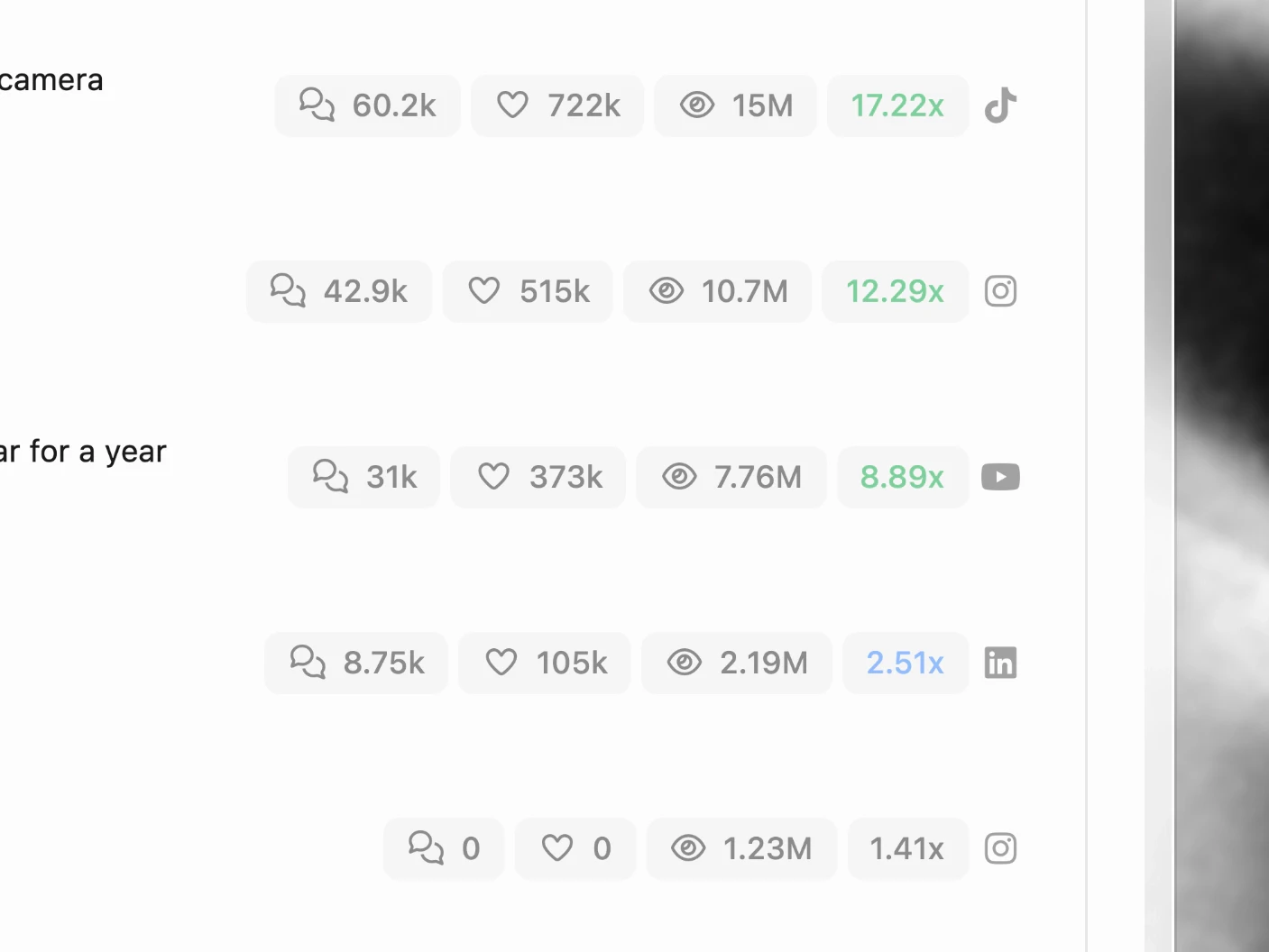
Analytics compares each post against your median so you can see what genuinely outperformed. See Analytics.
Working across brands and clients
Each brand or client is its own organization, with its own projects, channels, team, templates, and subscription. Switch between them from the top of the screen.
Above all of them sits an overview showing every project across every organization: what is assigned, what is due, and what is blocked. That view is why agencies use Clipflow rather than a project tool per client.
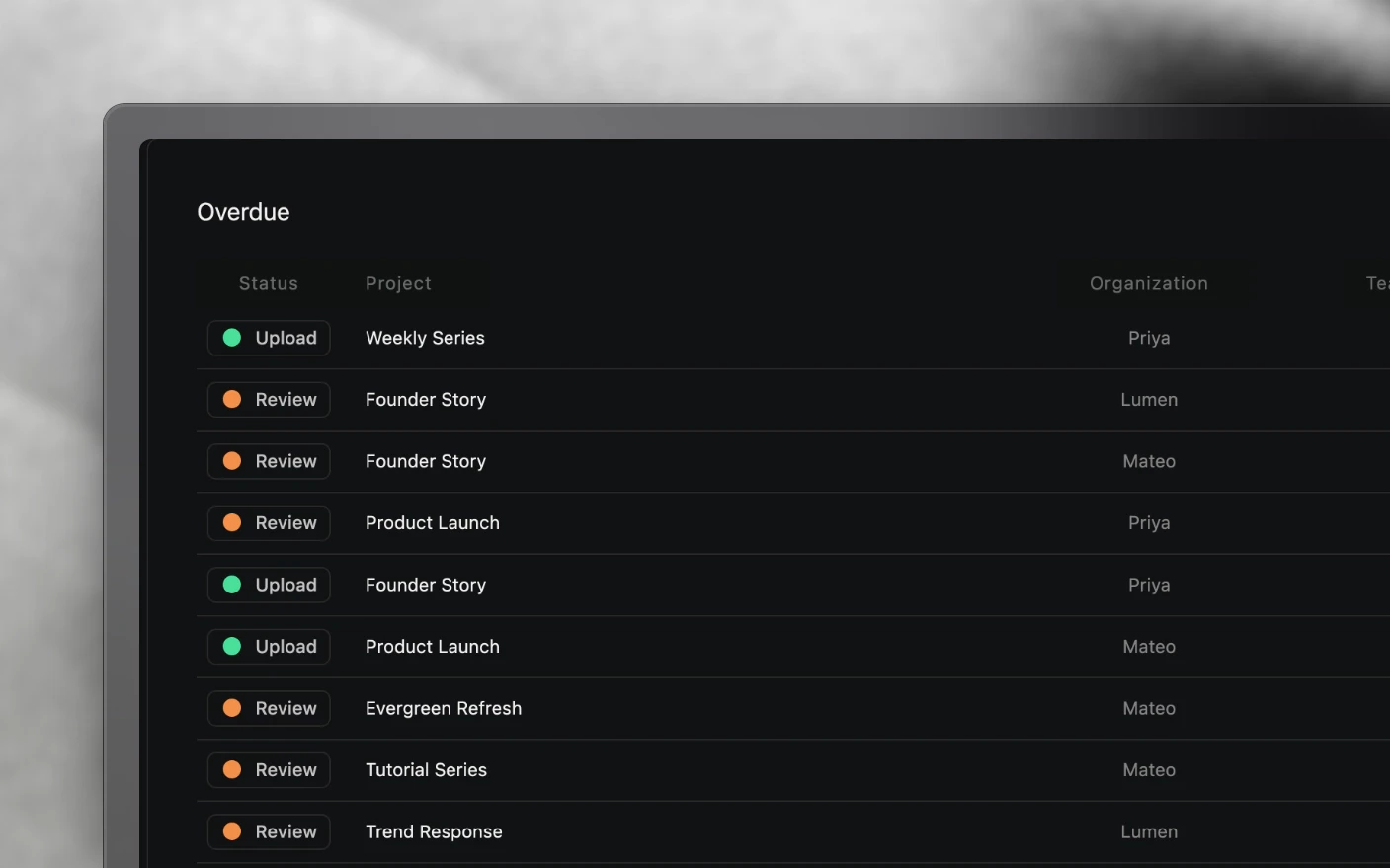
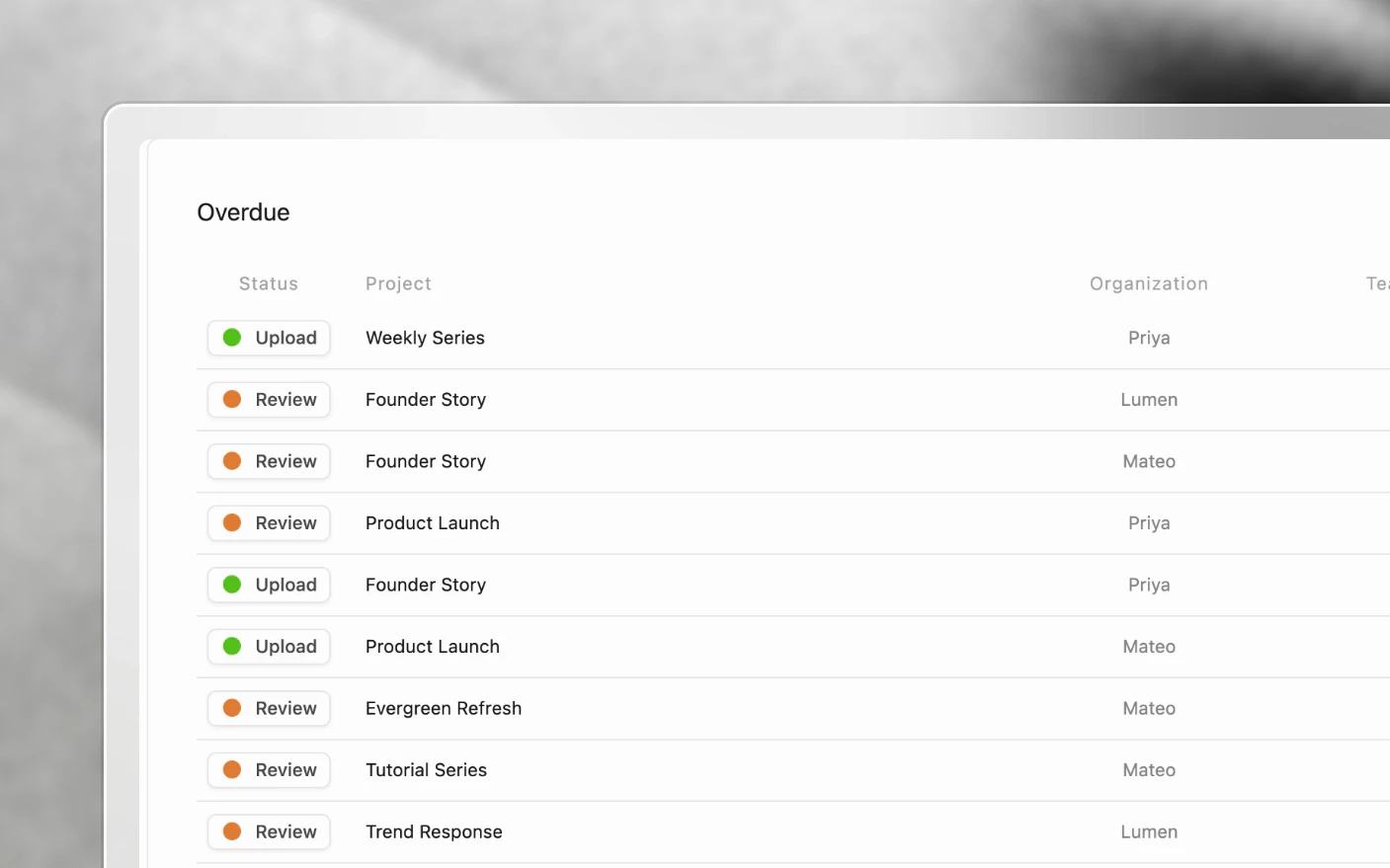
See Managing Your Organization and Your Production Dashboard.
Your first week
| Do this | Why |
|---|---|
| 1. Run one project end to end | Learn the flow on something real before rolling it out |
| 2. Set up your organization | Statuses, categories, and labels shape everything after |
| 3. Connect your channels | Starts analytics, and creates your first automation |
| 4. Invite your team | Assign skills so tasks route correctly |
| 5. Build one template | From the project you just finished, not from imagination |
| 6. Upload media and review it | The approval is what sets publishing in motion |
| 7. Publish, then repeat | The second project should take a fraction of the time |
Do step one before step five. Templates built from a project that worked are better than templates built from how you think you work.
Tips and best practices
- Do not configure everything first. Ship one project, then set up the parts that got in your way.
- Set skills on your team early. Templates depend on them, and retrofitting means editing every template.
- Use statuses that include waiting states. “With client” is where projects actually stall, and a board without it hides your real bottleneck.
- Put SOPs on tasks, not in an onboarding doc. Instructions get read where the work happens.
- Approve deliberately. Approval is an event that triggers automations, not a tidy-up.
Frequently asked questions
Do I need to set everything up before I start?
No, and you should not. Run one project first, then configure what got in the way.
Is Clipflow only for YouTube?
No. Teams use it for short-form, podcasts, courses, and written content. Packaging is the only YouTube-specific part, and it is optional.
Can I use it on my own?
Yes. Solo creators use templates and scheduling most, and the structure pays off when you add a first editor.
How do clients get involved?
Through share links, portals, or a guest invite. None of those cost a seat. See Inviting Clients.
Do I need to move my files into Clipflow?
Media you review should be here so feedback attaches to it. Reference material can stay where it lives and be linked.
How long is the trial?
Fourteen days per organization, no card required. See Plans and Billing.
What is the fastest way to see the value?
Run a project from idea to published post. The pieces make sense together in a way they do not separately, whether you are running a campaign, a content series, or another group of related work.
Can someone walk me through it?
Yes. Click Book a Demo on the home screen to book a free onboarding call, where we map your workflow onto Clipflow and set up the first pieces with you. See Book an Onboarding Call.
Related articles
- Working with Projects: the daily workspace
- Book an Onboarding Call: a guided walkthrough with the team
- Managing Your Organization: set up your workspace
- Using Project Templates: stop rebuilding your process
- Connect Social Platforms: get publishing working
Was this page helpful?
Related articles
Working with Projects
Manage content production projects from idea to publishing with briefs, tasks, media review, and collaboration in one workspace.
Working with Posts
Create, review, track, and schedule social media posts alongside the video or campaign they promote.
Book an Onboarding Call
Book a free call with the Clipflow team to walk through your workflow, set up your workspace, and get your questions answered.
Need more help with this?
Contact support