
How to review draft posts one by one before they are scheduled
Work through a queue of draft posts, fix media, caption, date and channel in place, mark each one Ready and move on, mostly from the keyboard.
Updated
Check every draft post in one sitting instead of opening each project
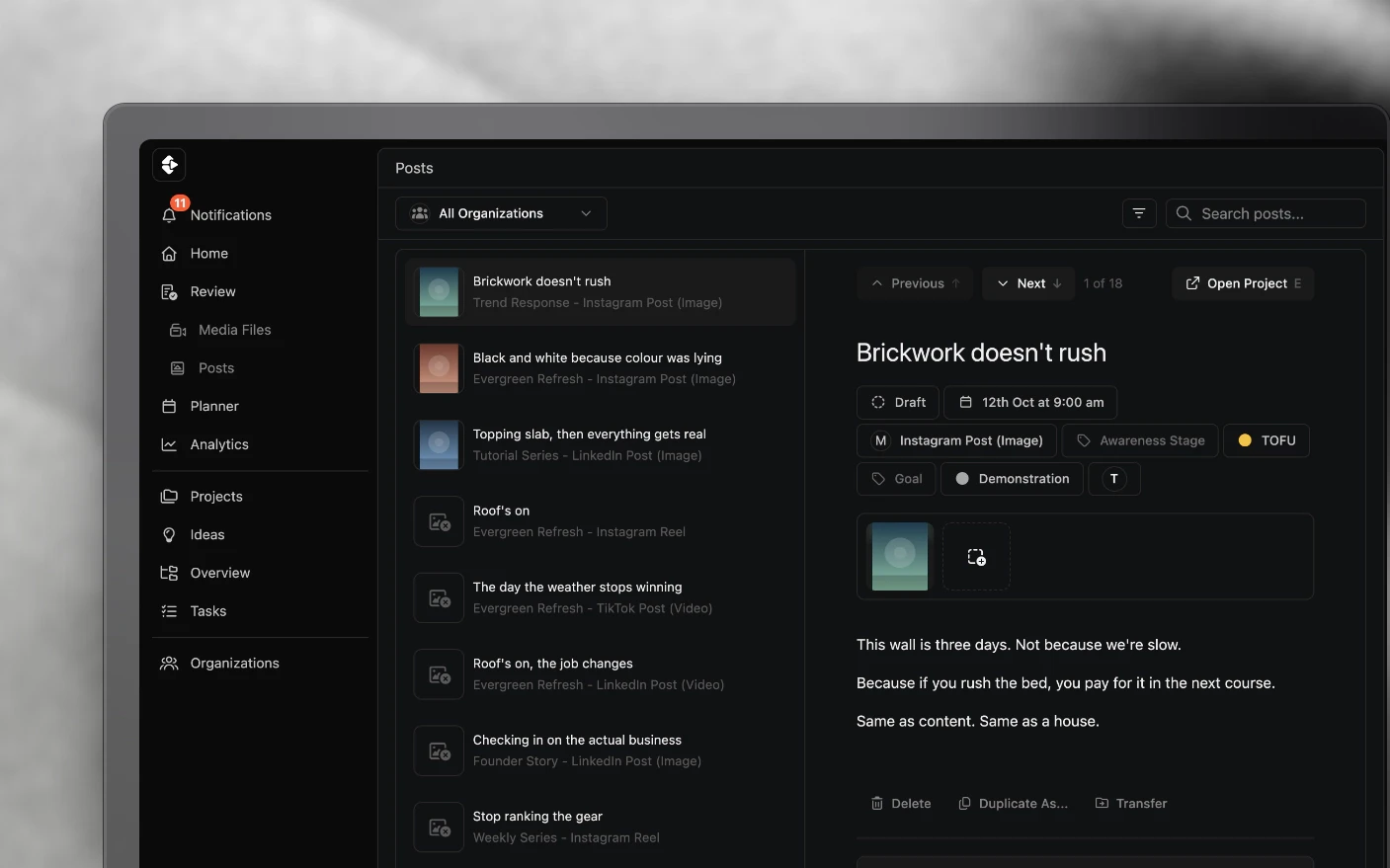
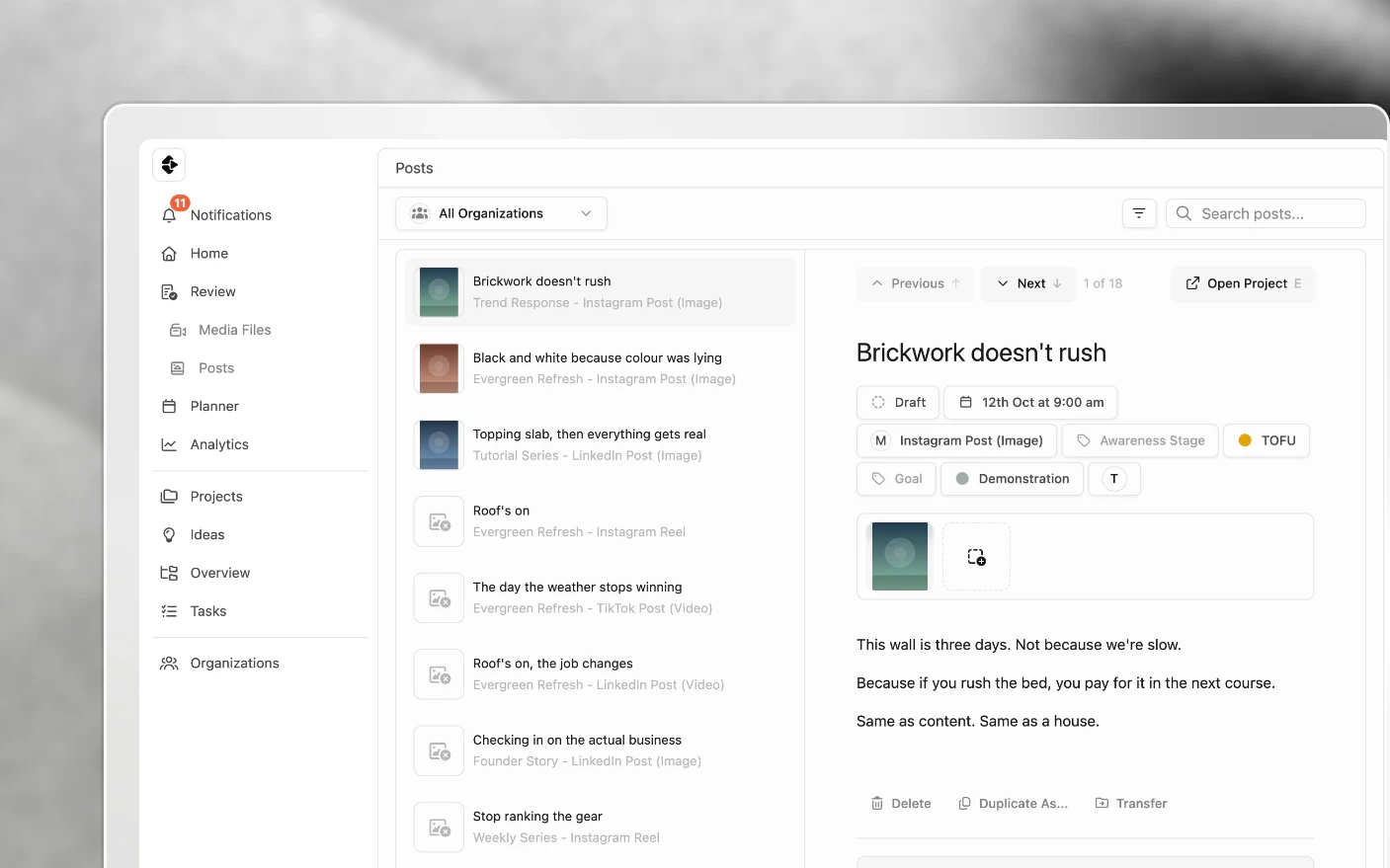
When an automation or a teammate creates a lot of posts, the drafts end up spread across projects. Review puts them in one queue: a list of posts on the left, and the post you picked on the right with its media, caption, schedule and channel side by side. You check it, fix what is off, mark it Ready, and the next draft is waiting.
This is for checking posts before they publish. If you want to give feedback on a video file, that is Media Review.
How to open Review
- Click Review in the main navigation. It opens the queue across every organization you belong to. Review is hidden while the sidebar is collapsed, so expand the sidebar first.
- Or click Posts in the main navigation to open the same screen for the organization you are working in.
The queue opens on drafts and selects the first post for you. If no posts match, the screen says Nothing to review.
Filter the queue
The queue starts with the Draft status. Change it with the controls above the list:
- Organization: defaults to All Organizations. Pick one to review a single client or brand.
- Filter button: opens the filters below.
- Search posts…: finds posts by title.
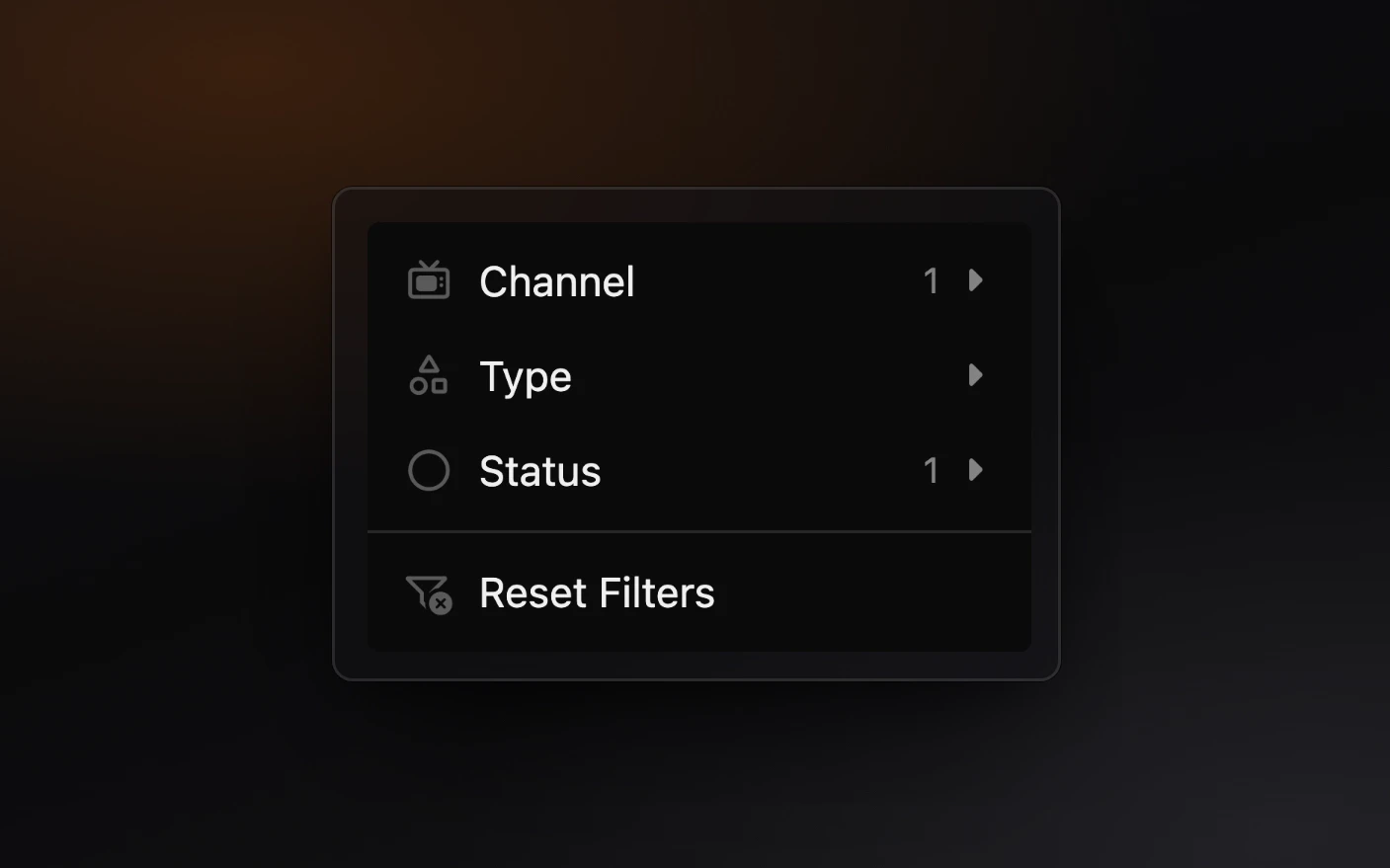
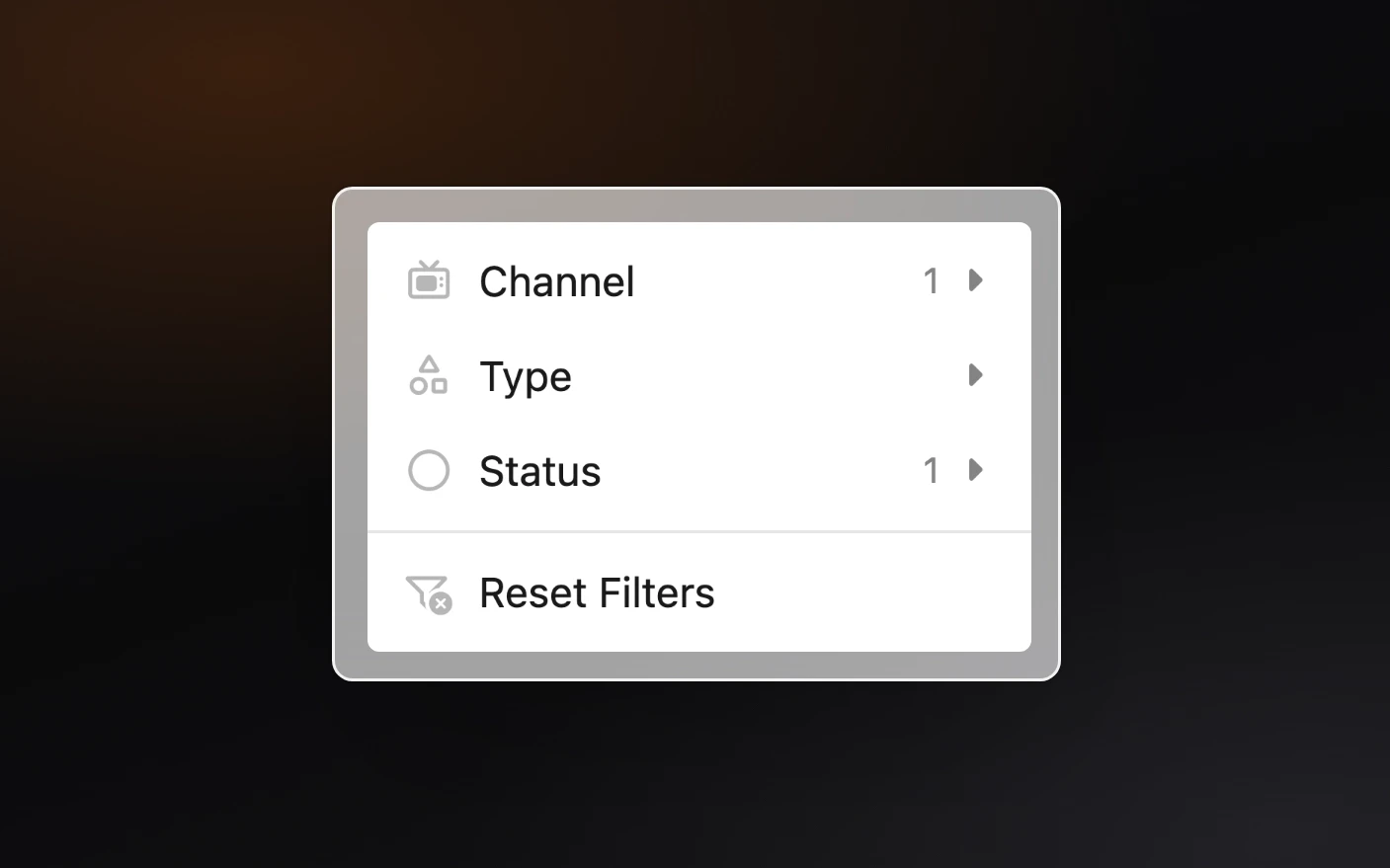
Inside the filter menu:
- Channel: only posts for the channels you tick.
- Type: the kind of post on a channel, such as a Reel or a feed post. It appears once you have picked a channel.
- Status: Draft is on by default. Add Ready, Changes Required or any other status to review those too.
- Custom labels: only posts with the labels you tick. These appear once you have picked a single organization.
When any filter differs from the default, Reset Filters appears at the bottom of the menu and takes you back to drafts.
The queue loads 100 posts at a time. Click Load More at the bottom of the list for the next batch. The queue stops at 1,000 posts, so filter it down if you have more than that waiting. Above the post you will see where you are, for example 3 of 24.
What you can change without leaving the screen
Everything for the selected post sits in one panel. Most changes save on their own.
| Part of the post | How to change it | When it saves |
|---|---|---|
| Title | Click the title and type | When you finish editing |
| Status | Use the status badge | Immediately |
| Scheduled date | Use the date button (it reads Not Scheduled when empty) | Immediately |
| Channel and type | Use the channel button | Immediately |
| Project | Use Assign Project, shown only when the post has no project | Immediately |
| Custom labels and team | Use the label and team buttons | Labels when you pick them, team when you close the menu |
| Media | Click Add Media or the plus tile to upload or select files, and drag tiles to reorder | When you confirm |
| Caption | Type in the editor | When you click out of the editor, or click Save Changes |
If a post has media that does not suit the channel’s platform, a Media Warnings box lists what to fix. A banner at the bottom of the panel shows where the post stands, such as Draft Post or Set Scheduled Date.
Below the caption you will also find Duplicate As…, Transfer, and Track Links and Undo Tracking Links when the channel supports them. See Tracking Links.
Mark a post as Ready
When the media, caption, date and channel look right, change the status to Ready, or press R. Both do the same thing, and R only works on a draft.
Because the queue shows drafts, a post you mark Ready drops out of the list. The next post moves into its place, so you can keep pressing ↓ and R down the list. What happens next depends on the channel and its time slots, covered in Post Scheduling and Post Statuses and Failed Posts.
You can also use the status badge to set a post to Changes Required, Reviewed or Declined when it needs more work from someone else.
Keyboard shortcuts
Shortcuts are ignored while you are typing in the title, the caption editor or the search box.
| Action | Shortcut |
|---|---|
| Previous post | ↑ or ← |
| Next post | ↓ or → |
| Mark as Ready (drafts only) | R |
| Open the post in a new tab | E |
| Delete the post (asks first) | Delete or Backspace |
Previous and Next stop at the ends of the list rather than wrapping around.
Open the full post
Click Open Project (or press E) to open the post in its project in a new tab. Use it for anything Review does not cover. Your place in the queue stays where it was.
Delete a post
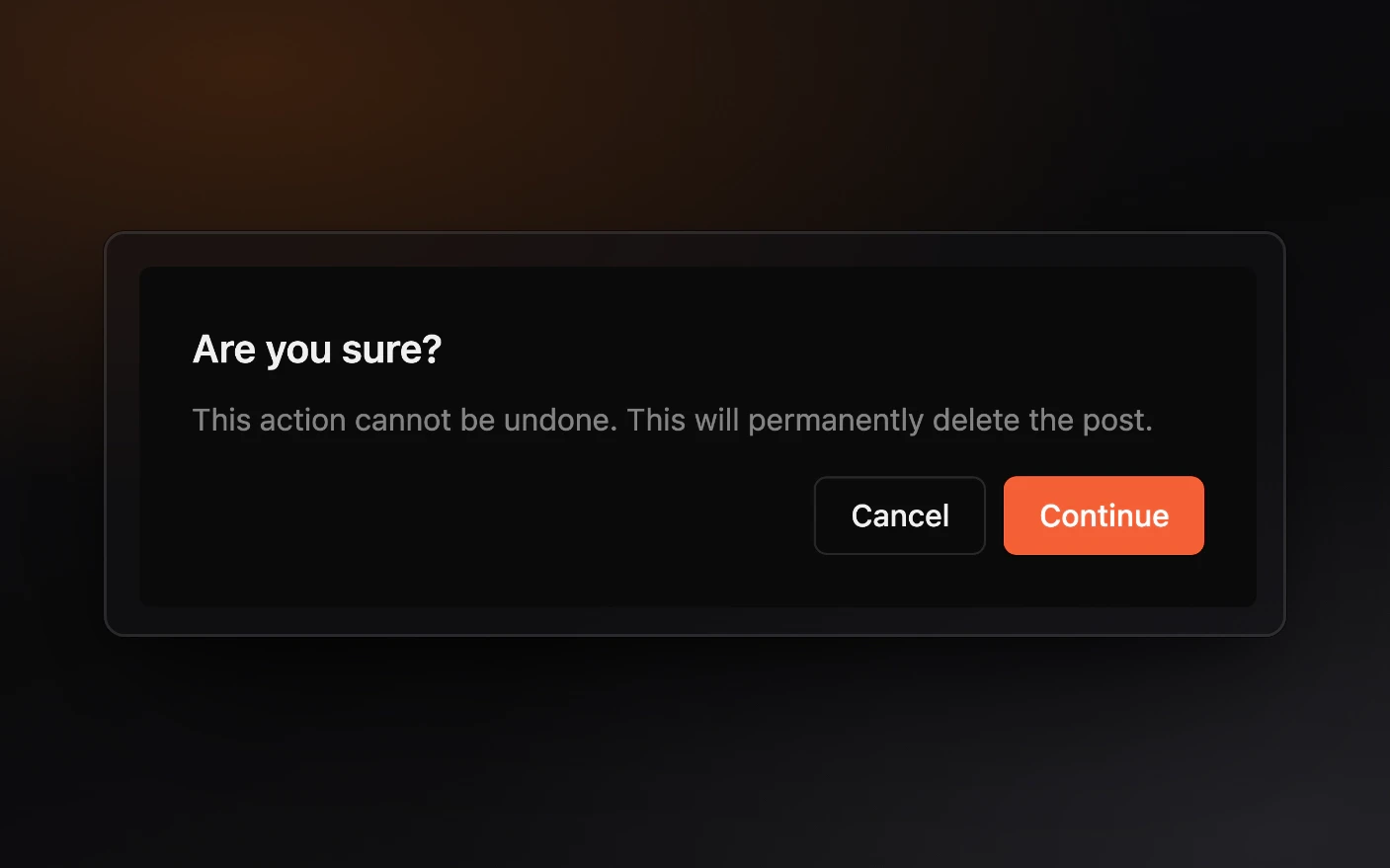
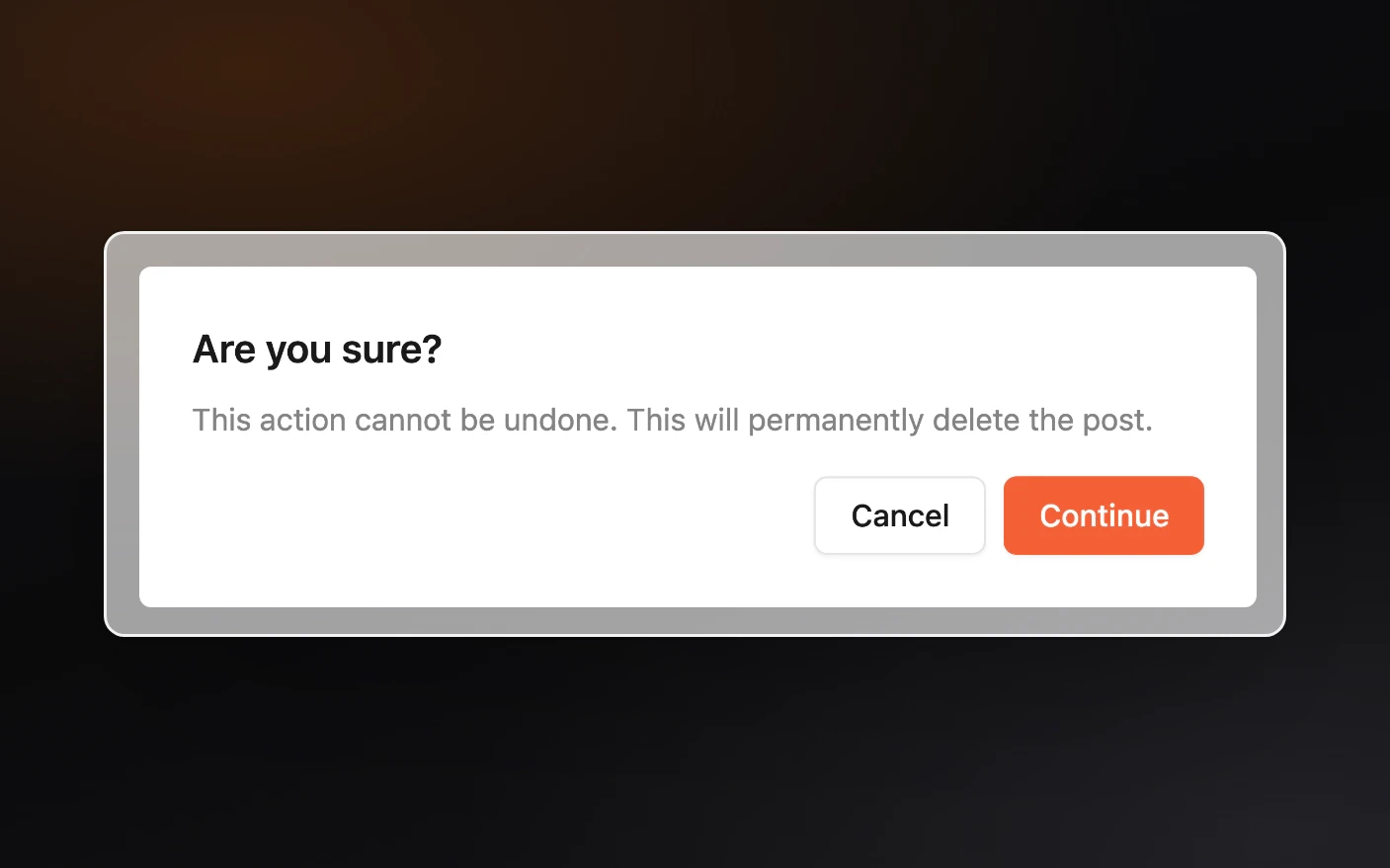
Click Delete, or press Delete or Backspace. A box asks Are you sure? and explains that the action cannot be undone and permanently deletes the post. Click Continue to delete it or Cancel to keep it. After a delete, Review moves to the next post in the queue, or the previous one if you were at the end.
Tips and Best Practices
- Review with the draft filter on. Posts leave the queue as you mark them Ready, so what is left is what still needs a look.
- Filter by channel when you are checking one account. Captions and hashtags are easier to judge side by side.
- Pick one organization before filtering by label. The custom label filter only appears for a single organization.
- Check the date as well as the caption. A Ready post with no date has nothing to publish against. The banner at the bottom reads Set Scheduled Date until you add one.
- Use E for the odd one out. Open it in a new tab, sort it out there, and keep your place in the queue.
Frequently Asked Questions
How is Review different from Media Review?
Media Review is where people leave feedback and approve video files. Review is for the social posts made from those files: it checks the media attached to a post, the caption, the date and the channel before the post goes out. See Media Review and Notifications.
Do my changes save automatically?
Status, date, channel and project save as soon as you change them. The title saves when you finish editing it. The caption saves when you click out of the editor, or when you click Save Changes. Each change is saved to the post on screen.
Why did a post disappear from the list after I marked it Ready?
The queue is filtered to drafts, so a post that is no longer a draft drops out. Add Ready in the Status filter to keep it in view.
Can I review posts from every client at once?
Yes. Review in the main navigation opens the queue with All Organizations selected. Pick a single organization to narrow it, which also lets you filter by that organization’s custom labels.
Related articles
- Post Scheduling: time slots, the planner and what Ready does
- Post Statuses and Failed Posts: what each status means
- Working with Posts: creating and editing posts in a project
- Media Review and Notifications: feedback on video files
Was this page helpful?
Related articles
Carousels and Image Posts
Where images go in a project, how to build a carousel in slide order, why PNGs get a JPG copy, and each platform's carousel limits.
Connect Social Accounts
Connect Instagram, Facebook, YouTube, and more for social publishing, scheduling, and performance analytics.
Content Analytics
Measure social content performance across channels, find outliers, and decide which posts to repeat.
Need more help with this?
Contact support