
How to set up your Clipflow organization so the team can run content without configuration chaos
Set up your content organization, team, channels, workflow, templates, automations, API access, and billing.
Updated
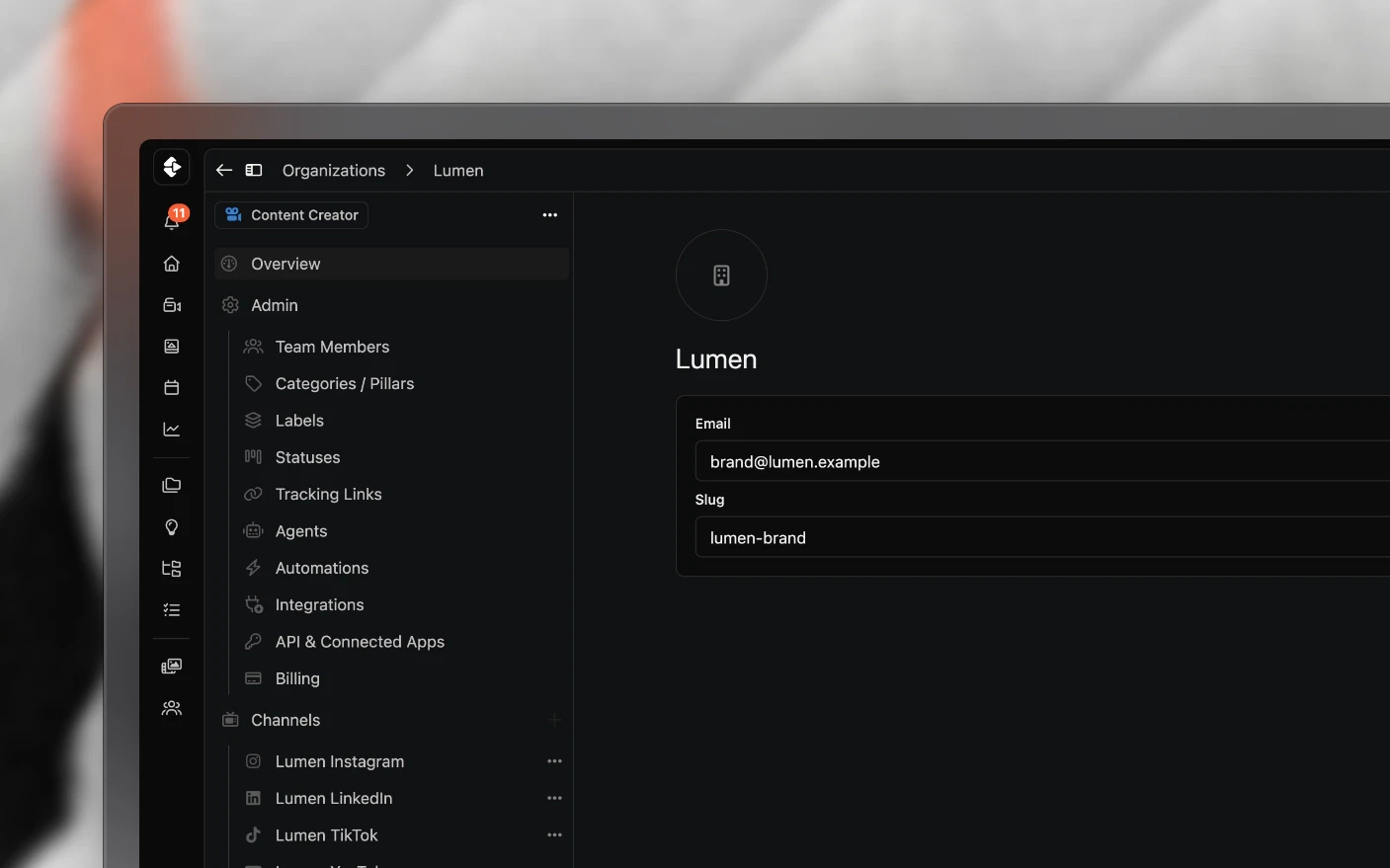
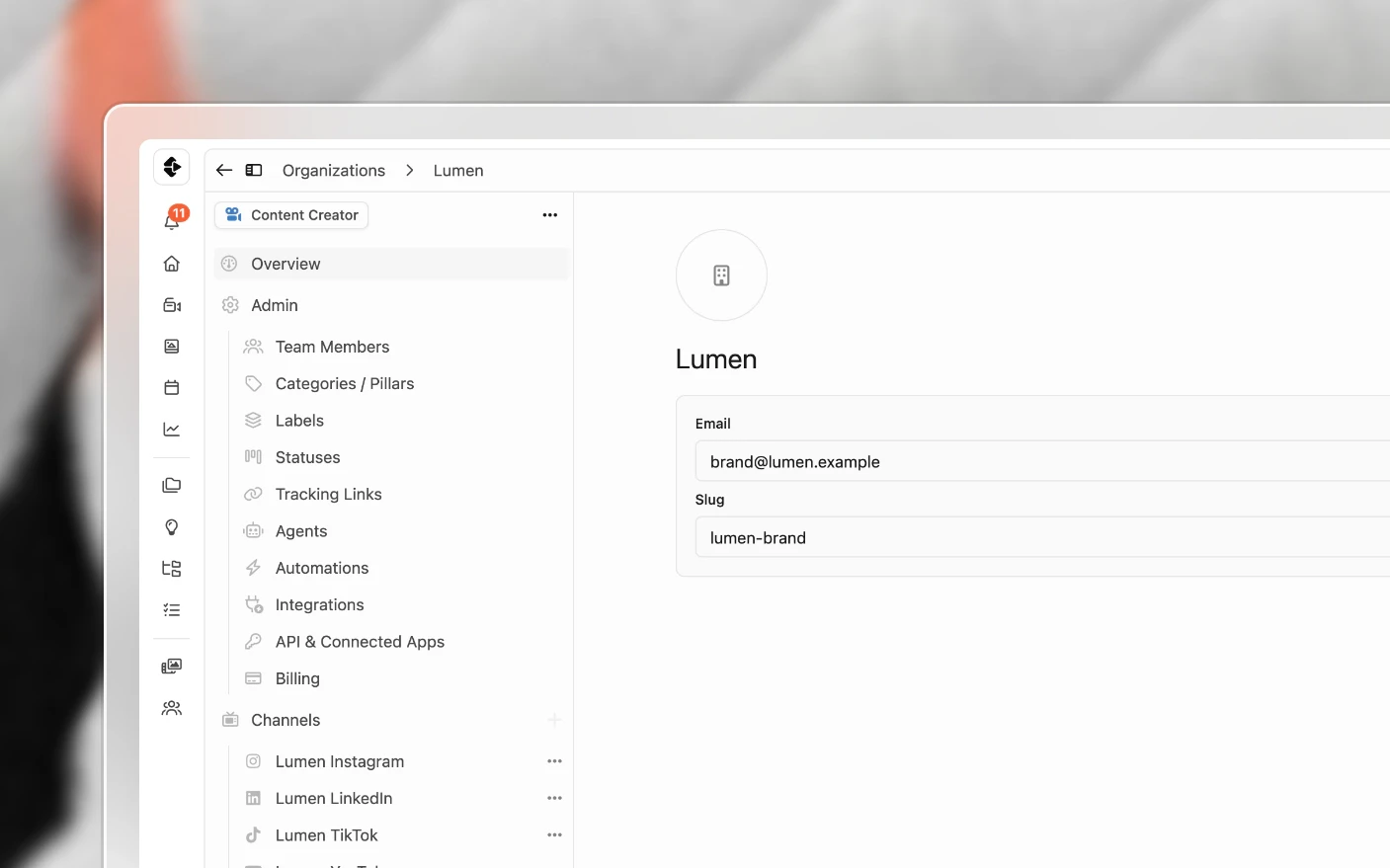
Set the rules and connections your whole content operation depends on
An organization is one workspace: one brand, one client, or one business. It holds its own projects, channels, team, templates, statuses, automations, and subscription.
You can belong to as many as you like and switch between them from the organization switcher at the top. Settings always apply to the organization you are currently inside, which is the thing to check first when a setting looks wrong.
Agencies and creators running several brands use one organization per client. That keeps work, access, and billing separated without maintaining separate accounts.
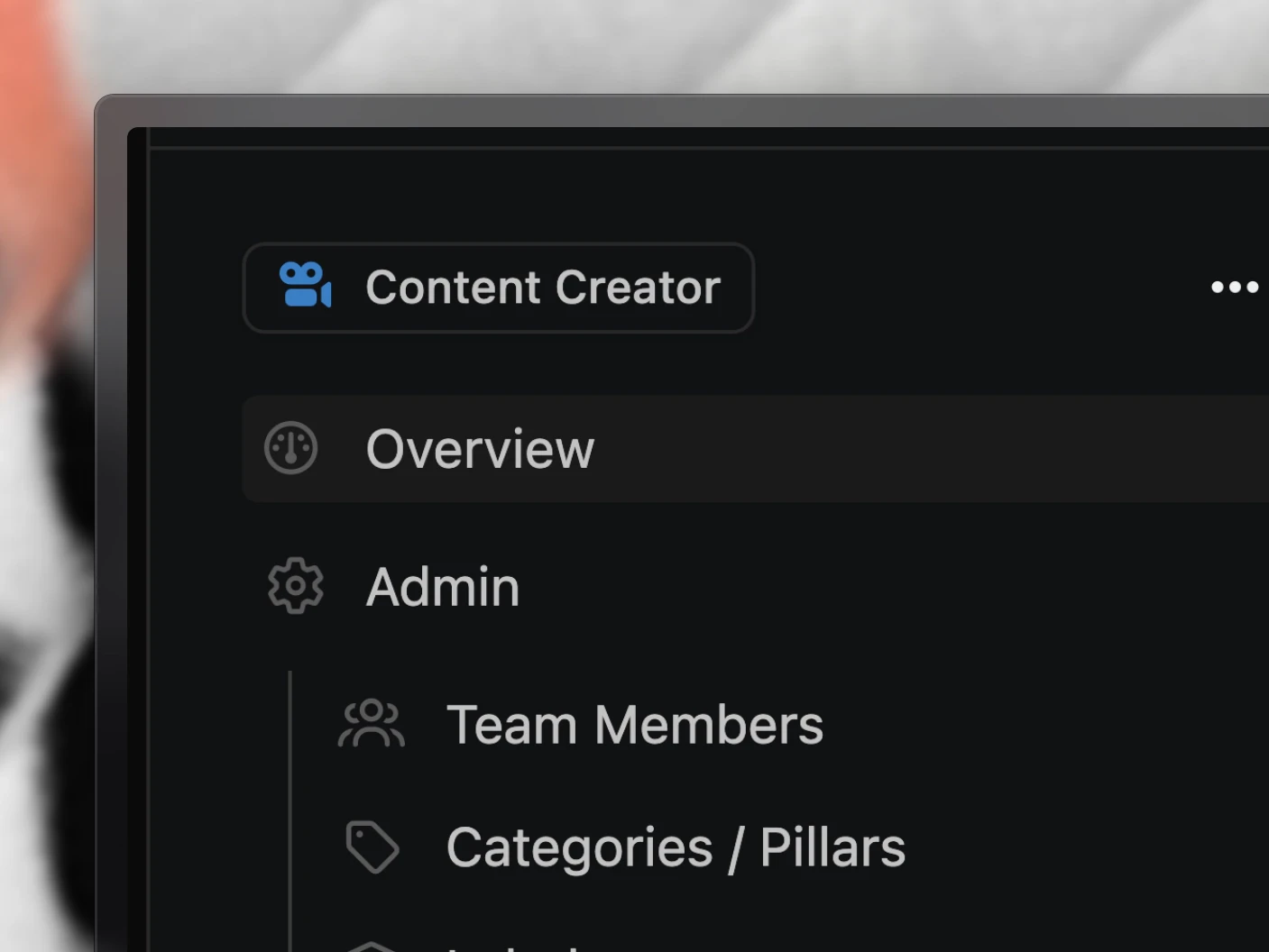
Before you start
Most settings below need owner or admin permission. If a screen is missing for you, that is your role rather than a bug. See Managing Your Profile for the role list.
Open settings from the organization switcher, or from Organizations in the sidebar.
The settings, and what each is for
| Setting | Use it to | Read more |
|---|---|---|
| Team | Invite teammates, set roles, assign skills | Set up team roles and skills |
| Channels | Connect the platforms you publish to | Connect Social Platforms |
| Statuses | Define the workflow columns on your board | Labels, Statuses, and Categories |
| Project categories | Classify the kind of content | Labels, Statuses, and Categories |
| Labels | Add your own filtering dimensions | Labels, Statuses, and Categories |
| Templates | Reusable project and task list structures | Creating Project Templates |
| Automations | Run agents when something happens | How Automations Work |
| Agents | Build the AI teammates automations use | AI Agents |
| Portals | Give clients a standing view of their board | Client Portals |
| Tracking links | Short links, click counts, and custom domains | Tracking Links |
| API & Connected Apps | Connected assistants and integrations | API Overview |
| Integrations | Connect Clipflow to other systems, and send events to webhook endpoints | Below |
| Billing | Plan, payment method, and invoices | Plans and Billing |
Set up your team, roles and skills
Invite the people who will work here and give each the right role. Roles run from owner down to guest, and they decide what someone can change.
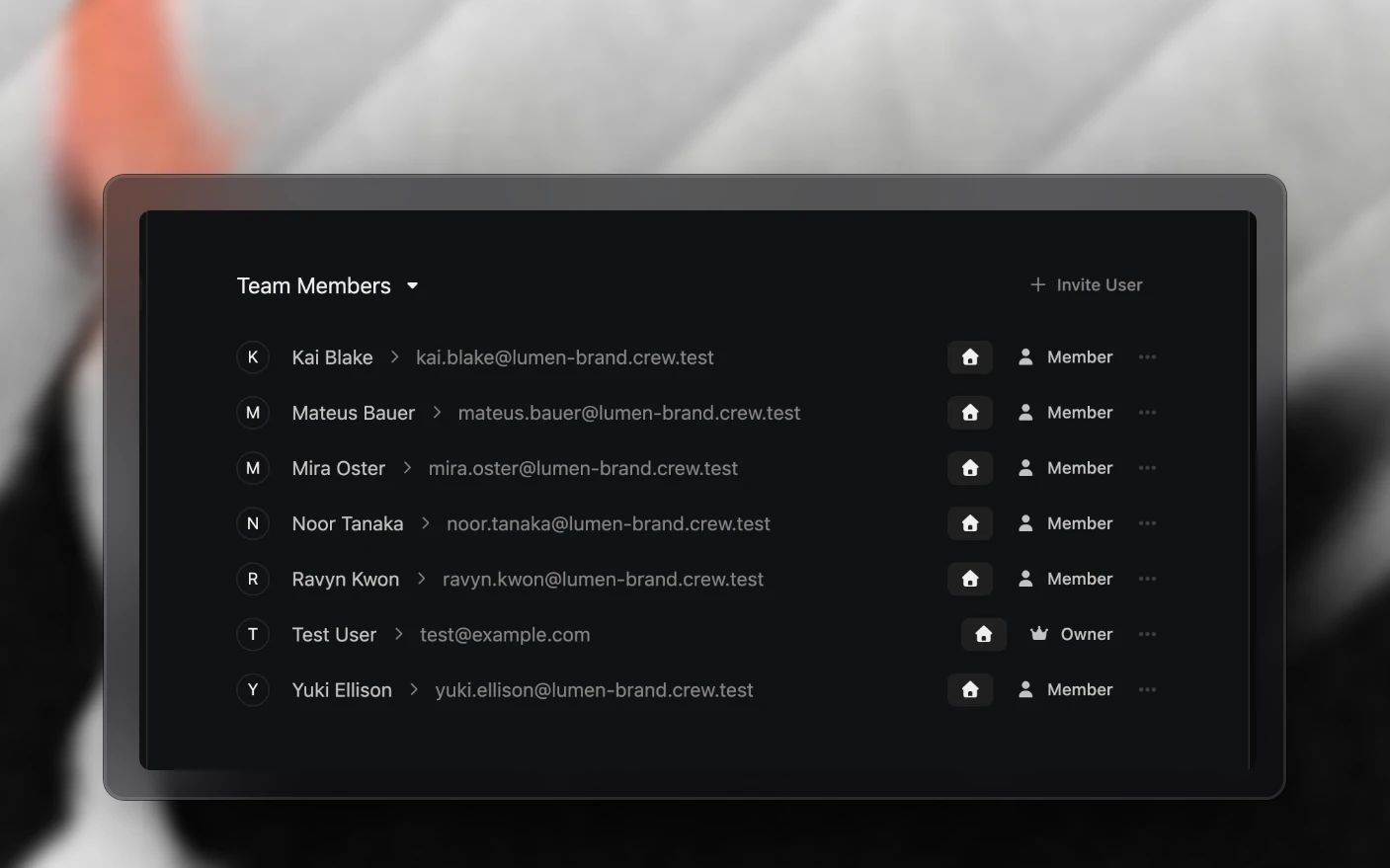
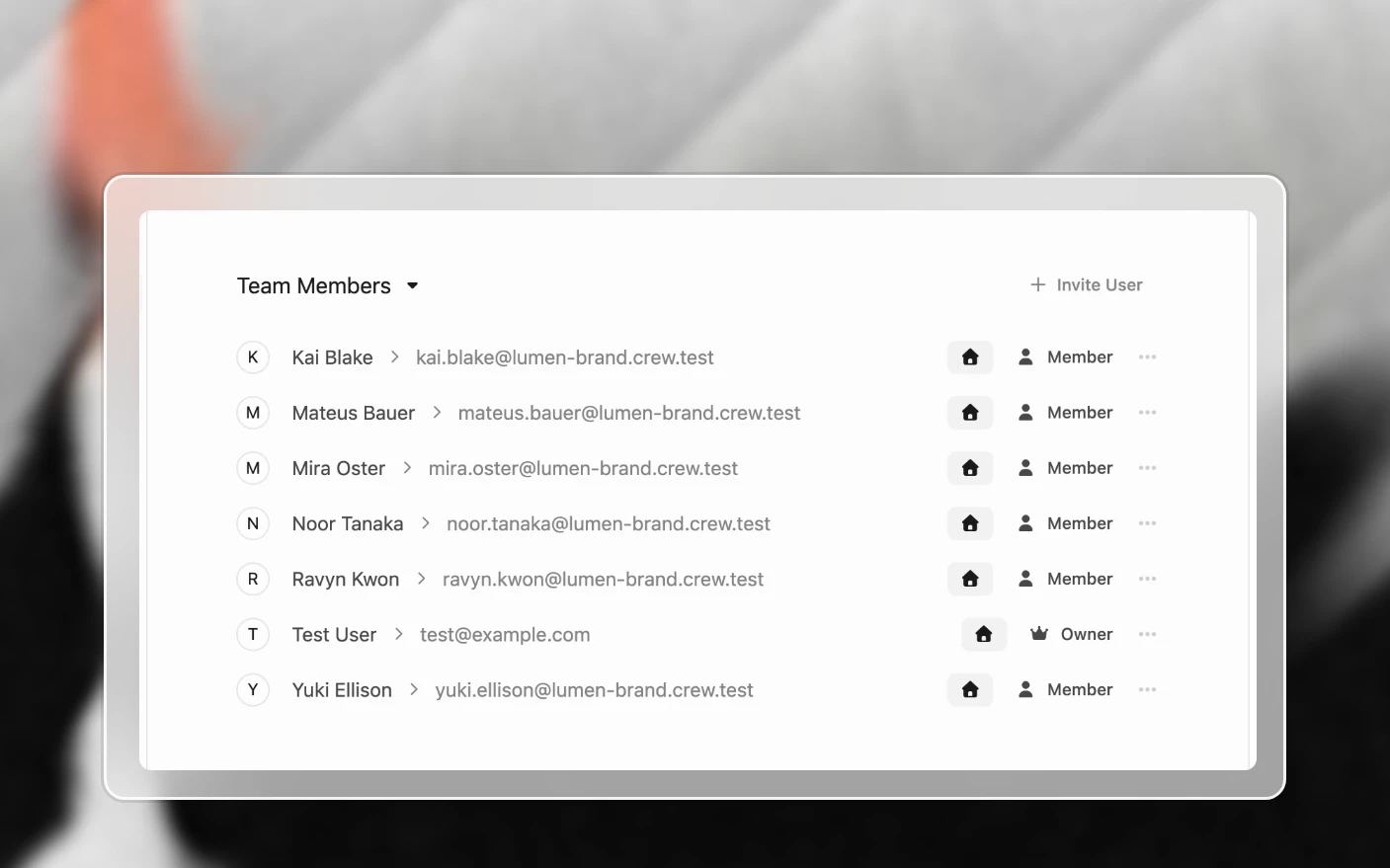
To assign skills:
- Open Organization settings → Team.
- Select the person whose work you are setting up.
- Assign every skill they can cover. Someone can hold several.
The available skills are Host, Producer, Researcher, Scheduler, Scriptwriter, Thumb Designer, Video Editor, and Videographer. Skills are how templates assign tasks to the right person without naming them, which keeps working when the team changes.
Invites expire after seven days. Resend from the team screen if someone misses one.
Step 2: Connect your channels
Channels are where you publish. Connect the platform accounts for YouTube, Instagram, TikTok, LinkedIn, Facebook, and anything else you post to.
Connecting your first channel does two useful things: analytics starts collecting, and Clipflow creates a Draft social posts automation so approved media turns into draft posts straight away.
Step 3: Shape the workflow
Statuses become your board columns. Name them for the state work is in, and include the waiting states, because “With client” is where projects actually stall.
Categories describe the kind of content. Labels cover everything else you want to filter or report on.
Get these three right before building templates, since templates reference them.
Step 4: Build templates and SOPs
Templates standardise how projects start. Organization procedures are your SOPs, written once as pages and attached to the tasks that need them, so instructions live where the work happens rather than in an onboarding doc nobody reopens.
Step 5: Automate and connect
Automations and agents handle the repetitive work, mostly drafting posts when media is approved.
Integrations and webhooks push events out to your own systems. A webhook can post to Slack when a file is uploaded, alert someone when a project changes status, or sync with an internal tool. The full event list is in Webhooks.
Tracking links give you short links with click counts, optionally on your own domain. See Custom Domains.
Copy settings from another organization
A new organization starts empty. If you manage another organization with a setup you like, use Copy From instead of rebuilding it. It appears on Statuses, Categories / Pillars, Labels, Automations and Agents, and only when you are an admin or manager of at least two organizations.
- Open the settings screen you want to fill, for example Statuses.
- Click Copy From.
- Choose the organization to copy from and click Copy Settings.
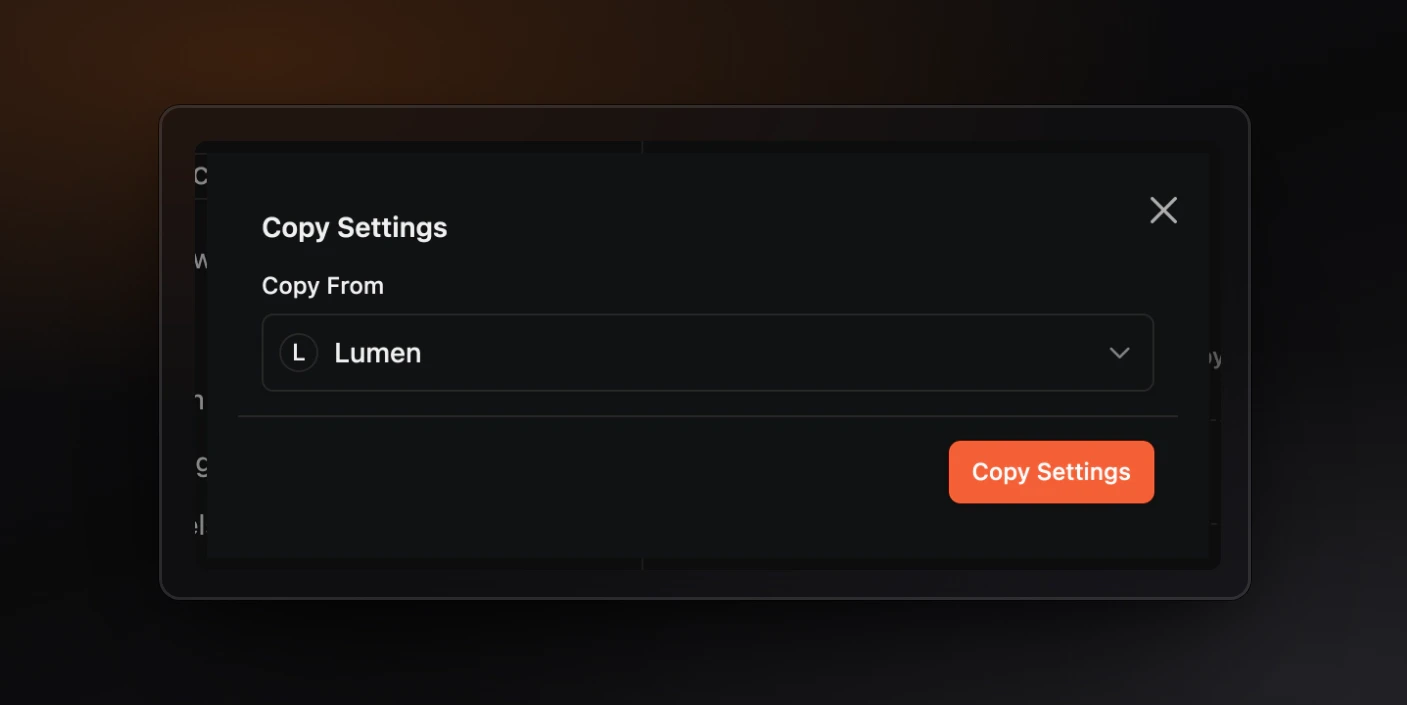
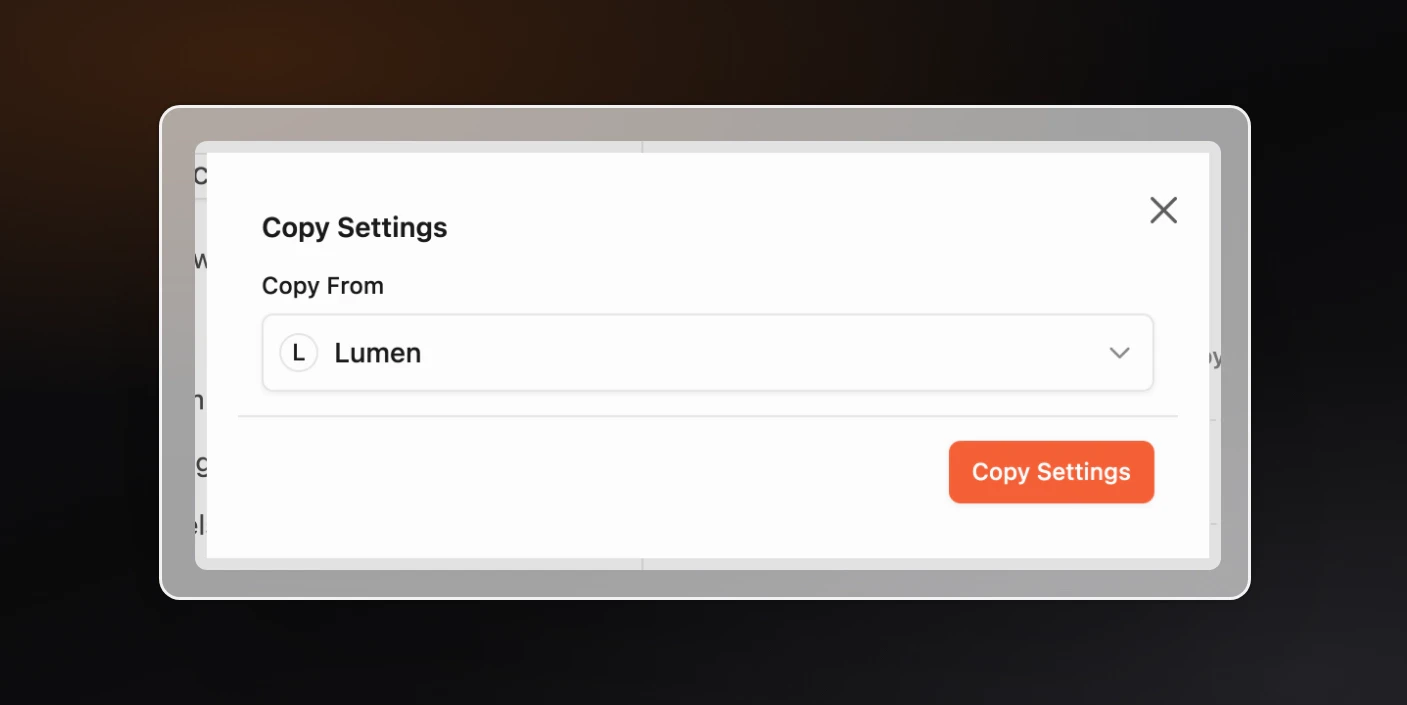
What it brings across:
- Statuses, categories and labels are added when the organization does not already have them. Existing ones are left alone. Labels come with their groups, colours, and whether they apply to projects, posts or both.
- Automations are copied switched off, so nothing runs in the new organization until you have reviewed it. An automation with the same name is skipped, and each Create Post action drops its channel, so it uses the organization’s own channel for that platform. Agents the automations use are copied with them.
- Agents are copied with their model, tools and instructions. Shared and system agents are not copied because every organization can already use them.
API access for members
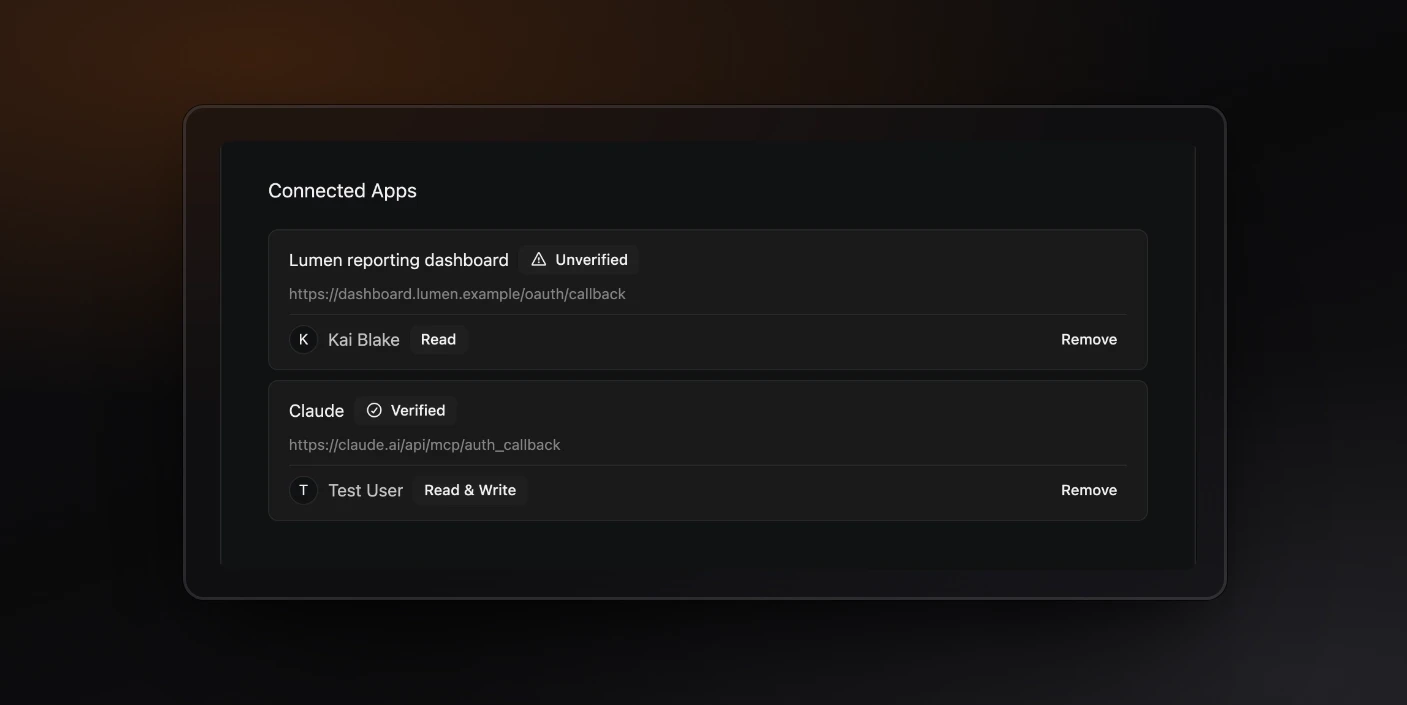
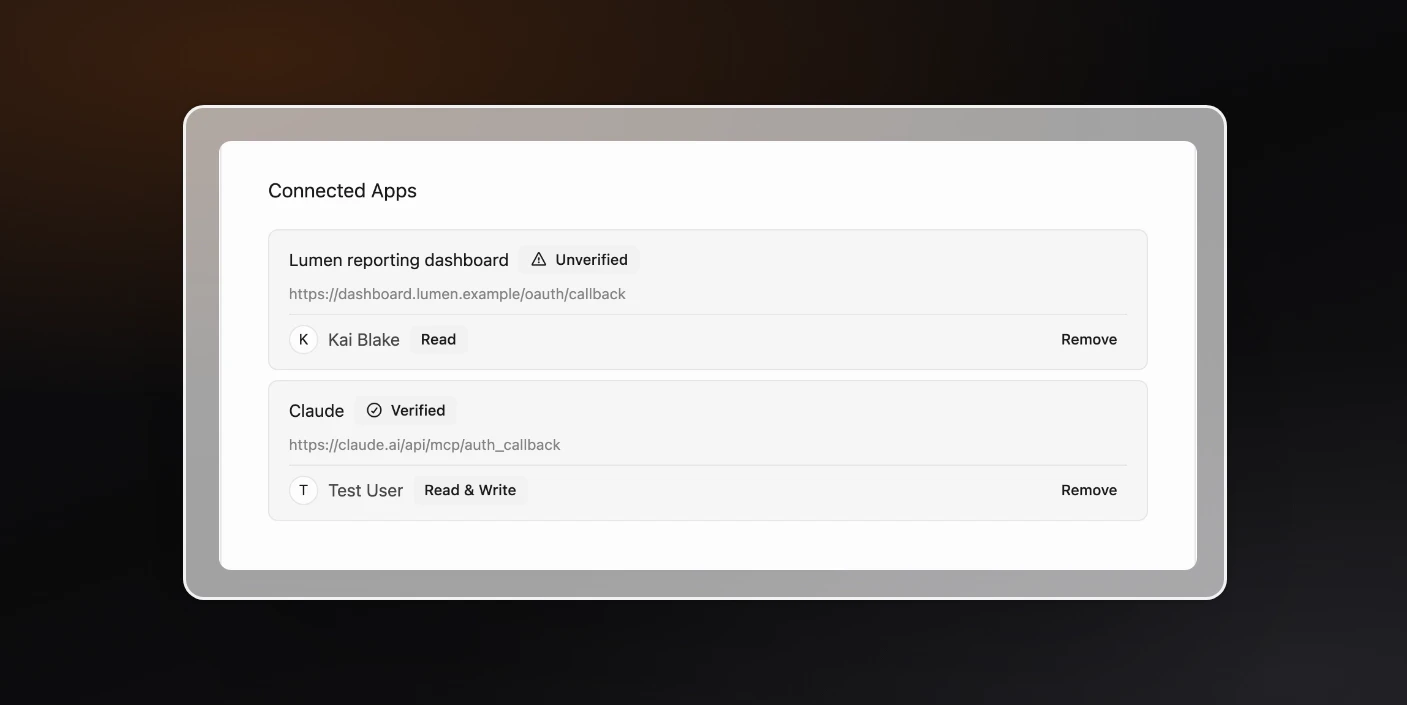
Organization settings → API & Connected Apps shows who and what can reach this organization through the API or an AI assistant:
- Connected Apps lists each connected assistant or integration, whether it is Verified or Unverified, who connected it, and whether it has Read or Read & Write access here. Remove withdraws this organization from the app without disconnecting its other organizations.
- Member Access sets each member’s API access level: Read, Write or Disabled. Everyone starts on Read. Move someone to Write when they need an app acting as them to make changes, and to Disabled to turn their API access off.
See API Overview and MCP Server.
Running several organizations
The organization switcher moves you between workspaces. Across all of them you also get:
- A projects overview spanning every organization you belong to
- A clients view, if you manage other organizations
- Analytics you can filter to one organization or look at together
Each organization keeps its own subscription, except client organizations managed by an agency, which are not billed. A client keeps their workspace if the relationship ends. See Setting Up as an Agency.
Tips and best practices
- One organization per brand or client. Mixing two clients into one workspace is how the wrong person sees the wrong work.
- Set statuses and labels before templates. Templates reference them, and reworking the order afterwards means editing every template.
- Give admin sparingly. Admins can change settings that affect everyone, including automations that create posts.
- Name things for the person who joins next year.
Long-form YouTubebeatsTemplate 2. - Check which organization you are in before concluding a setting has gone missing.
- Remove demo data once you have real projects, so the board reflects actual work.
Frequently asked questions
Can I move a project to another organization?
Yes. Projects can be transferred between organizations you have access to.
How many organizations can I have?
No limit. Each carries its own subscription, apart from client organizations your agency manages.
Why can I not see a settings screen?
Most need owner or admin. Check your role in your profile.
Do settings carry between organizations?
Not automatically. Statuses, labels, templates, and automations are per organization, which is what lets each client run differently. To start a new organization from another one, use Copy From on statuses, categories, labels, automations and agents. See Copy settings from another organization.
Can I rename an organization?
Yes, from its settings.
Can I delete an organization?
Not from the app yet. Email support@clipflow.co with the organization’s name. Its projects, media, and settings go with it, so download anything you need first.
Who can change billing?
Owners. See Plans and Billing.
Related articles
- Inviting Clients: client and supplier access
- Labels, Statuses, and Categories: shape the workflow
- Creating Project Templates: standardise how projects start
- Plans and Billing: subscriptions and seats
Was this page helpful?
Related articles
Invite Clients
Invite clients to review work, request content, or collaborate in Clipflow without sharing passwords or full access.
Notifications
Control in-app and email notifications for comments, approvals, tasks, publishing, and team activity in Clipflow.
Setting Up as an Agency
Switch your organization to Production Partner, add each client as its own organization, and keep seats and billing on your agency.
Need more help with this?
Contact support