
How to build repeatable content task lists that assign the right work at the right time
Build reusable content production task templates with relative due dates, skill-based assignment, and workload points.
Updated
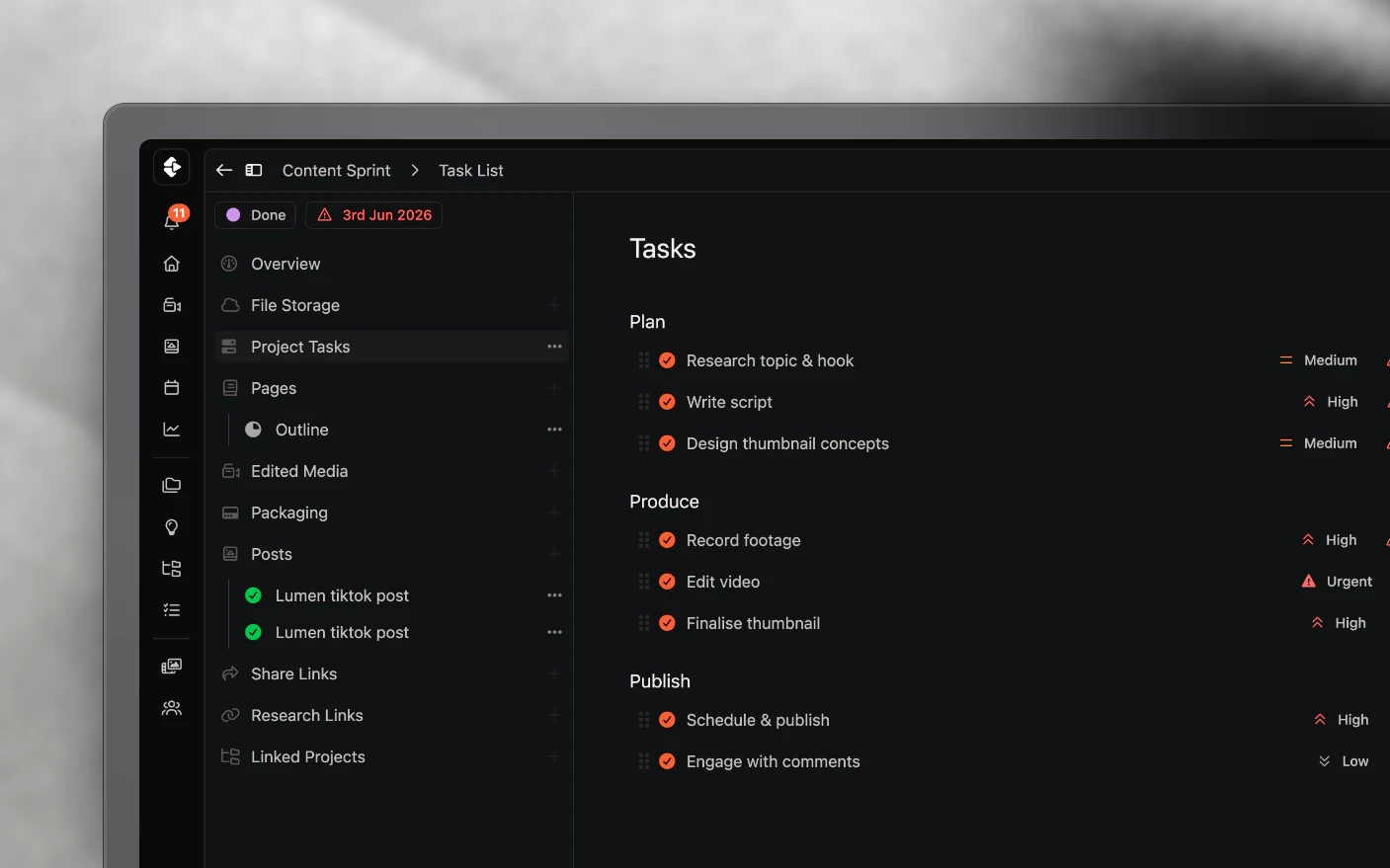
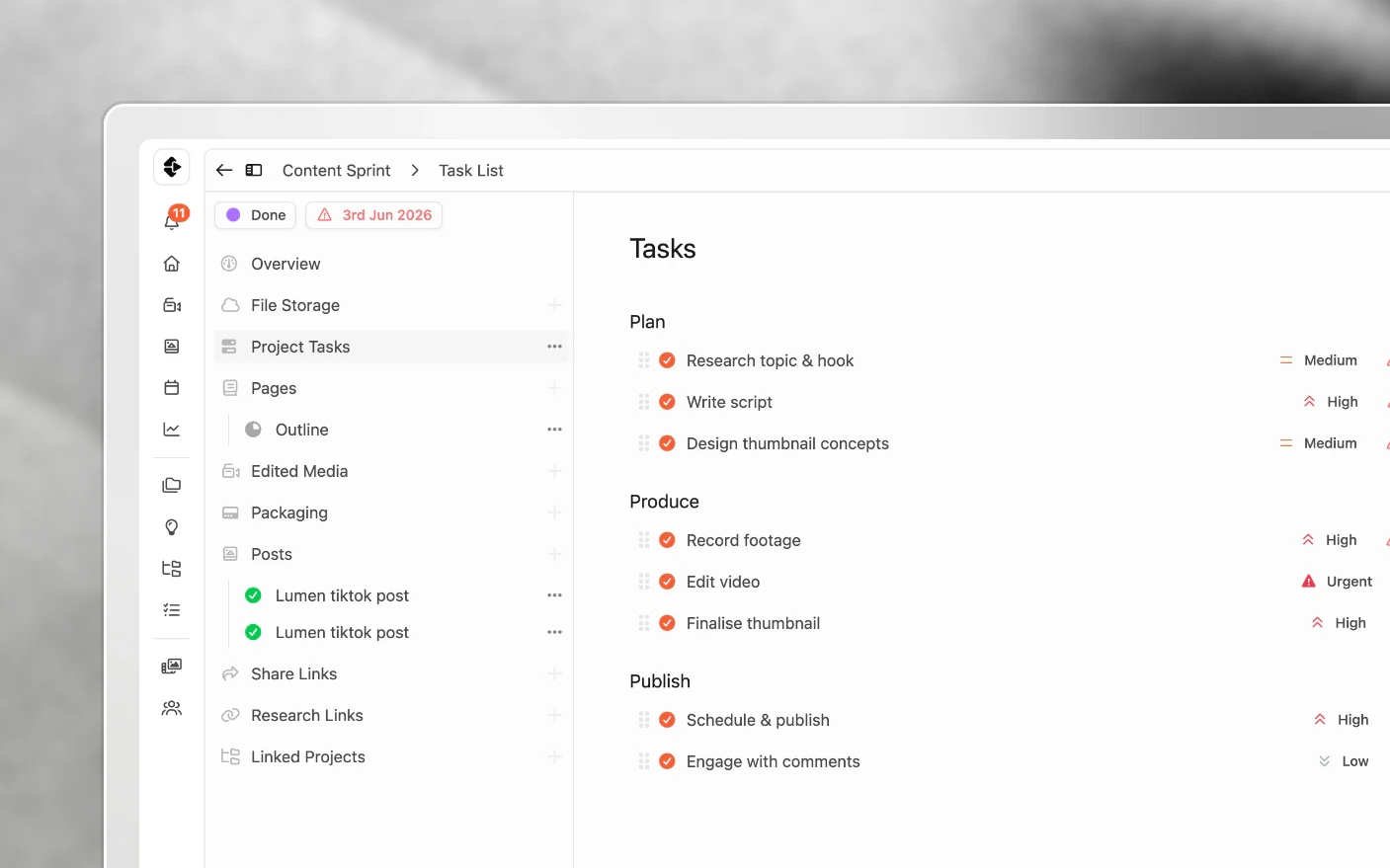
Stop rebuilding the same production checklist for every project
A task list template is a production workflow you can drop into any project. It holds the steps, who does each one, when each is due relative to the publish date, and how much effort each represents.
Use one and a new project arrives with the tasks created, the deadlines calculated, and the work routed to the right people. Nobody rebuilds the process from memory.
A task list template is just the steps. A project template carries the whole project: outline, labels, channels, and a task list. See Creating Project Templates.
Why use them?
Common problems solved:
- Steps forgotten because the process lives in one person’s head
- Deadlines set by hand, and therefore differently every time
- Tasks pinned to a person who has left or is on holiday
- No way to tell whether an editor is at capacity
What you get:
- Every project running the same reliable process
- Deadlines that recalculate when the publish date moves
- Work routed by skill rather than by name
- Capacity you can actually measure
Relative due dates
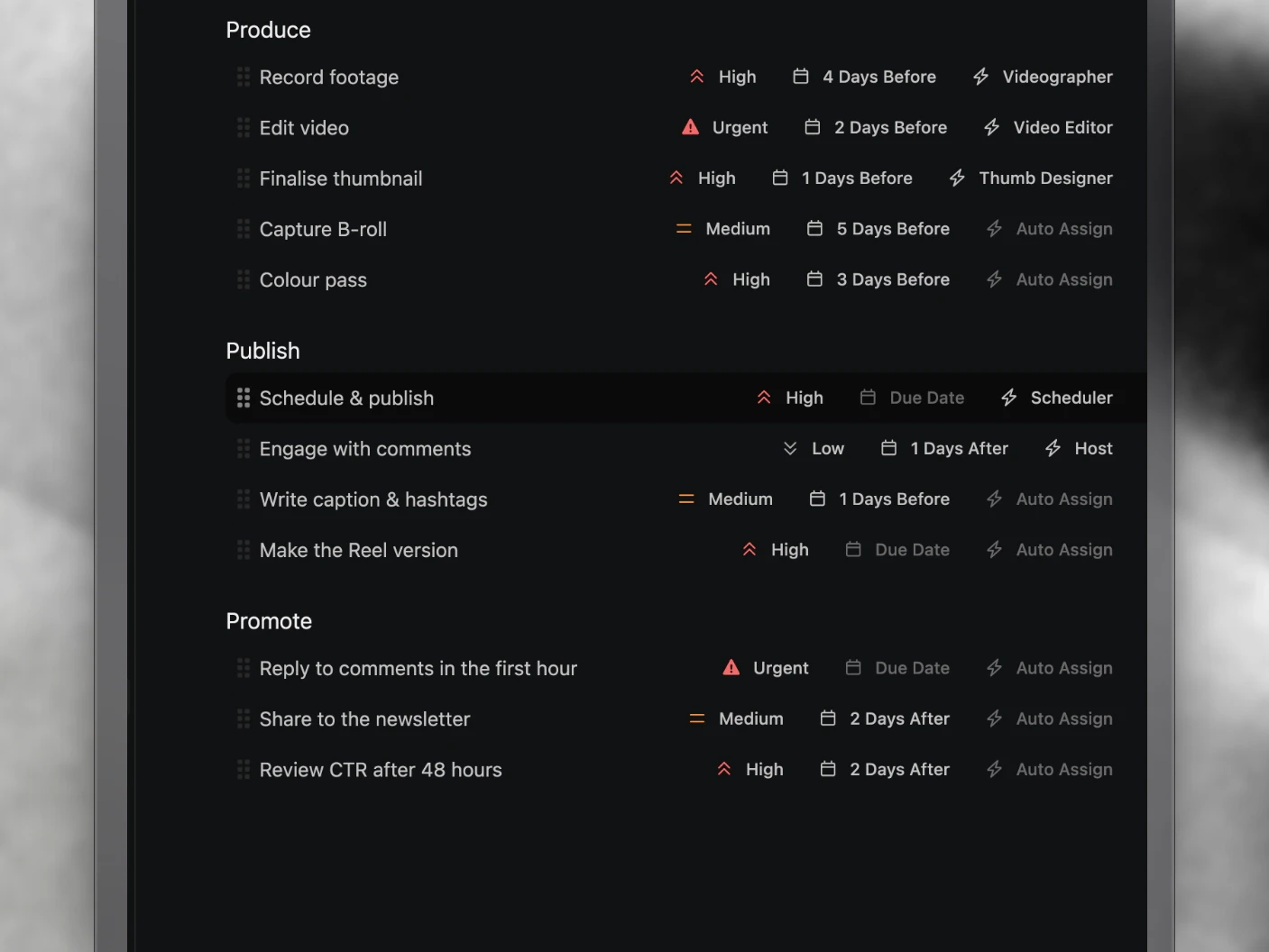
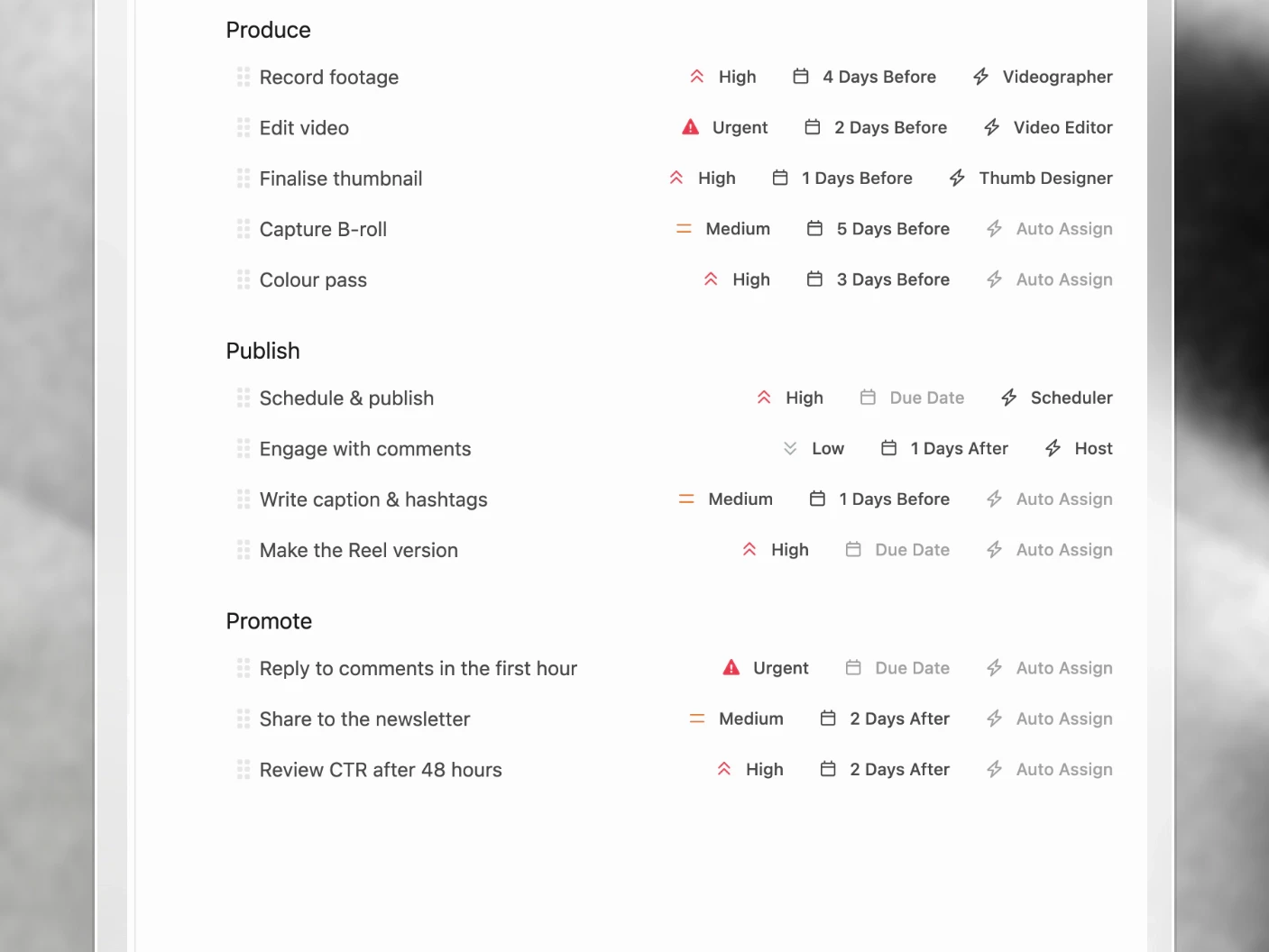
This is the setting that does the most work. Define each task’s deadline relative to the project’s scheduled publish date:
| Task | Due |
|---|---|
| Draft script | 14 days before publish |
| Film | 10 days before publish |
| First edit | 7 days before publish |
| Review | 2 days before publish |
| Review performance | 7 days after publish |
Move the publish date and every deadline shifts with it. A client pushing a launch back a week no longer means editing twelve task dates by hand.
Tasks due after publish are worth using. A “review performance” task seven days out is how a team actually learns from what it shipped, rather than intending to.
Assigning by skill
Assign a task to a skill rather than a person. Clipflow routes it to whoever holds that skill in the organization.
The skills available are:
- Host
- Producer
- Researcher
- Scheduler
- Scriptwriter
- Thumb Designer
- Video Editor
- Videographer
Before assigning a task by skill, set up your team roles and skills. Each person can hold several skills.
Skill-based assignment is what keeps a template working as the team changes. Hard-assigning to a name breaks the first time that person takes a week off, and quietly keeps breaking afterwards.
Workload points
Workload points let you weight tasks by effort, so capacity planning reflects reality.
For example, a designer has a daily capacity, a thumbnail task costs 50 points, and a full edit costs considerably more. Clipflow can then show who is loaded and who has room.
The weights only need to be right relative to each other. A thumbnail sketch and a three-day edit being the same number makes the whole thing meaningless, which is the one mistake worth avoiding.
Step 1: Build the template
- Open Organization settings → Templates.
- Create a task list template and name it for what it produces.
- Add your tasks in order.
- Group related tasks into sections if the workflow is long.
Step 2: Configure each task
For each task, set:
- Skill or a specific person
- Relative due date, before or after publish
- SOP or instructions, so whoever picks it up knows your standard
- Workload points
- Priority, from low through urgent
- Subtasks, where a step has parts
SOPs belong here rather than in an onboarding document. An editor opening “First edit” should find what good looks like attached to the task.
Step 3: Add tasks over time
Templates are meant to change. Add a task, drag it into position, set its due date and skill, and every project created afterwards includes it.
Common additions once a team has been running a while:
- A second editing round for longer formats
- Versioning tasks for multi-format delivery
- Several short-form recording tasks in one template
- A performance review task after publish
Not just for YouTube
Task list templates suit any repeatable workflow:
- Instagram reels
- TikTok batches
- Podcast episodes
- Long-form scripts
- Multi-platform packaging
- Course lesson production
- Client retainers
Tips and best practices
- Build from a project that worked, not from how you imagine your process runs.
- Use relative dates everywhere. An absolute date in a template is wrong on every project after the first.
- Assign by skill by default. Reserve named assignment for genuinely person-specific work.
- Keep weights honest. Workload points only help if a big task is a bigger number.
- Group long lists into sections. A flat list of twenty tasks is hard to read at a glance.
- Revise when the process improves. A template nobody edits is a process that stopped getting better.
- One template per format. Two templates differing by one task should be one template.
Frequently asked questions
What is the difference between a task list template and a project template?
A task list template is only the steps. A project template carries the outline, labels, channels, and a task list. See Creating Project Templates.
Can I add a task list template to a project that already exists?
Yes. Task lists can be created from a template inside an existing project.
What happens to existing projects if I change the template?
They keep the tasks they were created with. A task list can be synced back to its template where that is what you want.
What if nobody holds the skill a task needs?
The task is created but not routed. Assign the skill to a team member, or assign the task directly.
Can one person hold several skills?
Yes, and in small teams most people do.
Do workload points do anything on their own?
They feed capacity views. Without them, every task counts the same, which understates heavy work.
Can tasks be due after the publish date?
Yes, which is how performance reviews and follow-up work get scheduled.
Related articles
- Creating Project Templates: the whole project, not just the steps
- Task List Overview: how tasks work day to day
- Using Project Templates: starting projects from a template
Was this page helpful?
Related articles
Production Dashboard
See content projects across every organization in one production dashboard, sorted by deadline and ready for action.
Content Ideas
Capture content ideas, develop them with your team, and turn the strongest concepts into production projects.
Project Pages
Write content briefs, scripts, hooks, and production notes inside the project where the team can review and approve them.
Need more help with this?
Contact support