
How to create project templates so every content project starts with the right workflow
Create reusable content project templates with briefs, labels, channels, task lists, owners, and due dates.
Updated
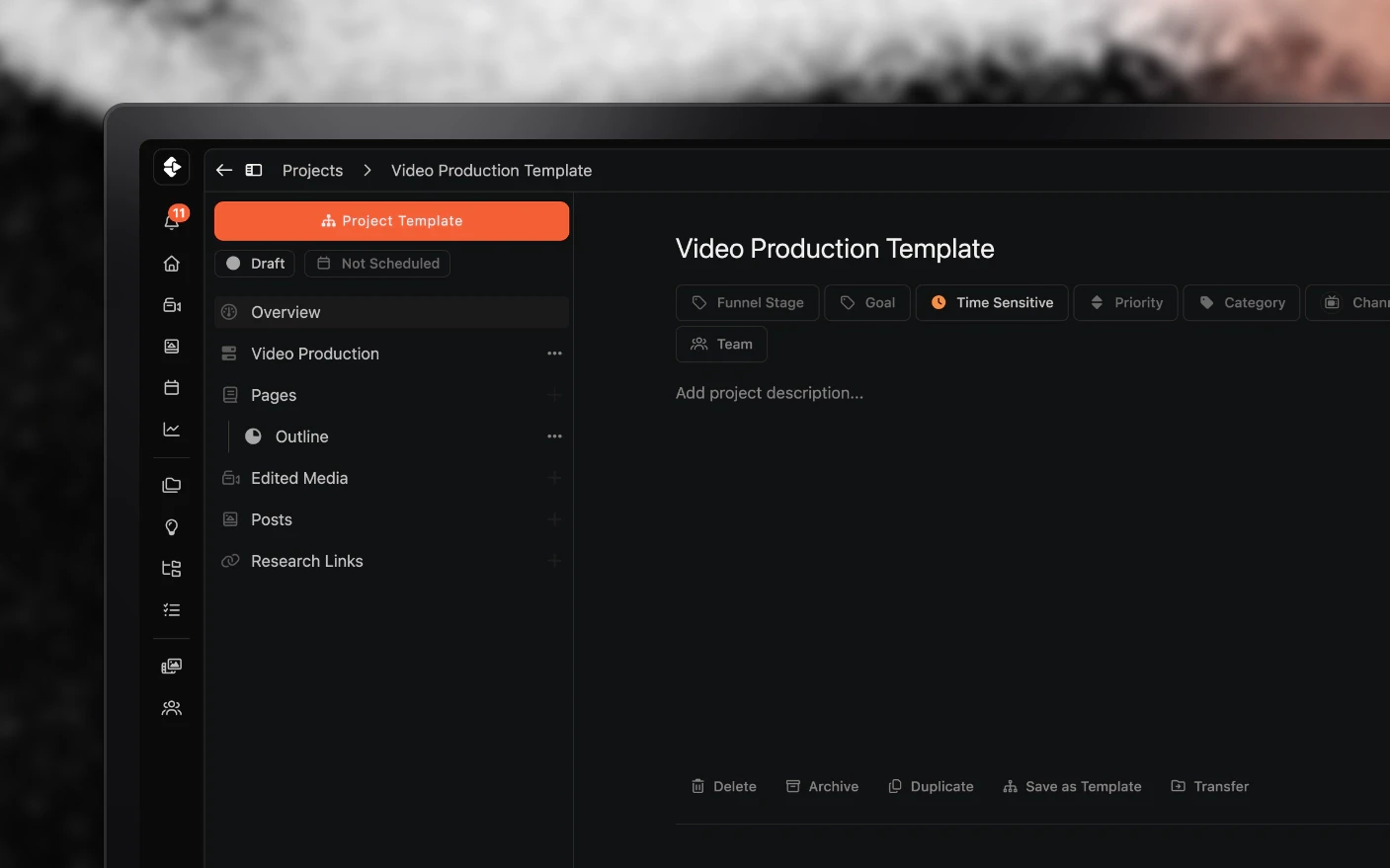
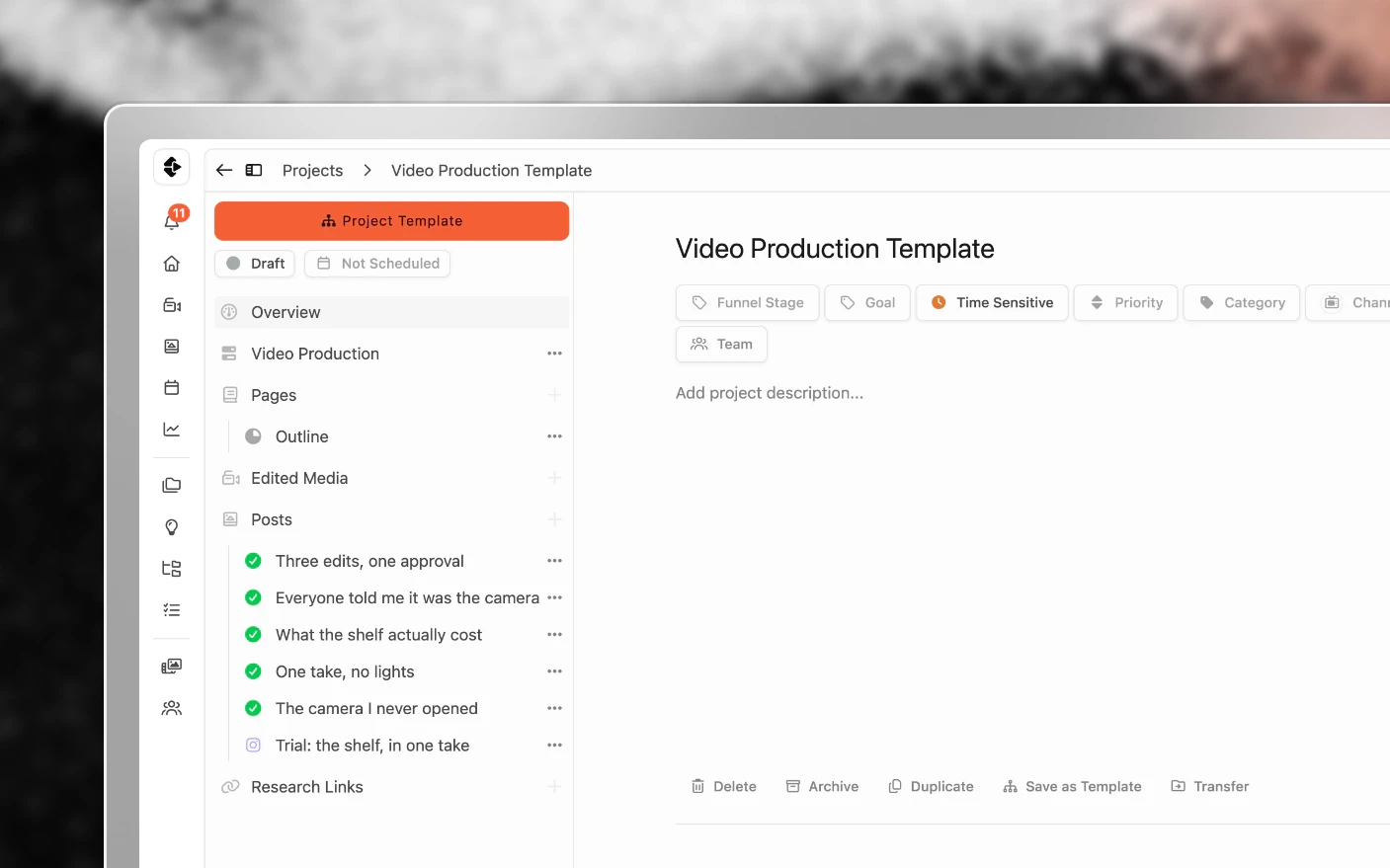
Stop rebuilding the same briefs, tasks and deadlines from scratch
A template is a project shape you reuse. It carries the outline, the labels, the channels, and the full task list, so starting a new video means picking a template rather than rebuilding your process from memory.
The payoff compounds. Ten videos a month from a template is ten times you did not forget the thumbnail sketch, and ten times a new editor got the same instructions.
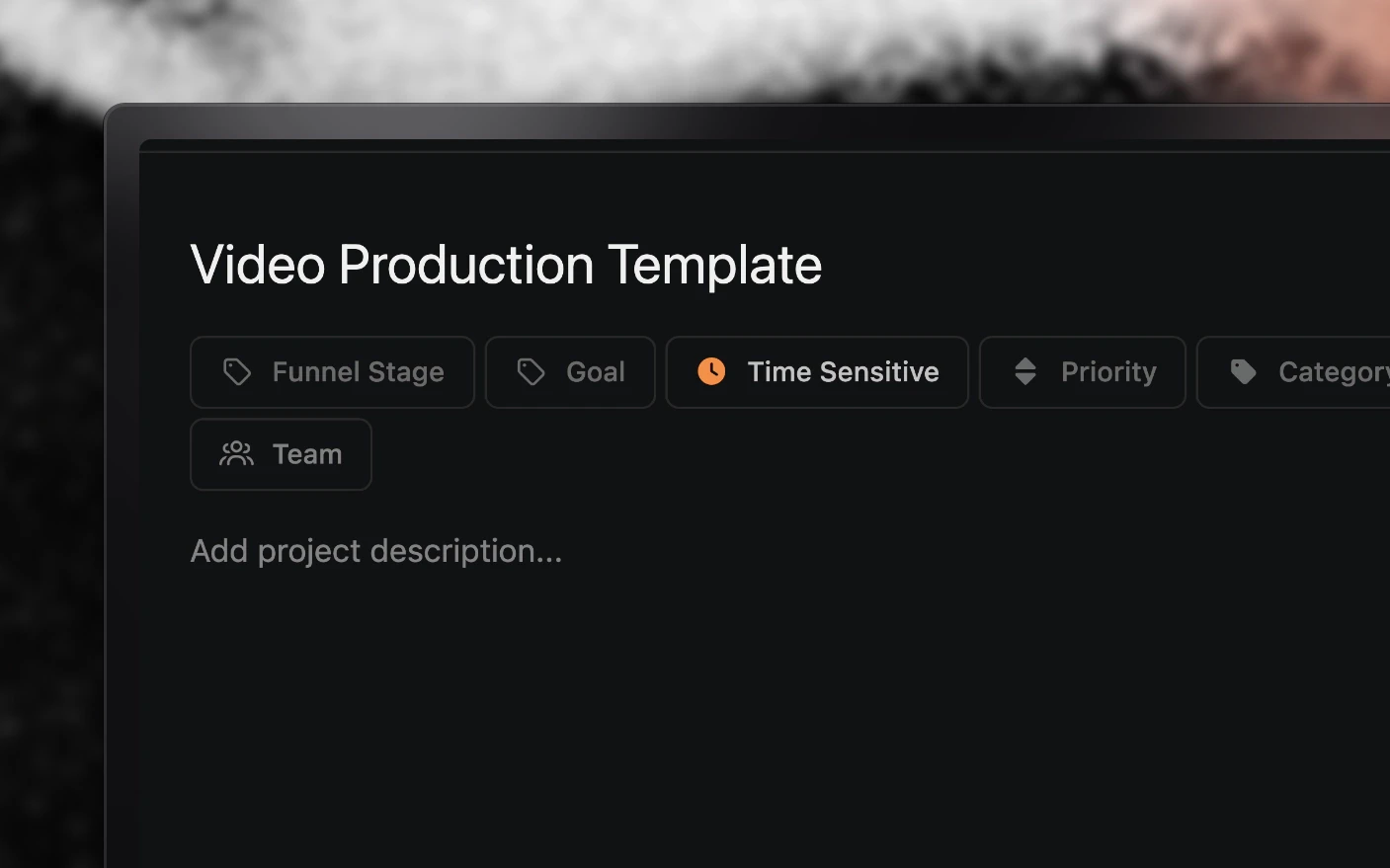
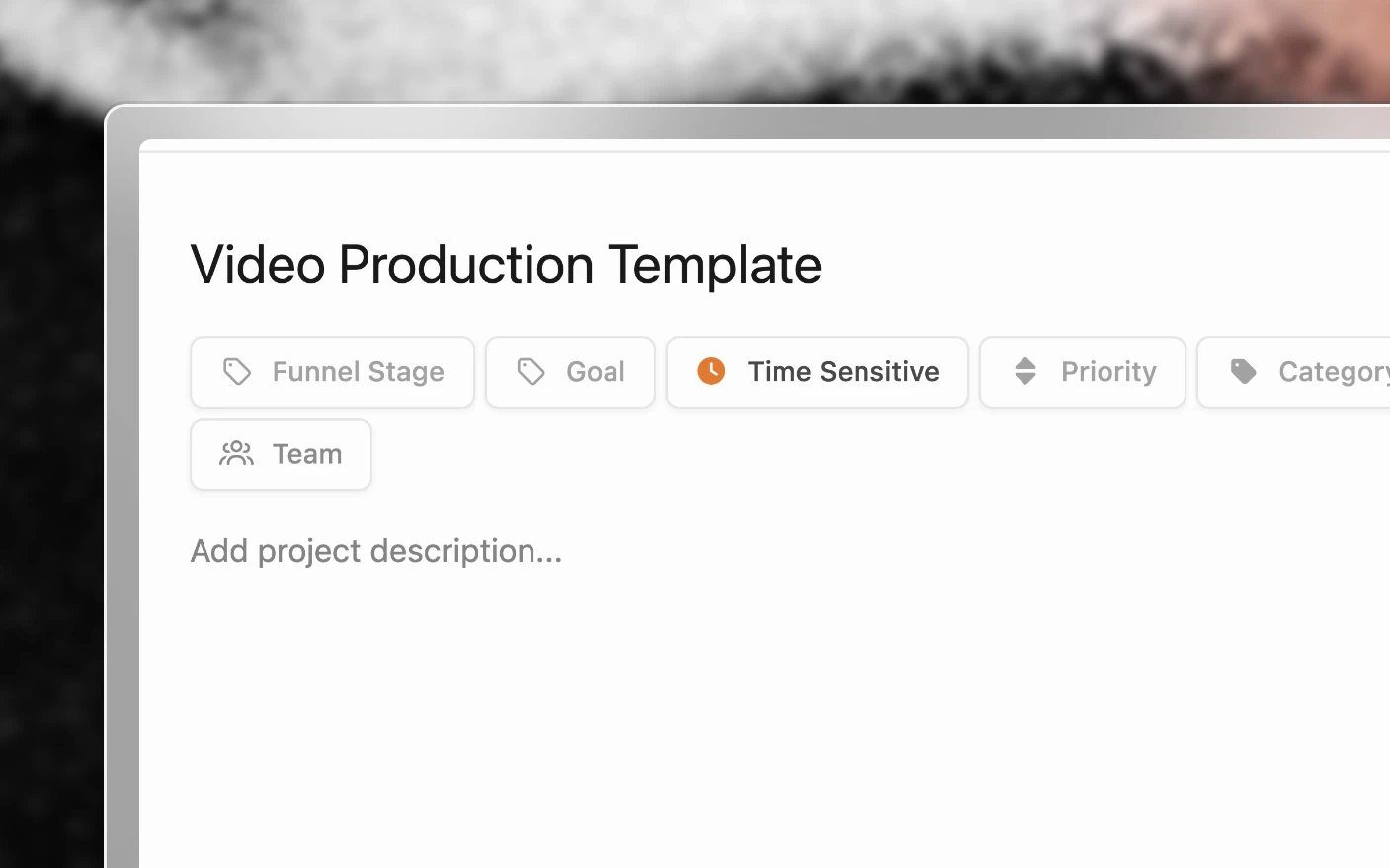
Why templates?
Common problems solved:
- Every project set up slightly differently
- Steps forgotten because they live in one person’s head
- New editors needing the process explained each time
- Deadlines set by hand and therefore inconsistent
What you get:
- The same structure on every project
- Deadlines that calculate themselves from the publish date
- Tasks assigned by skill rather than by name
- SOPs attached to the task that needs them
Before you start
Templates are organization settings, so you need permission to edit them. Have one finished project in mind to model the template on, since the fastest template is usually a copy of a project that already worked.
Step 1: Create the template
- Open Organization settings from the organization switcher, or click Organizations in the sidebar.
- Go to Templates.
- Choose Create new template.
- Give it a name that says what it produces, such as
Long-form YouTubeorClient short-form.
Add the outline
Give the template an outline: the structure, prompts, or sections every project of this kind should start with. Every project created from it opens with that outline already in place, so nobody stares at an empty page.
Step 2: Set defaults
Labels. Set the labels every project of this type should carry, such as content type or category. Consistent labelling is what makes filtered boards and analytics useful later. See Labels, Statuses, and Categories.
Channels. Attach the channels this format publishes to, such as YouTube, YouTube Shorts, Instagram, and TikTok. Projects created from the template arrive pointed at them.
Team members. You can assign default people. Many teams skip this and assign by skill on the task instead, which survives someone leaving or going on holiday.
Step 3: Build the task list
Inside the template, choose Create task list. You get default sections you can rename or replace.
A typical long-form list:
- Sketch thumbnail
- Draft script
- Film
- First edit
- Review
- Publish
Sections group the steps, and you can add your own at the bottom.
Configure each task
| Setting | What it does |
|---|---|
| Assign by skill | Route the task to whoever holds that skill, rather than a named person |
| Assign a person | Pin it to someone specific |
| Relative due date | Set the deadline as days from the project’s scheduled date |
| SOP or instructions | Attach the procedure for doing this step |
| Workload points | Weight the task so capacity planning reflects real effort |
| Priority | Low, medium, high, or urgent |
Relative due dates are the setting worth understanding. Set “first edit due 5 days before the publish date” once, and every project built from the template calculates its own deadlines. Move the publish date and the whole chain shifts with it.
Skills available are Host, Producer, Researcher, Scheduler, Scriptwriter, Thumb Designer, Video Editor, and Videographer. Set team skills first, then assign by skill so the task finds the right person even as the team changes.
SOPs belong on the task, not in an onboarding document. An editor reading “First edit” should find your standards for it right there. Use organization procedure pages so one SOP serves every template. See Project Pages.
Step 4: Save and use it
Save, and the template is marked as a project template so it is easy to recognise.
From then on, new projects can be created from it. See Using Project Templates.
Turning an existing project into a template
If a project worked, save it as a template rather than rebuilding it. Open the project and use Save as template. The structure comes across and you can trim what was specific to that one video.
This is usually the better starting point. You are copying something proven instead of imagining your process.
Tips and best practices
- Start from a real project. Templates built from imagination miss the steps you actually do.
- One template per format, not per client. A long-form template and a short-form template beat twelve near-identical client templates.
- Assign by skill, not by name. Named assignments break the first time someone takes a week off.
- Set relative due dates on everything. Absolute dates in a template are wrong on every project after the first.
- Write the SOP as if the reader has never done it. That is the point at which it starts saving you time.
- Revise the template when you improve the process. A template that never changes is a process that stopped improving.
- Use workload points honestly. A thumbnail sketch and a full edit are not the same task, and capacity planning only works if the weights are real.
Frequently asked questions
Can I edit a template after projects have used it?
Yes. Changes apply to projects created afterwards.
Do existing projects update when I change the template?
Not automatically. Task lists can be synced back to their template where that is what you want.
Can I have templates per client?
Templates belong to an organization, so a client in their own organization has their own set.
What is the difference between a project template and a task list template?
A project template carries the whole project: outline, labels, channels, and task list. A task list template is only the steps, and can be dropped into an existing project. See Task List Templates.
Can I assign a task to an AI agent?
Agents work through automations and comment mentions rather than task assignment. See AI Agents.
How many templates should we have?
One per genuinely distinct format. If two templates differ by one task, make it one template.
Related articles
- Using Project Templates: start projects from a template
- Task List Templates: reusable steps without a whole project
- Task List Overview: how tasks work day to day
Was this page helpful?
Related articles
Need more help with this?
Contact support