
How to schedule Instagram Trial Reels in bulk without disrupting your regular publishing queue
Auto-create, review, and publish Instagram Trial Reels in bulk with automations, time slots, and keyboard review.
Updated
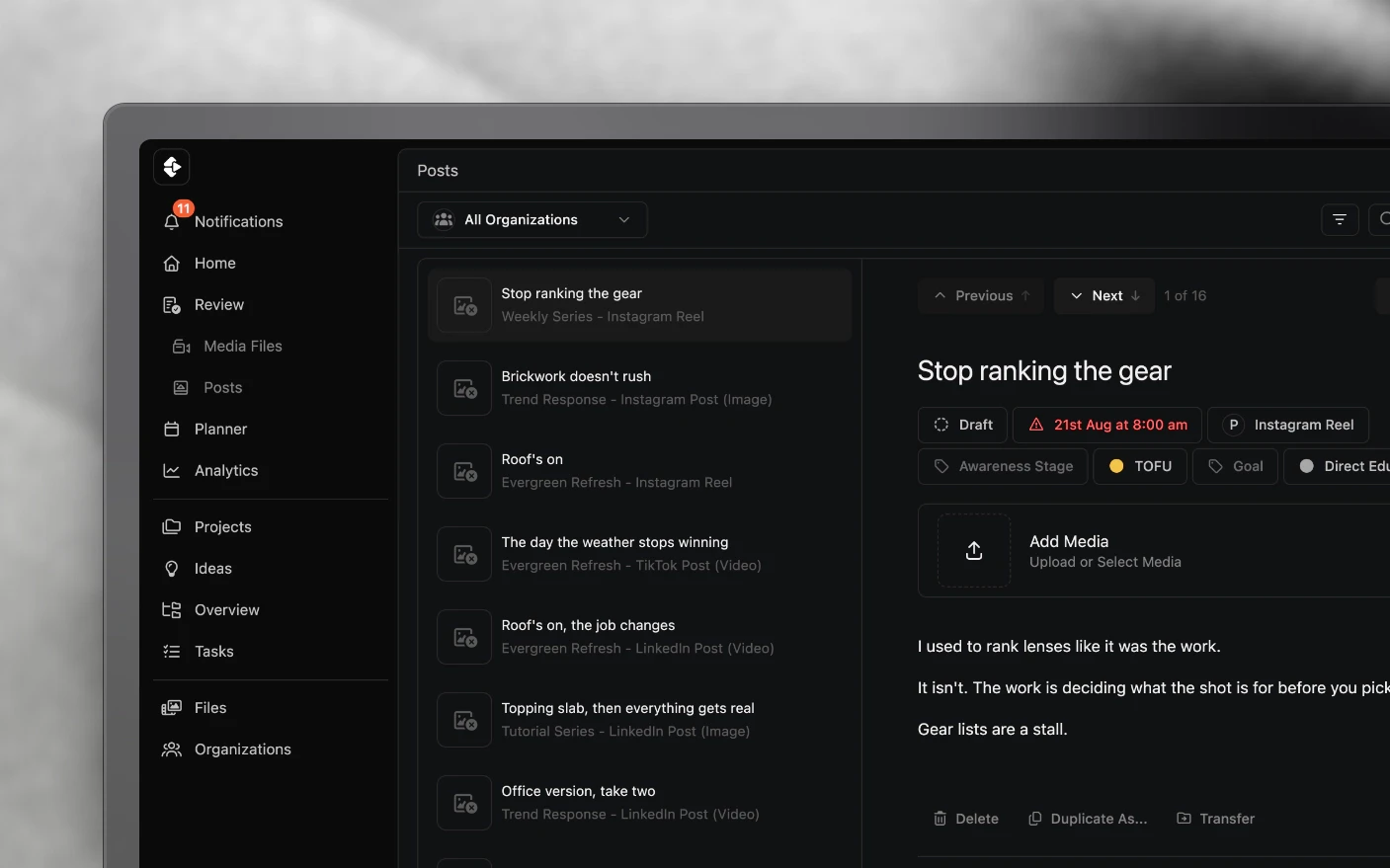
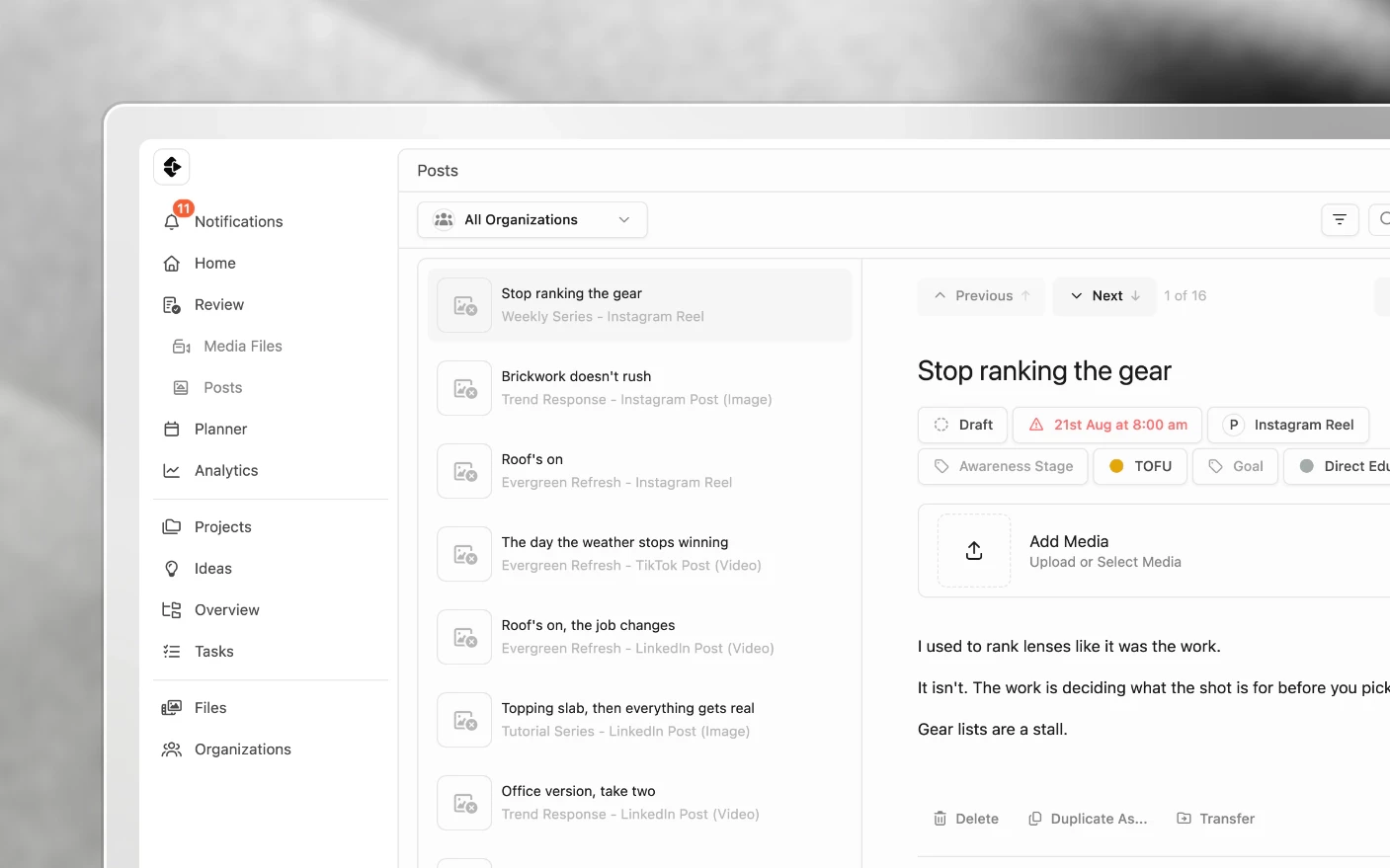
Run more creative experiments without creating more scheduling admin
Instagram Trial Reels let you test content with people who do not follow you before it reaches your main feed. If testing is part of your growth plan, the bottleneck becomes getting enough clips reviewed and scheduled rather than deciding whether to test at all. Clipflow can create, review, and publish Trial Reel posts in bulk, so you are not uploading one clip at a time from your phone.
Meta Business Suite can now schedule trial reels too. If you are running a volume strategy, testing daily and amplifying what works, you need a pipeline instead of an upload habit.
The shape of that pipeline is worth holding in your head, because it spans two places:
- In the project, you set the work up: upload the media, label it, and approve it.
- In organization settings, an automation watches for that approval and drafts the posts.
Approving a file in a project is what sets the second half running. Everything below is those two halves in order.
Why bulk schedule trial reels?
Common problems solved:
- Manual phone uploads make trial reels not worth doing at volume
- Trial and feed posts competing for the same publish slots
- Creating posts one by one after every media approval
- No single view of what is queued against what is live
What you get:
- Trial Reel posts drafted the moment media is approved
- Dedicated time slots so trials do not collide with main-feed reels
- Bulk review: dozens of posts marked Ready in one keyboard session
- Scheduled publishing through Clipflow, without opening the app on your phone
Before you start
- Connect Instagram to your organization. See Connect Social Platforms.
- Have edited media in a project, ready to approve.
- Decide your split. Are these trial-only clips, or will some also go to the main feed and other platforms? If both, set up a Content Type label group first. See Labels, Statuses, and Categories.
You may already have most of this
When you connected your first channel, Clipflow created an automation called Draft social posts. It already triggers on media approval and drafts a post for each supported post type on your connected channels, Instagram Trial Reel included.
Open Organization settings → Automations and look before you build. In many cases the work is adding a condition and a time slot rather than creating an automation from scratch.
Step 1: Set up the automation
Automations turn approved media into draft posts, so nobody is creating each Trial Reel by hand.
- Open Organization settings → Automations.
- Choose Add automation.
- Give it a title, such as
Draft trial reels. - Set the trigger to a media file’s status was updated.
- Save.
There is no template gallery to pick from. You build the automation once and then duplicate its actions, which is faster than it sounds.
Add the condition
Add a condition on the automation:
- Media status equals Approved
This is what stops drafts appearing while a file is still being reviewed.
Add the action
Actions are agent runs, so each one is an AI agent with an instruction and a set of tools.
-
Choose Add action and give it a title, such as
Instagram Trial Reel. -
Pick the agent that does your drafting. See AI Agents.
-
Allow the Create Post tool.
-
In the Create Post settings, set Platform Product to Instagram Trial Reel. This is the field that decides what kind of post gets drafted.
-
Leave Channel empty to use your organization’s Instagram channel, or pick it explicitly.
-
Set a title template so drafts are easy to scan, such as
{{ title }} - Instagram Trial Reel. -
Leave Skip if Media In Use on so re-approving a clip does not produce a second draft of a post you already have. It is on unless you turned it off on the action.
-
Write the instruction, which is what you want the caption to be. For example:
Write a caption for this trial reel. Two short lines, no hashtags, no emoji. End with a question.
-
Save the automation and check its enabled switch is on.
Approve a media file from now on and a draft Instagram Trial Reel post appears in that project.
Optional: keep trial clips separate from feed clips
If the same project also produces feed content, add a second condition so feed clips do not spawn trial posts:
- Content type equals trial
Set up the Content Type label group under Organization settings → Labels first, with feed and trial options. Conditions can also sit on an individual action, which is how one automation drafts a trial post for some projects and a YouTube Short for others. See Automation Recipes.
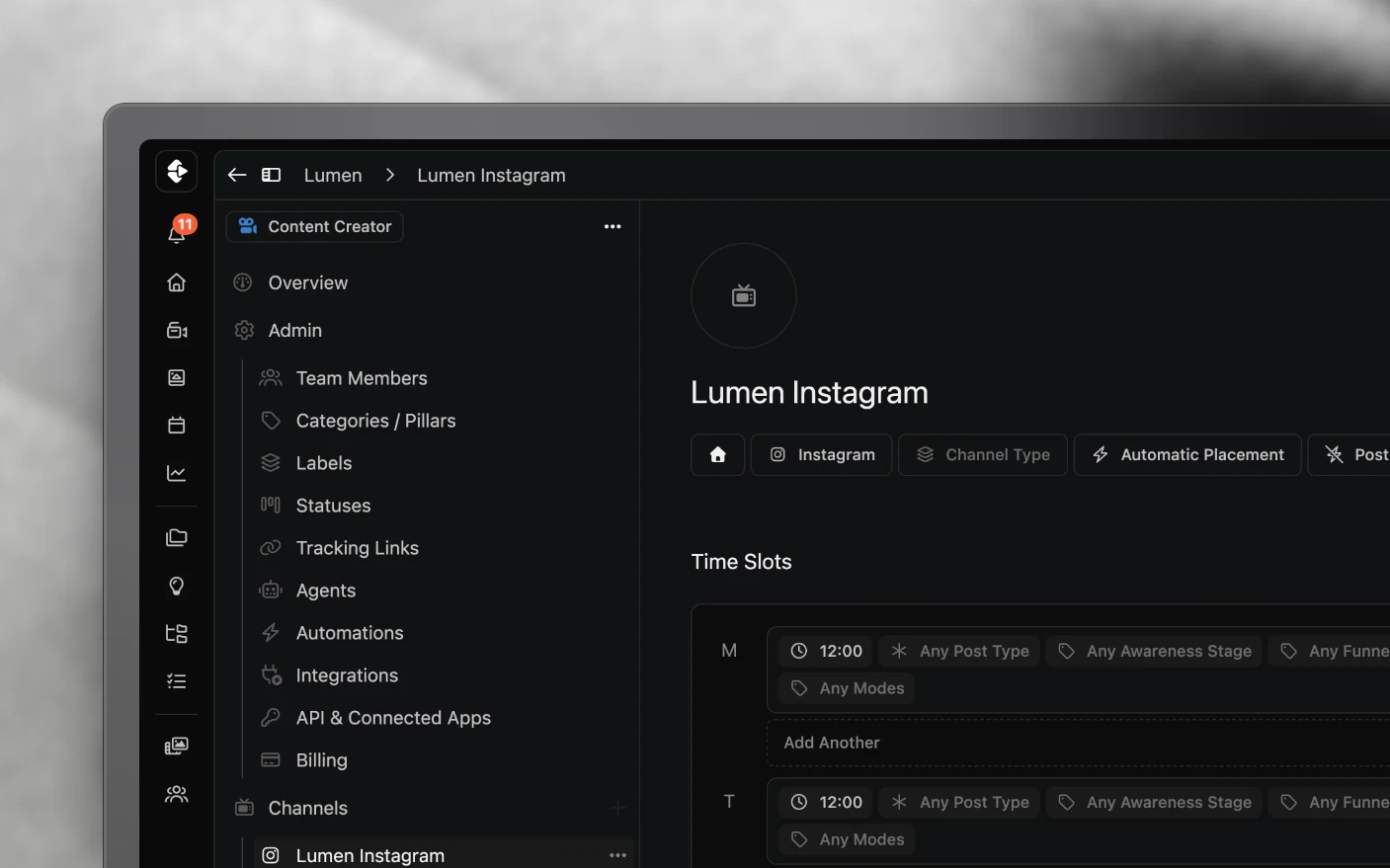
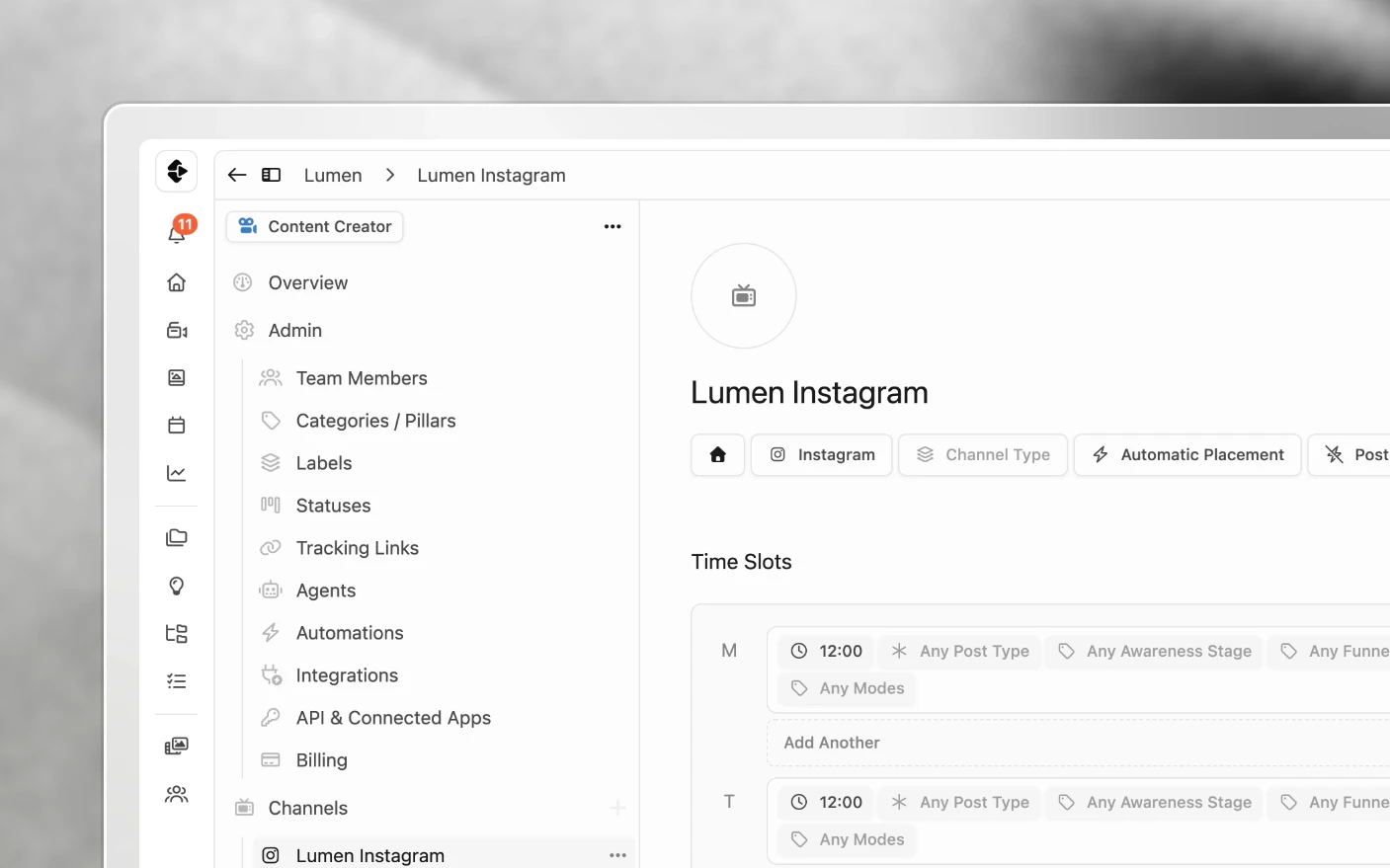
Step 2: Set trial-only time slots
Time slots control when publishing runs and which post types each window accepts.
- Open Channels in the left sidebar and select your Instagram channel.
- Find Time slots, your weekly publishing windows.
- Add a slot for trials, for example 12:00 on the days you want tests going out.
- Set that slot to accept Instagram Trial Reel.
- On your main-feed slots, for example 4:00 PM, accept Instagram Reel and exclude Trial Reel, so feed and trial are not competing for the same queue.
Morning trials and afternoon feed is a common pattern. The times matter less than the separation.
Step 3: Approve media in batch
The automation runs when a file moves to Approved.
- Open the project’s media, or your media review queue.
- Review the clips and set each one you want to test to Approved.
- Each approval fires the automation, and draft Trial Reel posts appear in the project.
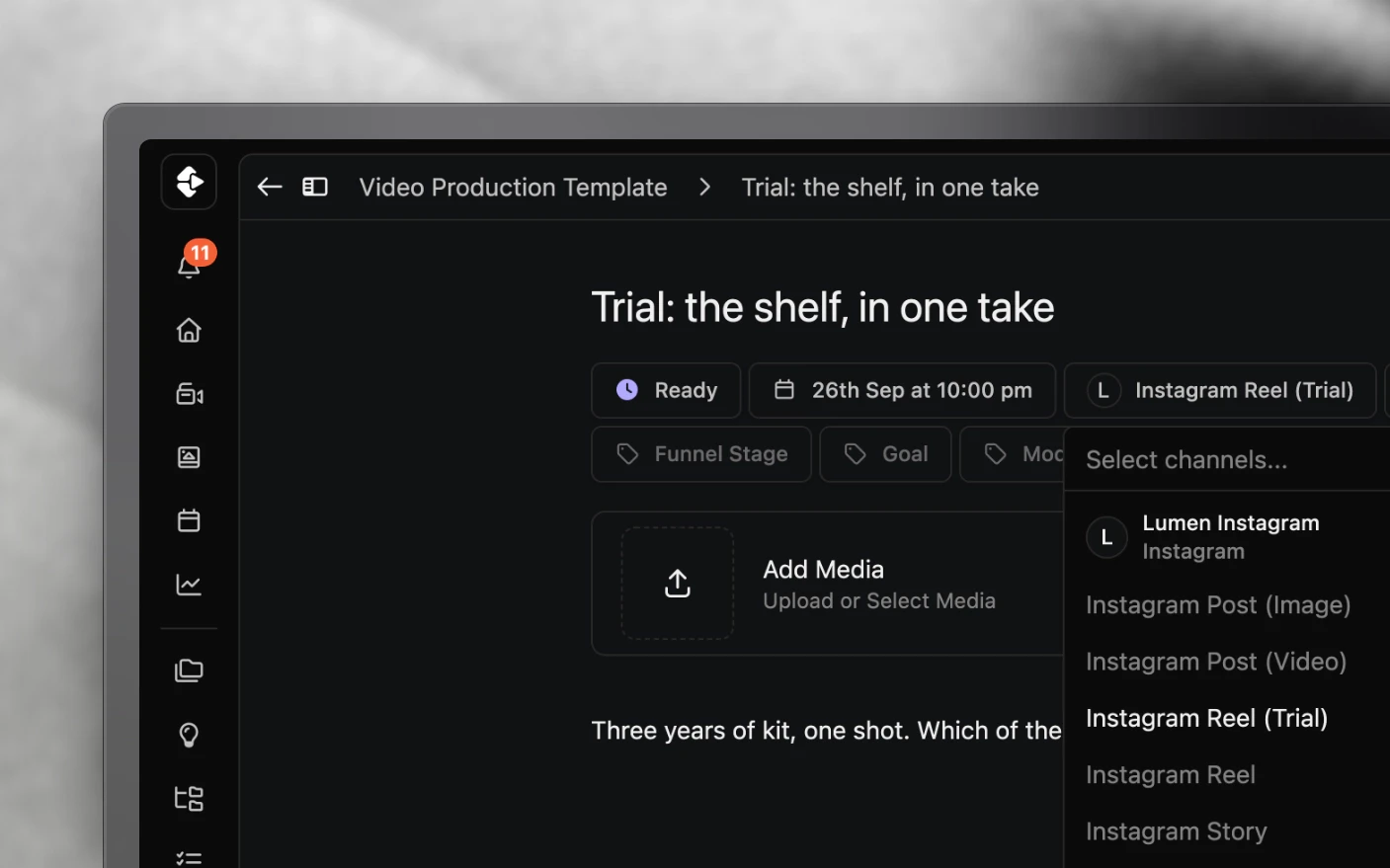
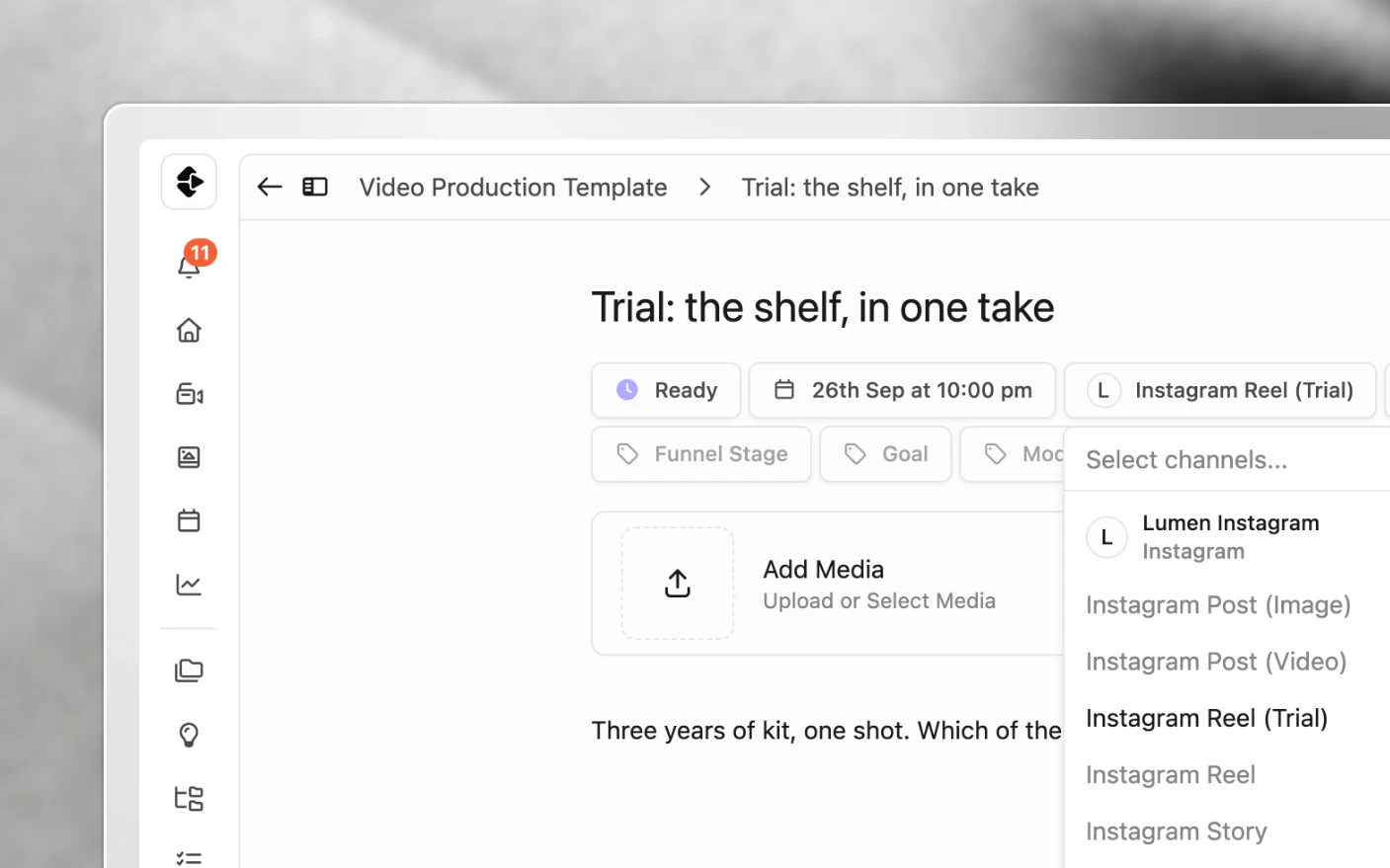
Each draft’s product is Instagram Reel (Trial). Open a post and click its product to see it, or to switch a post you made by hand.
Slots do not pull posts in on their own. A post gets a slot time at the moment it is marked Ready, so an empty slot simply passes and nothing unfinished is published.
Step 4: Bulk review and mark Ready
Drafts still want a quick human pass before they go out.
Option A: Review posts (fastest at volume)
- Go to Review → Posts in the left sidebar.
- Filter by post type (Instagram Trial Reel), or by teammate if someone else drafts and you schedule.
- Work through them on the keyboard:
| Key | Action |
|---|---|
| ↓ or → | Next post |
| ↑ or ← | Previous post |
| R | Mark Ready |
| E | Open the post in a new tab to edit it |
| Backspace or Delete | Delete the post |
R only applies to drafts, so you cannot accidentally re-ready something already queued. Delete asks for confirmation.
Ready posts queue for the next open trial slot.
Option B: The scheduling calendar
Open Scheduling, filter to Trial Reel posts, and work from the calendar instead. Better when you care about spacing across the week rather than speed. See Post Scheduling.
Step 5: Confirm they scheduled
- In Scheduling, filter to Instagram Trial Reel.
- Ready posts should show a scheduled date and time matching your trial slots.
- After publishing, check performance in Analytics.
Then repeat: approve media, review drafts, mark Ready, let the slots publish. That is the loop.
Tips and best practices
For solo creators
- Trial first, feed second. Many teams post as a trial, watch how it performs, then promote the winners to the main feed a day later.
- Variations, not reposts. Amplify a winner with a new hook or caption. Identical reposts usually underperform the original trial.
- Scheduling does not cost you reach. Teams running high volume see the same results on scheduled trials as on posts made by hand.
For teams and agencies
- Split feed and trial with labels so one automation does not draft a TikTok, a Short, and a trial when you only wanted a test.
- Split the handoff. The editor approves media, the scheduler owns Review → Posts and marks Ready.
- Give trials their own board view filtered to content type, so batch review is one click. See Custom Views.
Automation and slot hygiene
- Keep Skip if Media In Use on for every drafting action. It is on unless you turned it off, and it is the single setting that prevents duplicate drafts. Turn it off on an action only if you want duplicates.
- Fix conditions rather than disabling an automation. Switching it off puts you back to creating posts by hand, which is the thing you were trying to stop.
- Match slot count to review capacity. Ten slots a day is only useful if somebody marks ten posts Ready.
Frequently asked questions
Can Meta Business Suite schedule trial reels?
Yes, it can now. Clipflow adds the automatic drafts, trial-only time slots and bulk review on top, once your Instagram channel is connected.
Do I need a separate automation for main-feed reels?
Not a separate automation, but a separate action. One automation can hold an action per post type, each with its own conditions and instruction.
What happens if I approve media but never mark the post Ready?
The draft sits in the project. Publishing only picks up posts in Ready status.
Can I schedule trial reels without automations?
Yes. Create Instagram Trial Reel posts by hand in the project and mark them Ready. Automations only remove the manual create step.
I approved a clip twice and got two drafts.
Check that Skip if Media In Use is on for the Create Post action. It is on unless someone turned it off, and it skips when that media is already used in a post of the same type on that project.
Does scheduling hurt reach compared to posting from my phone?
Teams running high volume in Clipflow see the same reach. Content and audience fit move the numbers far more than the publishing method.
How many trial reels can I run per day?
Your time slots and your Ready queue set the limit, not Clipflow. Some teams target around ten a day, others fewer.
Related articles
- Connect Social Platforms: connect Instagram first
- How Automations Work: triggers, conditions, and actions in full
- Post Scheduling: the calendar across every post
- Working with Posts: post statuses from Draft to Done
Video transcript
Read the video transcript
Trial Reels have very quickly become one of the biggest ways to grow a following on Instagram, so if you’re trying to build a buying audience for your business, this is the perfect way to get started. We’ve got people on Clipflow adding tens of thousands of followers a week from using Trial Reels and, like, abusing them, like posting a lot, but you can’t really post a lot unless you’ve got a scheduling tool.
Unfortunately, the Meta Business Suite doesn’t let you schedule Trial Reels, and if you don’t want to be on your phone all the time remembering “I’ve got to go schedule my Trial Reels”, bulk scheduling them is the best way to go and you need a platform like Clipflow for it. (Meta Business Suite has added Trial Reel scheduling since this was recorded.)
Now the accounts that are getting tens of thousands of followers a week, obviously they’ve already got a big following, they’ve got 200,000 followers. We’ve got someone who started at 150,000 followers and then after they started bulk scheduling with Clipflow, I think they’re at about 230,000 followers now. If your audience size isn’t that big, you’re not going to necessarily see the same amount of growth, but it doesn’t mean that you shouldn’t be taking advantage of it as much as you can.
At least at the time of recording this, it looks like Instagram’s giving about five Trial Reels a day proper exposure to the algorithm. It used to be 20, but I think they realized that people were gaming the system too hard, but you want to be making sure you’re getting at least five Trial Reels out a day across all of your channels where possible.
And the good thing about it is it only goes out to people who don’t follow you yet, so not only can you test and experiment a lot more without putting things on your main feed, if you’re like us and you run ads, a lot of people don’t convert from an ad through to “learn more” to go to your landing page, they go check out your Instagram profile first. So you might be a bit more particular about what’s showing on that main feed, and Trial Reels don’t get in the way of that. It’s a completely separate thing. No one can see what you’re doing there.
That is one of the reasons why it’s a really good way to grow audiences, because it’s just going out to people who don’t follow you yet, and the types of things that you’re promoting. And while you can and should use the exact things you’re posting on your main feed through trials to experiment with them, you don’t have to, you can go a lot wider and a lot more experimental and attract a lot more audience that way.
Clipflow has an official Instagram API integration and, like all of the other posts that we let you schedule, this is just another type of post. So it’s exactly the same part of your process that you’re currently doing to automate creating Instagram posts, to create Facebook posts, to create YouTube Shorts, to create LinkedIn posts, exactly the same process. You’re just setting up another product type in the platform.
First things first, what you’re going to need to do if you haven’t already is connect an Instagram channel, and then the setup basically has two parts. An automation is going to draft a Trial Reel post every time you approve a piece of media, and the time slots will take trials and keep them from using a spot in your main feed. These will just go to slots designed for Trial Reels so that you can have those five completely separate from what you’re doing over here.
Once you’ve got Instagram connected and you’ve got some media uploaded in a project ready to approve, and you’ve decided if the clips are going to trial or they’re going to your main feed as well. Just noting that if you want to promote a Trial Reel up to the main feed, which is an option that Instagram gives you, that has to be done natively in the platform. Some people like to do that because it carries social proof up to the main feed and you’ll get comments, likes and so on from it. Other people say you may as well be getting as many views as you can from both by posting two completely separate ones. It’s up to you which way you do it. We recommend doing both because a new audience gets to see it, the existing audience gets to see it, and as long as there’s a little bit of a difference in the time that you’re posting them, it won’t affect either algorithm.
So you’re going to go to your organization settings and open Automations. You may already have one, depending on when you signed up, for drafting social posts. So you can check that one first and you can add trials into that, or you can create a brand new one. Click Add, call it “Draft trial reels”, set the trigger of the automation to media file status change and save it, and then you can add a condition for media status equals Approved, and that will stop the draft post appearing while a clip’s still in review.
Then you can add an action and call it “Instagram Trial Reel”, pick your agent, give it the Create Post tool and choose Instagram Trial Reel as the product, then write the instruction, which is how you want the caption written. The agent is going to read the video’s transcript and write a caption from it. And if you’ve already used Claude or ChatGPT to write your captions, you can basically just port the instruction over to here and then you don’t have to type it, paste it, remember where your prompt is every time you want to make a post. It just knows that that’s the exact instruction for that, and it’ll write it into your post.
Next up, open your Instagram channel and go to time slots, and add some slots that only accept Trial Reels, and take Trial Reels off your main feed slots. Because you’ll have an Instagram post type of any, you actually want these ones just to go to the trial schedule, which will generally be different because you’re probably putting more Trial Reels out than you are main feed videos, and the two will never compete for the same spot because they’re completely separate in Instagram.
And from here every video that you mark as approved is going to get a Trial Reel drafted, with the caption written and the media attached. Nothing will be published until you say it’s ready. Marking it as ready is very easy. You go into the post review queue, you can flip through them on your keyboard and hit R to mark them as ready, and each one will just automatically find the next available trial slot and put it in there so you don’t have to think about it. You won’t look at that post again until you’re reading analytics of all of your posts. So you’re not paying too much attention to the micro, granular post by post and just looking at the bigger picture.
Now, depending on the size of your team and your business, you might have a lot of resources for editing and you might want to put a lot of Trial Reels out there, or you might just be getting started. If you’re new, I would go trial first and then feed second, and I would test everything that you make as a Trial Reel, checking your analytics and then putting the winners on the main feed. If you’ve got a lot more resources, you might want to be recording completely different hooks and editing the same video in three different ways and testing it that way. It’s totally up to you.
If you need any help getting that set up, we’re always available in our help widget, the little headset in the bottom left of your screen. If you want to talk about how other people are using Trial Reels and what strategies they’re using, or you’d like some information that you could brief an editor on for how to make more Trial Reels that test more things, just book a call with us and we’ll tell you how people are getting the most out of Trial Reel experimentation. Peace.
Was this page helpful?
Related articles
Review Draft Posts
Work through a queue of draft posts, fix media, caption, date and channel in place, mark each one Ready and move on, mostly from the keyboard.
Carousels and Image Posts
Where images go in a project, how to build a carousel in slide order, why PNGs get a JPG copy, and each platform's carousel limits.
Connect Social Accounts
Connect Instagram, Facebook, YouTube, and more for social publishing, scheduling, and performance analytics.
Need more help with this?
Contact support