
How to keep your content team informed without burying everyone in notifications
Control in-app and email notifications for comments, approvals, tasks, publishing, and team activity in Clipflow.
Updated
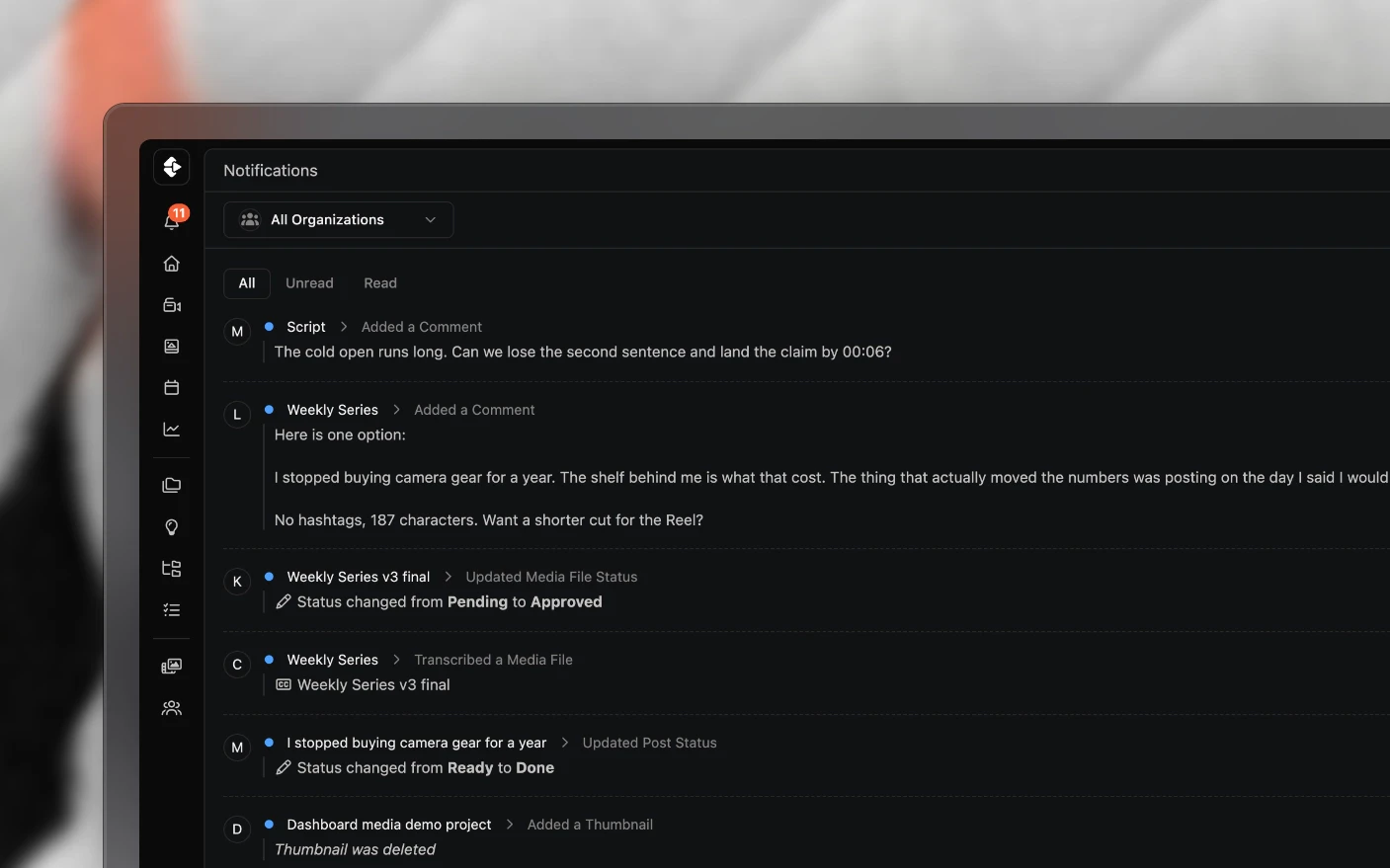
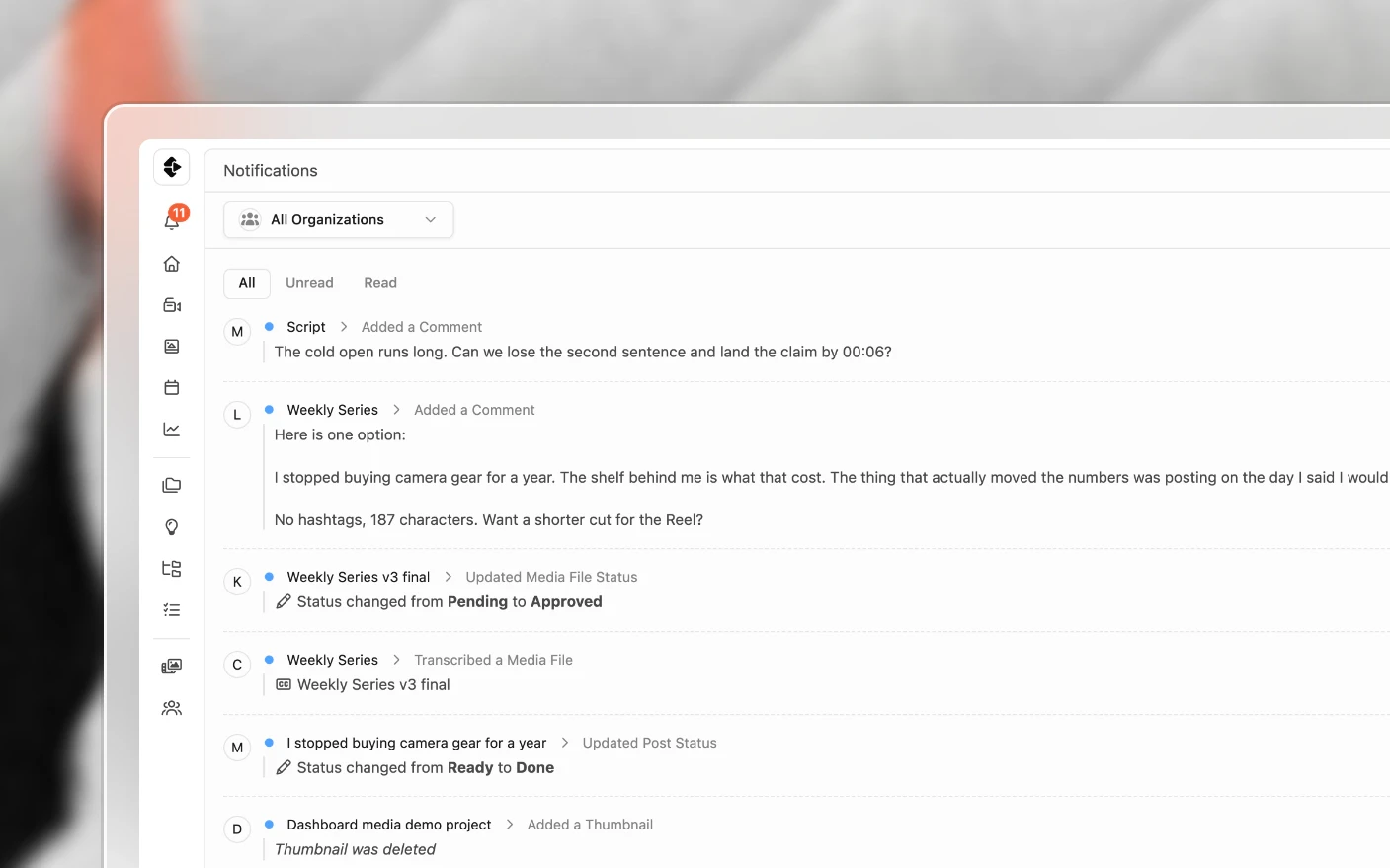
Get the right people into the right review and production conversations
Notifications keep you updated on important events across all your projects - like when someone comments on your work, approves your video, or completes a task you’re tracking.
Instead of constantly checking each project, you’ll know exactly when something needs your attention no matter where you’re working.
Why Use Notifications?
Common Problems Solved:
- Lost activity across organisations
- Missing important updates because you weren’t viewing that specific project
- Delayed responses to comments and approvals
- Not knowing when tasks are completed or teammates need your input
- Email overload from too many project updates
- Missing publishing deadlines
Benefits:
- Respond faster to comments and approvals
- Quickly travel through projects and organisations that need attention
- Stay in the loop without checking every project manually
- Reduce email noise (use in-app notifications instead)
- Never miss when something needs your attention
How to Access Notifications
Notification Panel
- Look for the inbox icon in the top of the navigation
- Click to open your notifications
- See all recent activity across your projects
- Click any notification to jump directly to the relevant content
Unread Indicator
- Mark notifications as read to clear them from your list. You can mark individual organisations notifications as read, or all at once.
Types of Notifications
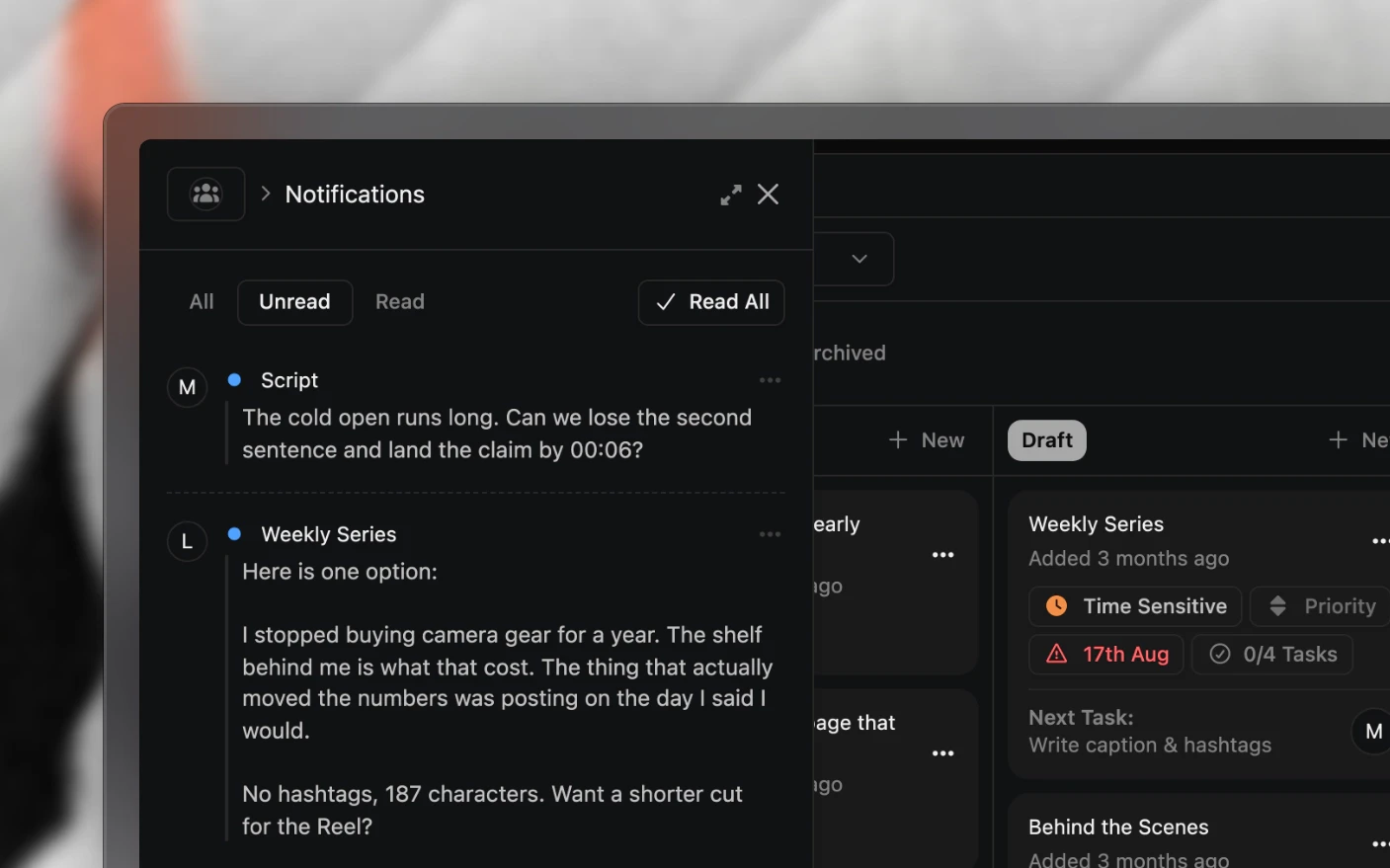
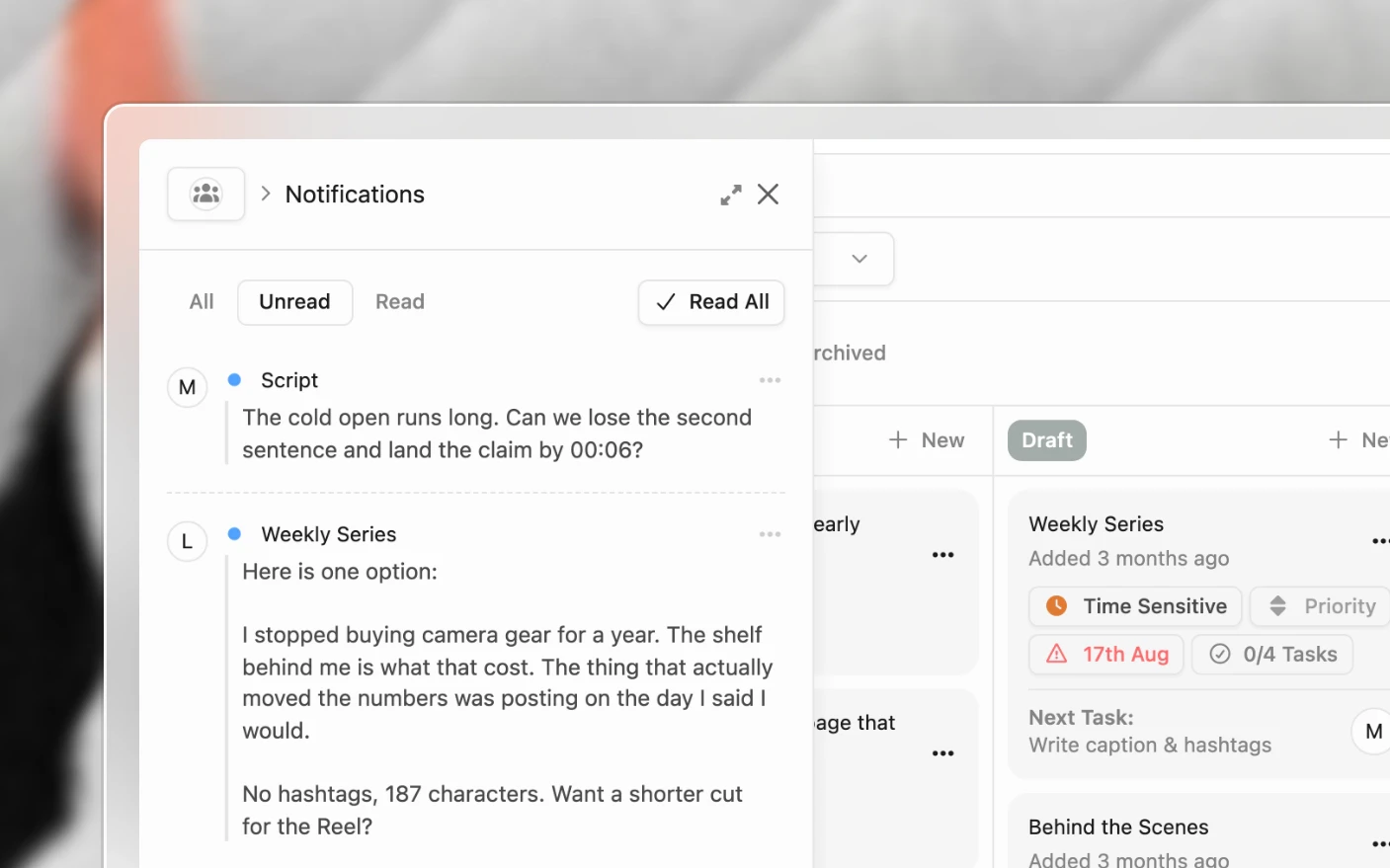
You’ll receive notifications for these events:
Comments & Mentions
- When someone comments on your media or pages
- When someone @mentions you in a comment or discussion Media Updates
- When media files are approved or rejected
- When new media is uploaded to your projects Task Updates
- When tasks are completed
- When tasks are assigned to you
- When task status changes Project Changes
- When project status changes
- When you’re added to a project team
- When important project milestones are reached Team Activity
- When team members are added or removed
- When permissions change
Notification Settings
In-App Notifications:
- Real-time updates in notification center
- You can remove team from projects if you don’t want them notified on project changes
Email Notifications:
- Configurable per event type
- Batched every 5 minutes to reduce email volume
Per-Project Settings
Currently, notification settings are global. Per-project preferences are coming in a future update.
Tips and Best Practices
For Solo Creators
- Check daily - Make it a habit to review notifications once per day
- Use for approvals - Get instant notification when clients approve your work
- Reduce email - Turn off email notifications for minor updates, check in-app instead
For Teams
- Enable mentions - Use @mentions to ensure specific people are notified about important items
- Quick responses - Click notifications to jump directly to comments and project items that need replies. For example you can quickly navigate through media with revisions required from the notification panel.
- Task tracking - Get notified when teammates complete tasks you’re waiting on
- Status awareness - Know immediately when projects move to new stages
For Agencies
- Client activity - Know when clients comment or approve work
- Team coordination - See when your team completes tasks on client projects
- Approval tracking - Get notified instantly when client approvals come through
- Reduce back-and-forth - Faster notifications mean faster project turnaround
Using @Mentions
Get someone’s attention by mentioning them in comment and conversation panel:
Projects have a main channel for all conversations, individual items like pages, edited media etc has their own individual threads.
- Type @ in any comment field
- Start typing their name
- Select from the autocomplete list
- They’ll receive a notification when you post
When to use mentions:
- Directing questions to specific people
- Requesting approval or feedback
- Flagging urgent items
- Involving someone who isn’t actively watching the project
Notification Best Practices
Keep Your List Clean
- Mark notifications as read after viewing them
- Clear old notifications regularly
- Focus on unread items first
Configure Wisely
- Turn off email for high-volume, low-priority events
- Keep email ON for things requiring immediate action
- Review your settings monthly and adjust
Respond Quickly
- Notifications enable faster project velocity
- Try to respond to mentions within 24 hours
- Use notifications as your daily task list
Don’t Overuse Mentions
- Only @mention when you specifically need that person’s input
- Don’t mention entire teams unless necessary
- Avoid mentioning the same person multiple times in one thread
Frequently Asked Questions
Can I turn off notifications for specific projects?
Notification preferences are global across all projects. You can remove team from projects to stop notifications.
Why am I not receiving email notifications?
Check your notification preferences in account settings. Also check your spam folder - emails come from notifications@clipflow.co. If using email batching, notifications are grouped and sent every 5 minutes.
What does "notification batching" mean?
Email notifications are grouped and sent every five minutes instead of one email per event. Media-review activity is additionally grouped in the in-app notification centre by person, project, and time window.
Can I integrate notifications with Slack?
Yes. Use Webhook Endpoints to send Clipflow notifications to Slack channels. See the Webhooks documentation for setup instructions.
Related articles
- Media Review and Notifications: where most notifications come from
- Webhooks: send events to Slack and your own systems
- Managing Your Profile: your personal settings
Was this page helpful?
Related articles
Invite Clients
Invite clients to review work, request content, or collaborate in Clipflow without sharing passwords or full access.
Organization Settings
Set up your content organization, team, channels, workflow, templates, automations, API access, and billing.
Setting Up as an Agency
Switch your organization to Production Partner, add each client as its own organization, and keep seats and billing on your agency.
Need more help with this?
Contact support