
How to run a content project from the first idea through production, review and publishing
Manage content production projects from idea to publishing with briefs, tasks, media review, and collaboration in one workspace.
Updated
Keep the people, files and decisions behind related content work in one place
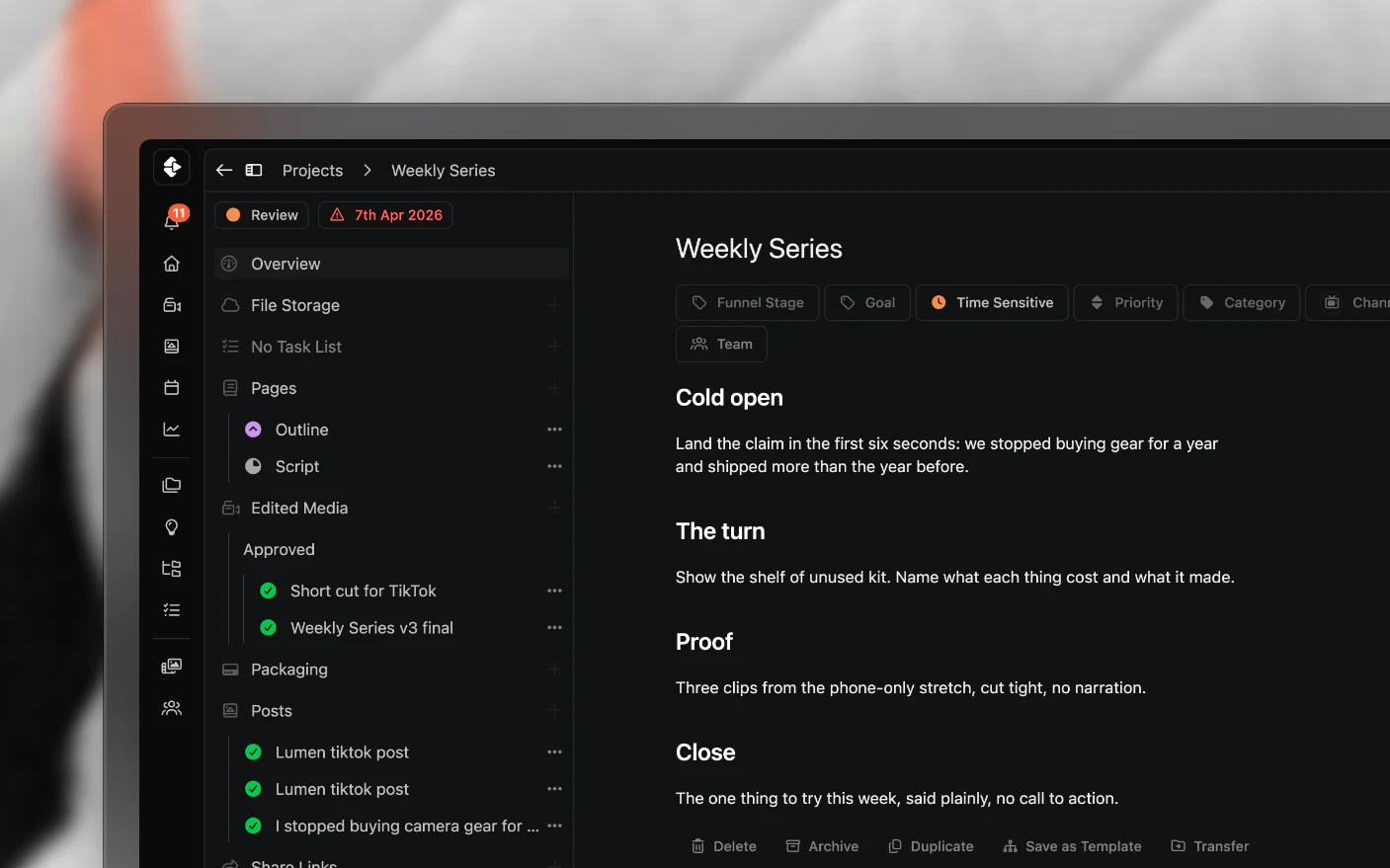
A project is a home for related content work: the outlines, scripts, tasks, footage, thumbnails, posts, and the conversation around them. Use projects for campaigns, recurring series, or whatever group of work makes sense to your team. Projects can also hold sub-projects when you need more structure.
A project is like a folder.
This is where most of the day goes, so it is worth twenty minutes learning properly. For what each section contains, see Your Production Dashboard.
Why work this way?
Common problems solved:
- The script in one tool, footage in another, feedback in a third
- Nobody able to answer where a video is up to without asking
- Work stalling because the next step was never written down
- Context lost when a teammate leaves
What you get:
- One place that holds the whole piece of content
- A visible status for every project on the board
- Tasks with owners and deadlines
- Feedback attached to the thing it is about
Step 1: Pick the right organization
Use the organization switcher at the top to move between brands, clients, and internal teams.
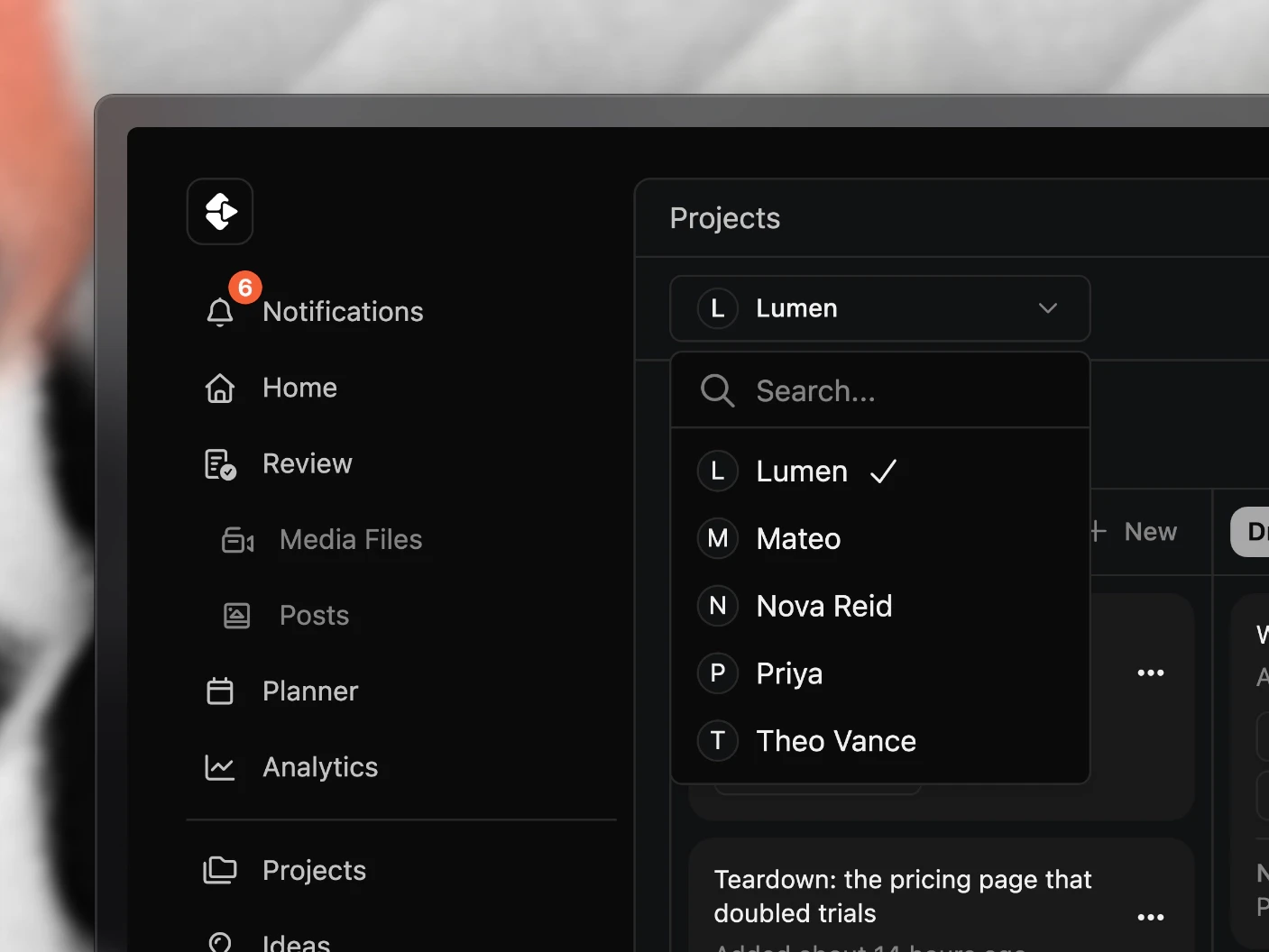
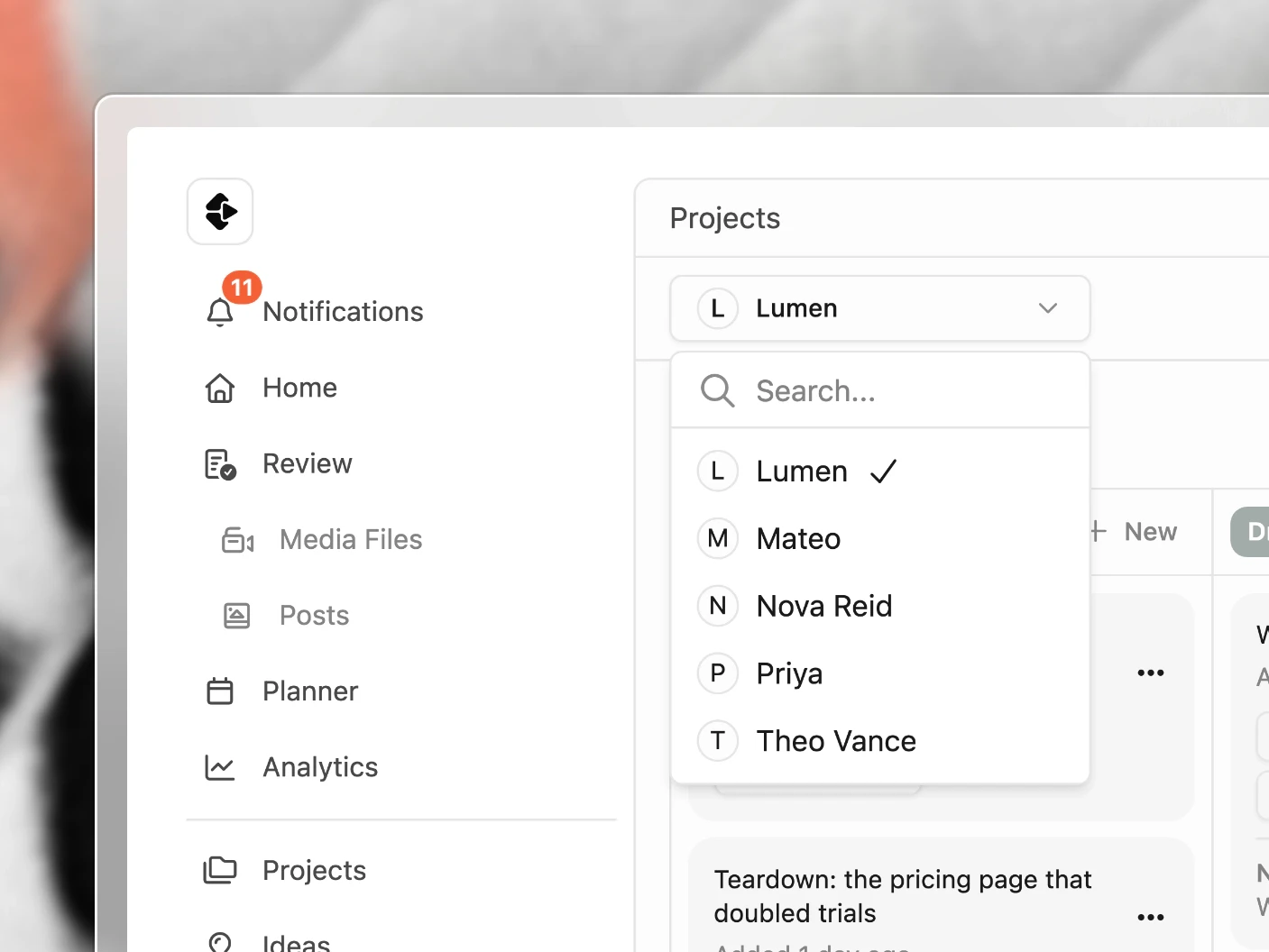
Check this before creating anything. A project made in the wrong organization is the most common setup mistake, and moving it afterwards is more work than switching first.
Step 2: Create a project
Choose New and either:
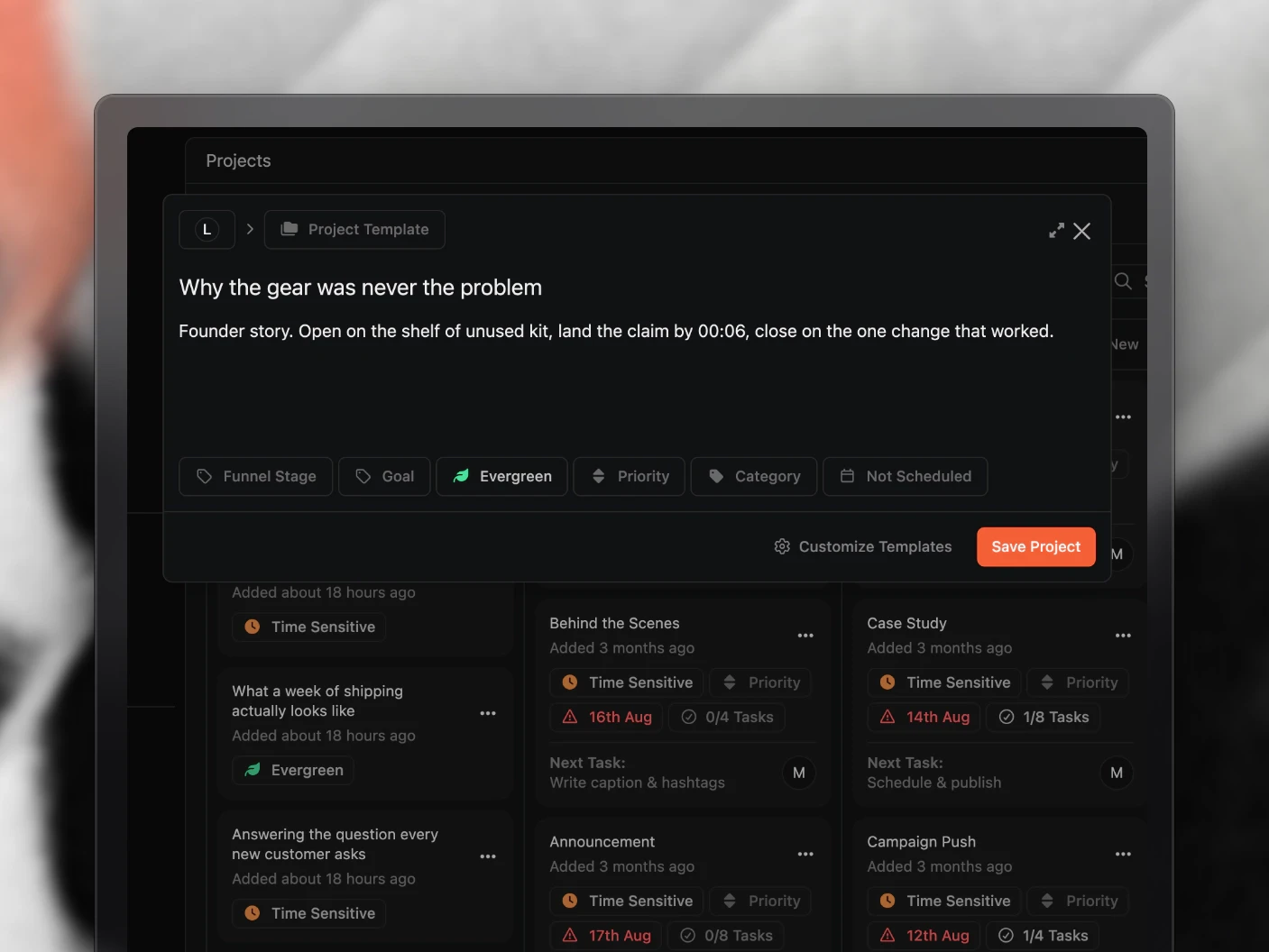
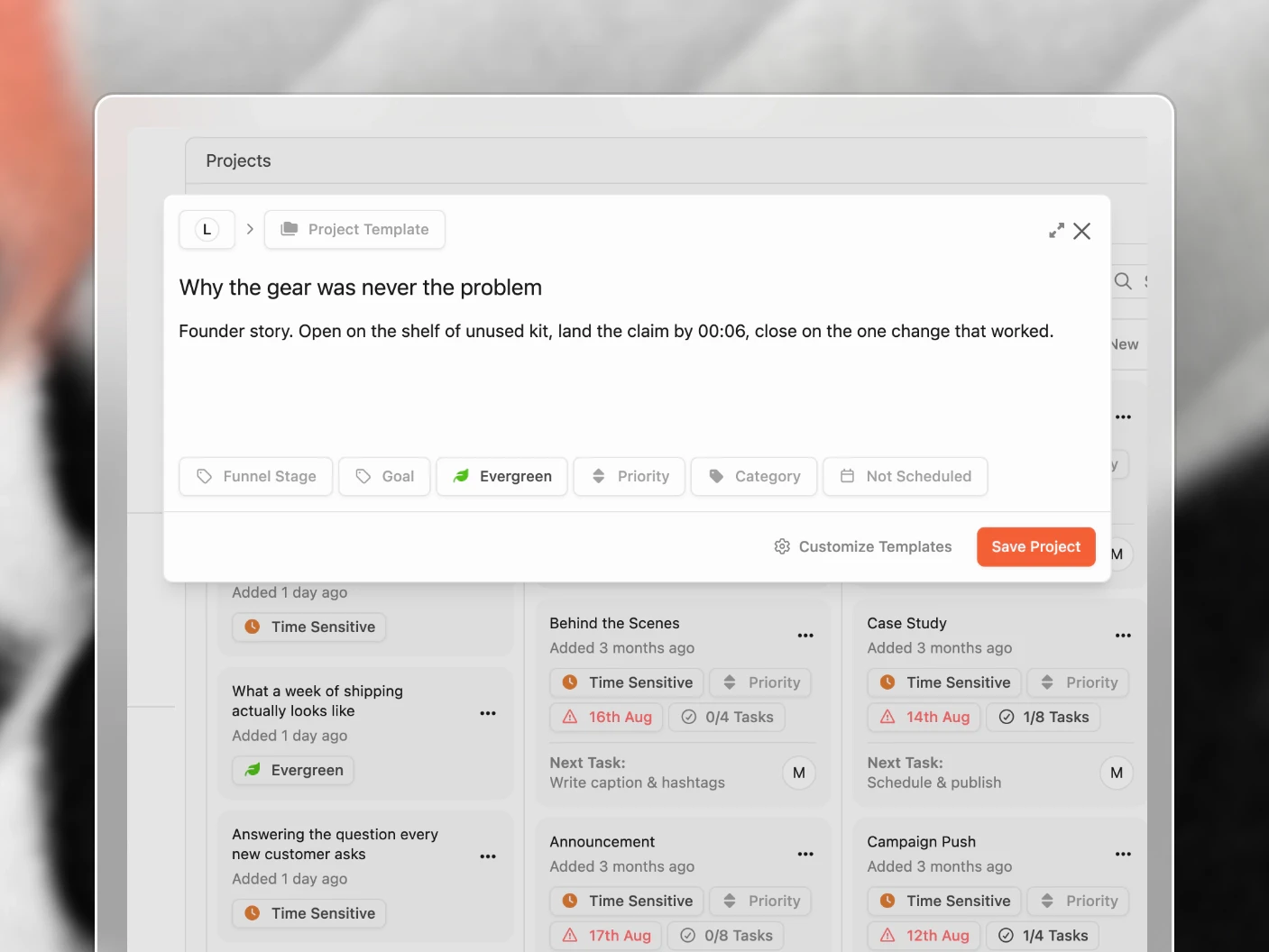
- Start from a template, which brings the outline, labels, channels, and full task list with it. This is what you want for anything you produce regularly. See Using Project Templates.
- Start from scratch, for one-off work.
Set the title, the outline, and the scheduled publish date.
On the project overview the outline shows as a short preview that fades out when it runs long. Click into it to expand and edit, click away to collapse it again, or use Go to Page to open it on its own page.
Set the scheduled date even if it is provisional. Task deadlines in a template calculate backwards from it, so a project without one has a task list that cannot schedule itself.
Or promote an idea
Ideas live in their own column. Drag one into a production stage and Clipflow converts it into a project. See Ideas Screen.
Step 3: Move it across the board
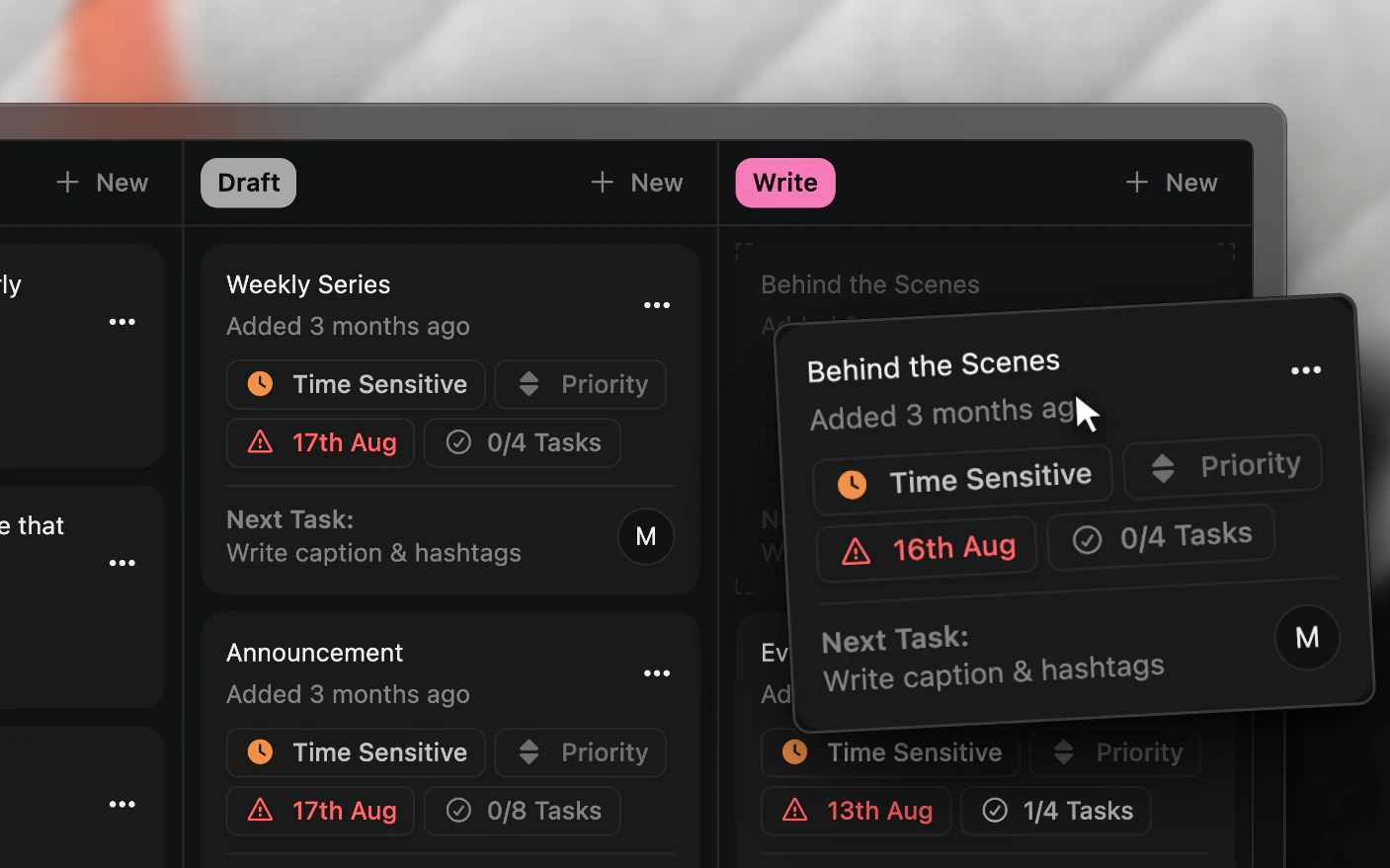
Your board columns are the statuses your organization defined, such as Draft, Write, Ready to edit, Review, Upload. Drag a project between columns to change its status.
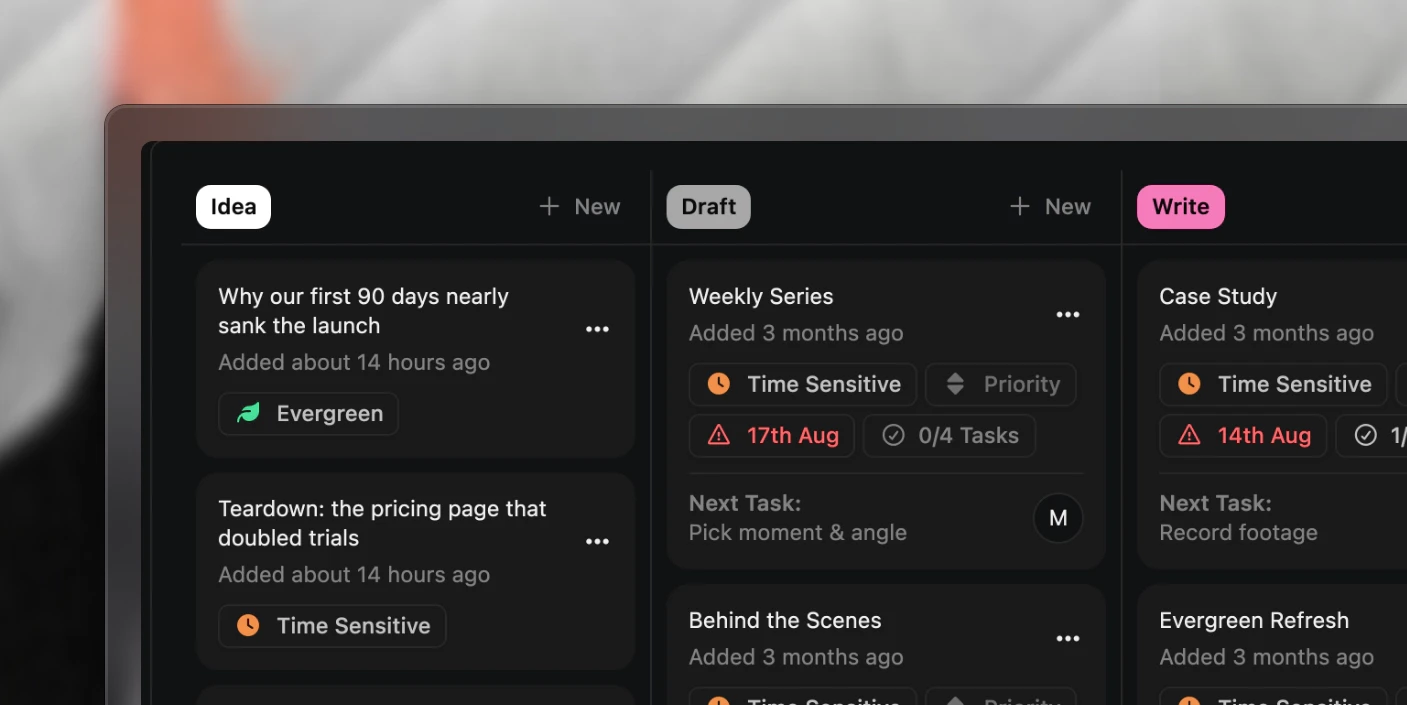
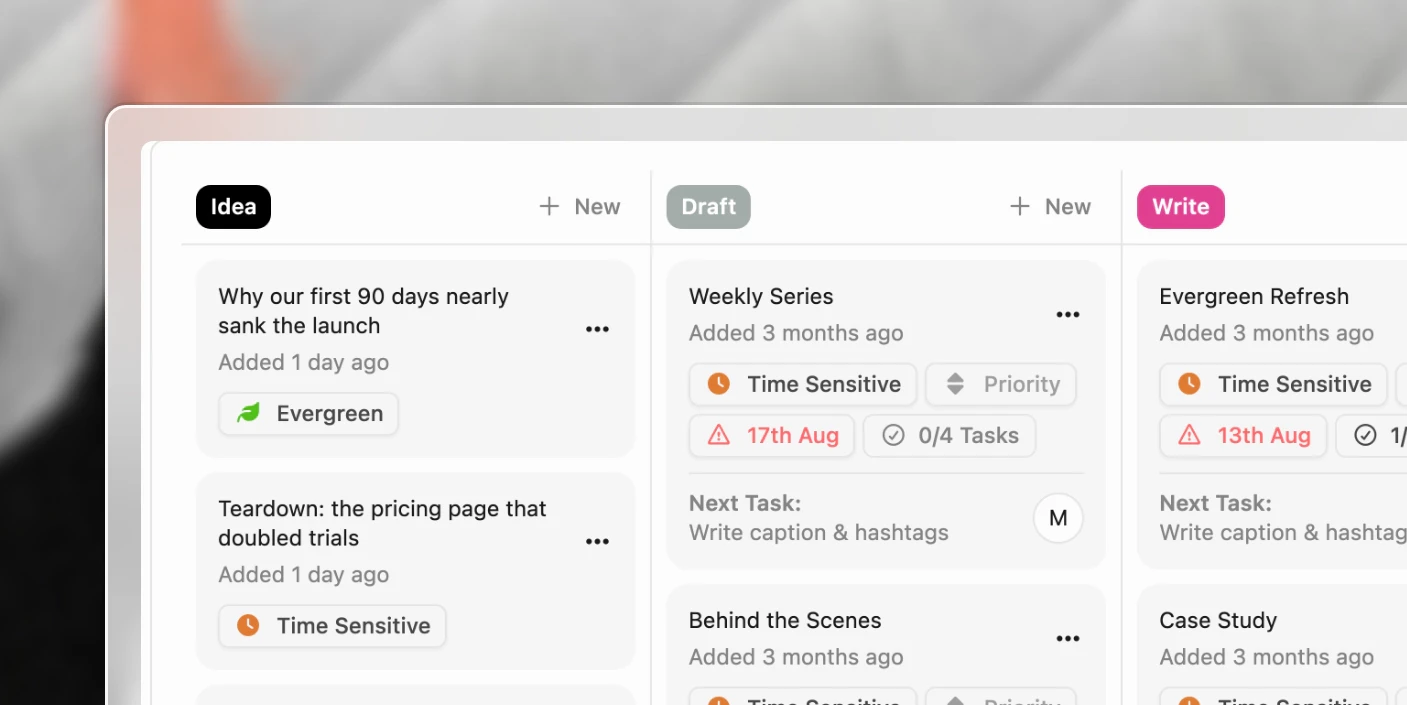
Statuses are fully customisable. See Labels, Statuses, and Categories.
Step 4: Work the task list
Tasks are the actual work. Each one carries:
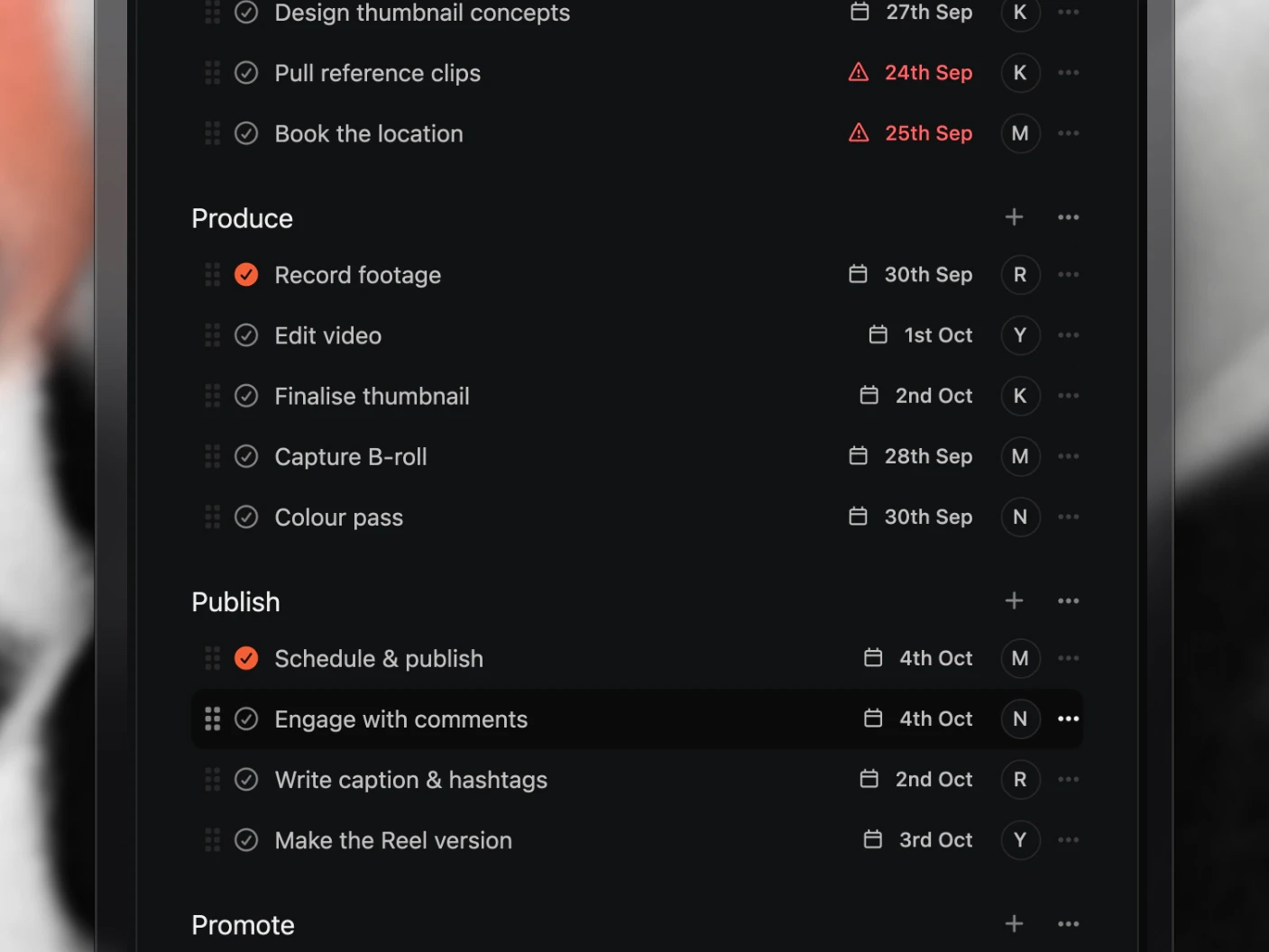
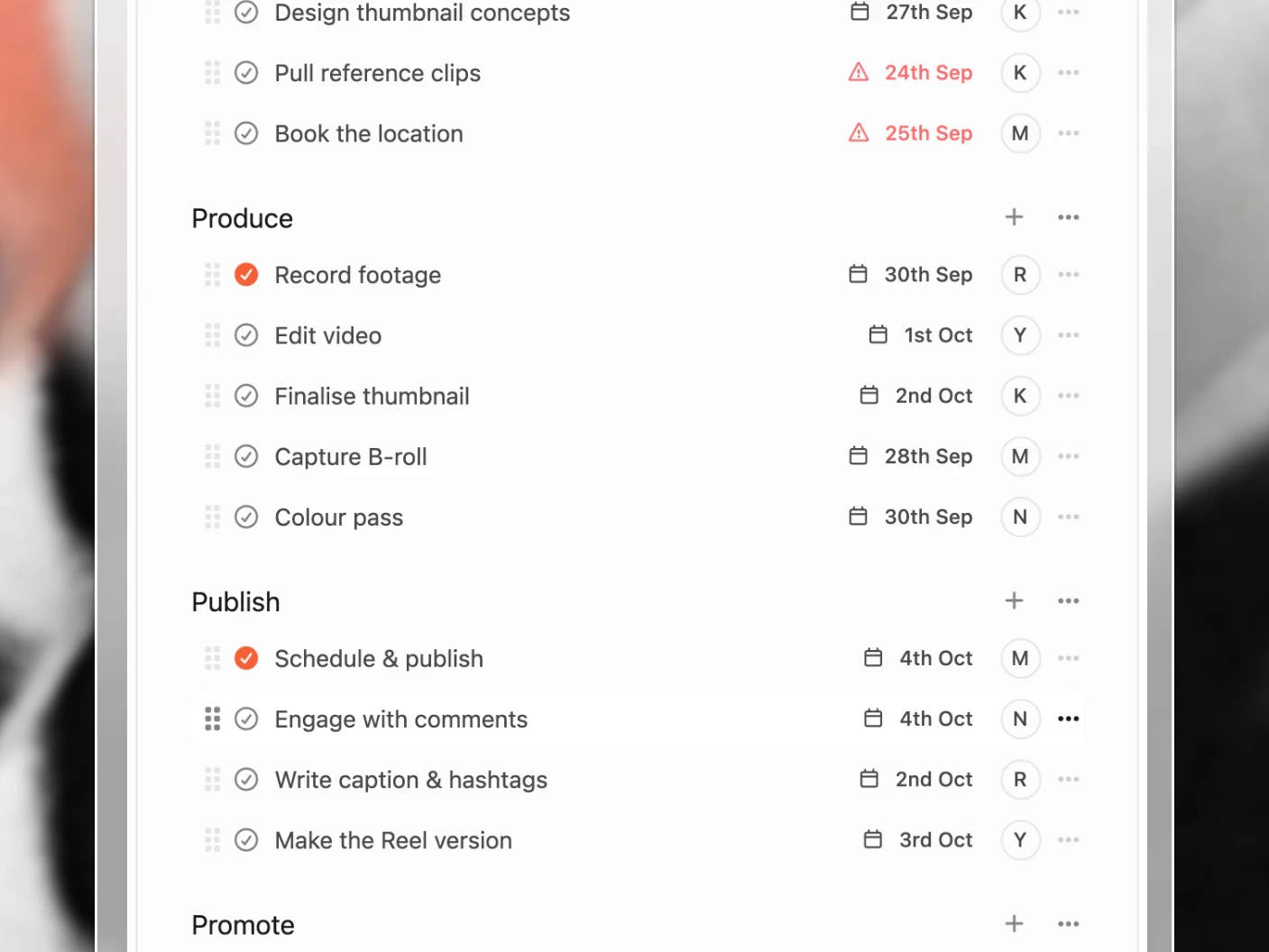
- An assignee, by person or by skill
- A due date
- SOPs and instructions
- Subtasks where a step has parts
- Workload points
The project header shows the next few upcoming tasks, which is usually the fastest answer to “what happens next here?”.
See Task List Overview.
Step 5: Write in pages
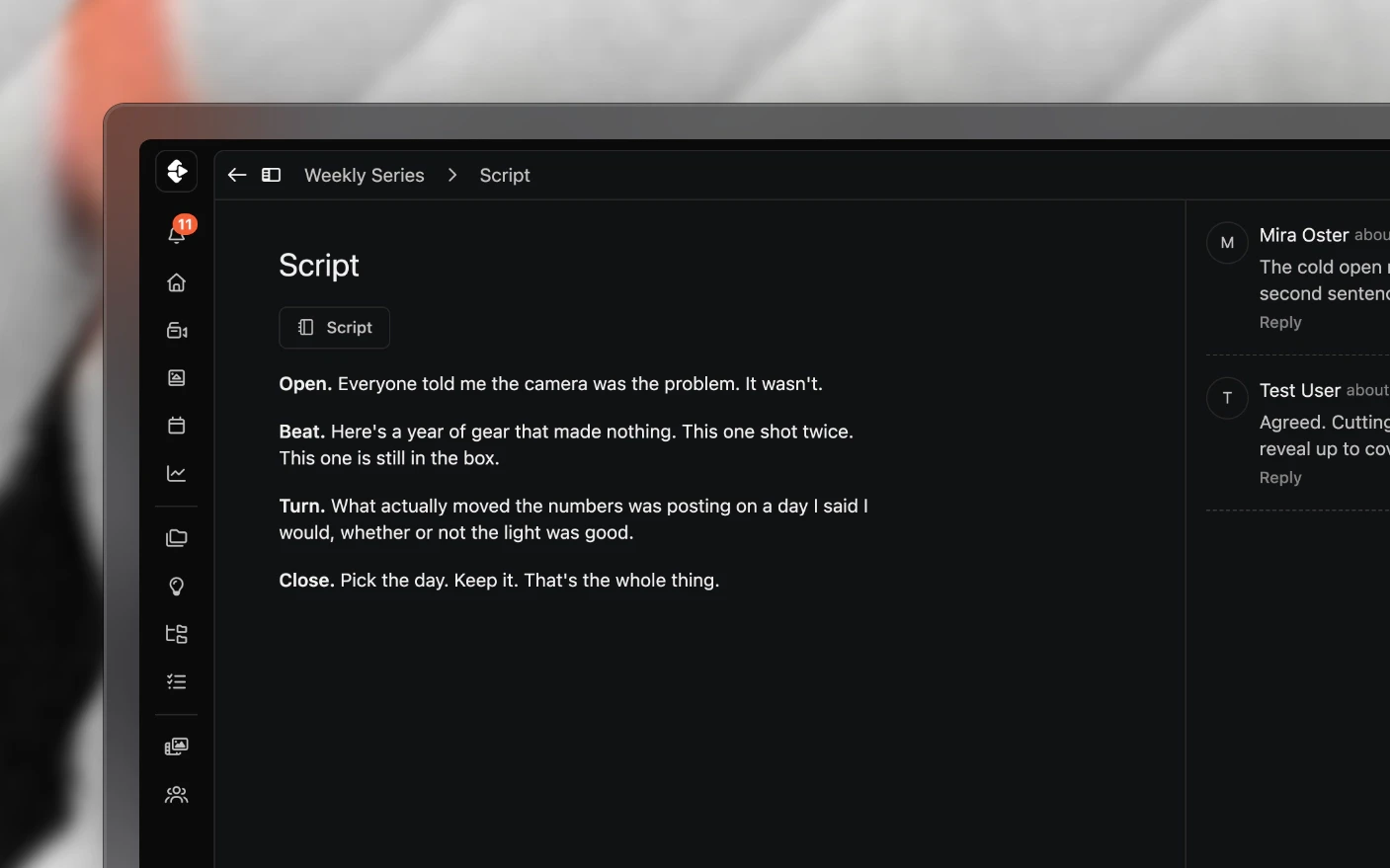
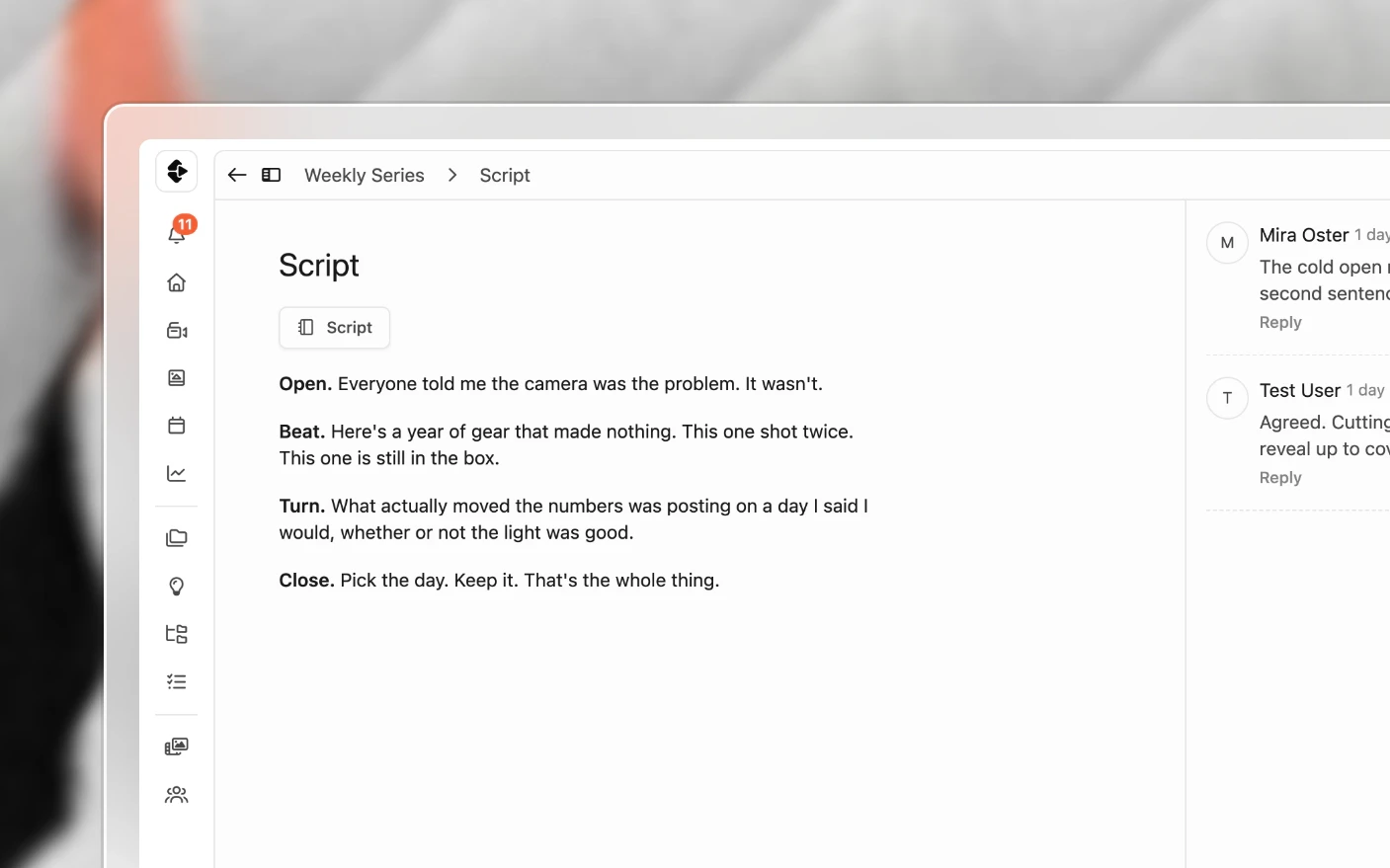
Pages hold the writing: outlines, hooks, scripts, production notes, packaging notes, publishing notes. They support comments and their own review states, so a script can be approved before anyone films it.
See Project Pages.
Step 6: Upload and review media
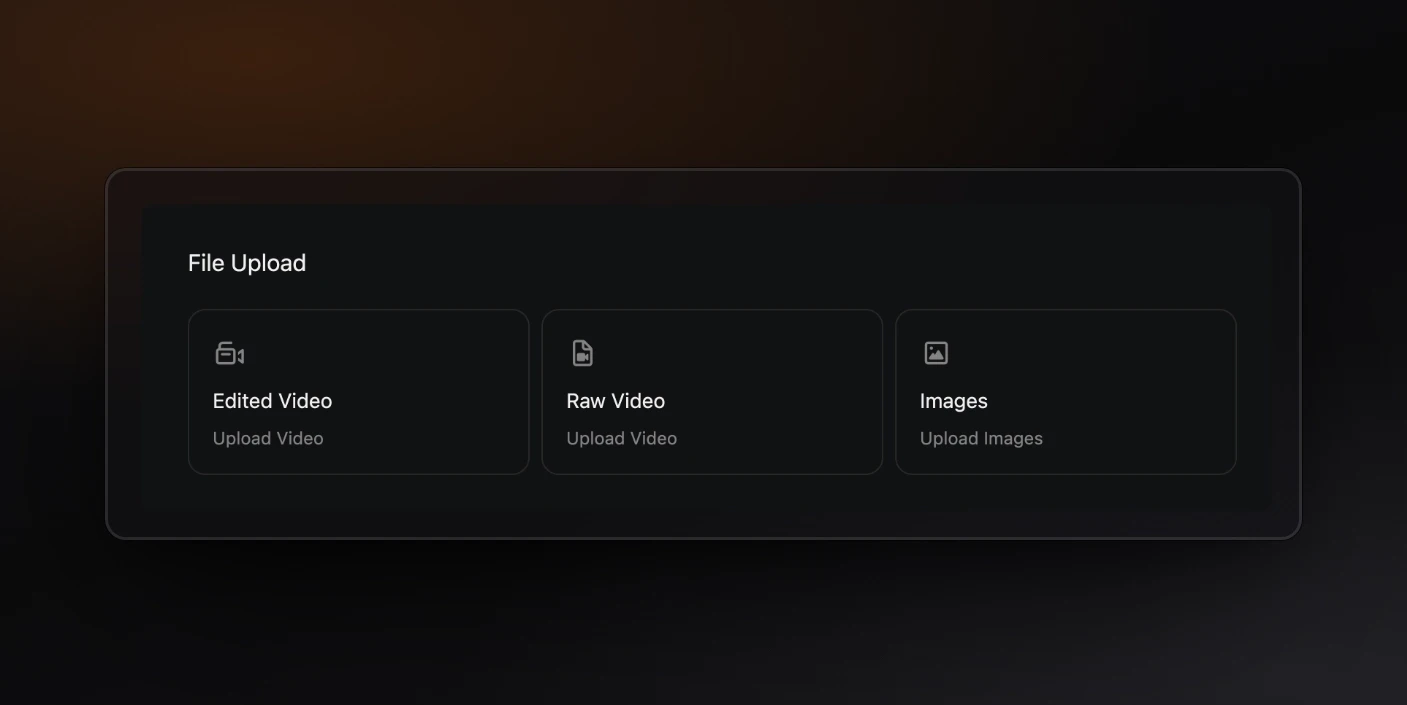
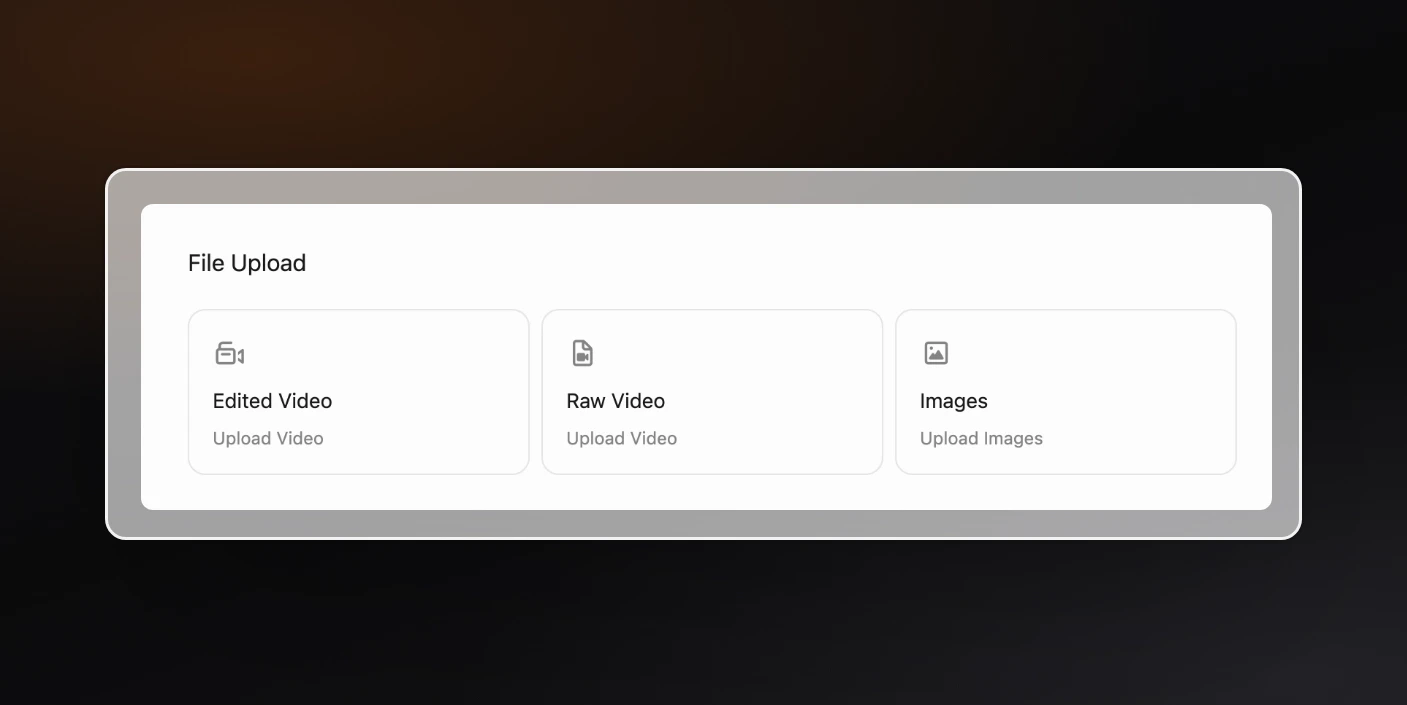
The project overview has a File Upload section with three cards: Edited Video, Raw Video and Images. Click a card to upload straight from the project page. Edits land under Edited Video, where the team reviews them. Raw footage goes under Raw Video, which also takes links to footage that lives elsewhere: choose Add Link to point at a Google Drive or Dropbox folder so editors can reach it. Images are saved as project files.
Clipflow treats raw footage and edits differently, so source material stays distinct from the cuts the team needs to review and approve. When someone leaves feedback on an edit, the editor working on it is notified.
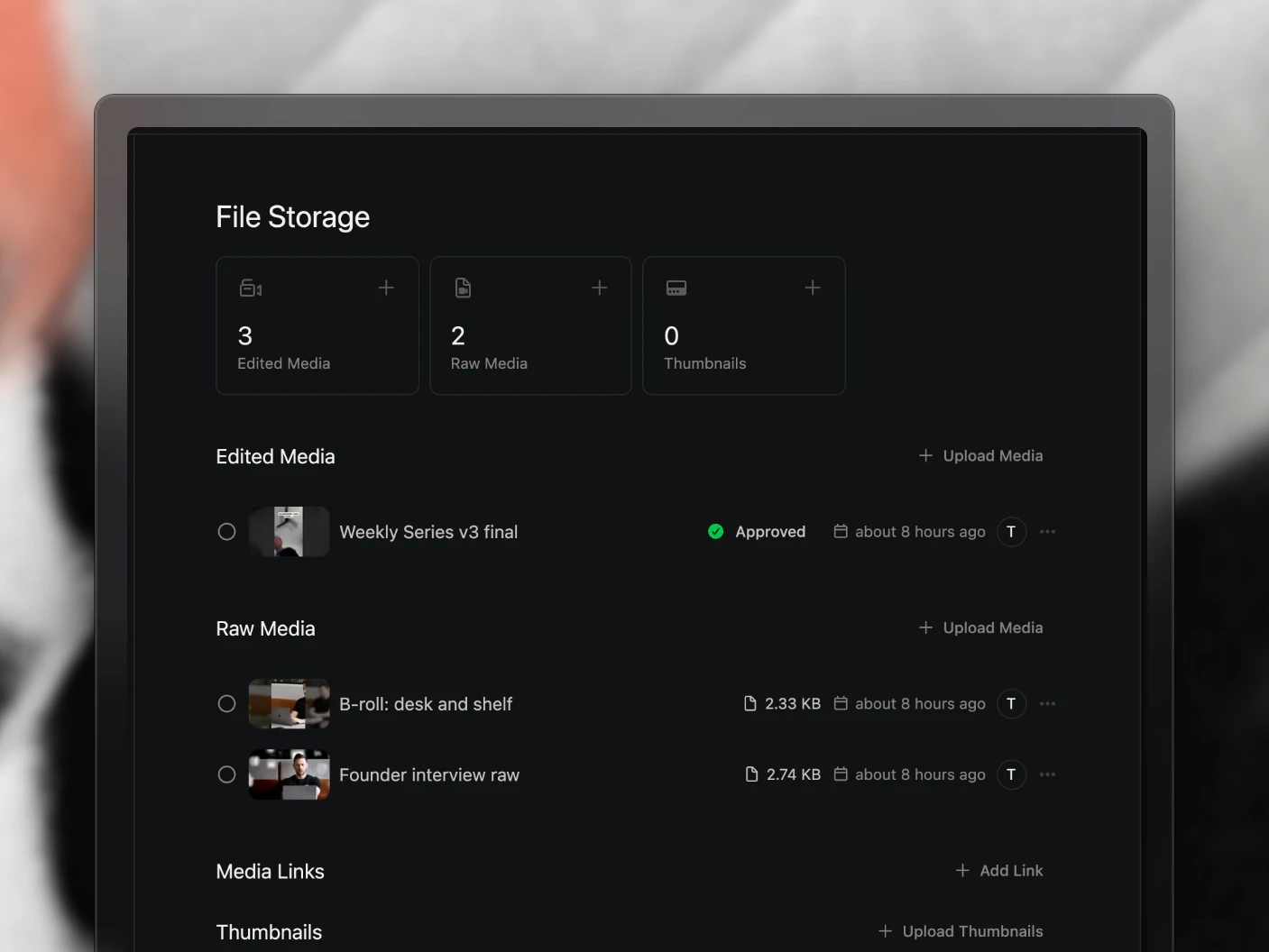
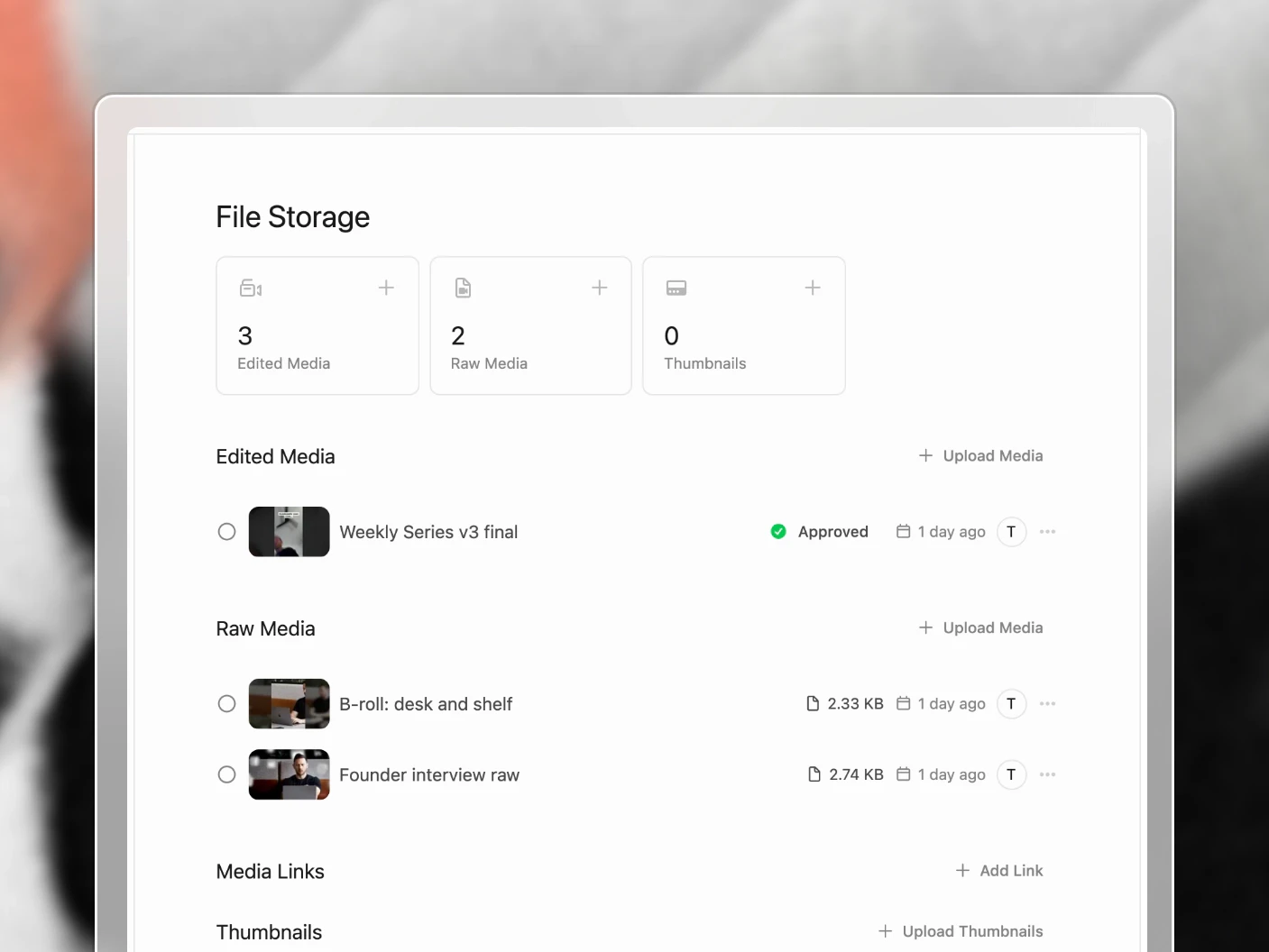
Open a file to review it: play it in the browser, leave timestamped comments, draw on the frame, then approve it or send it back.
Approving matters beyond the file. It is the event automations wait for, so approving a cut is usually what drafts your posts. See Media Review and Notifications.
New cuts go on the same file as versions, which keeps the old feedback readable. See Media File Versions.
Step 7: Package it
For YouTube, test title variations and thumbnail concepts in packaging, vote on the strongest, and set the one you are using. See Packaging Section.
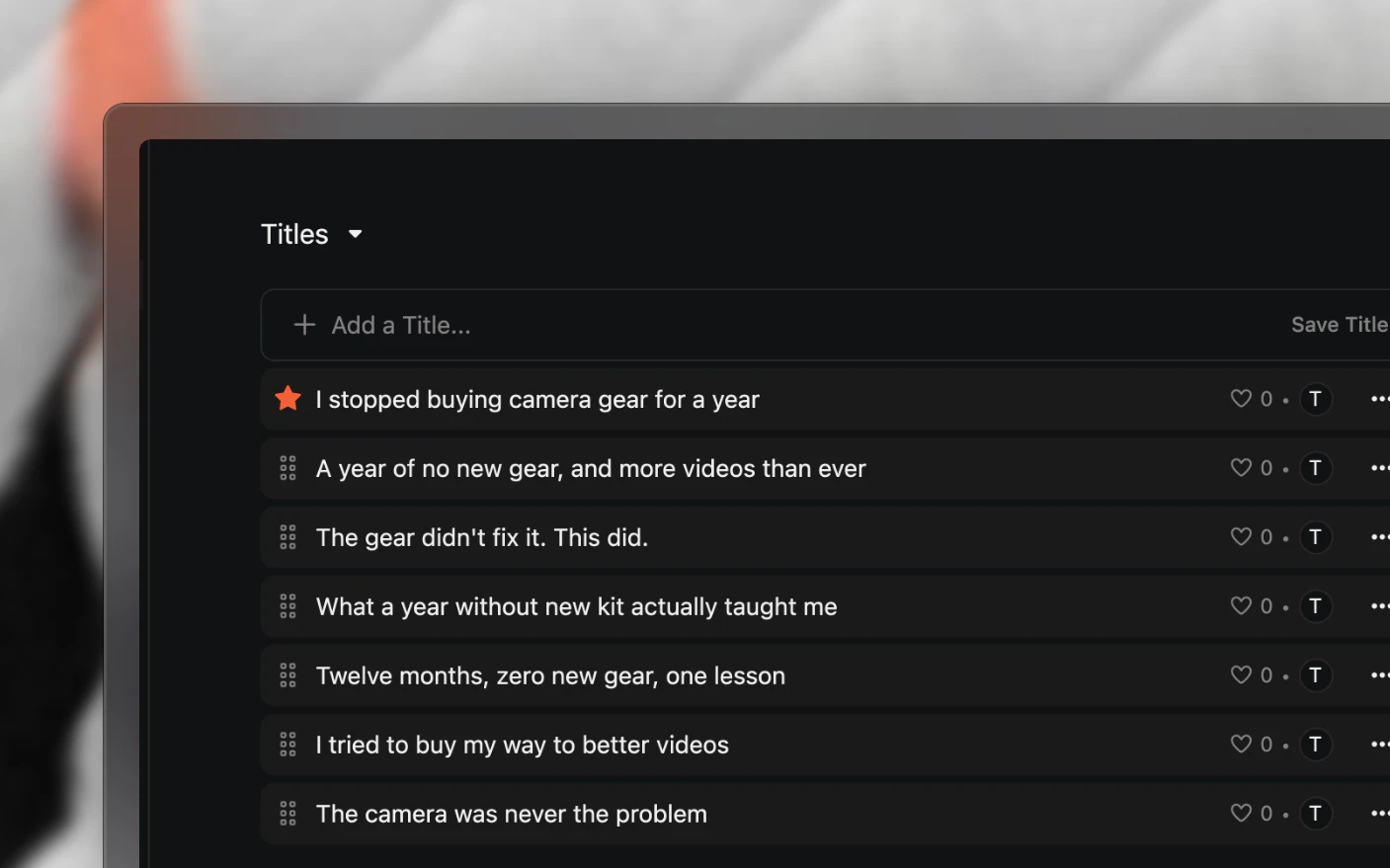
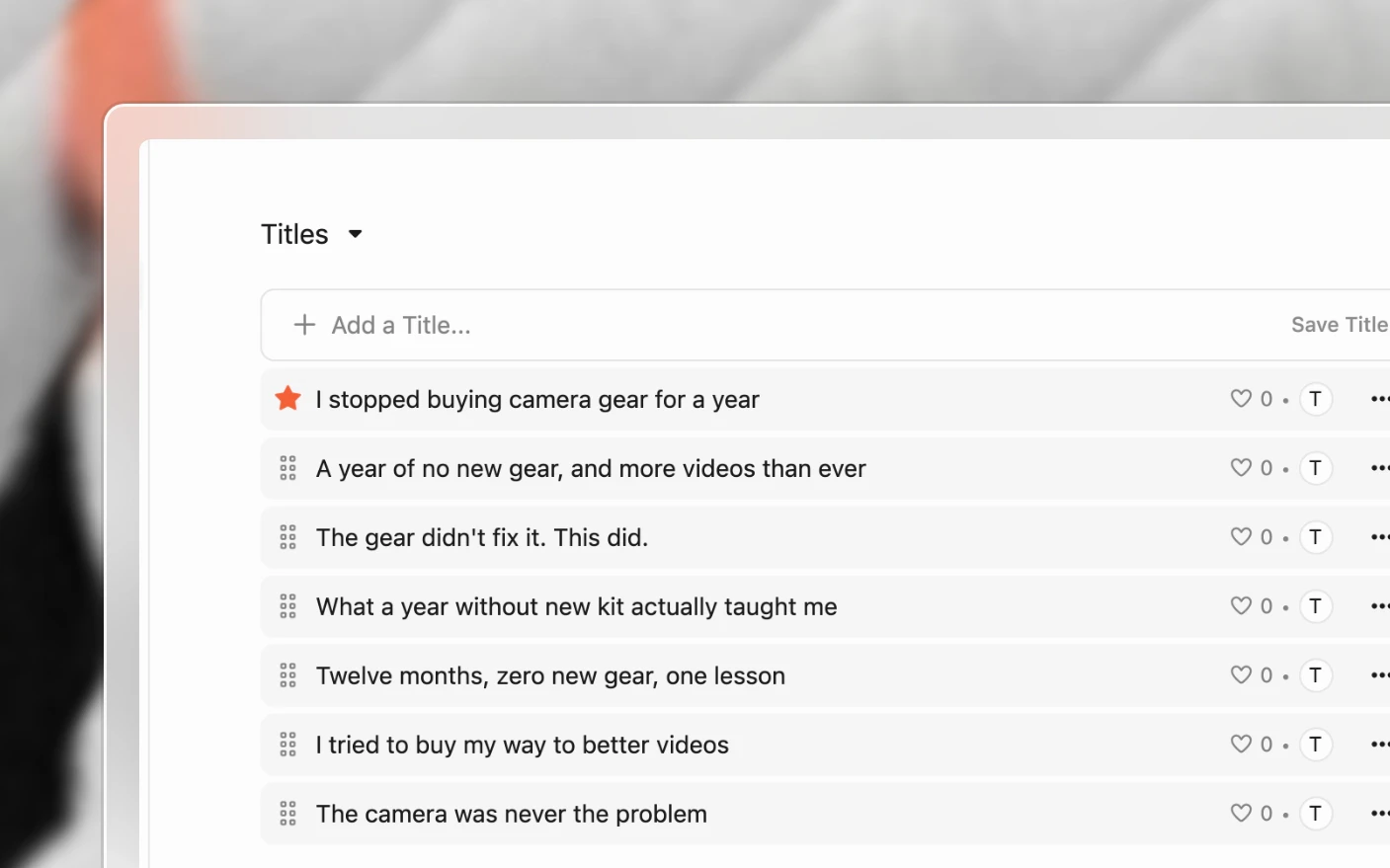
Skip this entirely if you do not publish to YouTube.
Step 8: Get it out
Posts are created in the project, either by hand or by an automation when media is approved. Mark a post Ready and it publishes into the channel’s next open time slot.
Once a project has posts, the overview lists them in a Posts section, and View All opens the project’s Posts page.
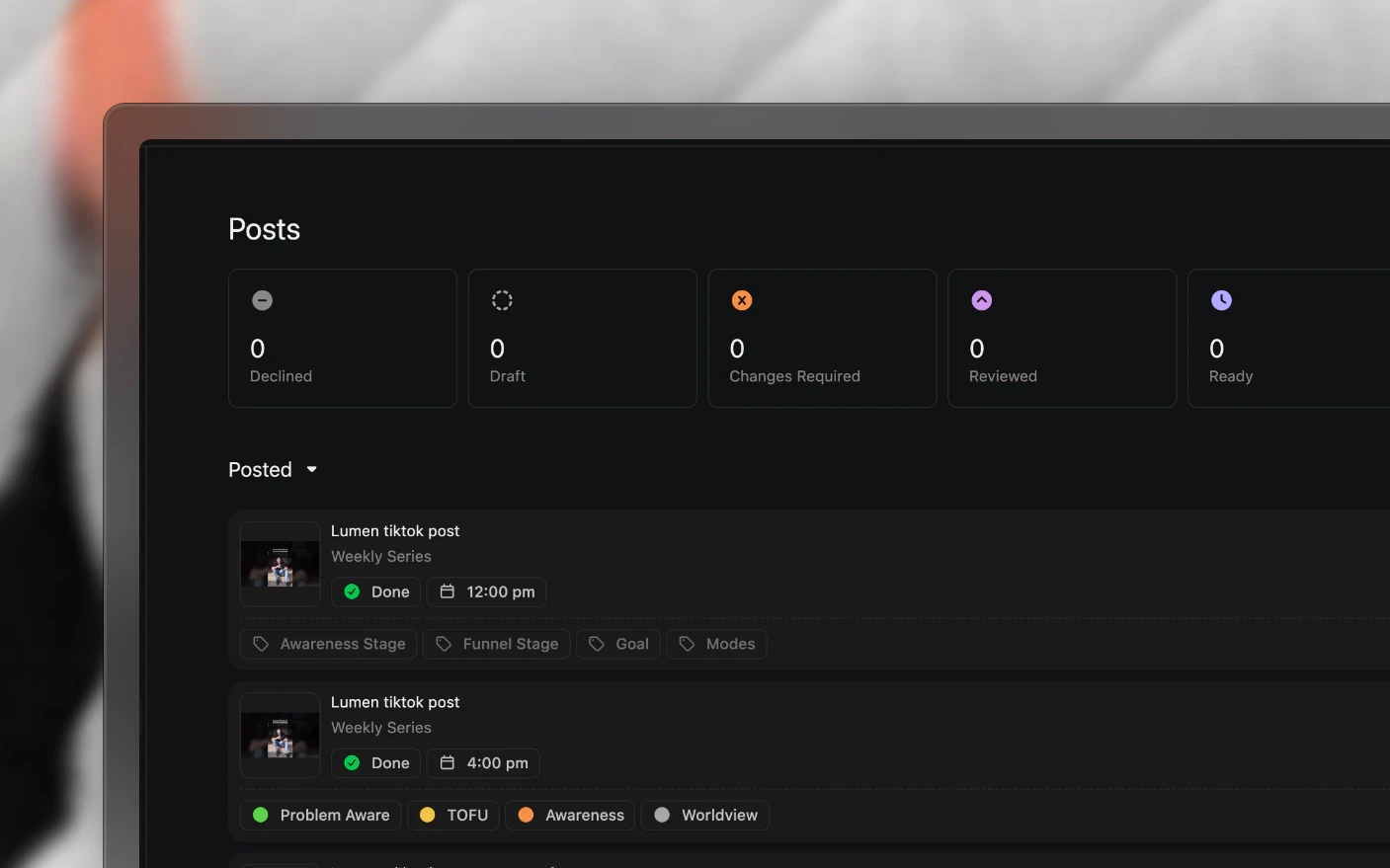
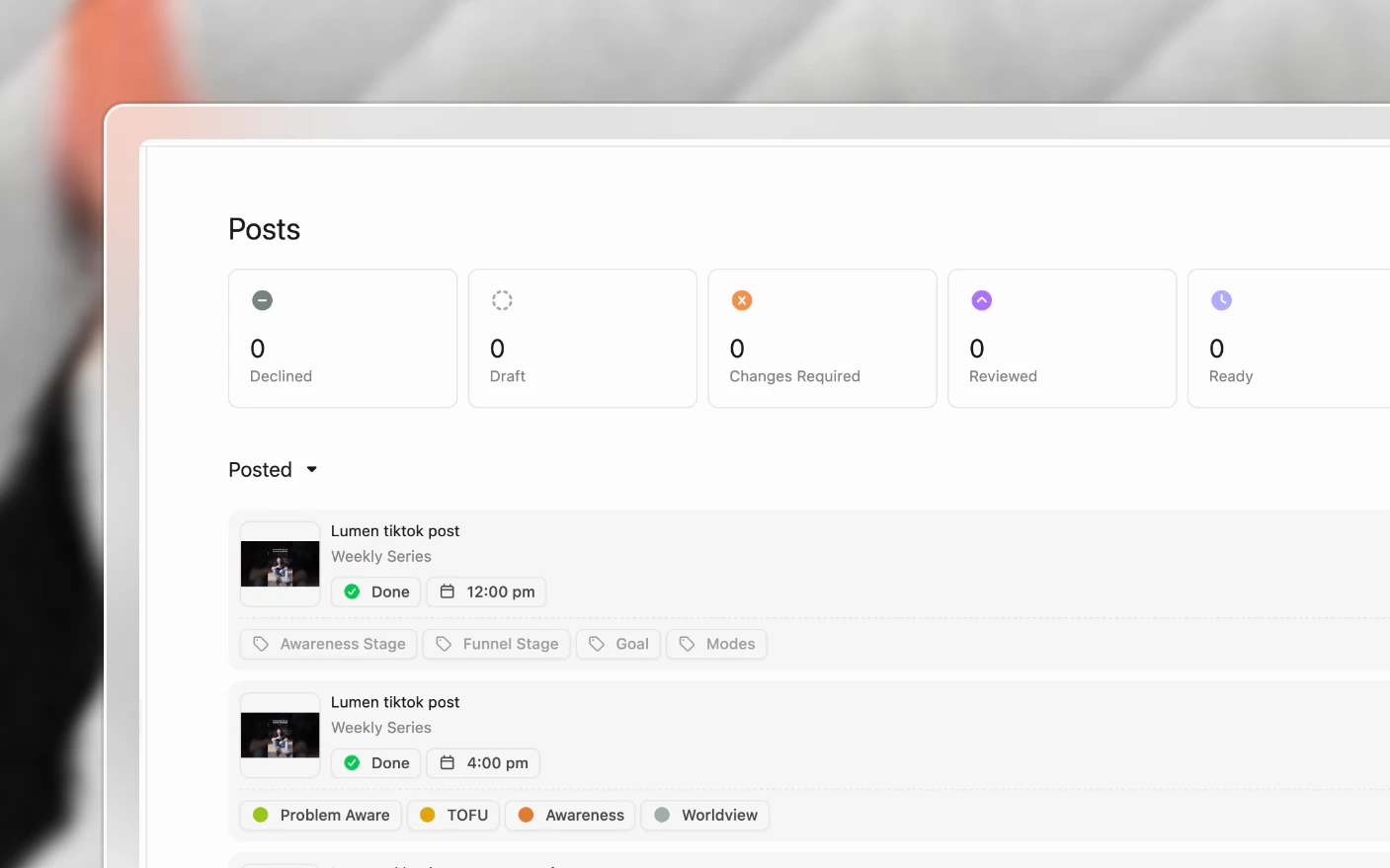
See Working with Posts and Post Scheduling.
Collaborating
Project chat sits on the right for discussion that is about the project rather than a specific file.
Comments attach to the media file, page, or thumbnail they concern. Use these rather than chat for anything actionable, so the editor finds the note on the thing it refers to.
Mentions pull a teammate in. Mentioning an AI agent gets you a draft or a second opinion.
Share links send specific items to people outside your team without giving them an account. See Share Links and External Feedback.
Other project actions
- Save as template, to reuse a project shape that worked
- Link projects, to tie episodes of a series together
- Transfer to another organization, when work moves to a client
- Hide, to take a project off the board without deleting it


Tips and best practices
- Always set a scheduled date. Relative task deadlines depend on it.
- Start from a template for anything you make more than twice.
- Comment on the file, not in chat, when the feedback is actionable.
- Update the status as you go. The board is only useful if it is current, and a stale board gets ignored within a fortnight.
- Keep raw media and review edits distinct. It keeps source material clear and ensures feedback reaches the editor working on the cut.
- Use the outline before the script. Structure problems are cheap to fix early and expensive later.
- Group work in the way your team needs. Use projects and sub-projects to keep related work together without forcing every piece of content into its own project.
Frequently asked questions
Can I move a project to another organization?
Yes, using transfer to organization.
What happens if I change the scheduled date?
Tasks with relative due dates shift with it.
Can I hide a project without deleting it?
Yes. Hiding takes it off the board and keeps everything.
How do I see projects across all my organizations?
Use the projects overview. See Your Production Dashboard.
Can a client see a project?
Only through a share link or a portal, unless you invite them. See Inviting Clients.
Where do I find everything assigned to me?
The task overview across projects, and a saved view filtered to your assignments. See Custom Views.
Do I have to use every section?
No. Collapse the ones you do not need. See Customizing Explorer View.
Related articles
- Your Production Dashboard: looking across every project
- Task List Overview: the day-to-day work
- Working with Posts: turning a project into posts
- Using Project Templates: start with structure
Was this page helpful?
Related articles
Welcome to Clipflow
See how Clipflow helps content teams plan, produce, review, publish, and measure work across brands and channels.
Working with Posts
Create, review, track, and schedule social media posts alongside the video or campaign they promote.
Book an Onboarding Call
Book a free call with the Clipflow team to walk through your workflow, set up your workspace, and get your questions answered.
Need more help with this?
Contact support