
How to set up Clipflow as an agency so every client has its own workspace and you pay for one team
Switch your organization to Production Partner, add each client as its own organization, and keep seats and billing on your agency.
Updated
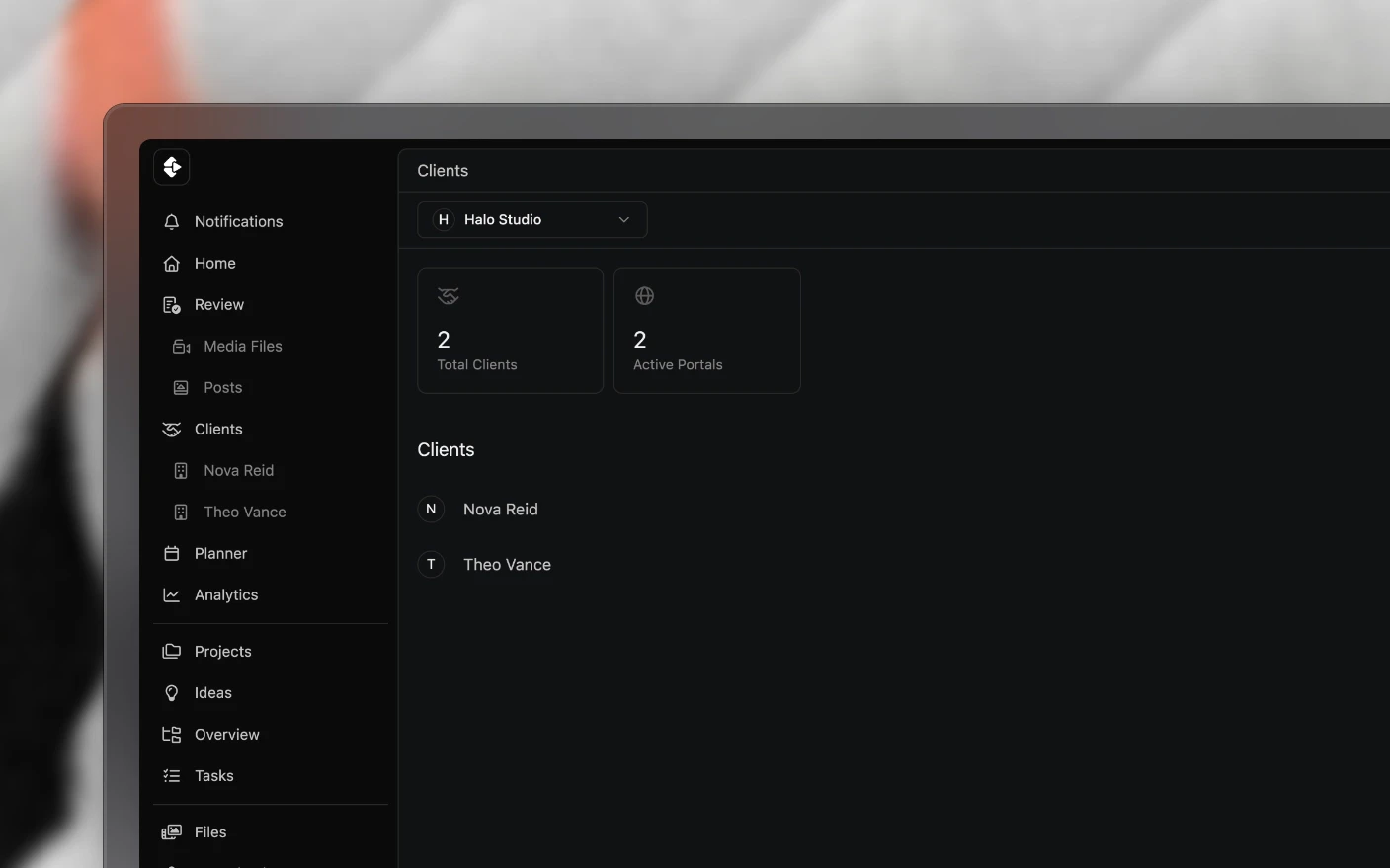
Run every client from one agency without mixing their channels, projects or bills
In Clipflow, everything is an organization. Your agency is one organization. Each client is another organization that your agency manages. The client organization holds that client’s channels, projects, templates and team. Your agency organization holds your team, your subscription and the Clients list that ties them all together.
Get the structure right once and the rest follows: your team works inside every client without taking extra seats, clients never see each other, and you bill one subscription.
Why set it up this way?
Common Problems Solved:
- Client work tangled together in one workspace
- Paying twice for the same editor across several clients
- Not knowing whether to create an organization or a client
- A teammate logging in to an empty workspace or a “trial expired” screen
What You Get:
- One organization per client, each with its own channels and posts
- Your admins added to every client automatically, without using a paid seat there
- Client organizations that are never billed
- One place to see and open every client
How the pieces fit
| Thing | What it is | Who pays |
|---|---|---|
| Agency organization | Your own organization, set to Production Partner | Your subscription, one seat per team member |
| Client organization | An organization per client, managed by your agency | Nobody. Managed client organizations skip billing |
| Supplier | How your agency’s people appear inside a client organization | No seat |
| Default organization | The one organization each person lands in, and acts from | n/a |
A client organization shows a Billing page today. You can ignore it: an organization managed by an agency is not charged.
Step 1: Switch your organization to Production Partner
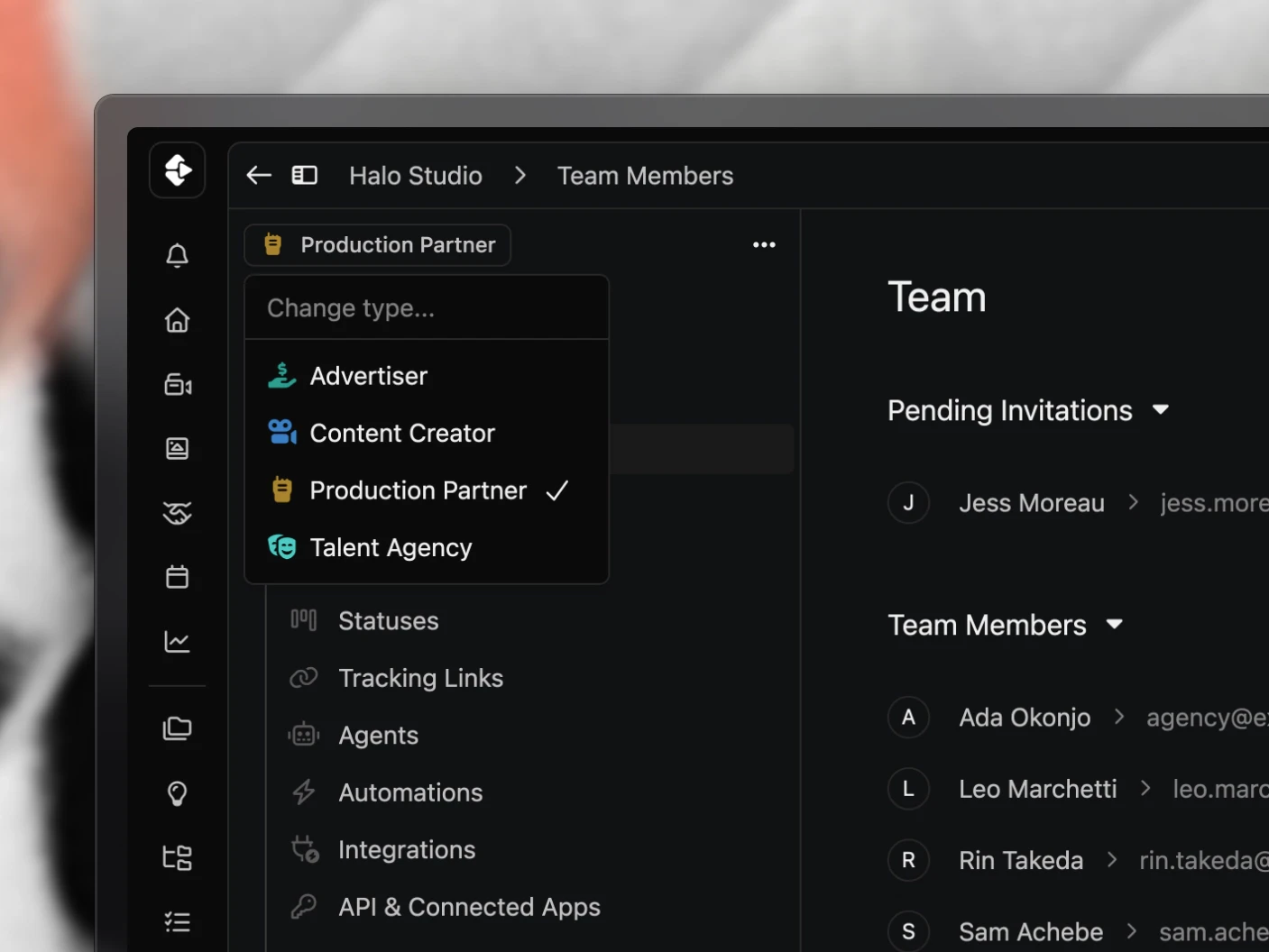
New organizations start as Content Creator, which is built for a brand posting to its own channels. Agencies need Production Partner.
- Open Organizations and click your agency organization.
- At the top of the left sidebar, click the organization type label (it reads Content Creator).
- Choose Production Partner. It saves as soon as you pick it.
The sidebar changes to show a Clients section, and Clients appears in the main navigation. Channels live in each client organization rather than in the agency, which is why the agency sidebar no longer shows them.
If you picked Agency during onboarding, this is already done.
Step 2: Add each client
- Click Clients in the main navigation.
- Click New.
- Fill in Client Name and Email, and choose the client’s type (usually Content Creator).
- Choose how to add them:
- Add Client creates the organization quietly. Nobody is emailed, and you can start working in it straight away.
- Add + Invite does the same and also emails the client an invite to own their organization.
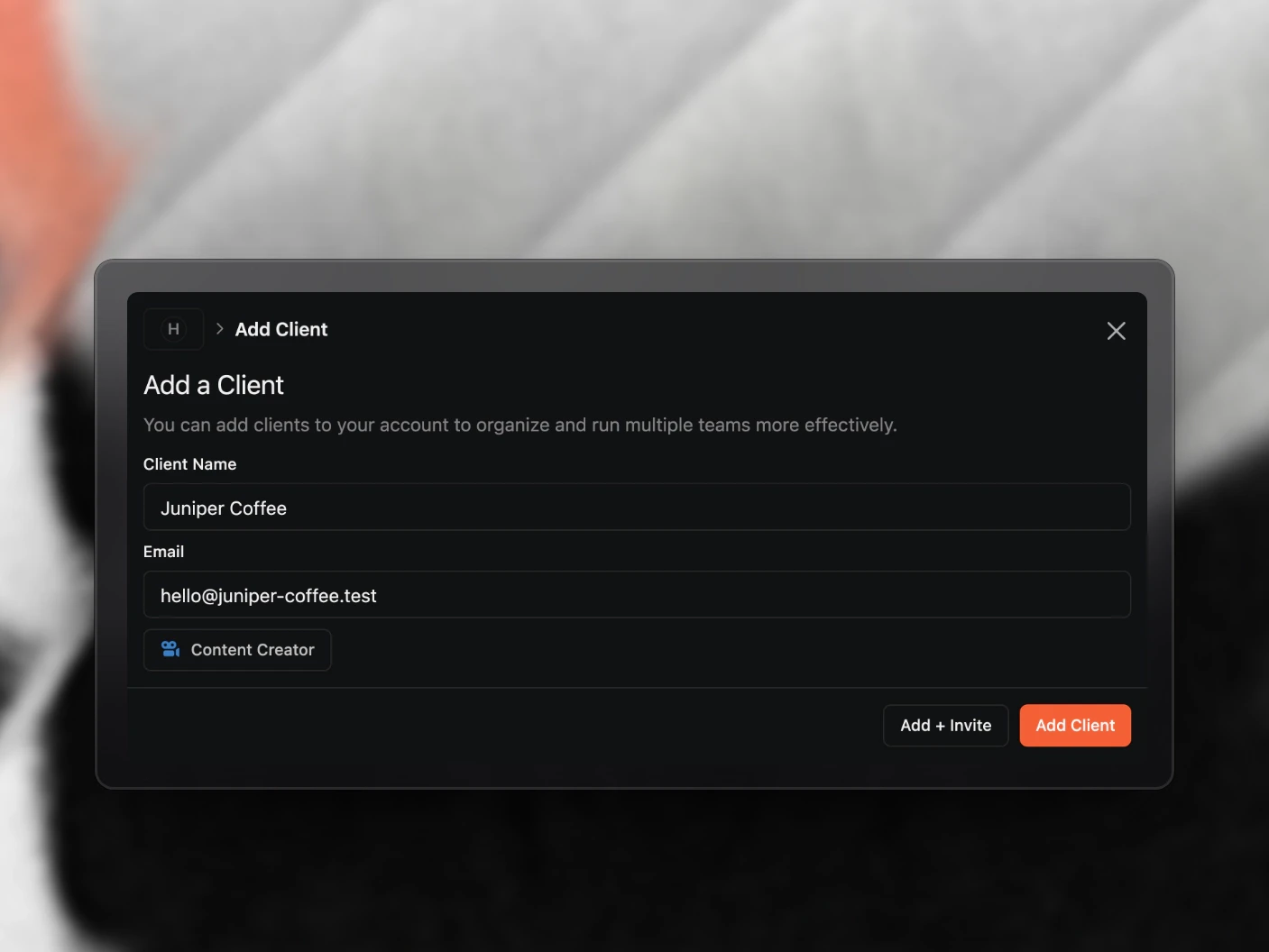
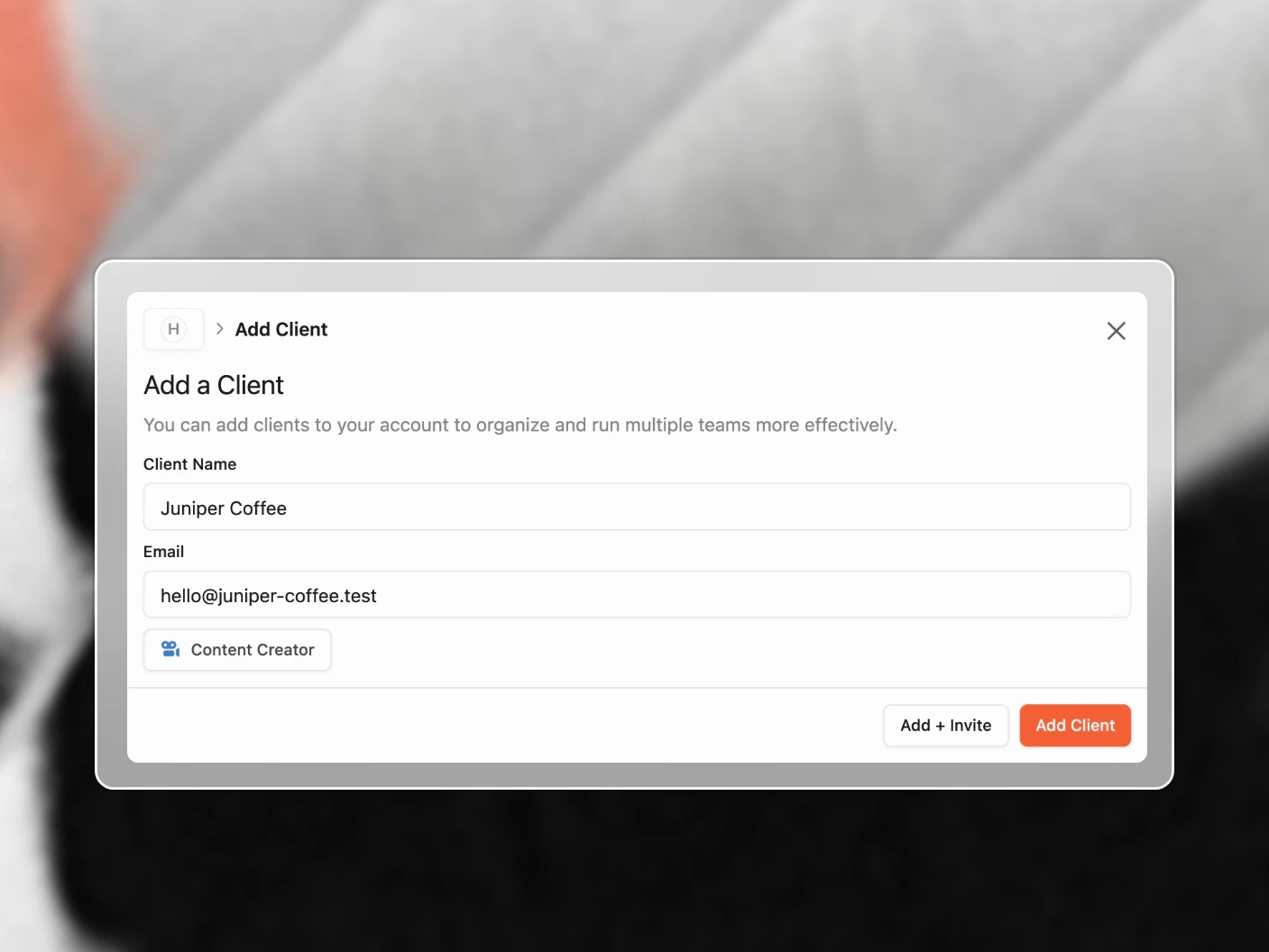
You and your agency’s admins are added to the new client organization as suppliers, so you can connect channels, create projects and publish for them from day one.
If the client already uses Clipflow
Enter the email their organization already uses. Clipflow does not create a duplicate. It sends a management request to that organization’s owner instead, and you see Client already uses Clipflow. Management Request Sent. Once they accept, their organization appears in your Clients list with everything they already had.
Step 3: Keep your agency as everyone’s default organization
Each person has exactly one default organization. It decides where they land when they log in, whether they see Clients, and whether they have manager powers inside your client organizations. Those powers only apply while your agency organization is their default.
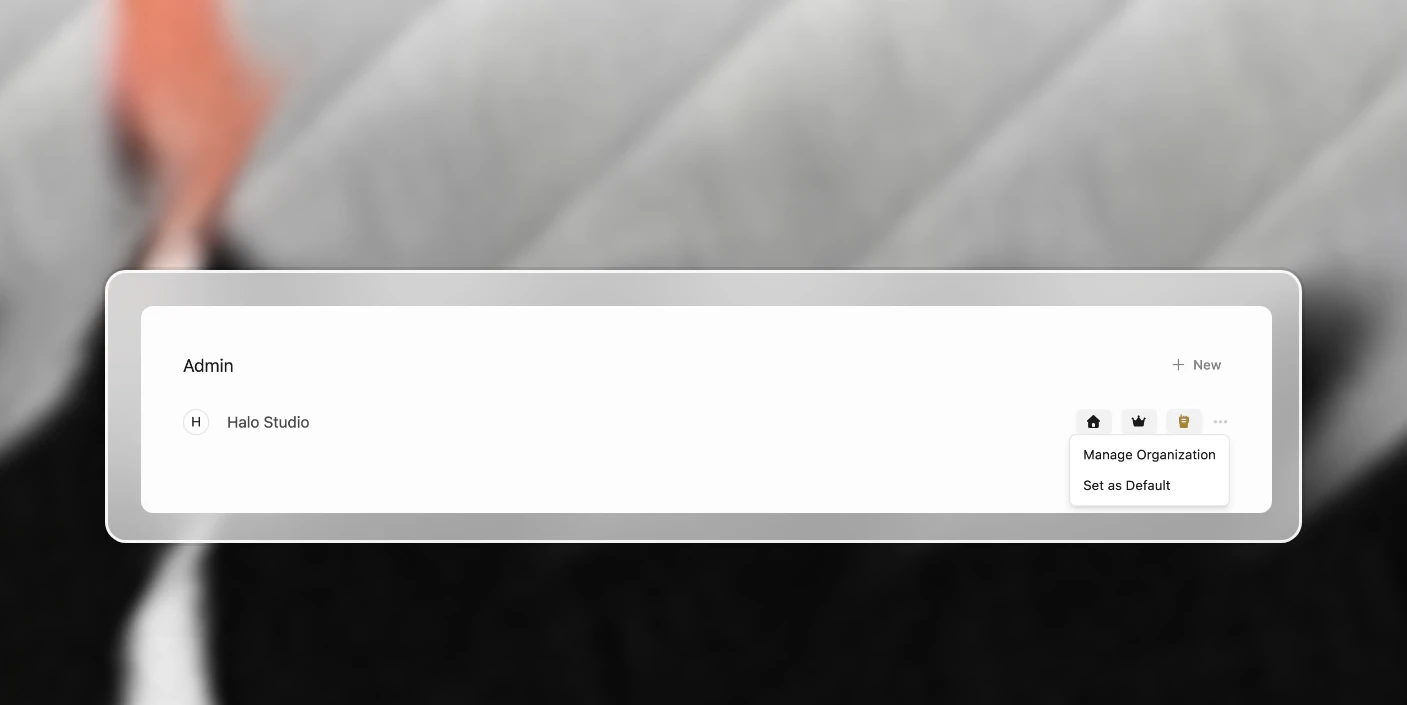
- Set your own: open Organizations, click ⋯ on your agency organization, choose Set as Default.

- Set a teammate’s: open your agency’s team list, click ⋯ on their row, choose Set as Default Org.
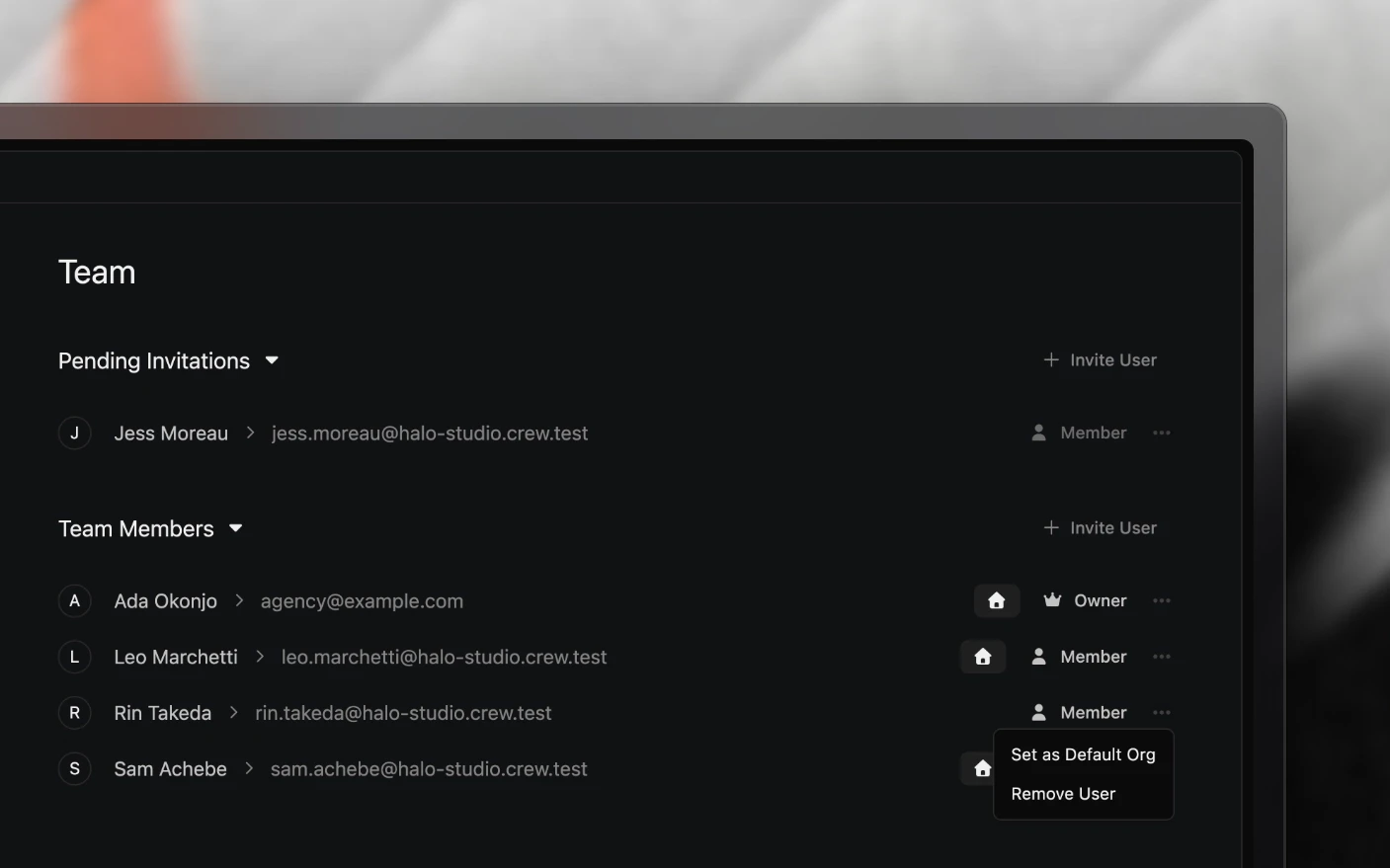
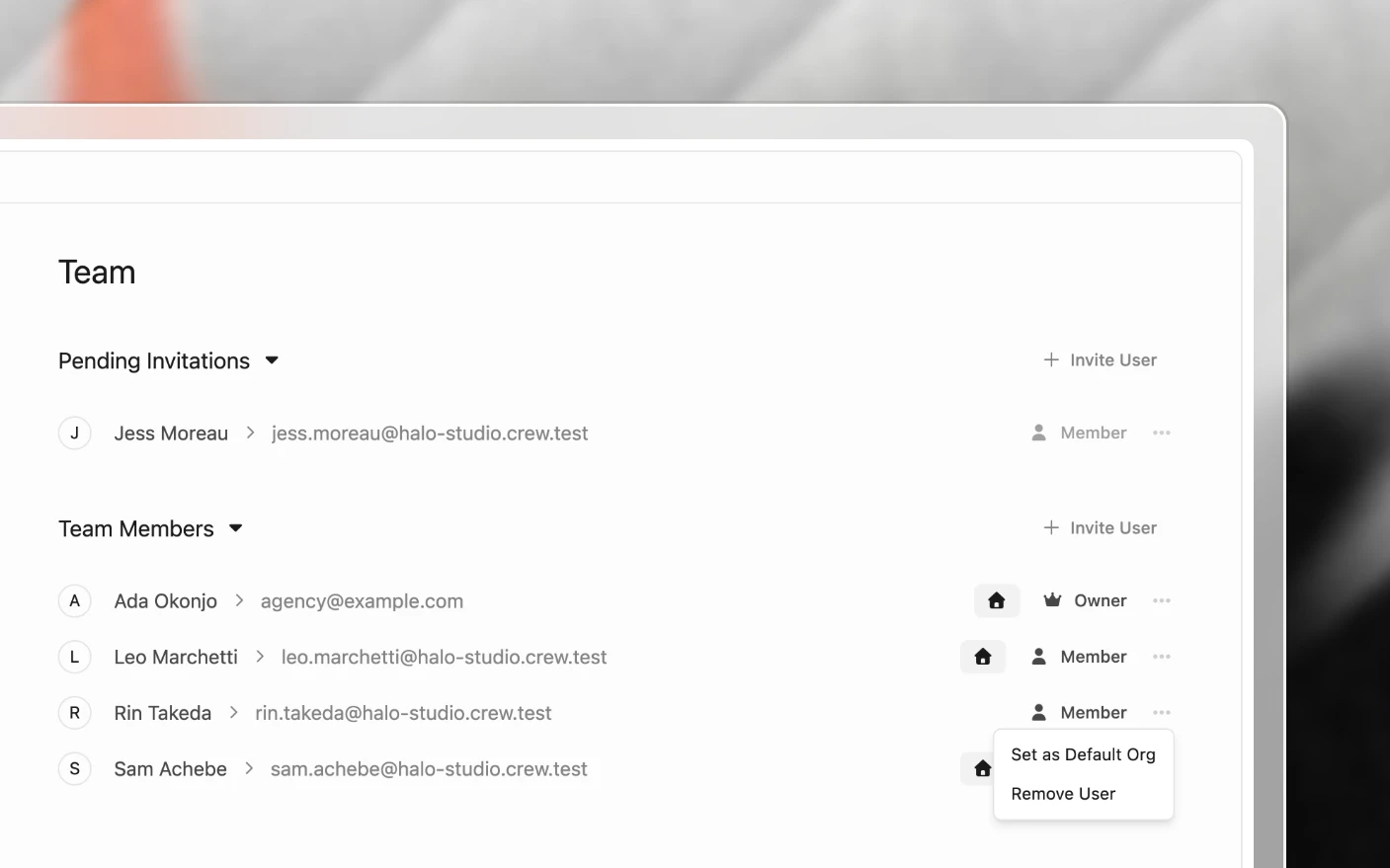
Most “I can’t see anything” and “it says my trial expired” messages come from a teammate whose default is a stray organization they created at signup. Setting the agency as their default fixes it.
Step 4: Add your team
Invite editors, designers and account managers to your agency organization, not to each client. Your admins are placed into every client organization automatically. Everyone else is assigned to the clients they work on:
- Open the client organization and go to Team Members.
- Under Management Team, find the person. The list shows everyone in your agency who is not in this client yet.
- Click Assign.
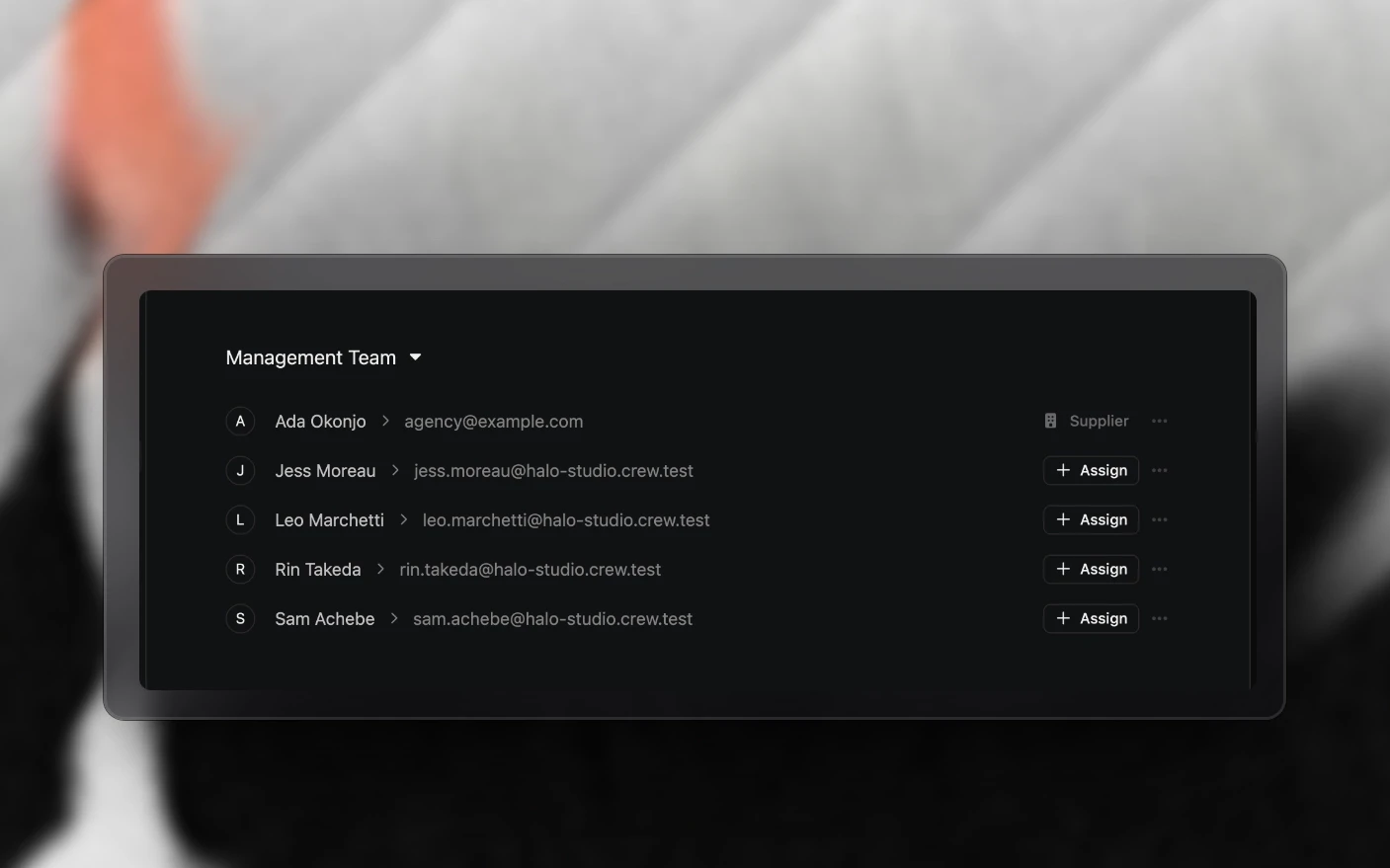
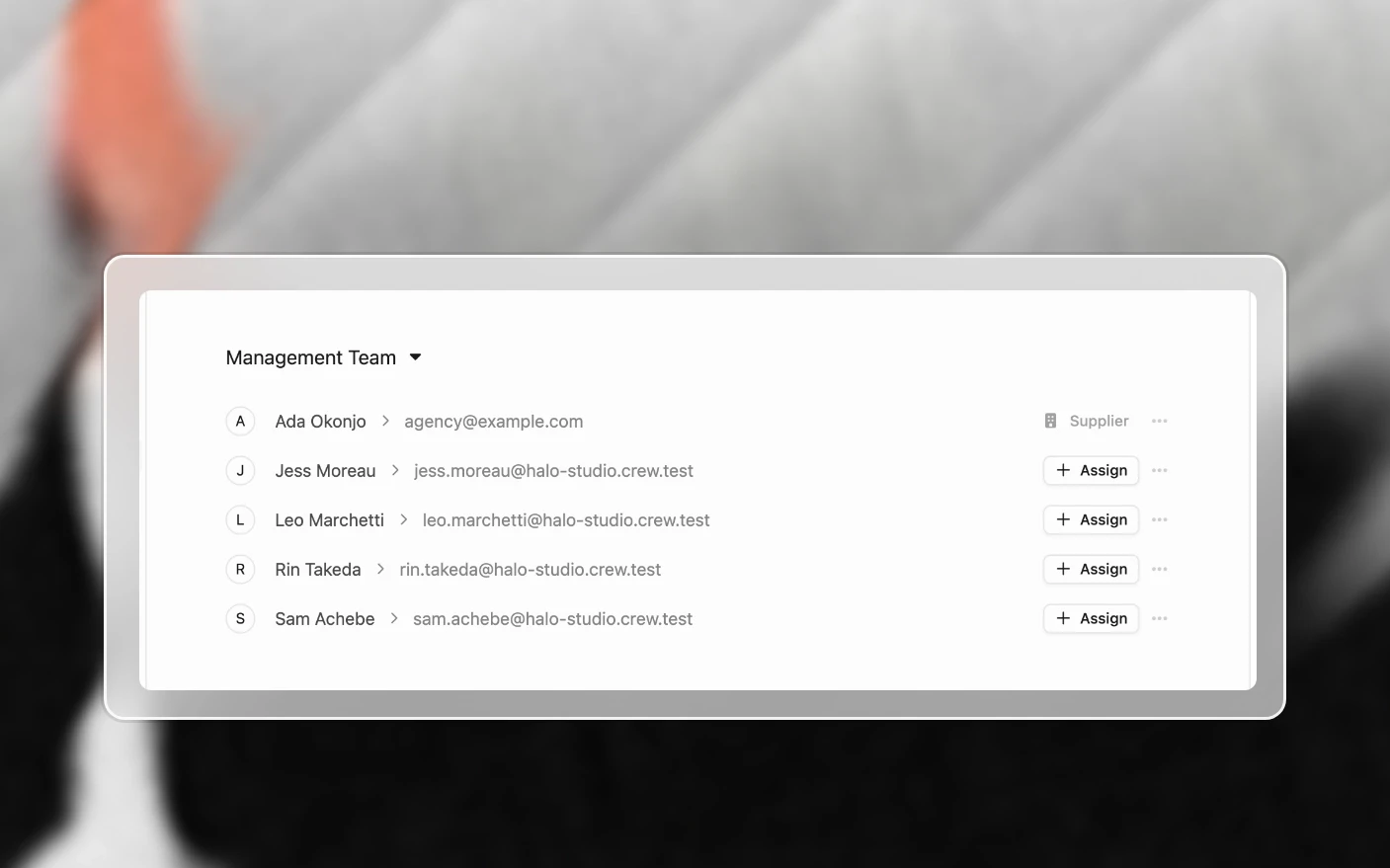
They join the client as a supplier straight away, with no invite to accept. Use Set as Restricted on their row if they should only see their own work, and Unassign User when they come off the account. Assigning needs an agency admin whose default organization is the agency.
Seats are counted per organization, on the paying organization only:
| Role | Uses a paid seat |
|---|---|
| Owner, Admin, Member | Yes |
| Restricted member | No |
| Supplier, Restricted supplier | No |
| Guest | No |
| Pending invite | No |
So an editor who works across ten clients is one seat on your agency, not ten. See Plans and Billing for pricing.
Moving work between organizations
If a project was started in the wrong place, open it and use Transfer Project, pick the organization under Transfer To, and confirm. Media, posts, share links, thumbnails, tracking links and the project’s task list move with it.
Categories and statuses belong to each organization, so the project picks up the matching one in its new home and falls back to the first status if there is no match. Task list templates stay behind, and the project’s channel is cleared, so set the channel again in the new organization.
Tips and Best Practices
When you are starting out
- Switch to Production Partner before adding clients, so every client is linked to you from the start.
- Add clients from the Clients page. An organization created anywhere else is not linked to your agency, and linking it later needs a management request or a hand from support.
- Connect each client’s social channels inside that client’s organization.
As you grow
- Keep one admin on the agency who assigns new starters to clients and fixes their default organization.
- Use restricted roles for freelancers who should only see their own work. They do not take a seat.
- Filter Your Production Dashboard and Post Scheduling by organization for a client review, and clear the filter to see your whole studio.
Frequently Asked Questions
Are organizations and clients the same thing?
A client is an organization that your agency manages. Adding a client from the Clients page creates that organization and links it to you in one step.
Do my clients have to pay for Clipflow?
No. A client organization managed by your agency is not billed. Your agency’s subscription covers your team.
Why does each organization need a different email?
The email is how Clipflow recognises an organization, so it stops the same client being created twice. Addresses with a + are treated as the address without it.
Does a client I add use one of my seats?
No. Clients, suppliers, guests and restricted members do not use seats. Only owners, admins and members of the paying organization do.
My teammate logs in and sees an empty workspace or 'trial expired'.
Their default organization is probably one they created by accident. An admin can open the agency’s team list, click ⋯ on their row and choose Set as Default Org.
I lost the Clients page and my manager access.
Your default organization changed to a client. Open Organizations, click ⋯ on your agency organization and choose Set as Default.
My client already has a Clipflow account. How do I get access?
Add them from Clients with the email their organization uses. Their owner gets a management request, and once they accept you can work in their organization.
Can I delete an organization I created by mistake?
Not yourself yet. Email support@clipflow.co with the organization name and we will remove it.
Related articles
- Inviting Clients: bringing a client into their organization
- Managing Your Organization: every organization setting in one place
- Plans and Billing: seats, trials and invoices
- Connect Social Platforms: connecting a client’s channels
Was this page helpful?
Related articles
Invite Clients
Invite clients to review work, request content, or collaborate in Clipflow without sharing passwords or full access.
Notifications
Control in-app and email notifications for comments, approvals, tasks, publishing, and team activity in Clipflow.
Organization Settings
Set up your content organization, team, channels, workflow, templates, automations, API access, and billing.
Need more help with this?
Contact support