
How to get clear video feedback and approvals without losing comments between edit versions
Review video edits with timestamped feedback, annotations, version history, approval states, and notifications.
Updated
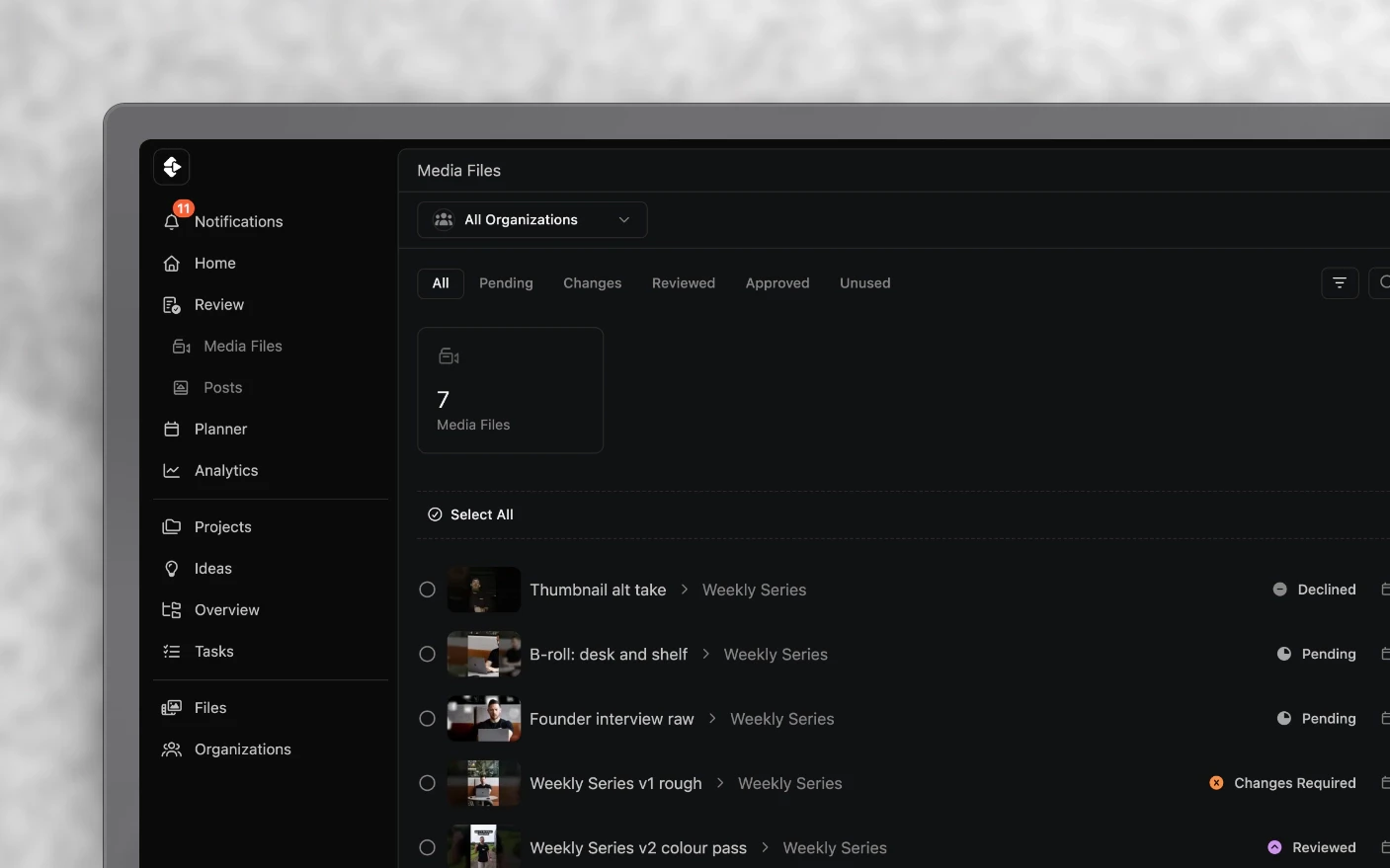
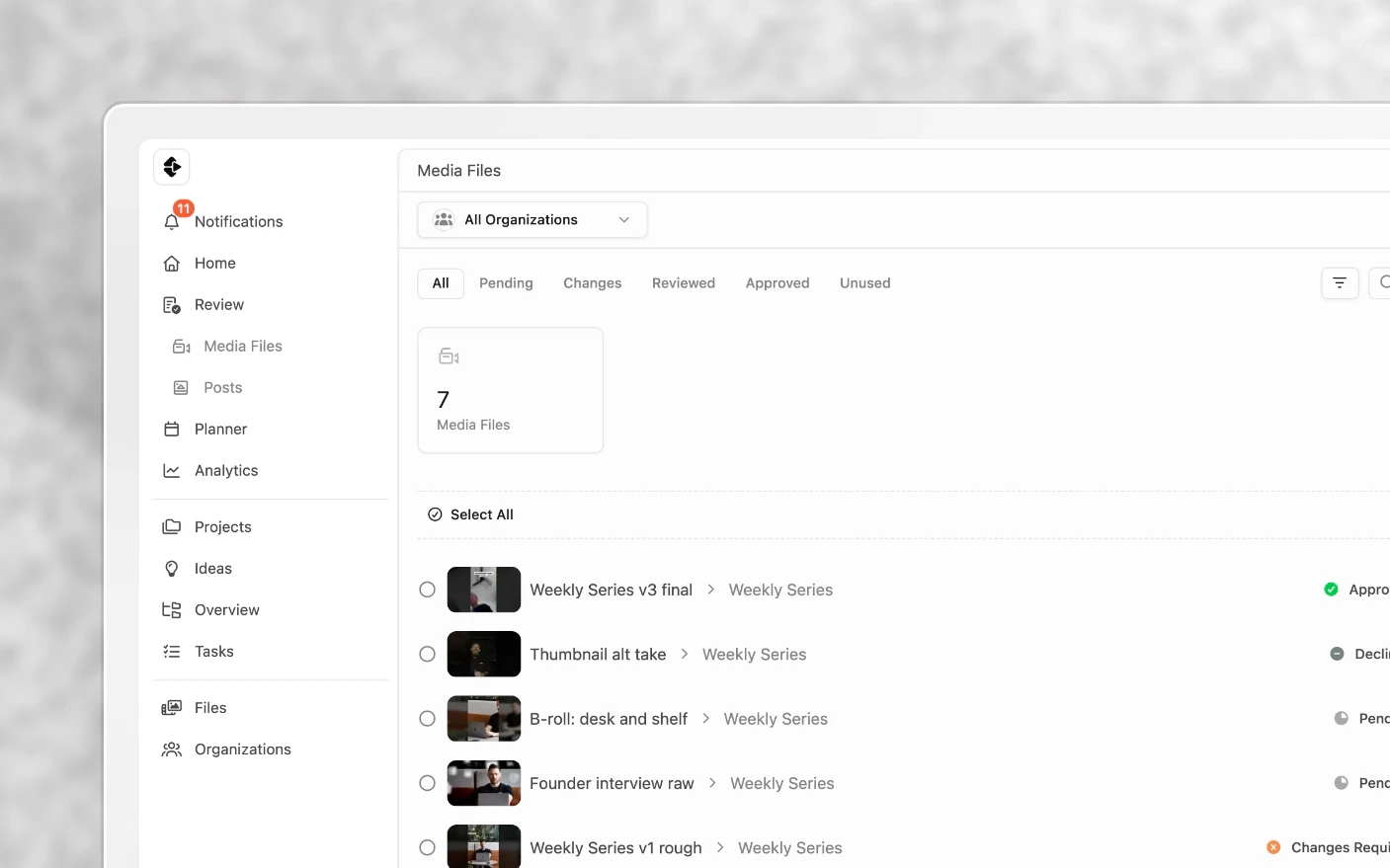
Keep every review decision attached to the exact moment and version it concerns
When feedback is spread across chat, email, and voice notes, editors spend time reconstructing what changed instead of making the next version. Media review is where an edit gets watched and answered. You play the file in the browser, leave comments pinned to the exact second, draw on the frame when words are not enough, and then either approve it or send it back.
The feedback lives on the file, which means the editor opens one place and sees everything, instead of reconstructing a review from a chat thread, an email, and two voice notes.
Approving a file also does work elsewhere: it is the event most automations wait for. See How Automations Work.
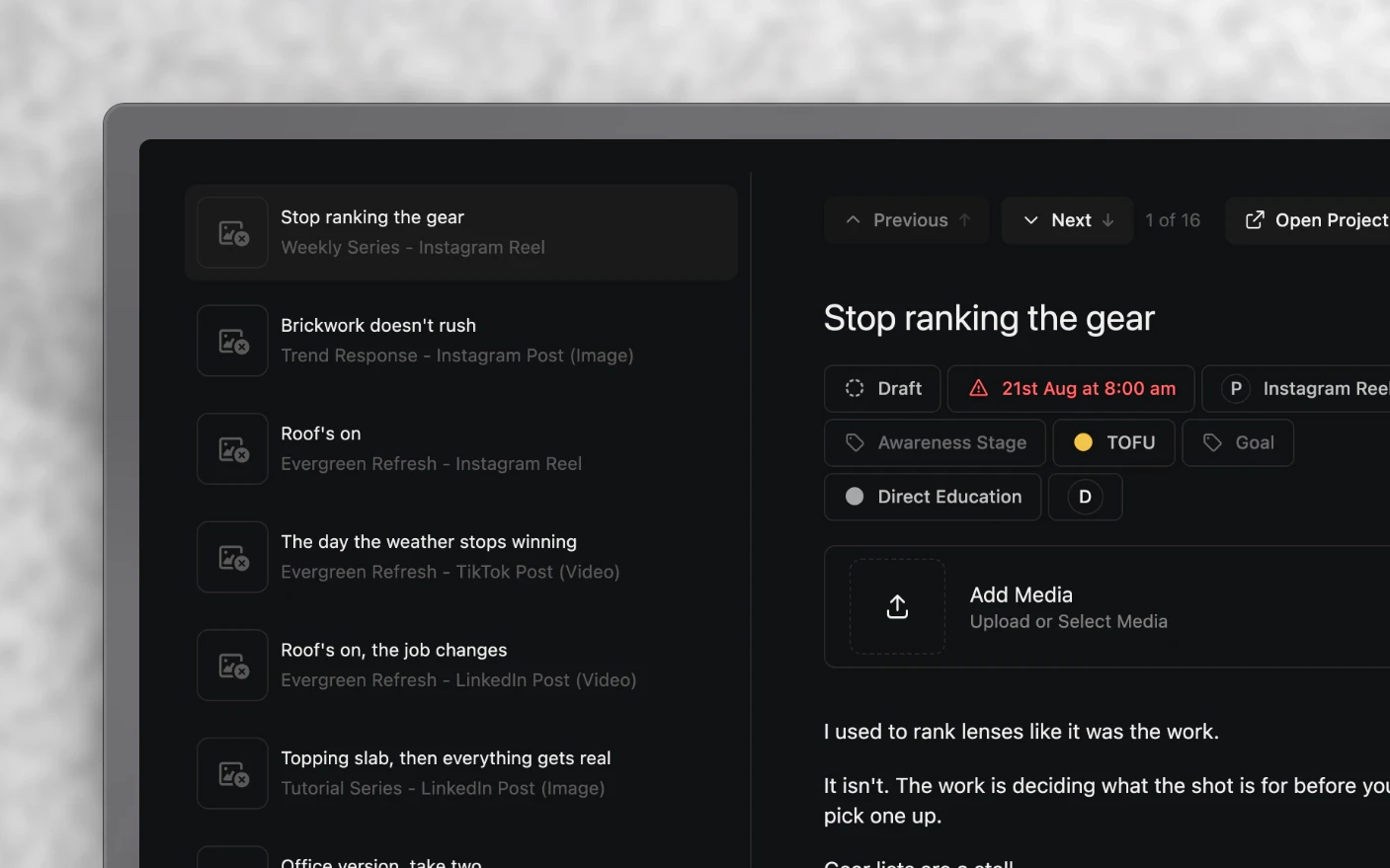
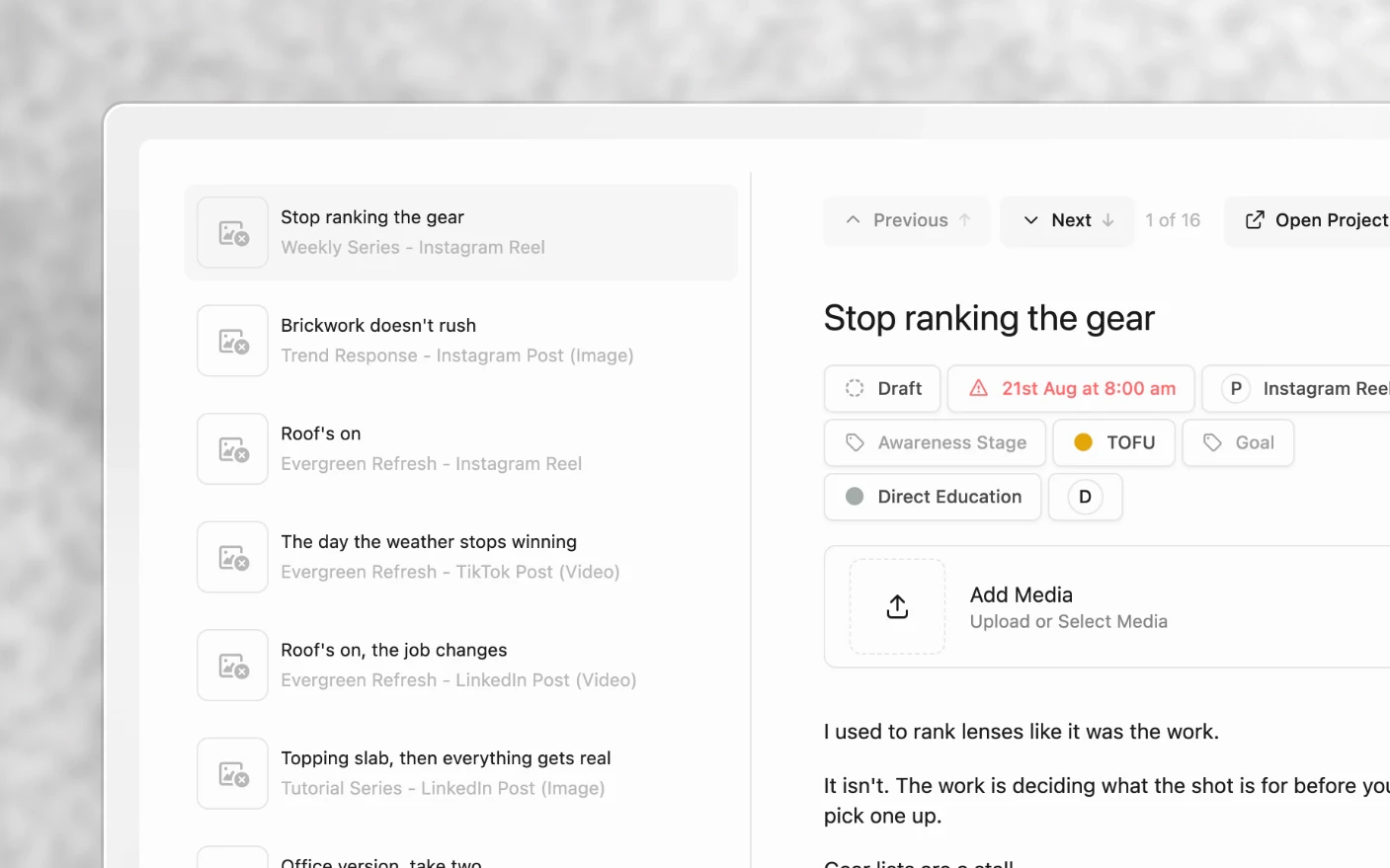
Why review here?
Common problems solved:
- Notes like “around the middle, fix the audio” with no timestamp
- Feedback split across Slack, WhatsApp, email, and Drive comments
- Editors guessing which version a comment referred to
- No clear answer to “is this approved?”
What you get:
- Comments attached to the frame they describe
- Drawings on the frame for anything visual
- Version history with the old feedback still readable
- A status the rest of the workflow can act on
Step 1: Open the file
Open the project and find the file in Media files. Files appear both in the project view and in the explorer sidebar.
Click it to open the full review interface.
Step 2: Watch and comment
Play the file in the browser. No download, no codec argument.
Leave a comment in the panel on the right and it pins to the current timestamp. Submit with Send, or Command + Enter.
You can also:
- Attach a file to a comment, for a reference frame or a replacement asset
- Draw on the frame to circle the thing you are talking about
Drawing is the fastest way to resolve anything visual. “Third caption from the top is clipped” takes a sentence and still gets misread; a circle takes a second.
Step 3: Work through the comments
Every comment appears in the right panel. Click one to jump straight to its timestamp.
Panels can be collapsed to give the video more room, which is worth doing on a laptop when you are reviewing something dense.
| Shortcut | Does |
|---|---|
| CtrlS or ⌘S | Toggle the main sidebar. Works anywhere in Clipflow, not just in review |
| ⌘Enter | Send the comment you are writing |
Comments can be marked as actioned, so the editor can track what they have handled and you can see what is left.
Step 4: Approve or send it back
Finish the review with a status:
| Status | Means |
|---|---|
| Pending | Not yet reviewed |
| Changes required | Sent back to the editor with feedback |
| Reviewed | Looked at, not final |
| Approved | Signed off |
| Declined | Not proceeding |
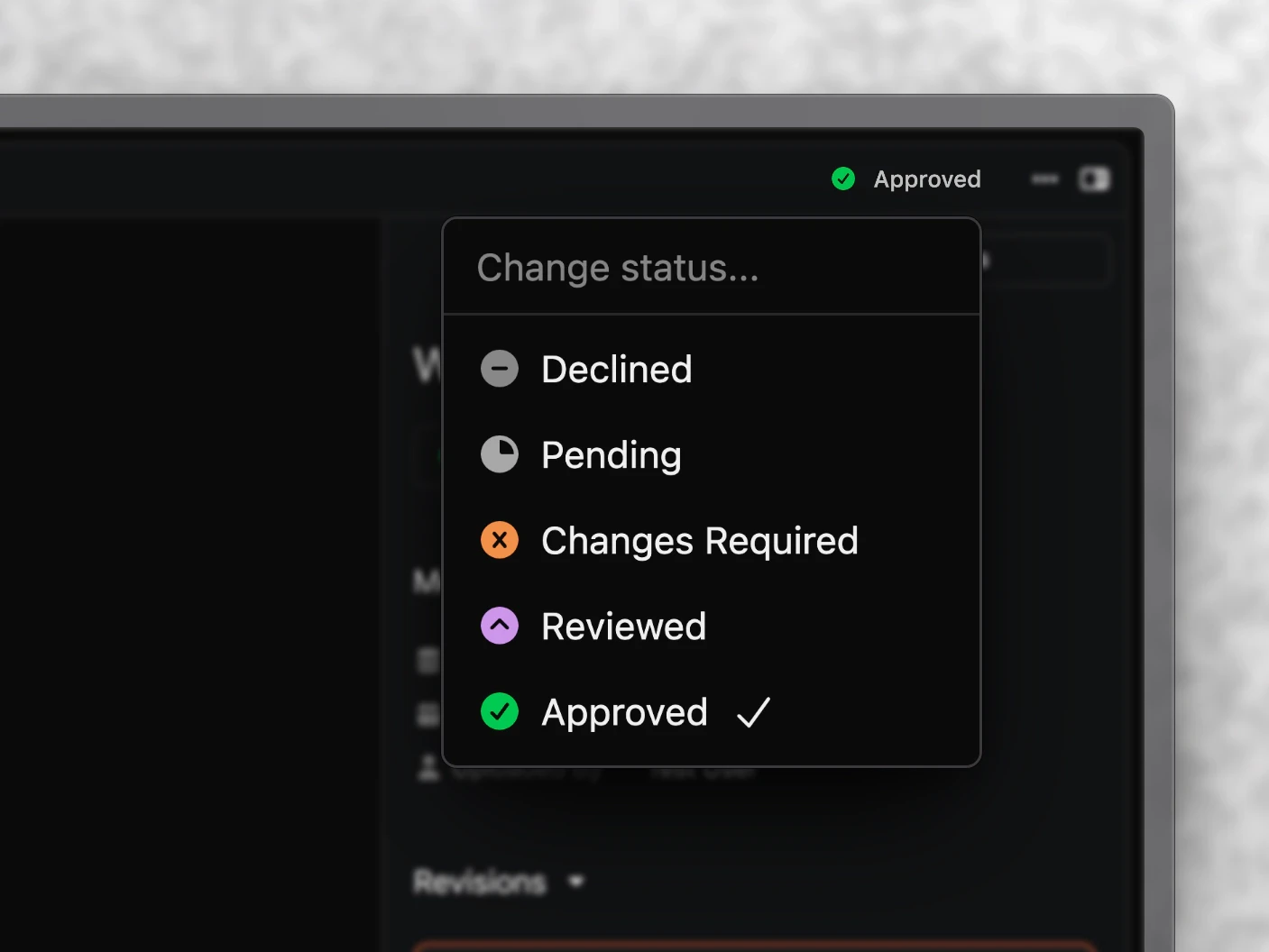
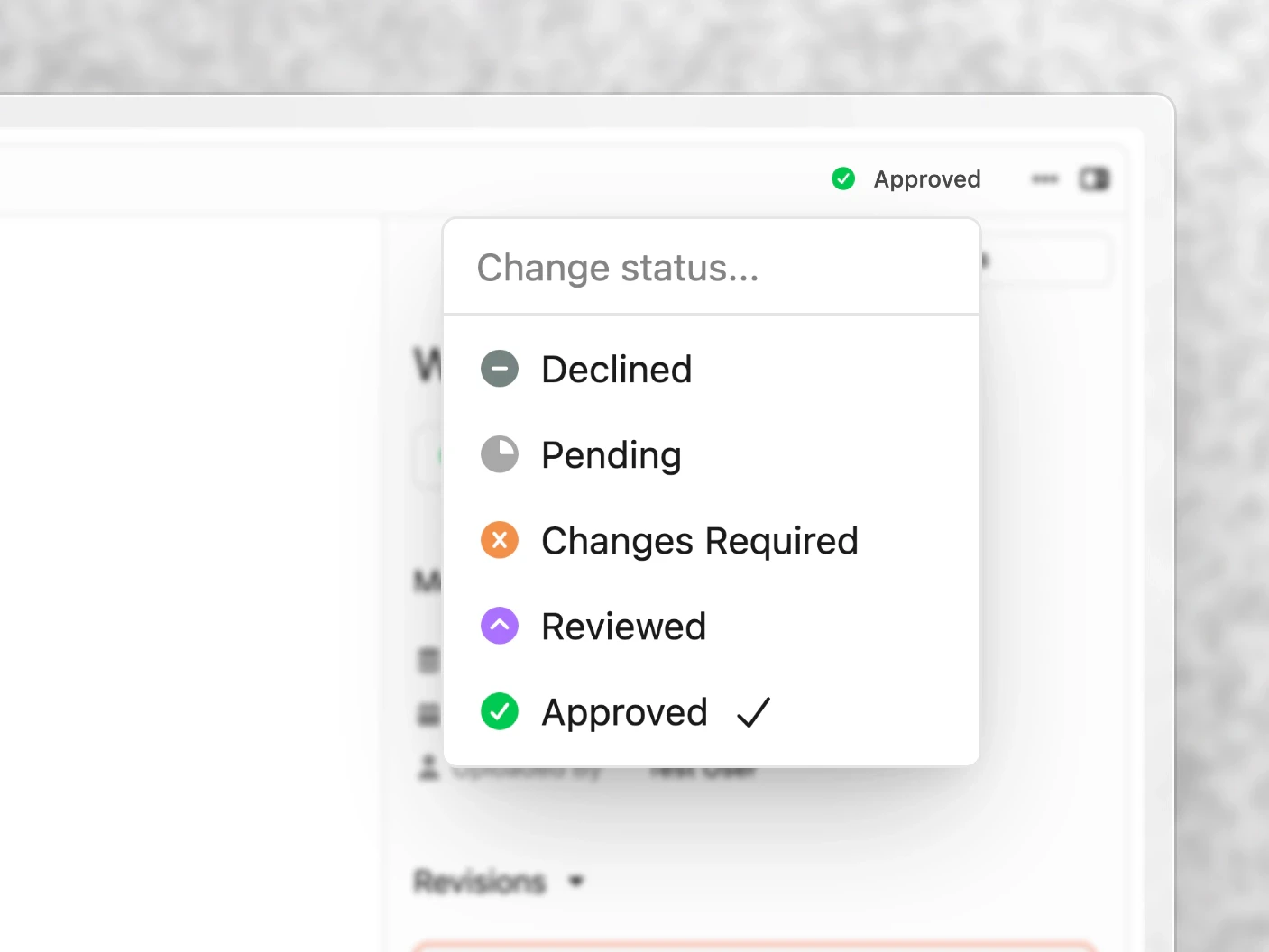
Use the status rather than only a comment. The status is what filtered views, notifications, and automations read. A comment saying “looks good” changes nothing downstream; Approved starts the next stage.
Step 5: Compare versions
When the editor uploads a revision, open the file’s versions to move between V1, V2, V3, and so on.
Comments from earlier versions stay readable, so you can see what was asked for and whether it was addressed. That history is the reason to upload revisions onto the same file rather than as a new one. See Media File Versions.
Notifications
Review generates a lot of activity, so notifications are grouped rather than fired one per comment. They batch by person, project, and a time window of about an hour, which turns twenty comments from one reviewer into one notification.
You will be notified about new comments, uploads, revisions, and mentions. Mark them read once handled.
Which of these reach your email is up to you. See Notifications.
Tips and best practices
Giving feedback
- Be specific and timestamped. “0:42 audio drops” beats “audio is off in places”.
- Say what you want, not just what is wrong. “Cut the pause” is actionable; “this drags” is not.
- Draw for anything visual. Framing, captions, graphics, and colour all resolve faster with a circle than a paragraph.
- Do one full pass, then send. Trickling notes in over a day means the editor works from an incomplete list.
Keeping the pipeline clean
- Set the status every time. A file left on Pending is invisible to everyone filtering for work.
- Approve deliberately. It triggers automations, so it is an action rather than a tidy-up.
- Mark comments actioned so the next reviewer sees what is outstanding.
For clients
- Clients who should not have full access can review through a share link or a portal instead. See Share Links and External Feedback.
Frequently asked questions
Do I need to download the file to review it?
No. It plays in the browser after Clipflow converts it on upload.
Can I see comments from an older version?
Yes. Switch between versions and earlier comments stay readable.
Why am I getting one notification for twenty comments?
Notifications group by person, project, and roughly an hour, deliberately.
Can someone outside my organization review a file?
Yes, through a share link or portal. They do not need an account.
What is the difference between Reviewed and Approved?
Reviewed means someone looked. Approved means it is signed off, and it is the status automations act on.
Can I attach a file to a comment?
Yes, which is useful for reference frames and replacement assets.
The editor uploaded a new cut as a separate file and I lost the comments.
Upload revisions onto the existing file instead. See Media File Versions.
Related articles
- Media File Versions: revisions and history
- Media Library: types, statuses, and uploads
- Share Links and External Feedback: review without an account
- Notifications: control what reaches you
- Review Draft Posts: check posts before they publish
Was this page helpful?
Related articles
Need more help with this?
Contact support