
How to organize your project workspace around the work your team actually does
Customize the Clipflow project explorer by collapsing unused sections and keeping the layout consistent across projects.
Updated
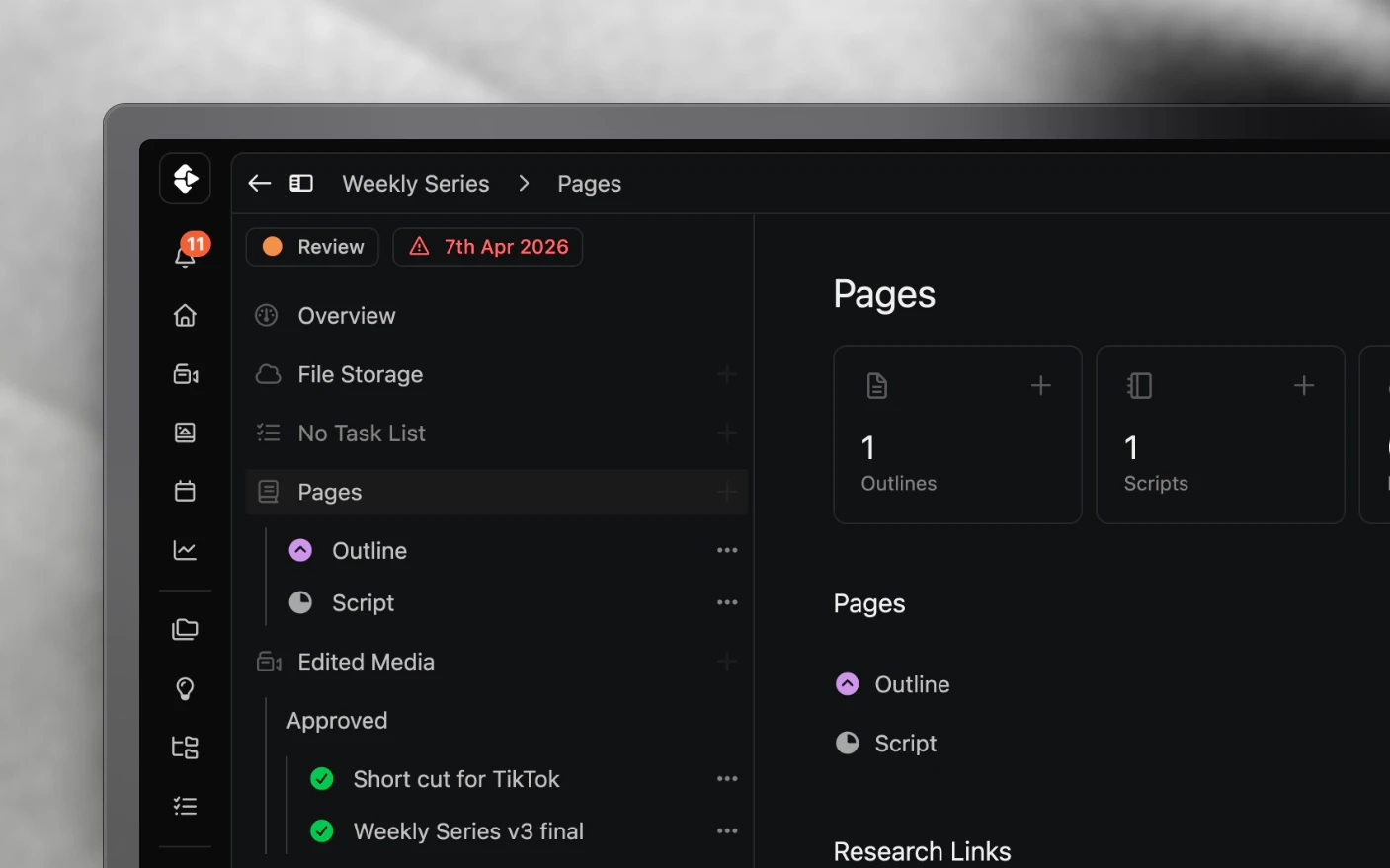
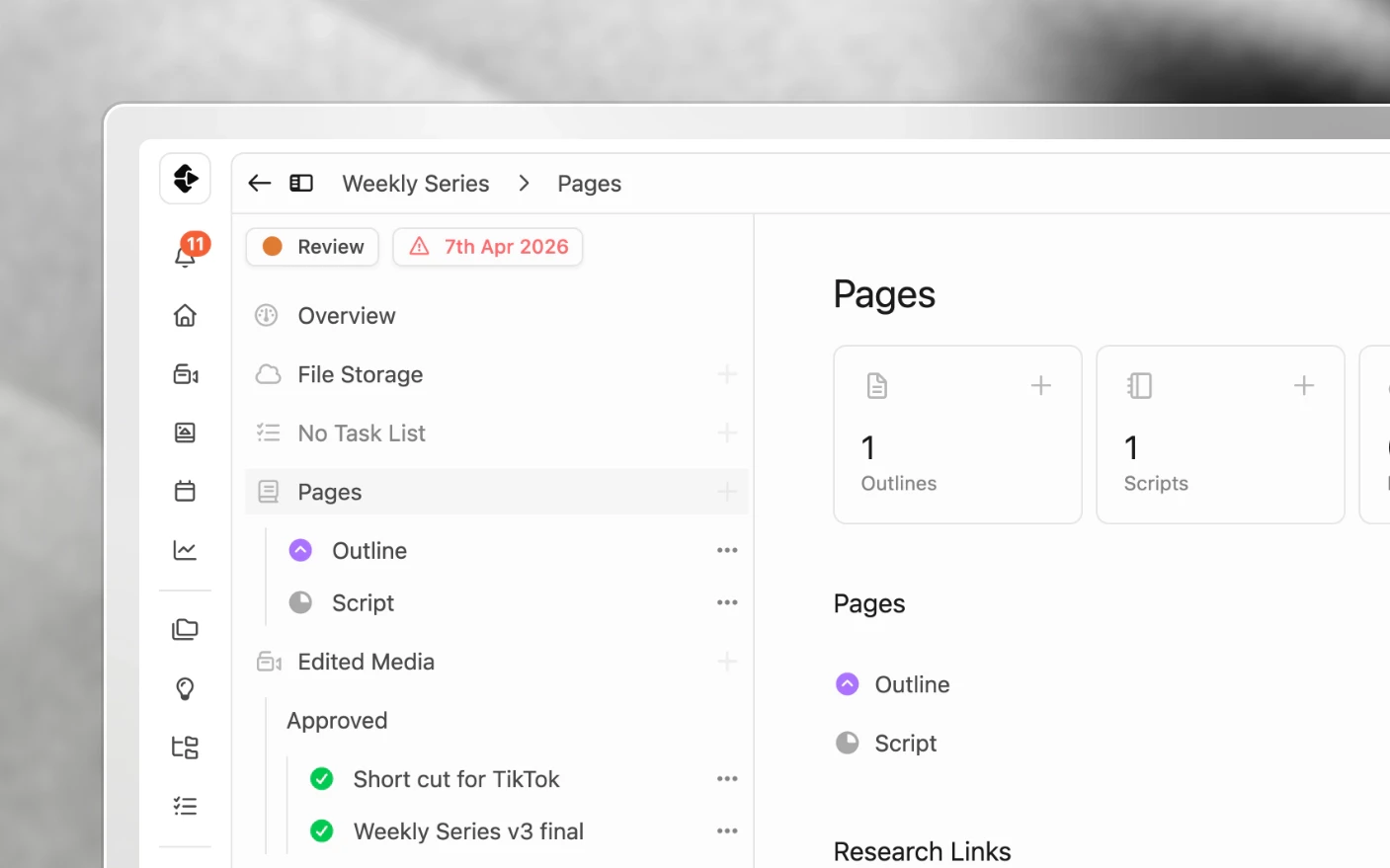
Make each project easier to navigate when production gets busy
The explorer is the panel that holds everything attached to a project. Tasks, pages, media, thumbnails, share links, and linked projects all sit there, which makes it complete and, if you use half of it, noisy.
Collapsing the sections you do not need is the fix, and Clipflow remembers what you closed.
Why customize it?
Common problems solved:
- Scrolling past five sections to reach the one you use
- An editor and a strategist needing completely different things from the same screen
- Podcast and written-content teams seeing YouTube packaging they will never touch
- Rebuilding the same layout on every project you open
What you get:
- A project screen showing only the parts of your workflow you use
- A layout that persists across projects and page refreshes
- Per-person setup, so nobody else’s view changes when you tidy yours
The sections
| Section | Holds |
|---|---|
| Task lists | Production steps, assignees, and deadlines |
| Tools | Project utilities |
| Pages | Outlines, scripts, hooks, and notes |
| Thumbnails | Thumbnail concepts and voting |
| Media files | Footage, cuts, and finals |
| Share links | External review links |
| Linked projects | Other projects in the same series |
Step 1: Collapse what you do not use
Click a section header to collapse it. Click again to expand.
Work through the list once and close everything outside your job. It takes under a minute and you only do it once.
Step 2: Let Clipflow remember
Your layout saves automatically. Refresh the page, open a different project, or come back tomorrow, and the sections you collapsed stay collapsed.
The preference is yours alone. Collapsing packaging does not hide it from anyone else on the team.
Layouts worth copying
Editor. Media files and task lists open. Pages open if they work from a script. Everything else closed.
Producer or project manager. Task lists and linked projects open. Media open enough to check status.
Strategist or writer. Pages and thumbnails open. Media closed until review.
Podcast or written content. Thumbnails closed permanently, since packaging is a YouTube concern.
Agency account manager. Share links and task lists open, so client-facing state is always in view.
Tips and best practices
- Set this up on day one for new teammates. It shapes what they think their job is on a project.
- Panels behave differently on narrow screens. A section open on your desktop may start closed on a laptop, which is the layout adapting rather than your preference being lost.
- Collapse is not delete. A closed section still holds everything, and the work continues in it.
- Revisit it when your role changes. Moving from editing to producing usually means a different set of sections.
Frequently asked questions
Does collapsing a section hide it from my team?
No. The layout is personal to you.
Will my layout follow me to another project?
Yes. Every project you open uses your saved preferences.
I collapsed something and now cannot find it.
The section headers are still there when collapsed. Click the one you want to reopen it.
Does this work on mobile?
Panels open and close to fit narrower screens, so the layout may differ from your desktop.
Can I set a layout for my whole team?
Not today. Each person sets their own. For shared filtered views of projects, see Custom Views.
Related articles
- Working with Projects: what lives inside a project
- Custom Views: saved, filtered project boards
- Project Pages: the pages section in detail
Was this page helpful?
Related articles
Production Dashboard
See content projects across every organization in one production dashboard, sorted by deadline and ready for action.
Content Ideas
Capture content ideas, develop them with your team, and turn the strongest concepts into production projects.
Project Pages
Write content briefs, scripts, hooks, and production notes inside the project where the team can review and approve them.
Need more help with this?
Contact support