
How to manage video versions without losing review history or approving the wrong cut
Upload, compare, and manage video file versions without losing revision history, review context, or approvals.
Updated
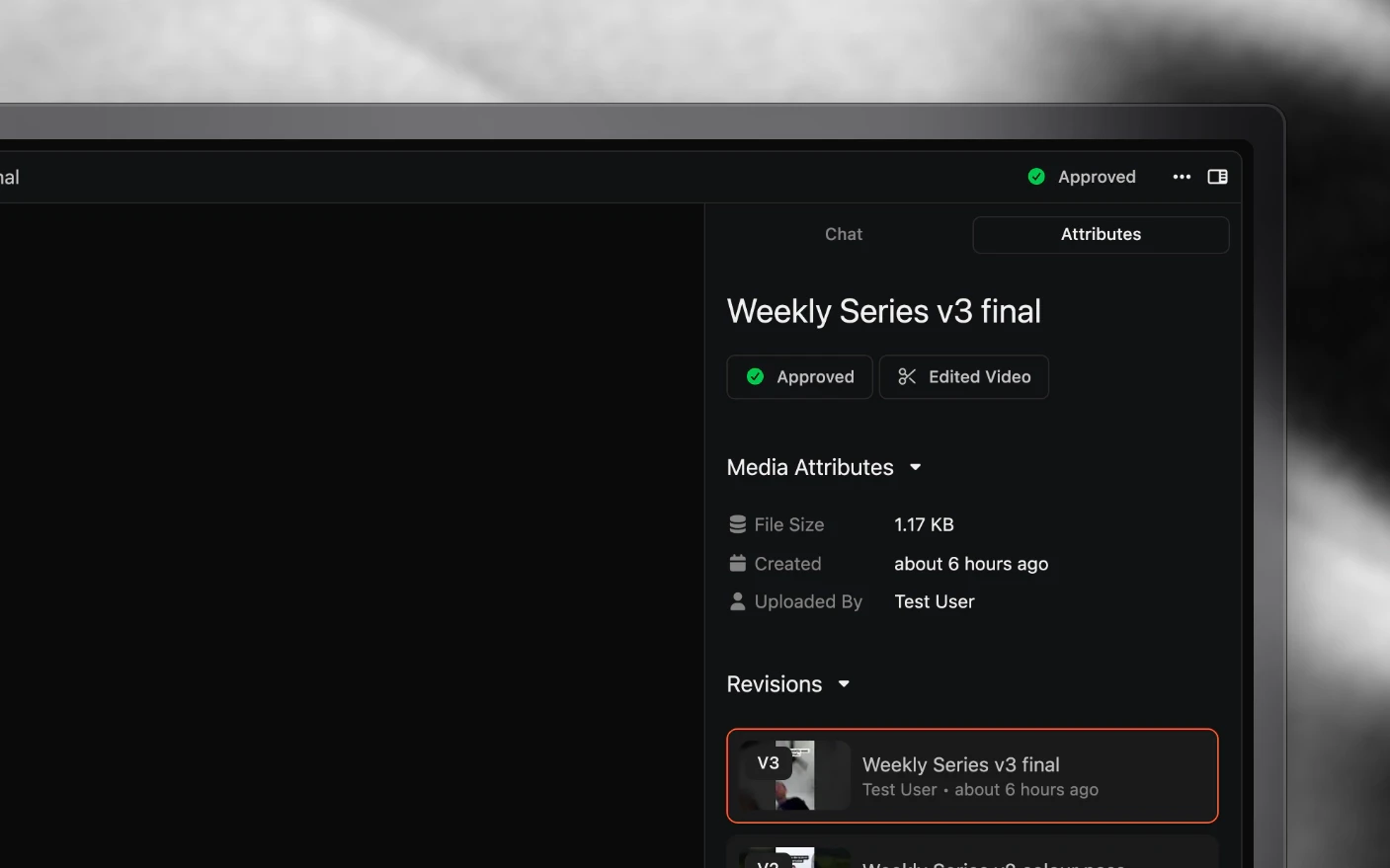
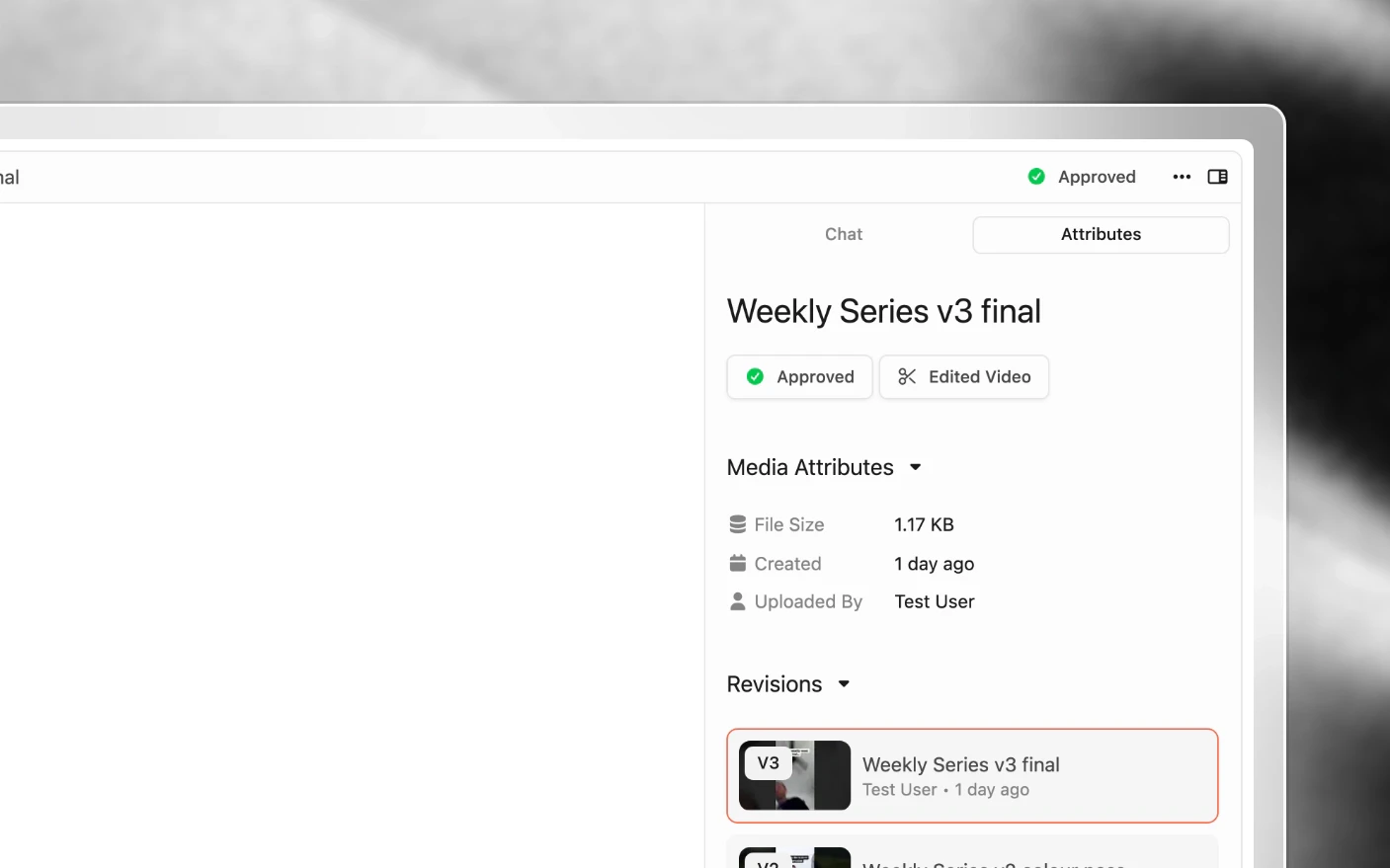
Keep every edit, comment and approval attached to the right version
Media File Versions let you upload revised versions of any video, image, or file while keeping the entire revision history intact. Every version is preserved, and all comments stay attached to the specific version they reference.
No more “final_v2_APPROVED_actually_final.mp4” filenames. No more losing feedback when you upload a new cut.
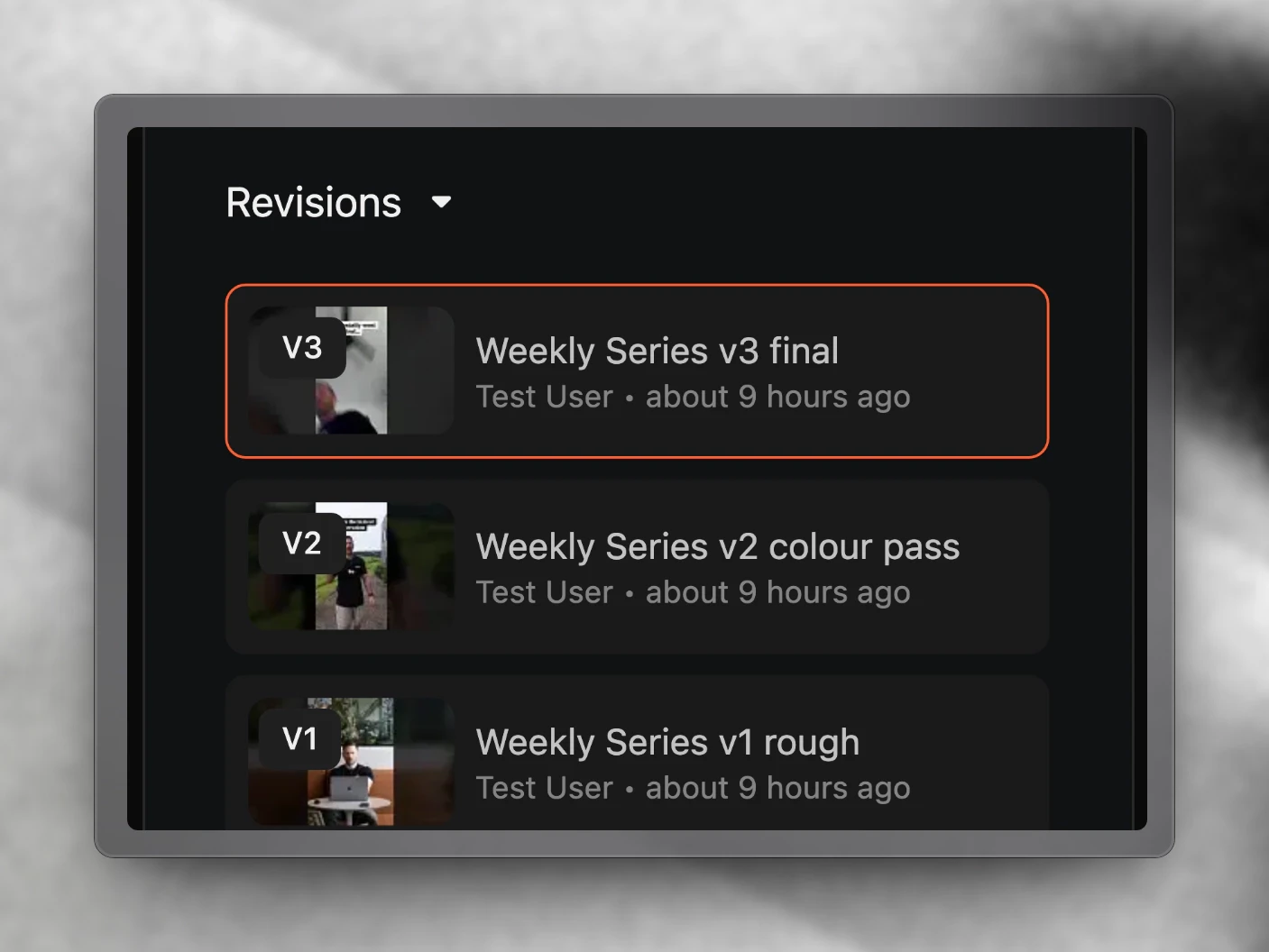
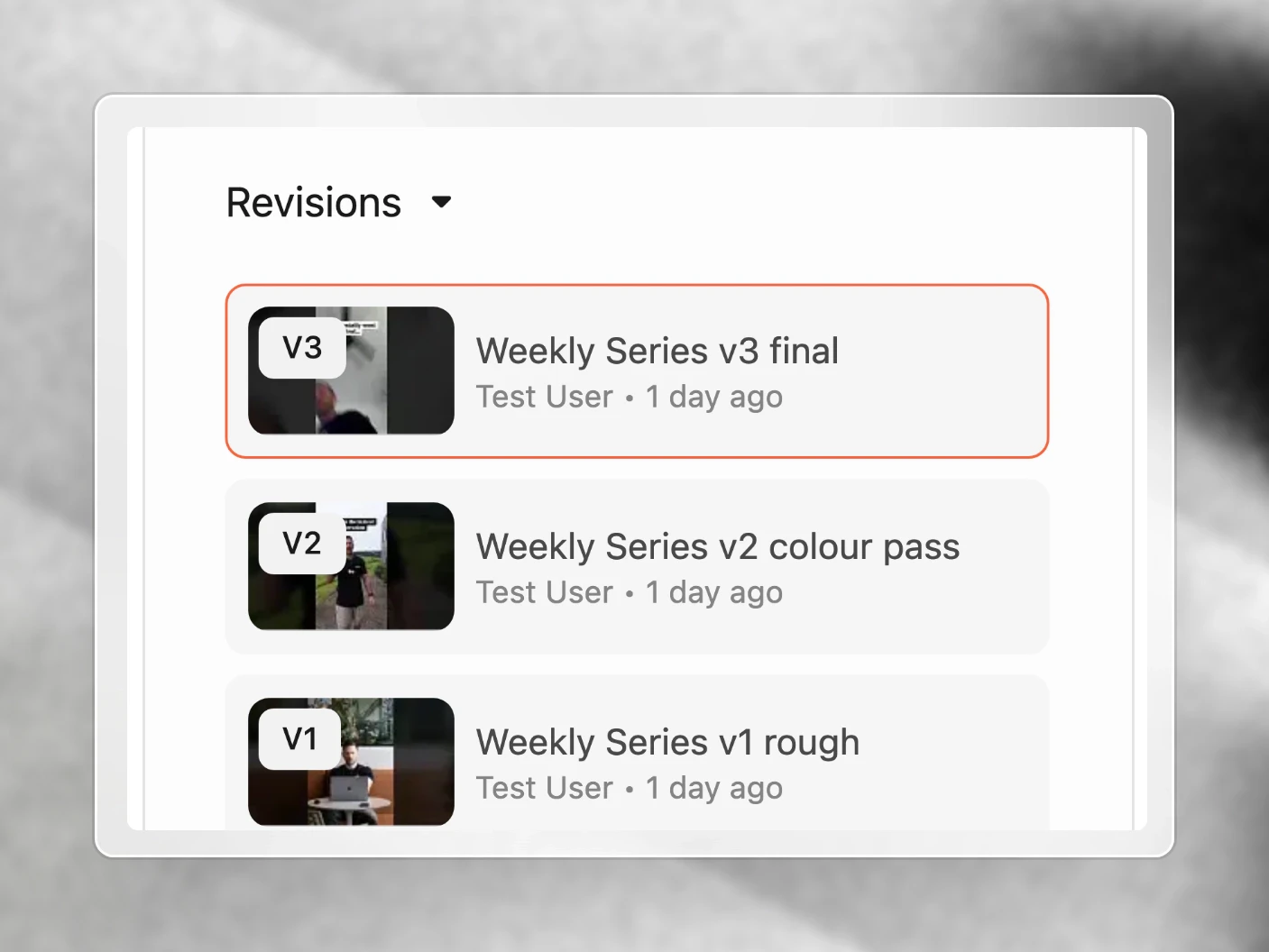
Why Use File Versions?
If you’re doing client revisions or going through multiple edit rounds, you’ve probably lost important feedback when uploading a new version. Comments disappear, context is lost, and you’re left hunting through email threads to find what was said about V1.
Common Problems Solved:
- Losing comments when uploading revised files
- Forgetting what feedback applied to which version
- Clients unable to compare old and new versions
- No clear record of the revision journey
- Confusion about which version got approved What You Get:
- Complete version history (V1, V2, V3…) in one place
- All comments preserved and attached to their specific version
- Easy toggling between versions
- Clear audit trail of revisions and approvals
How to Upload a New Version
- Open the media file you want to update
- Click Upload New Version
- Select your revised file
- The new version appears as V2 (or V3, V4, etc.)
- All previous versions remain accessible The new version becomes the active view, but you can switch back to any previous version at any time.
Viewing Version History
Switch Between Versions
- Open any media file with multiple versions
- Look for the version selector in the media attributes panel (V1, V2, V3…) if you can see media comments you’re in the chat panel and can switch to attributes at the top.
- Click any version to view it
- Comments for that specific version appear alongside
Review Feedback by Version
Each version keeps its own comments. When you switch to V1, you see V1’s feedback. Switch to V2, you see V2’s feedback. This makes it easy to:
- See what feedback you addressed in each revision
- Review the original comments when questions come up
- Show clients exactly what changed between rounds
Working with Versions
The Typical Revision Workflow
- Upload V1 - Your first cut or draft
- Collect feedback - Client or team leaves comments on V1
- Upload V2 - Your revised version addressing the feedback
- Compare - Reviewer can toggle between V1 and V2
- Repeat - Continue until approved
- Approval - Final version is marked approved with full history preserved
Keeping Context
When a client asks “why did you change this?”, you can:
- Switch to the previous version
- Show them the exact comment that requested the change
- Switch back to the current version No more digging through emails or chat logs.
Frequently Asked Questions
Is there a limit to how many versions I can upload?
No limit. Upload as many versions as your revision process requires.
Can I delete a version?
Currently, versions cannot be deleted individually. This is intentional to preserve the complete revision history and audit trail.
Do comments carry over to new versions?
No. Each version has its own comments. This keeps feedback organized and attached to the specific version it references. You can always view previous versions to see their comments.
Can I revert to an older version?
You can view and download any previous version. If you need to make an older version the “current” one, upload it as a new version.
How do I know which version is approved?
Use the approval workflow to mark the final version as approved. The approval status is visible on the file.
Can clients see all versions?
Yes. Anyone with access to the project can view all versions and their associated comments.
Related articles
- Media Review and Notifications: leaving timestamped feedback
- Media Library: types, statuses, and uploads
- Transcription: make a file searchable
Was this page helpful?
Related articles
Production Dashboard
See content projects across every organization in one production dashboard, sorted by deadline and ready for action.
Content Ideas
Capture content ideas, develop them with your team, and turn the strongest concepts into production projects.
Project Pages
Write content briefs, scripts, hooks, and production notes inside the project where the team can review and approve them.
Need more help with this?
Contact support