
Why a scheduled post didn't publish, and what every post status in Clipflow means
What Draft, Ready, Done and Failed mean, why a date turns red, how to confirm a post went out, and how to fix one that didn't publish.
Updated
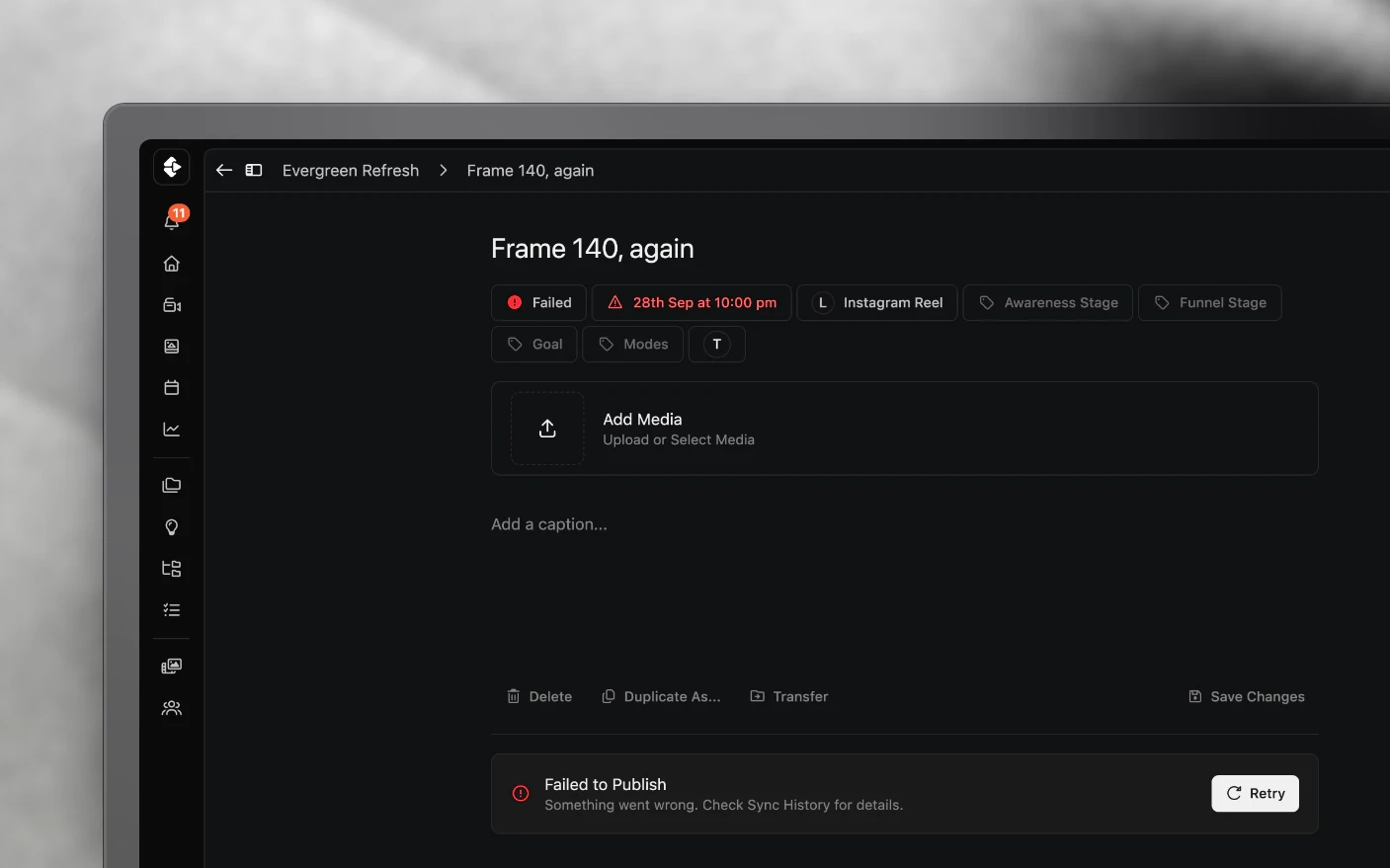
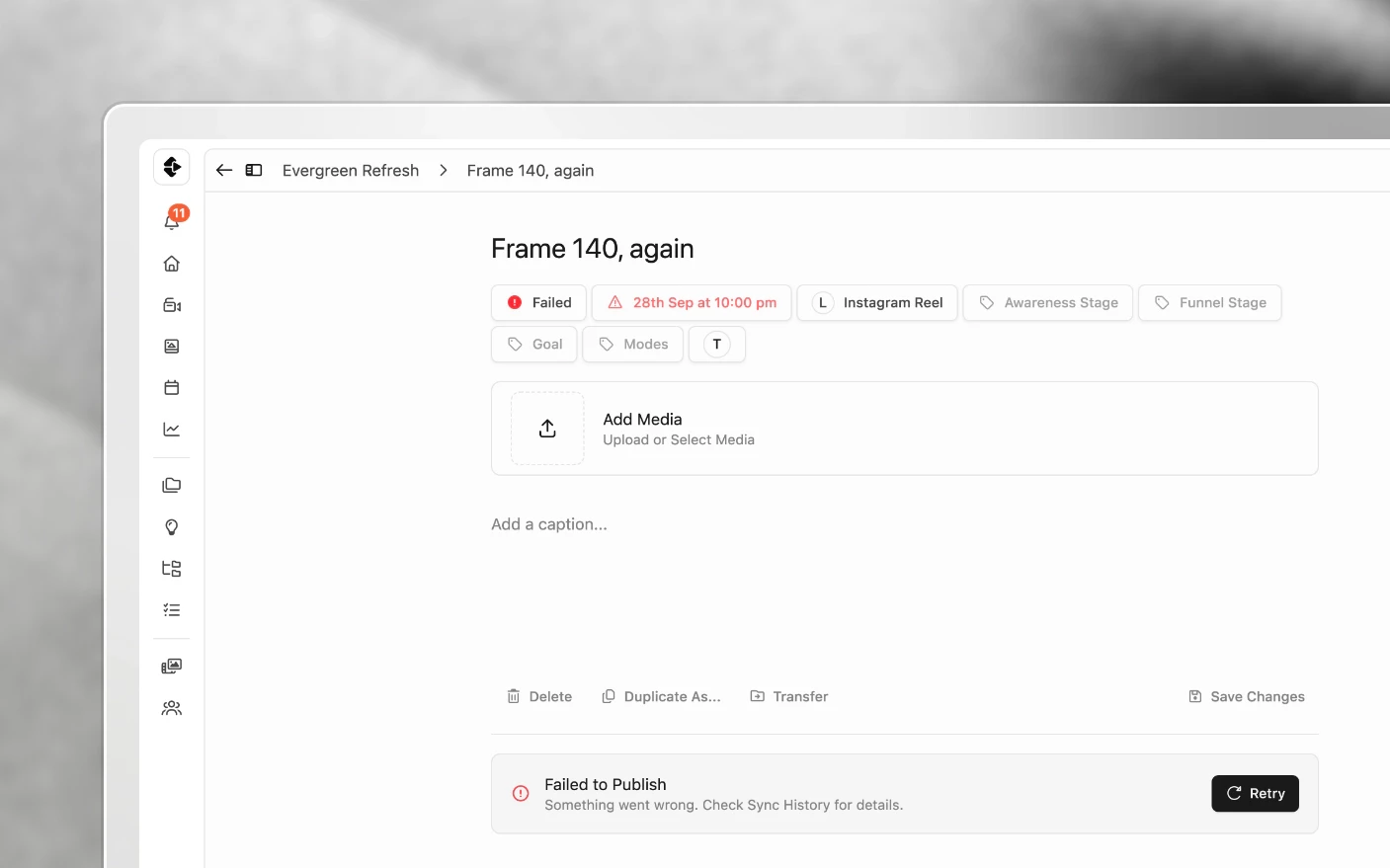
Know at a glance whether a post went out, and fix it fast when it didn’t
Clipflow checks for posts to publish every five minutes. A post goes out when it is Ready, has a date, sits on a channel set to Automatic Posting, and the organization has the platform account connected. When all four are true, the post publishes and turns Done. When the platform says no, it turns Failed and tells you why.
Most “it didn’t post” reports come down to one of those four conditions not being met. The status on the post tells you which.
What each status means
| Status | What you see | Meaning | What to do |
|---|---|---|---|
| Draft | Grey | Still being written | Finish it, then Schedule or Mark as Ready |
| Changes Required, Reviewed, Declined | Review colours | Going through review | Resolve the review, then mark it Ready |
| Ready | Post Scheduled (tile says Scheduled) | Will publish at the date shown | Nothing |
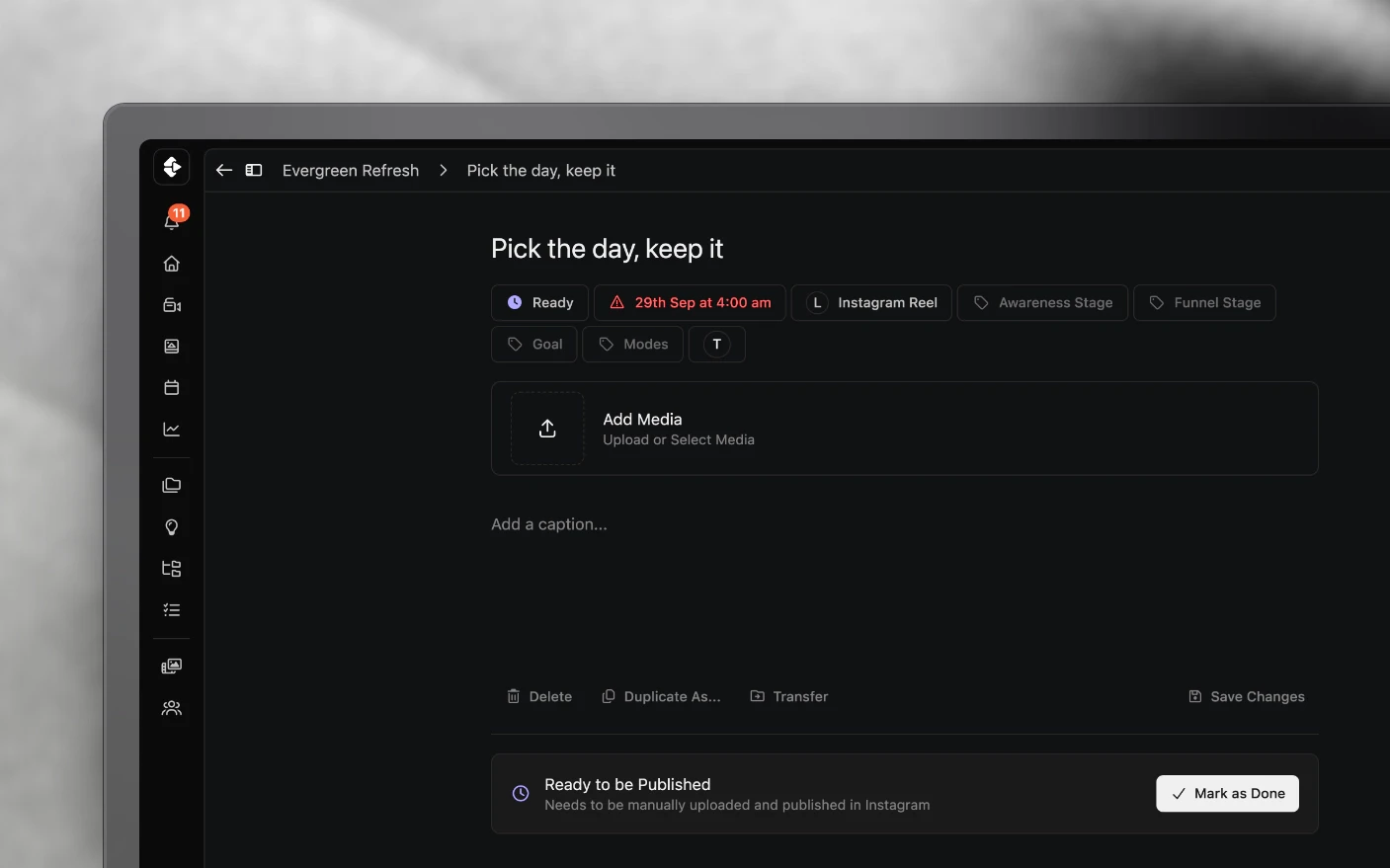
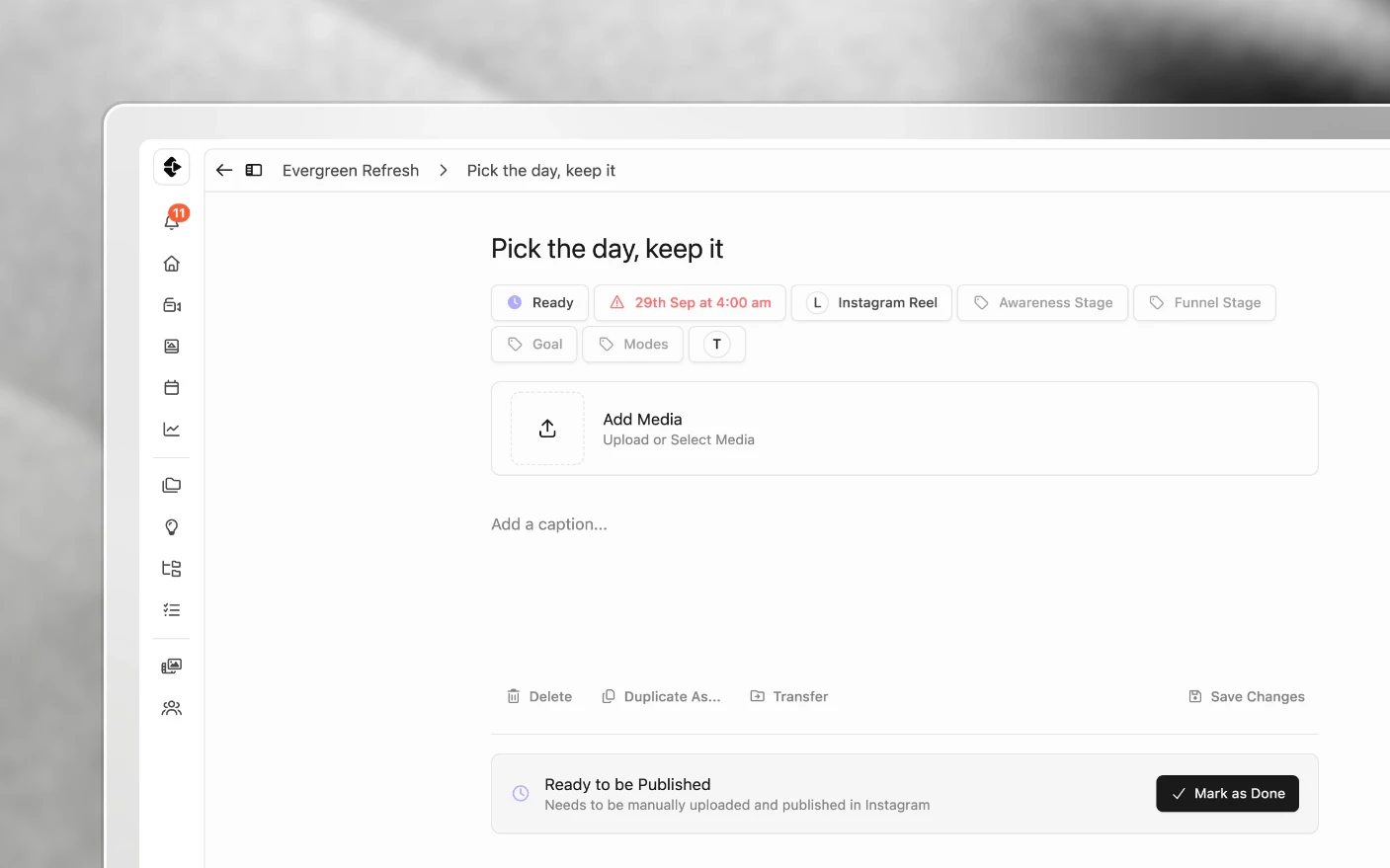
| Ready | Ready to be Published | The channel is on manual posting | Post it yourself, then Mark as Done |
| Ready | Set Scheduled Date | No date, and no free time slot was found | Set a date, or add time slots |
| Done | Auto Published, Manually Published or Imported (tile says Published) | Finished | Check it on the platform if you like |
| Failed | Failed to Publish, red with a warning icon | The platform rejected it or publishing errored | Read Sync History, fix the cause, click Retry |
When a post publishes, Clipflow changes its scheduled date to the moment it actually went out.
A red date is not the same as Failed
A date turns red with a warning icon whenever its time has passed and the post is not Done. In a project’s post list these sit under Overdue. A red date asks you to check the status. It does not mean the post failed. Open the post: if it says Failed to Publish, follow the steps below. If it is still Ready on a manual channel, it is waiting for you to post it.
How to confirm a post went out
- The status changes to Done and the banner reads Auto Published.
- Open the post’s Sync History panel. A successful publish shows the platform’s response.
- Check it on the platform. Trial reels only show to non-followers at first, so look for them under trial reels in Instagram, not on your grid.
When a post fails
If a post fails, the people assigned to it get a Post Publish Failed notification in the inbox panel. Make sure someone is assigned to every post that auto-publishes, or nobody hears about the failure.
- Open the post and look at Sync History. The latest request shows the error the platform returned.
- Fix the cause using the checklist below.
- Click Retry. The post goes back to Ready and publishes straight away.
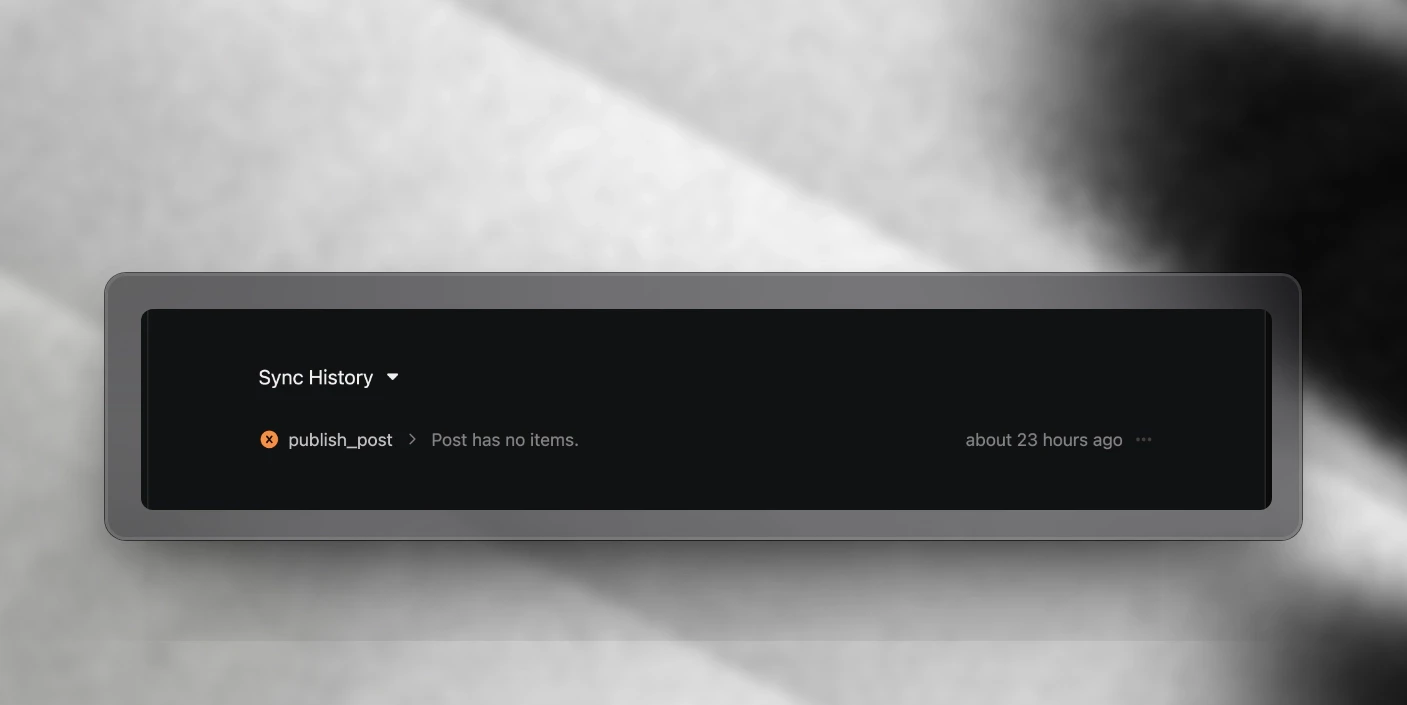
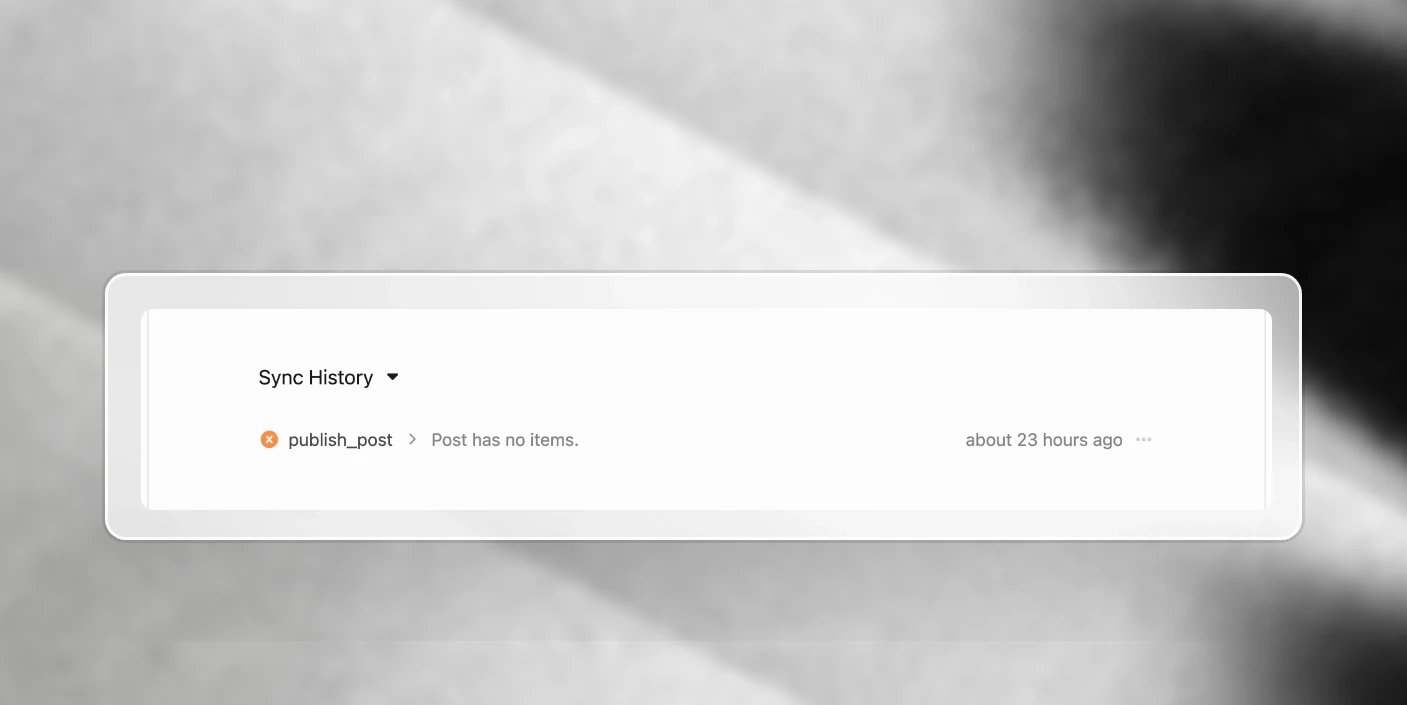
Failed posts are not retried automatically, so a fix does nothing until you click Retry.
Troubleshooting checklist
Work down this list. It is in order of how often each one causes a missed post.
1. No time slot was free
If the banner says Set Scheduled Date, the post never got a time. Automatic placement only looks 30 days ahead, only uses slots that accept that post type and label, and skips slot times already taken. With one slot a day, a big batch of Ready posts fills the month and the rest wait without a date.


Fix: add more slots on the channel, loosen a slot’s post-type rules, or set the date on the post yourself. Channels start with a 12:00 slot Monday to Saturday, and none on Sunday. See Post Scheduling.
2. The channel is on manual posting
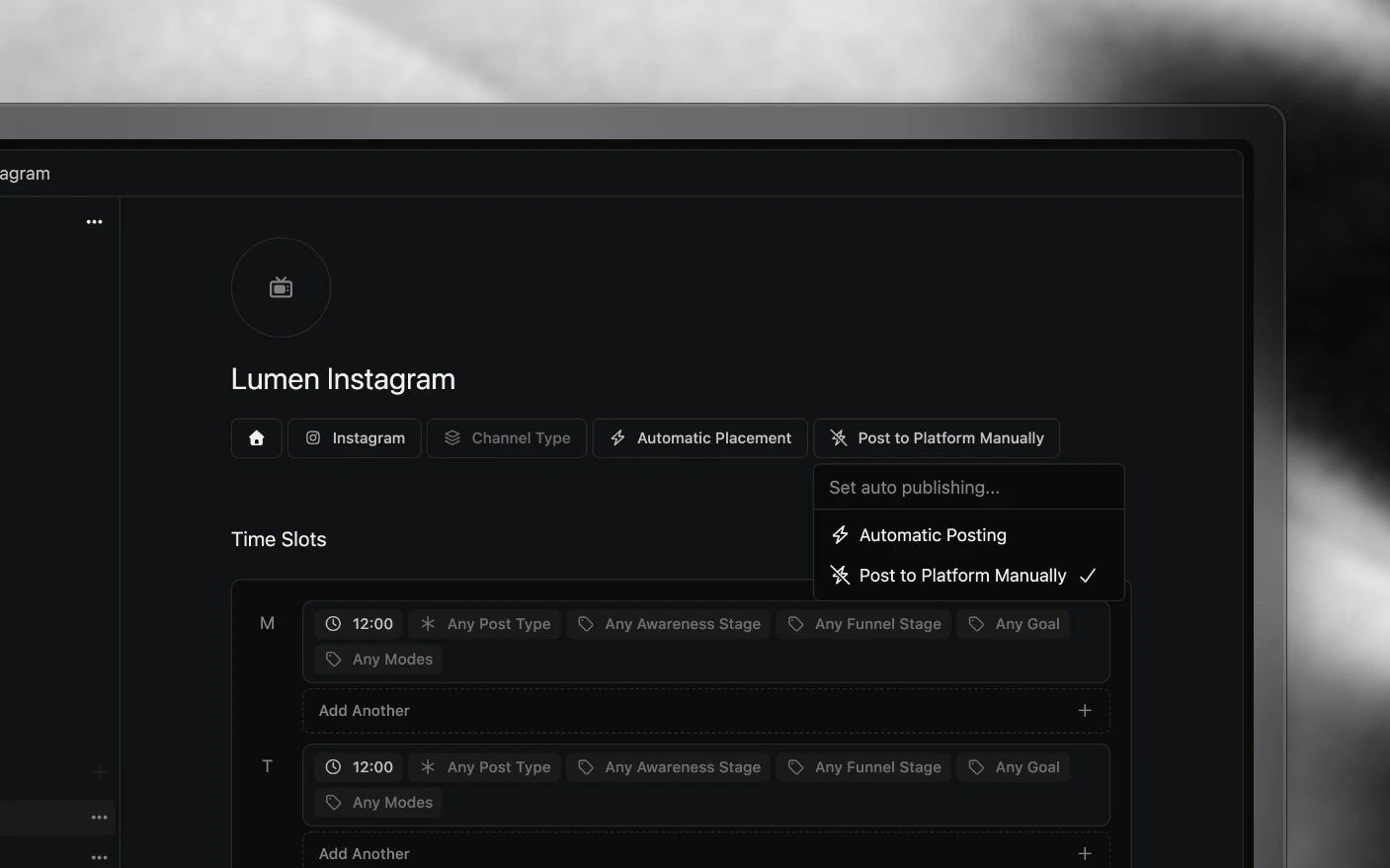
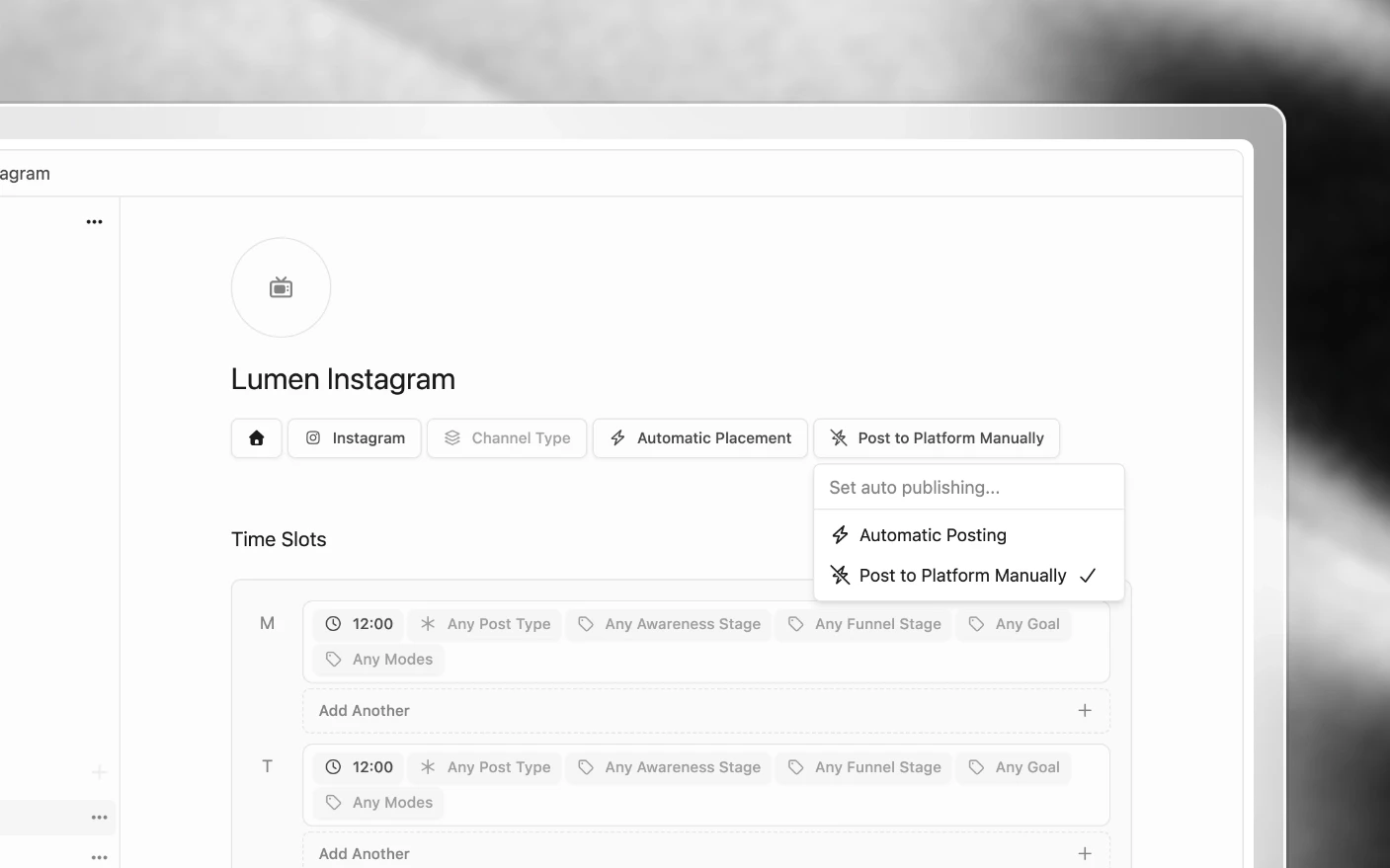
On the channel page, the posting setting must be Automatic Posting. On Post to Platform Manually, Ready posts wait for you and show Ready to be Published. On TikTok, Upload Only sends the post to the creator’s TikTok inbox to finish in the app, rather than posting it.
Fix: open the channel and switch to Automatic Posting.
3. The account is missing, or missing permissions
The channel page shows a notice when something is wrong:
- Account Not Connected: connect the platform account.
- No Platform Channel Set: pick which page or profile the channel posts to.
- Missing Account Permissions: some permissions were left unticked when the account was connected. Connect the account again with Connect Account on the Integrations page, and leave every permission ticked.
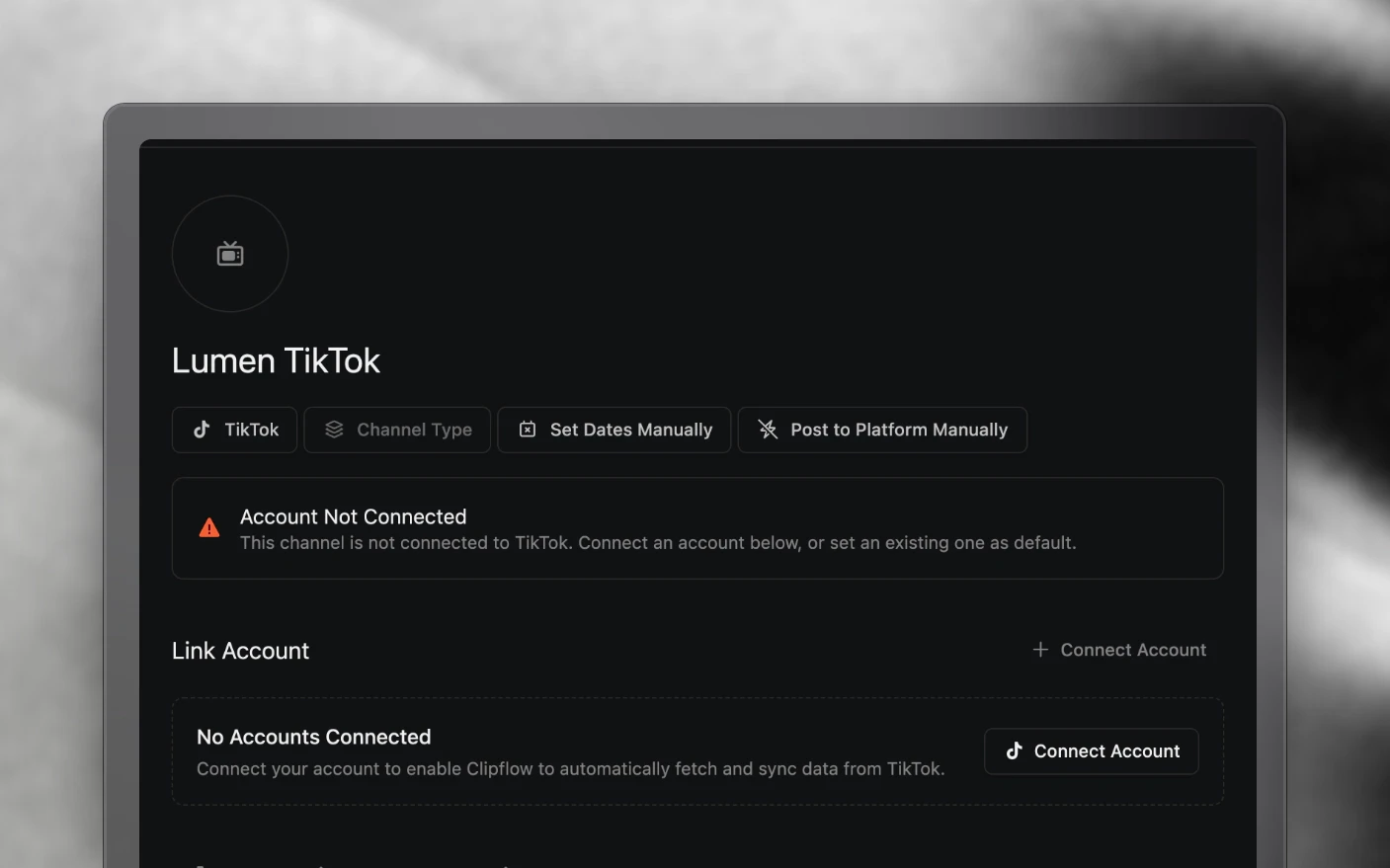
If the account shown is not the one you post to, use the ⋯ menu on the right account’s tile and choose Set as Default. See Connect Social Platforms.
4. Your time zone is wrong
Time zone belongs to each person, not the organization, and slot times use the time zone of whoever marks the post Ready. If yours is set to somewhere else, “6 pm” means 6 pm there. Check it on your profile. See Managing Your Profile.
5. The media is missing or in the wrong place
A post with nothing attached fails with Post has no items. For Instagram carousels, slides attached from Thumbnails are skipped, and PNGs should be swapped for their JPG copy. See Carousels and Image Posts.
6. It was marked Ready after its time
Clipflow only auto-posts a Ready post up to an hour after its scheduled time. Mark a post Ready later than that and it will sit there with a red date. Give it a new date and it publishes at that time.
Tips and Best Practices
For solo creators
- Check the planner the morning after a batch goes out. Anything not Done is worth a look.
- Set your time zone before you set up time slots.
For teams and agencies
- Assign the scheduler to every post so failure notifications reach someone.
- When a channel’s permissions change hands (a client’s social manager leaves, a password changes), check its channel page for a notice before the next batch.
- Use a manual channel on purpose, not by accident. If a client wants to post themselves, set that channel to Post to Platform Manually and tell them to use Mark as Done.
Frequently Asked Questions
Where do failed posts go?
They stay where they were, with the status Failed in red. Assigned people get a Post Publish Failed notification. Open the post, read Sync History, fix the cause and click Retry.
My post is red. Did it fail?
Not necessarily. A red date only means the time passed and the post isn’t Done. Open it and check the status.
How do I know my trial reel actually posted?
The post turns Done with Auto Published, and Sync History shows the platform’s reply. In Instagram, trial reels appear under trial reels rather than on your grid.
It was scheduled for 6 pm and didn't post.
Check your time zone on your profile first. Then check the channel is on Automatic Posting and the post’s status is Ready, not Draft.
Why did my posts stop scheduling themselves?
Automatic placement only fills slots 30 days ahead. When those are full, new Ready posts wait with Set Scheduled Date. Add more slots or set dates yourself.
Does Clipflow retry a failed post by itself?
No. Fix the cause, then click Retry on the post.
How do I turn on auto posting?
Connect the platform account, then open the channel and choose Automatic Posting. It turns on by itself when the connected account has permission to publish.
Related articles
- Post Scheduling: time slots and automatic placement
- Connect Social Platforms: accounts, channels and permissions
- Carousels and Image Posts: image and carousel rules
- Notifications: who hears about what
Was this page helpful?
Related articles
Carousels and Image Posts
Where images go in a project, how to build a carousel in slide order, why PNGs get a JPG copy, and each platform's carousel limits.
Connect Social Accounts
Connect Instagram, Facebook, YouTube, and more for social publishing, scheduling, and performance analytics.
Content Analytics
Measure social content performance across channels, find outliers, and decide which posts to repeat.
Need more help with this?
Contact support