
Managing your profile
Update your name, avatar, notification preferences, and account details.
Updated
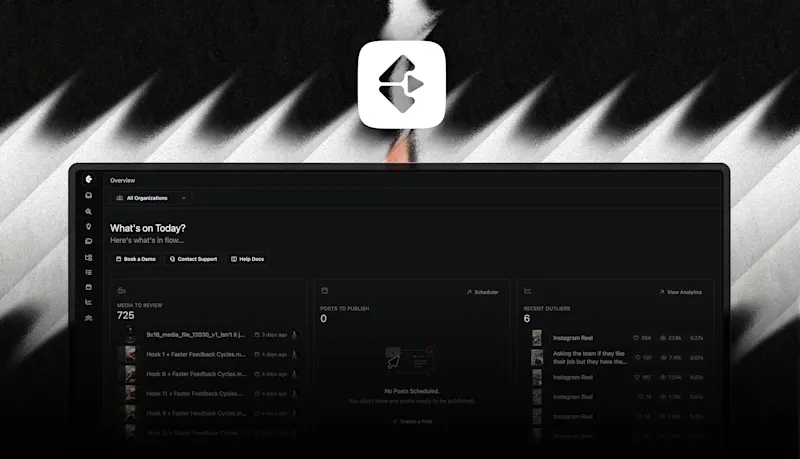
Profile Settings Overview
Your Organizations
In your profile you can see:
- Every organization you belong to
- Whether you are an Owner, Admin, or Member
- The type of organization (e.g., business, creator, agency)Admin rights determine whether you can manage settings for that organization.
Badges
Some accounts show special badges such as Early Adopter, which recognises users who joined and supported Clipflow early. These badges do not affect functionality — they’re simply a thank-you.
Theme Modes
You can switch between:
- Light Mode
- Dark ModeThis preference only affects your personal interface, not your team’s.
Time Zone
Your time zone affects:
- Task due dates
- Scheduled publish dates
- Cross-team workflowsIf your team works across different time zones, setting this correctly ensures all deadlines sync accurately.
Onboarding Settings
You can enable or disable onboarding flows if you want to revisit introductory guidance or hide it once you’re familiar with the platform.
Email & Password
You can update:
- Your login email
- Your passwordThese changes affect only your personal account.
Profile Photo
You can upload a profile image. This helps your team quickly recognise who is commenting, reviewing, or assigning tasks inside Clipflow.
Summary
Your profile settings let you customize how Clipflow looks and behaves for you, while also giving you visibility into your role across different organizations. Set your time zone, update your password, choose your theme, and add a profile photo to make collaboration easier.
If you need help with your profile or access issues, reach out through the in-app support panel.
Was this page helpful?
Related articles
Inviting clients
Invite clients to review work or grant supplier access without sharing passwords.
Managing your organization
Set up your organization, brands, and team members so everyone works from the same Clipflow workspace.
Notifications
Control which Clipflow events send email or in-app notifications to you and your team.
Need more help with this?
Contact support