
Project overview
How a Clipflow project holds tasks, media, packaging, and publishing for one piece of content.
Updated
What is Project Overview?
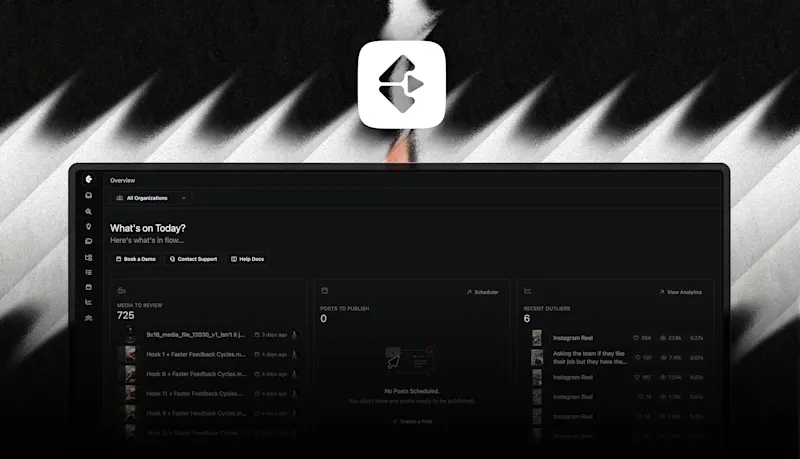
Project Overview shows all your projects from all organizations you belong to in a single screen. Instead of switching between organizations to check what’s due, you see everything sorted by scheduled date in one place. If you work across multiple clients, brands, or divisions, this becomes your daily starting point.
Why Use Project Overview?
If you belong to multiple organizations, you’ve probably been switching back and forth constantly. Checking one client’s deadlines, then another, then another. Missing scheduling conflicts. Forgetting what’s due when.
Common Problems Solved:
- Constant organization switching to check deadlines
- Missing scheduling conflicts across clients
- No unified view of your entire workload
- Forgetting which client has what due when
- Time wasted on context-switching What You Get:
- All projects from all organizations in one view
- See whats in movement, and what needs to be finished
- Filters to focus on what matters
- One-click navigation to any project
Accessing Project Overview
- Navigate to Projects Overview in the main navigation
- See all projects across all your organizations
- Projects are sorted by scheduled date (soonest first)
Using the Overview
Understanding the Display
Project List - All your projects from all organizations Organization Indicator - Labels show which organization each project belongs to Scheduled Date - When each project is due Status - Current project status **Tasks ** - Number of tasks completed and remaining **Next Task - **Whats in flight and current next task
Sorting and Filtering
By Organization - Focus on a specific client or brand By Status - See only active projects, or filter by specific statuses By Date Range - Focus on this week, this month, or custom range Search - Find any project by name **Other Filters - **Assignee, Channel, Priority, Relevance and Category can all be used to quickly work in different ways, depending on who’s using the page. **Group By - **By default the grouping will be based on the date. You can also choose by assignee, organization or scheduled date.
Working with Multiple Organizations
For Agencies
See your entire client pipeline in one view:
- All client projects sorted by deadline
- Spot when multiple clients have overlapping due dates
- Plan capacity across your entire business
- Stop switching organizations dozens of times per day
For Freelancers
Manage multiple brands or clients:
- Track all your active projects in one place
- Never miss a deadline across different clients
- See your upcoming workload at a glance
For Team Members
If you’re assigned to projects across multiple divisions:
- See all your assignments unified
- Prioritize based on actual due dates
- Understand your complete workload
- If you’re only looking for your own tasks, projects and jobs the task list can be a better place to start.
Tips and Best Practices
Make It Your Home Screen
If you’re a manager, operations, head of content this is where you want to start.
For Planning
Spot conflicts early - When you see two projects due the same day or too many overdue projects, address it before it becomes a crisis. Plan your week - Work from top to bottom to prioritise what needs attention first. Review regularly - Weekly review of the overview helps you stay ahead of deadlines.
For Teams
Share the view - Team members can each see their cross-organization workload. Coordinate handoffs - When projects from different organizations have dependencies, the overview helps you spot them.
Frequently Asked Questions
Does Project Overview show projects from organizations I don't have access to?
No. You only see projects from organizations you’re a member of.
Can I customize which organizations appear?
Yes. Use the organization filter to show or hide specific organizations.
Does this replace the regular project list?
No. Project Overview is an additional view for cross-organization visibility. The regular project list within each organization still works as before.
Can I edit projects from the overview?
You can click through to any project to edit it. The overview itself is primarily for viewing and navigation.
How often does the overview update?
The overview shows real-time data. Changes to projects appear immediately.
What if I only belong to one organization?
Project Overview still works, but you’ll see the same projects as your regular project list. It’s most valuable when you work across multiple organizations.
Need Help?
If you have questions about Project Overview or managing cross-organization workflows, contact us through the in-app chat or email support@clipflow.com.
Was this page helpful?
Related articles
Using posts in projects
Draft, review, and schedule social posts tied to the project they promote.
Welcome to Clipflow
A full tour of Clipflow for creators, agencies, and teams starting structured content production.
Working with projects
Create projects, assign editors, set due dates, and keep production moving in one place.
Need more help with this?
Contact support